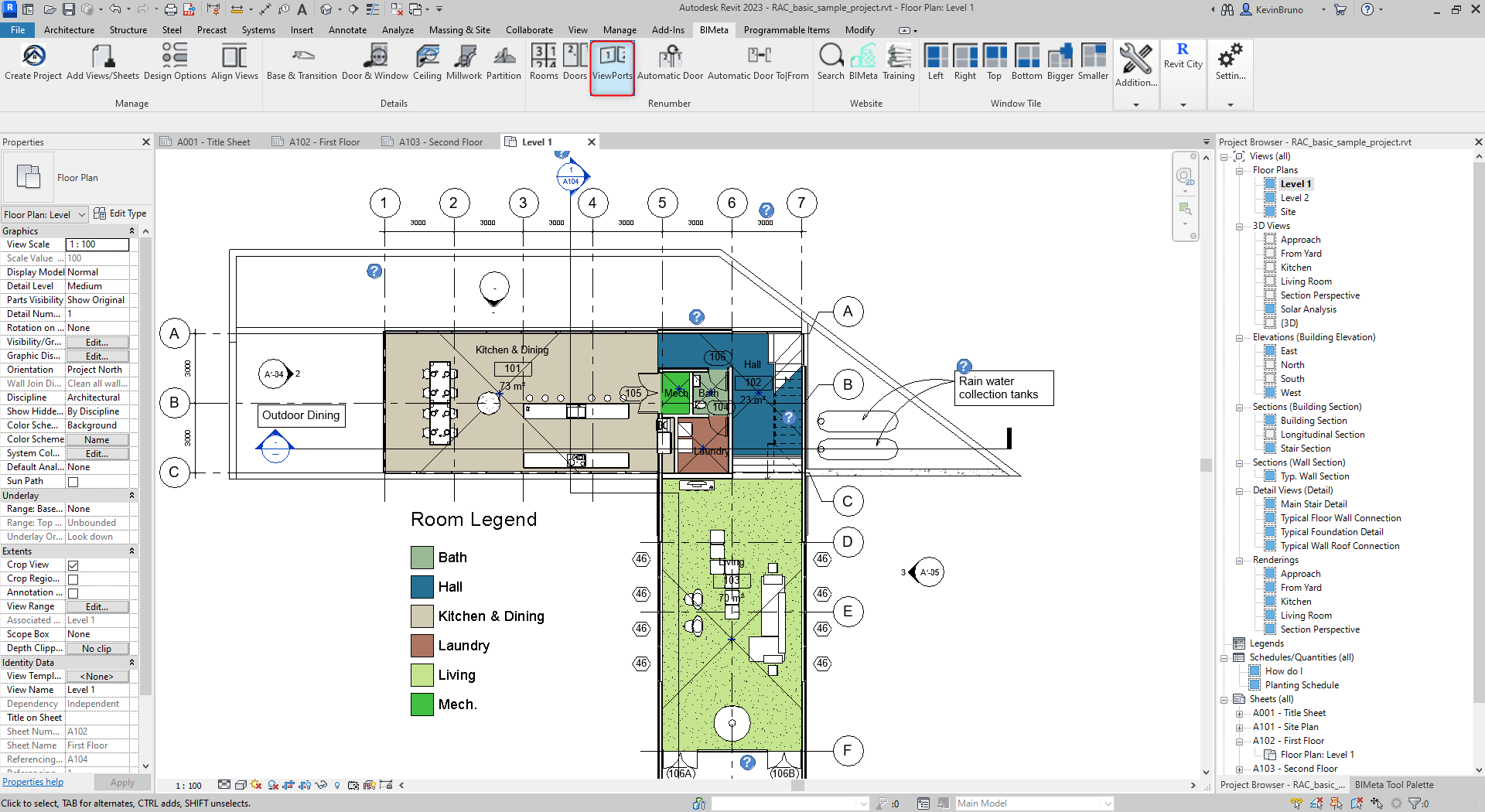
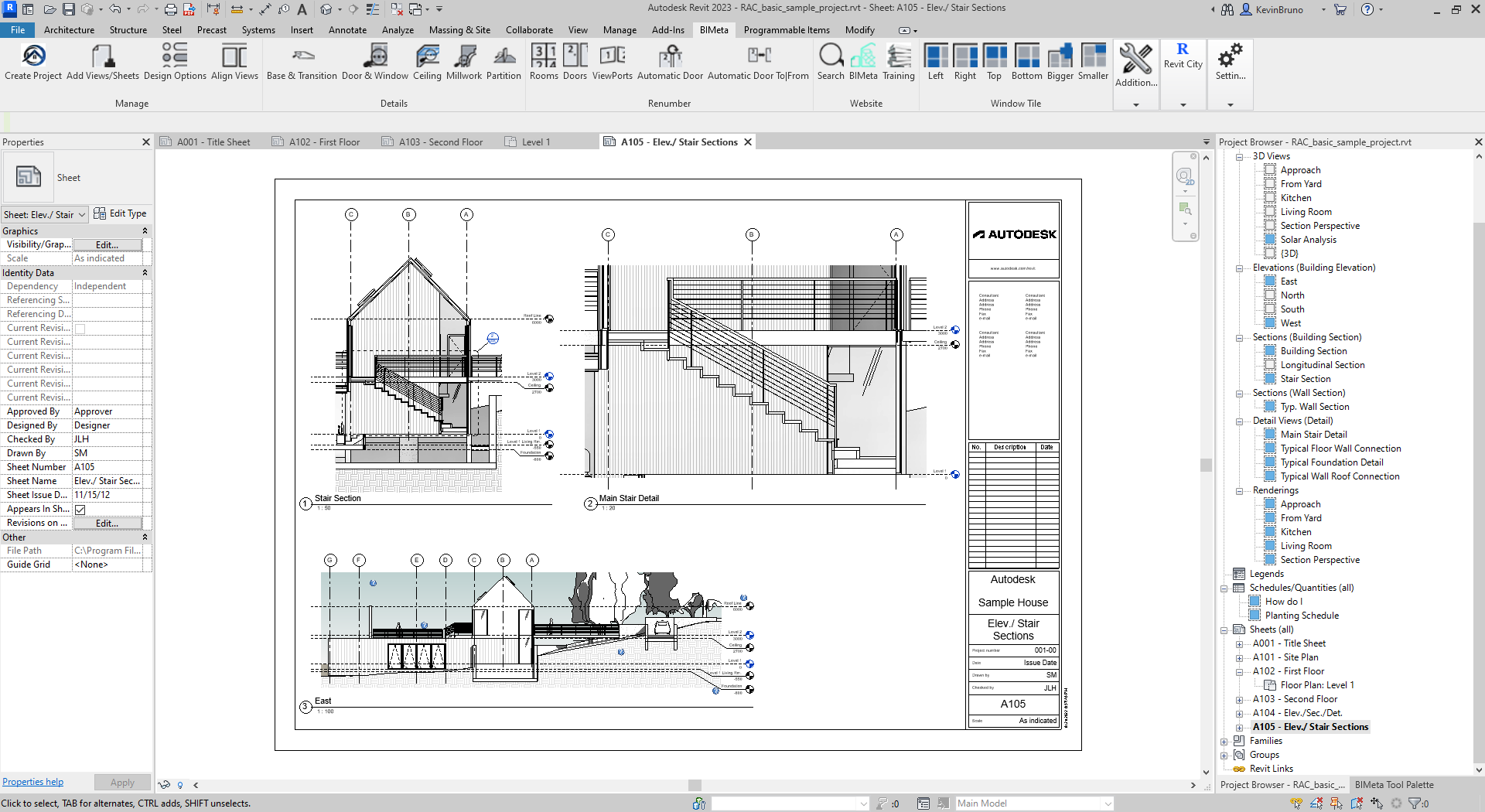
These buttons are used to quickly renumber items by clicking on the specific target whether a room, door, or viewport. Follow the steps below for each type of renumbering to easily and swiftly renumber items. This procedure is applicable in Revit 2018 to the current release.
Step 1: To begin, navigate to the BIMeta tool bar and click down to the Renumber Viewports Command.
Step 2: Next, proceed to click on the viewports you want to renumber in chronological order. The viewport will be displayed as a highlighted object once you hover over your target.
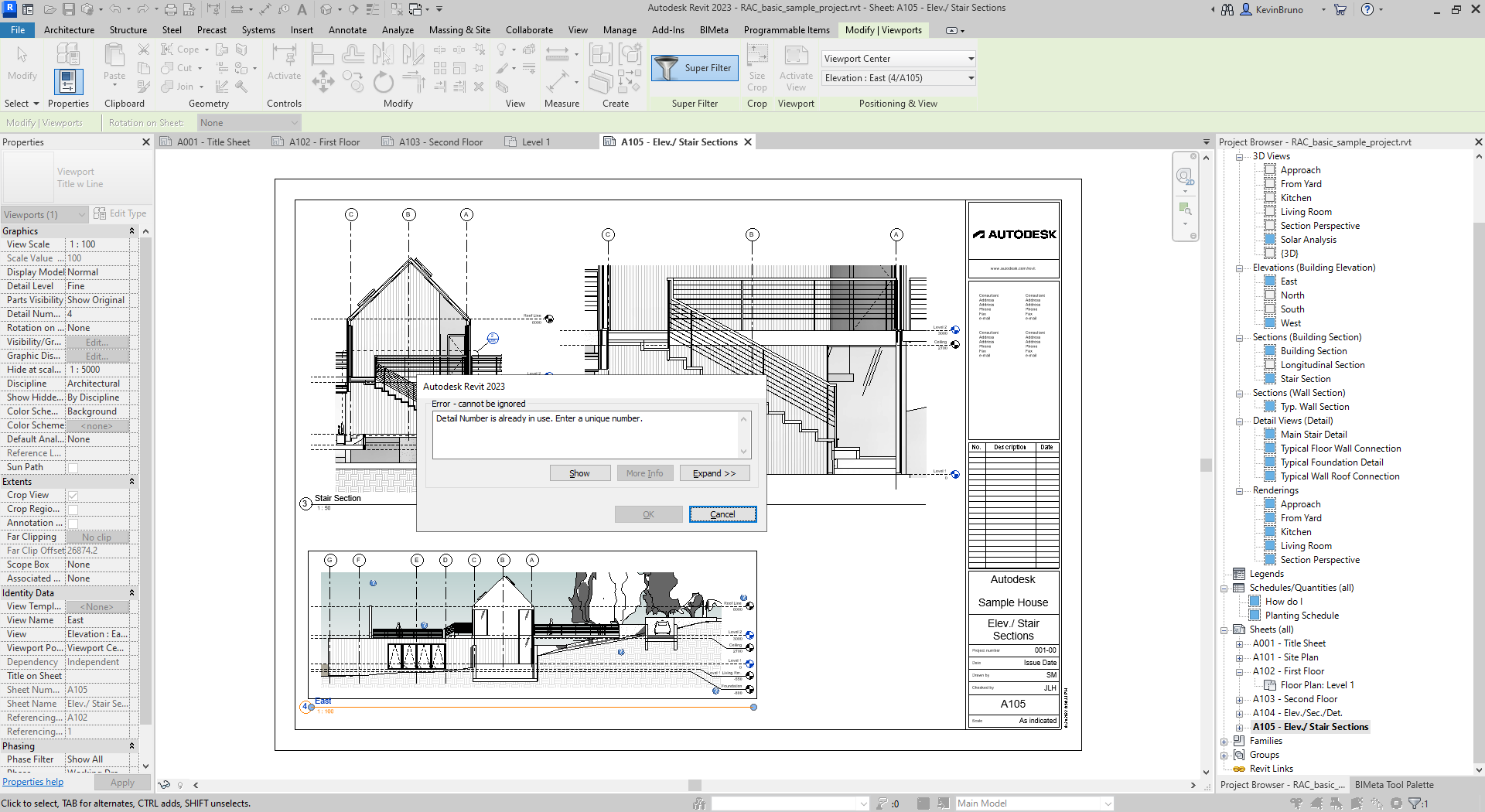
Step 3: Finally, once you have selected all the applicable viewports in the order you would like them renumbered, you can now click on the ESC button. This will terminate the command and renumber accordingly. Please Note: If you have any duplicate viewports, the command will not work.