


Design Options Creator
2 views · updated 6 hours ago
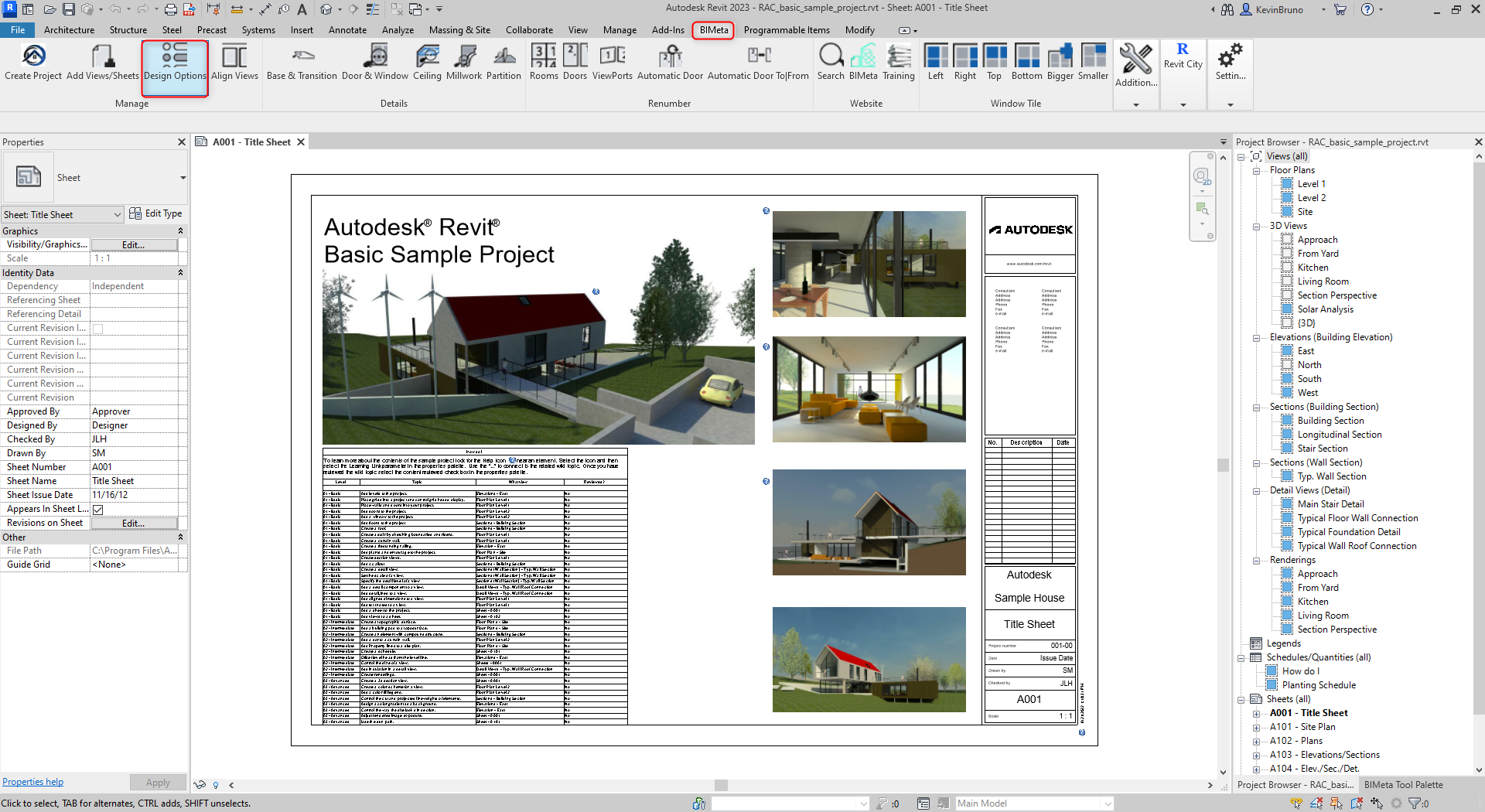
Step 1: To begin, navigate to the BIMeta Tab and click on Design Options.
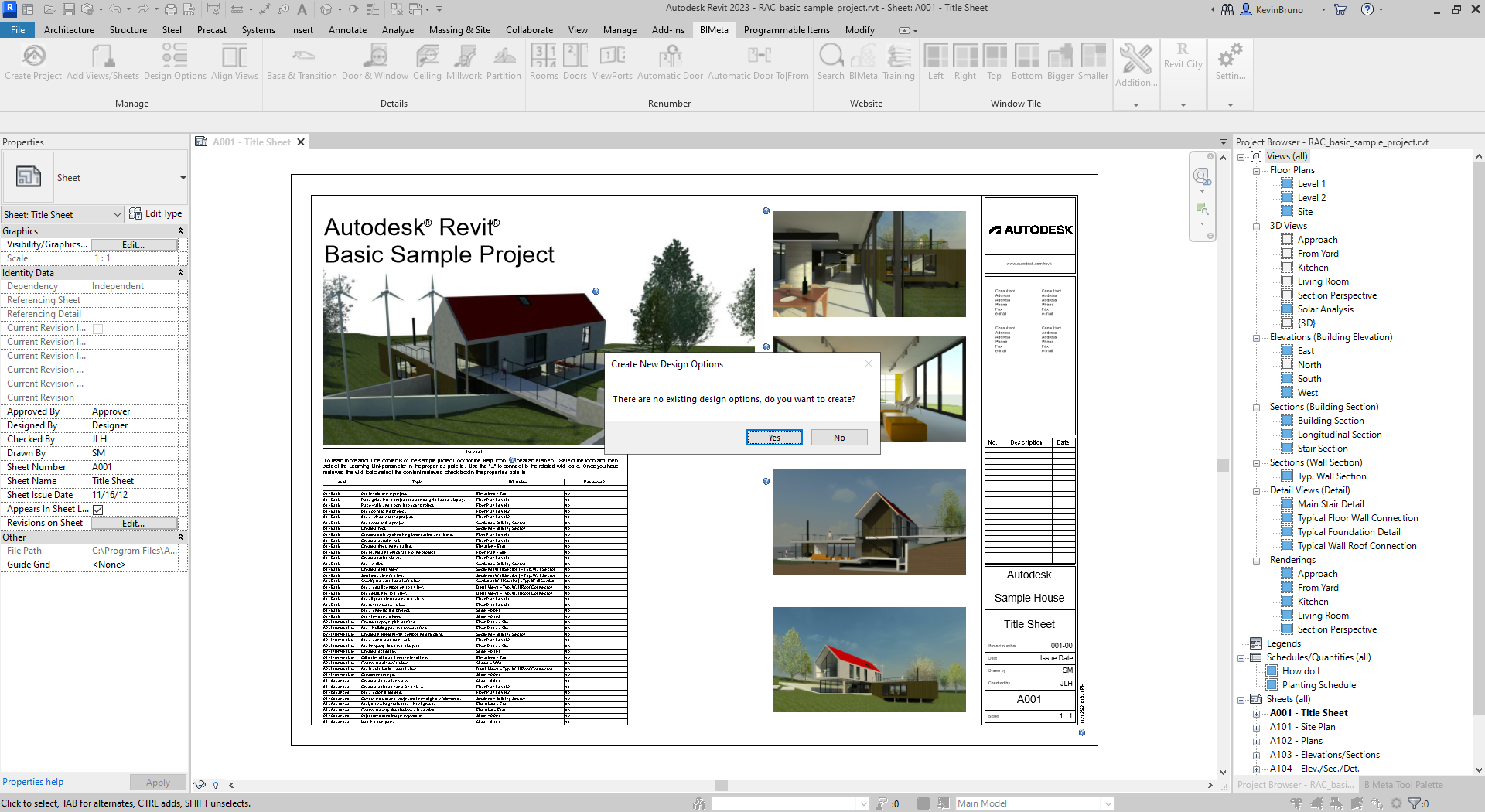
Step 2: After you have successfully clicked on the Design Options Maker, you may be prompt to create Design Options in your project if they do not already exist.
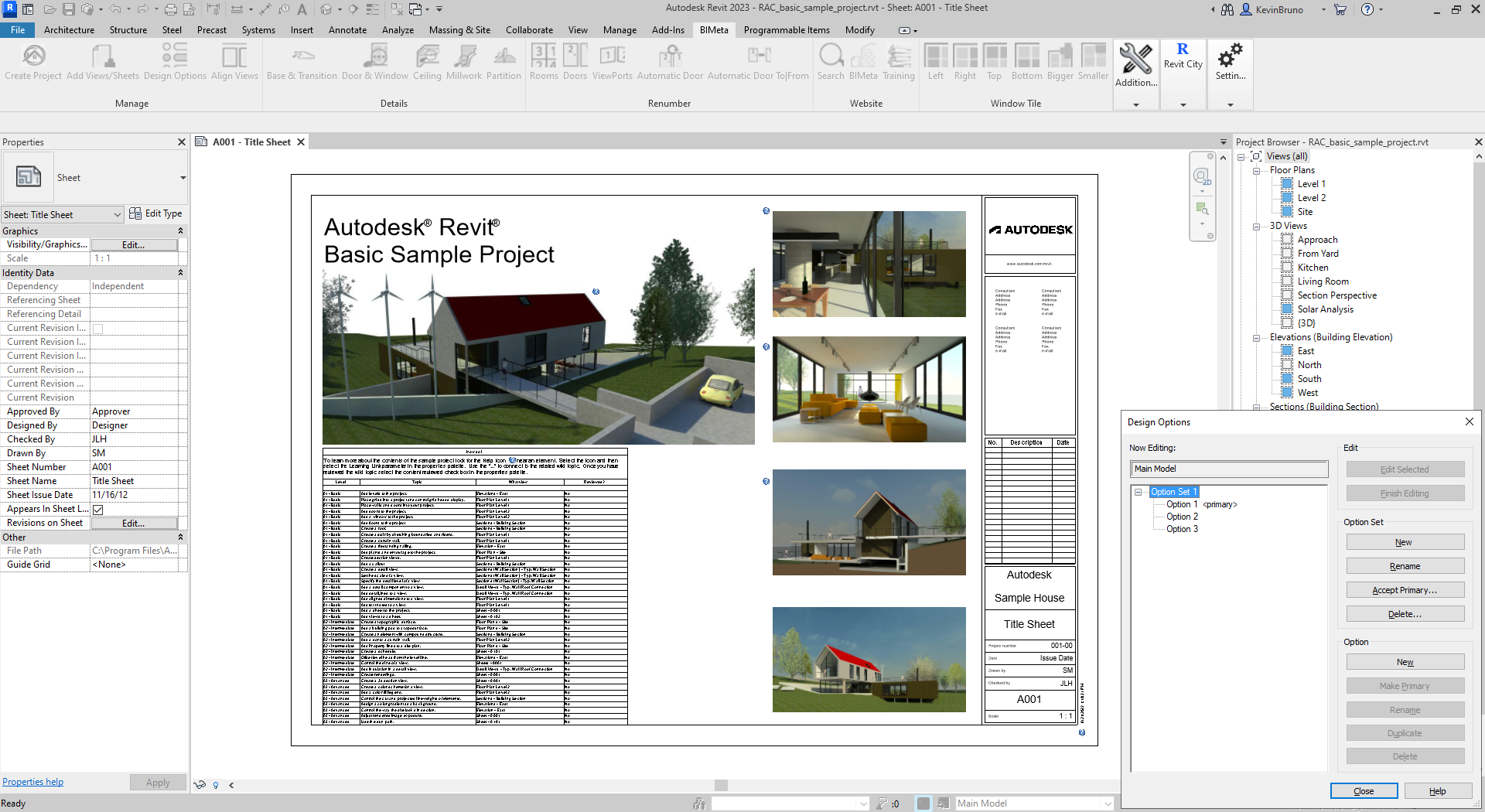
Step 3: At this point, once you click yes, you will be brought to the default Design Options shown in the project. Here, you can make new Design Option Sets, rename accordingly, and create different design options for your model. This will be the preface before continuing to our default Design options maker.
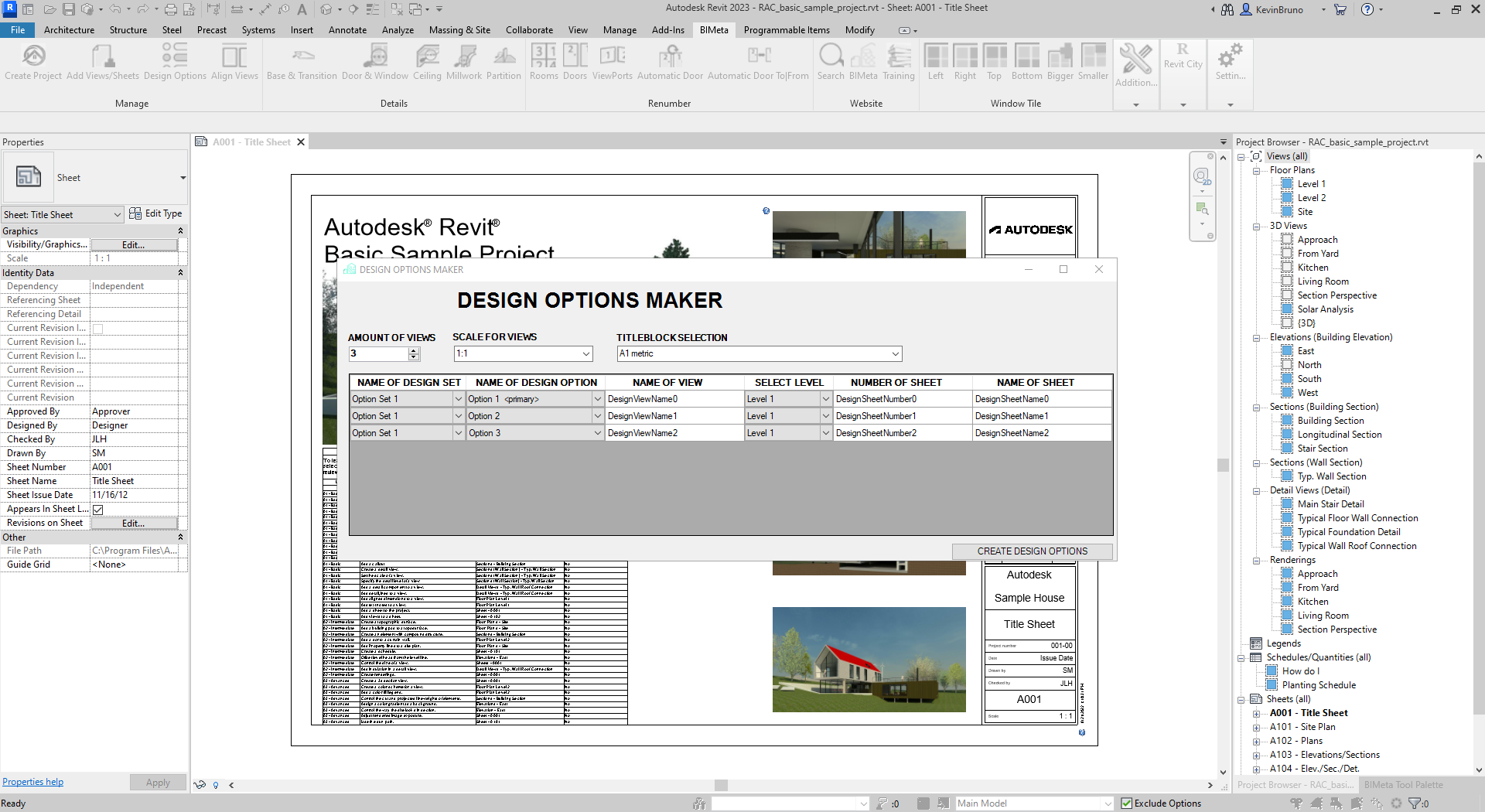
Step 4: Once you have entered in the information for Design options in Revit and click close, the following dialog will appear. Much like Add New Views And Sheets Button, you can select which options you want for scale, templates, titleblocks, and naming conventions. Once you hit the create button, all the applicable information will be created.
Was this article helpful?
Share