



Newsletter Studio: build a newsletter with blocks
20 views · by Kevin J Bruno · updated 5 days ago
Newsletter Studio is where you build and send one client newsletter. Instead of typing into a plain form, you put the newsletter together from blocks (headings, text, images, buttons, columns, project cards and more) on a canvas that looks like the finished email. You click a block to change it, drag blocks to reorder them, and the draft saves itself while you work. When it’s ready you send yourself a test, then send it now or schedule it.
This article covers the editor itself: the block palette, the canvas, the settings panel, every block type, undo/redo, autosave and sending. Related articles: Newsletter preview and checks before sending, Newsletter templates, saved sections and the Look, Newsletter images and AI help, Who gets a newsletter and Newsletter results and subject-line tests.
Where to find it
- Sidebar → Clients & Pursuits → Marketing, then the Newsletters tab. Click Write a newsletter to start a new one, or click a newsletter’s subject to open it in Newsletter Studio.
- Press Ctrl K (Jump to…) and type “Newsletters”.
- The Newsletter card on the Dashboard links here for people who write newsletters.
Who can use it
People allowed to write and send client newsletters, keep subscriber lists and choose what the website feed shows: by default Business Owners and Admins. IT Staff, BIM Managers and Users don’t see the Newsletters tab unless the firm gives their role that permission. Everyone can read sent newsletters through their web version, and, when the firm posts a newsletter to the portal, as an announcement.
A tour of the page
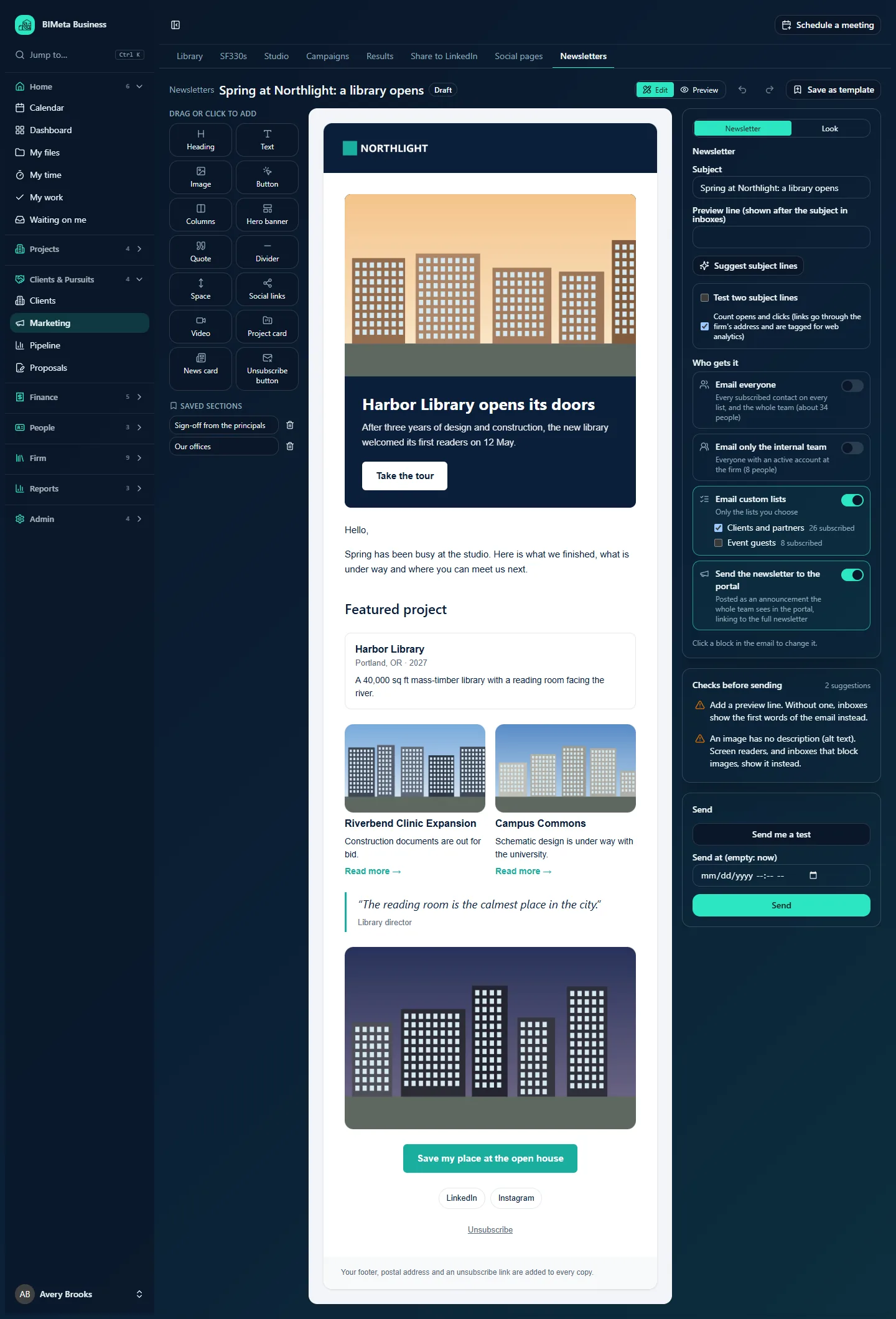
The Studio has a top bar and three columns: the block palette on the left, the email canvas in the middle and the settings panel on the right. On narrow screens the columns stack.
Top bar
- Newsletters: back to the Newsletters list.
- The subject (or New newsletter) and a status badge: Draft, Scheduled, Sending or Sent.
- A save indicator on drafts: Saving…, Saved with a tick, or an error in red such as Not saved. Check your connection.
- Edit / Preview: switch between building the email and seeing it exactly as it will be sent (see Newsletter preview and checks before sending).
- Undo and Redo (arrow buttons): step back and forward through your changes. Shortcuts: Ctrl Z to undo, Ctrl Shift Z or Ctrl Y to redo (Cmd on a Mac).
- Save as template (once the newsletter has blocks): saves the whole design for everyone at the firm to start from.
- Save draft (new newsletters only): creates the draft. From then on it saves itself.
- Web version (scheduled and sent newsletters): opens the newsletter as a web page, the same link every copy carries.
Left: Drag or click to add
Fourteen block types: Heading, Text, Image, Button, Columns, Hero banner, Quote, Divider, Space, Social links, Video, Project card, News card and Unsubscribe button. Click one to add it below the selected block (or at the end if nothing is selected), or drag it onto the canvas: a coloured line shows where it will land.
Below the palette, Saved sections lists blocks your firm saved for reuse (e.g. Sign-off from the principals, Our offices). Click or drag one in the same way. See Newsletter templates, saved sections and the Look.
Middle: the email canvas
The canvas shows the email on its background colour, with the firm’s header (logo, or the subject when there’s no logo) at the top. An empty newsletter shows Drag a block here, or click one on the left, to start your newsletter. At the bottom a grey strip reminds you: Your footer, postal address and an unsubscribe link are added to every copy.
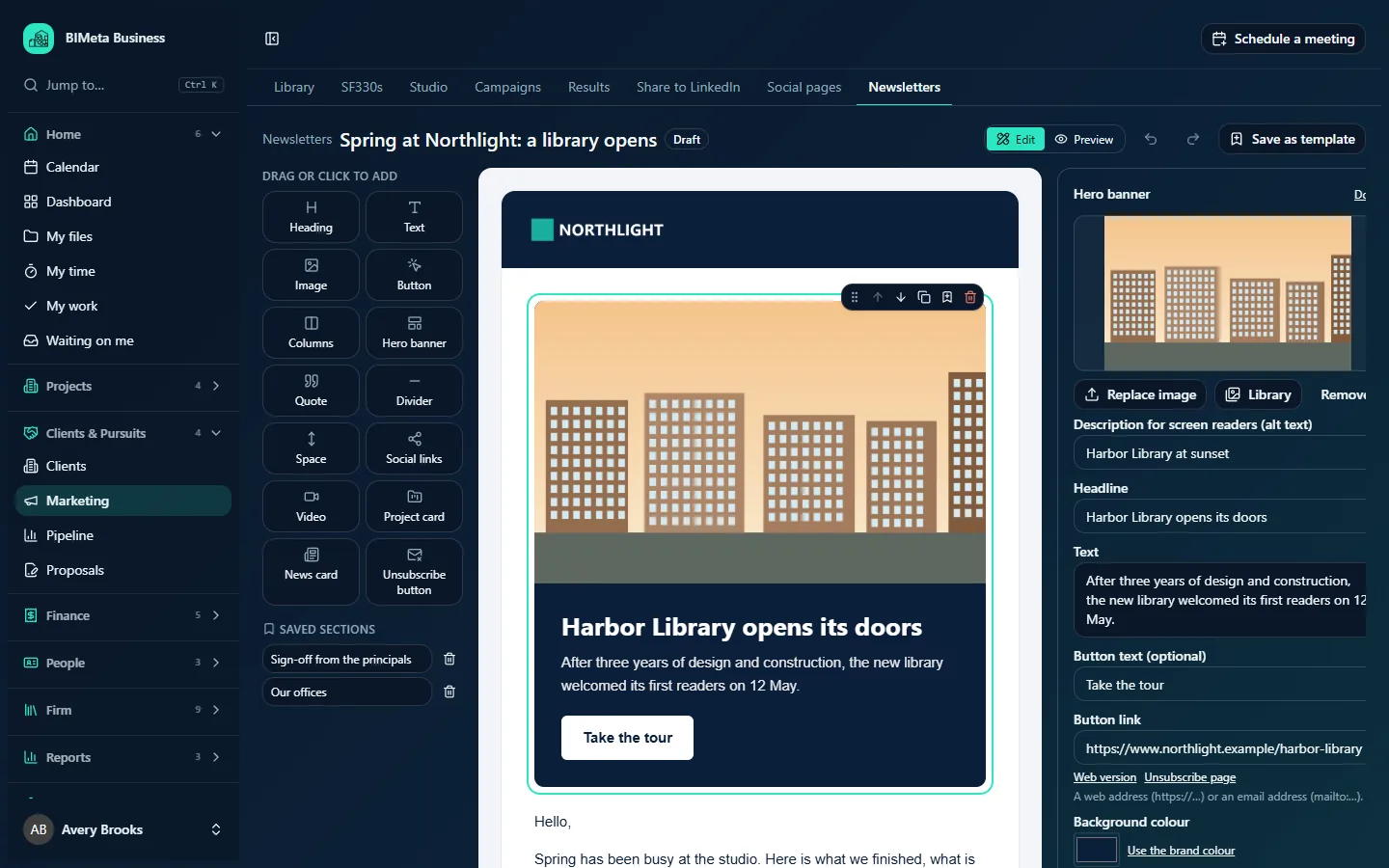
Hover over a block to outline it; click it to select it. A selected block shows a small toolbar on its top-right corner:
- Drag to move (the dotted handle): drag the block to a new place.
- Move up / Move down.
- Duplicate: adds a copy just below.
- Save as a section to reuse (bookmark): saves this block under Saved sections.
- Delete (red bin).
Keyboard: Delete or Backspace removes the selected block (when you’re not typing in a field), Esc clears the selection, and Enter or Space selects the block that has keyboard focus. Clicking the background outside the email also clears the selection.
Right: the settings panel
With no block selected, the panel has two tabs:
- Newsletter: Subject (up to 200 characters), Preview line (shown after the subject in inboxes) (up to 200 characters), Suggest subject lines (AI, see Newsletter images and AI help), Test two subject lines and Count opens and clicks (see Newsletter results and subject-line tests), and Who gets it (see Who gets a newsletter). A hint reads Click a block in the email to change it.
- Look: the firm’s logo, header, colours, fonts and button shape for every newsletter (see Newsletter templates, saved sections and the Look).
When a block is selected, the panel shows that block’s settings instead, with its name at the top and Done to go back. Below the panel you’ll find Checks before sending and, on saved drafts, the Send box.
The blocks and their settings
| Block | What it is | Settings |
|---|---|---|
| Heading | A title for a section. | Heading text (up to 200 characters); Size: Large, Medium or Small; Alignment: Left, Centre, Right. |
| Text | Paragraphs of rich text. | A small editor with Bold, Italic, Underline, Bulleted list, Numbered list, Add a link and Remove the link; Write with AI; Alignment. Plain web addresses typed in the text become links. |
| Image | One picture. | Upload image / Replace image, Library, Remove; Description for screen readers (alt text) (up to 300 characters); Width: Full, Large, Medium, Small; Alignment; Link when clicked (optional). |
| Button | A clear call to action. | Button text (up to 60 characters), Link, Style: Filled or Outline, Alignment. Both text and link are required before sending. |
| Columns | Two or three side-by-side cards. | For each Column: an image, Title (120), Text (600), Link text (40, shown as “Read more” when empty) and Link; Remove this column (when there are three); Add a column (up to three). On phones, columns stack one above the other. |
| Hero banner | A large opening panel with picture, headline and button. | Image and alt text, Headline (160), Text (400), Button text (optional) (40), Button link, Background colour with Use the brand colour. |
| Quote | A highlighted quotation. | Quote (600) and Who said it (120). |
| Divider | A thin line between sections. | None. |
| Space | Empty vertical space. | Height: Small, Medium, Large. |
| Social links | Buttons to the firm’s social pages. | For each link a Network (LinkedIn, Instagram, Facebook, X, YouTube or Website) and Address; Remove; Add a link; Alignment. |
| Video | A picture that links to a video. | Video address (must start with https://; YouTube, Vimeo or any other site), Title (160), and an optional Thumbnail. Email can’t play video, so readers click through to watch. YouTube videos use their own thumbnail when you don’t upload one. |
| Project card | A card for one of your projects: name, location, year, description and picture. | Project: Only projects cleared for publicity are listed (the project sheets on your website feed). |
| News card | A card for one of your published social posts. | Post: choose a published post. |
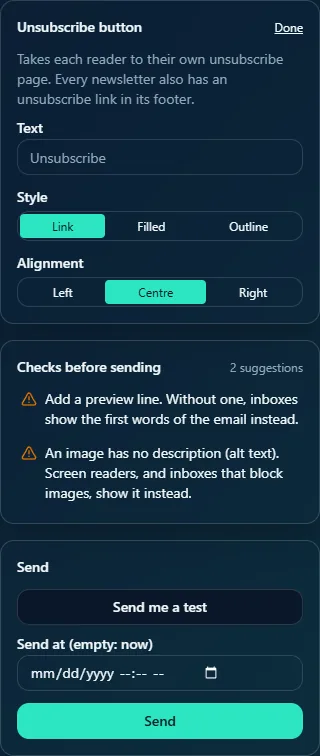
| Unsubscribe button | A visible unsubscribe link or button inside the email. | Text (60; “Unsubscribe” when empty), Style: Link, Filled or Outline, Alignment. Takes each reader to their own unsubscribe page. Every newsletter also has an unsubscribe link in its footer. |
Links
Every link field accepts a web address (https://…) or an email address (mailto:…). Under the field, two shortcuts fill in special links: Web version (The web version of this newsletter) and Unsubscribe page (The reader’s unsubscribe page). Click Change to type an ordinary address again. Anything else (for example an address without https://) is dropped when the draft saves, and the checks will then flag the empty link.
Images
Upload PNG, JPEG, WebP or GIF images up to 10 MB each. Uploaded images go into the firm’s newsletter image library, so they can be reused. The Library button opens the image picker with project photos and brand graphics; see Newsletter images and AI help.
How to…
Write a new newsletter
- On the Newsletters tab, click Write a newsletter.
- Under Start your newsletter, pick Blank, one of the Starter designs, or one of Your firm’s templates. A starter’s name becomes the subject until you type your own.
- Type the Subject and a Preview line in the settings panel.
- Click Save draft. You must have a subject and at least one block with content, or you’ll see Write a subject and add something to the newsletter.
- Add, change and arrange blocks. The draft saves itself about a second after each change (Saved appears in the top bar).
- Choose who gets it under Who gets it.
- Check the Preview and fix everything under Checks before sending.
- Send a test and send it (below).
Change a block
- Click the block on the canvas.
- Change its settings in the right panel; the canvas updates as you type.
- Click Done (or press Esc) to return to the newsletter settings.
Reorder, copy or remove blocks
Select a block and use Move up / Move down, drag it by its handle, click Duplicate, or click Delete. If you make a mistake, click Undo or press Ctrl Z.
Send yourself a test
In the Send box, click Send me a test. The draft is saved first, then a test copy goes to your own email address (A test copy was sent to …). Tests don’t count in the results.
Send now or schedule
- Leave Send at (empty: now) empty to start straight away, or pick a date and time (today or later).
- Click Send. The draft is saved first. You’ll see Scheduled for n subscribers.
Send stays greyed out while any check is marked must fix, and until the firm’s postal address is set on Newsletters → Settings (Add the firm’s postal address in newsletter settings before sending.).
Change a scheduled newsletter
Open it and click Cancel the schedule (back to draft), make your changes, then send again. Once sending has started, the newsletter can’t be changed or stopped.
What happens when it sends
- At the scheduled time the recipients are worked out from Who gets it, counting only people who are Subscribed.
- Copies go out in batches every minute at the firm’s Emails sent a minute rate (200 by default), through the firm’s own email setup when one is configured.
- Each person is checked again just before their copy goes, so anyone who unsubscribes or bounces meanwhile is skipped. A mail server that refuses an address outright counts as a hard bounce.
- Every copy includes your postal address, your footer, a one-click unsubscribe link and a link to the web version.
- If Send the newsletter to the portal is on, an announcement is posted for the team when sending starts.
- When it’s sent, the same page shows the delivery line (sent · skipped · bounced · still to send), the email with its click map, and Results.
- Creating, saving, scheduling and template changes are recorded in the firm’s audit log.
Tips and good to know
- A newsletter can have up to 80 blocks. Keep it shorter: Gmail cuts off emails over about 102 KB.
- Undo remembers up to 100 steps. Typing in the same field counts as one step until you pause; while you’re typing in a field, Ctrl Z undoes text in that field instead.
- Autosave only starts once the draft exists, so click Save draft early on a new newsletter.
- Only drafts can be edited. Scheduled, sending and sent newsletters open read-only, with the preview instead of the editor.
- Project and news cards are checked again at send time: a project withdrawn from publicity, or a post that’s no longer published, simply drops out of the email.
- Newsletters written before Newsletter Studio open as blocks automatically (their text, project cards and post cards).
Troubleshooting / FAQ
Why is Send greyed out?
Either a check says something must be fixed (look under Checks before sending), or the firm’s postal address isn’t set yet. The postal-address rule currently applies even when the newsletter only goes to the internal team or the portal.
“This newsletter was already scheduled or sent. Cancel the schedule to change it.”
Click Cancel the schedule (back to draft) first. Newsletters that have started sending can’t be changed.
“A newsletter can have up to 80 blocks.”
Remove some blocks, or combine text into fewer Text blocks.
The save indicator says “Not saved. Check your connection.”
Your last changes didn’t reach the portal. Keep the page open; the next change tries again. Don’t close the tab until you see Saved.
Was this article helpful?
Share