



What is BIMeta Business? A tour of the whole portal
16 views · by Kevin J Bruno · updated 11 hours ago
BIMeta Business is your firm's own web portal for running an architecture or engineering practice. Projects, clients and pursuits, invoices and timesheets, leave and HR, firm news, BIM standards and IT administration all live in one place, behind one sign-in, at your firm's own web address. This article gives you the big picture: how a new firm gets started, what each part of the sidebar is for, and where the firm's settings live, so you know where to go for what. Every page mentioned here has its own detailed article in the matching BIMeta Business help category.
Where to find it
You open BIMeta Business in a web browser at your firm's web address, for example yourfirm.bimeta.net, or a custom address such as portal.yourfirm.com if your firm set one up under Admin → Settings → Web address. After you sign in you land on the Dashboard. Everything else is reached from the sidebar on the left, or by pressing Ctrl K (⌘K on a Mac) to open Jump to… and typing what you need. See Signing in to BIMeta Business and Finding your way around for details.
Who can use it
Everyone at the firm has an account, but not everyone sees the same menu. What you see depends on your firm role (Business Owner, Admin, IT Staff, BIM Manager, Project Manager, Human Resources, User, or Client / Consultant). The sidebar only ever shows pages you are allowed to open, and groups with nothing in them for you are left out completely. For example, a User sees Home, Projects, Clients & Pursuits, Finance (just Expenses), People and Firm, while a Business Owner also sees Reports and Admin. The article Roles and permissions has a complete table of who sees which menu entry.
Getting started as a new firm
When a firm signs up, the Business Owner who signed up is taken through a guided onboarding before the portal opens. Until it's finished there is no sidebar at all: just the BIMeta Business logo, the page you're on and a Sign out link.
- Welcome. The first page greets you with Welcome to BIMeta Business. and explains that setting up your firm takes about ten minutes, one step at a time. Click Get started (or Continue if you already started and came back later). BIMeta may show its own designed version of this welcome screen; it works the same way.
- Setup, in four sections. You then go through every step of Setup in order. The steps are grouped into four sections, and each section starts with a short introduction page showing Part 1 of 4 (and so on), what the section covers, its steps with a done or skipped mark, and roughly how many minutes it takes:
- Get started (about 3 minutes): Language, Plan & storage and Background check (confirming who you are and that your business is real).
- Your firm (about 2 minutes): Firm profile & region, Appearance and Modules & integrations.
- Project standards (about 4 minutes): Project numbering, Phases & fee split, Sheet, file & model naming, Document numbering and Project folders & app bindings. This section's introduction also offers Use recommended settings, which accepts industry-standard numbering, naming, phases and folders in one click. You can change any of it later in Setup.
- Your team (about 1 minute): Roles & permissions and Invite your team.
- Thank you. When every step is saved or skipped you see Thank you for joining BIMeta Business. If your firm's background check is still being reviewed, the page says your business will be ready shortly and that you'll be emailed the moment it is; you can close the page. Once everything is ready, click Go to your portal.
Colleagues who sign in while the Owner is still onboarding see a page saying the firm is finishing its setup, and are let in as soon as it's ready. Firms that were already using BIMeta Business before guided onboarding existed aren't asked to go through it. After onboarding, everything in Setup stays available under Admin → Settings → Setup, where the steps are shown in the same four sections with their own progress.
The dashboard
The Dashboard is a grid of cards (tiles) that sum up what matters to you today: projects in progress, your portfolio by phase, recent projects, things waiting for your approval, unread announcements and more. Each number is a link to the page behind it. The cards you see depend on your role. Below is the Business Owner's dashboard for the example firm Northlight Architects.
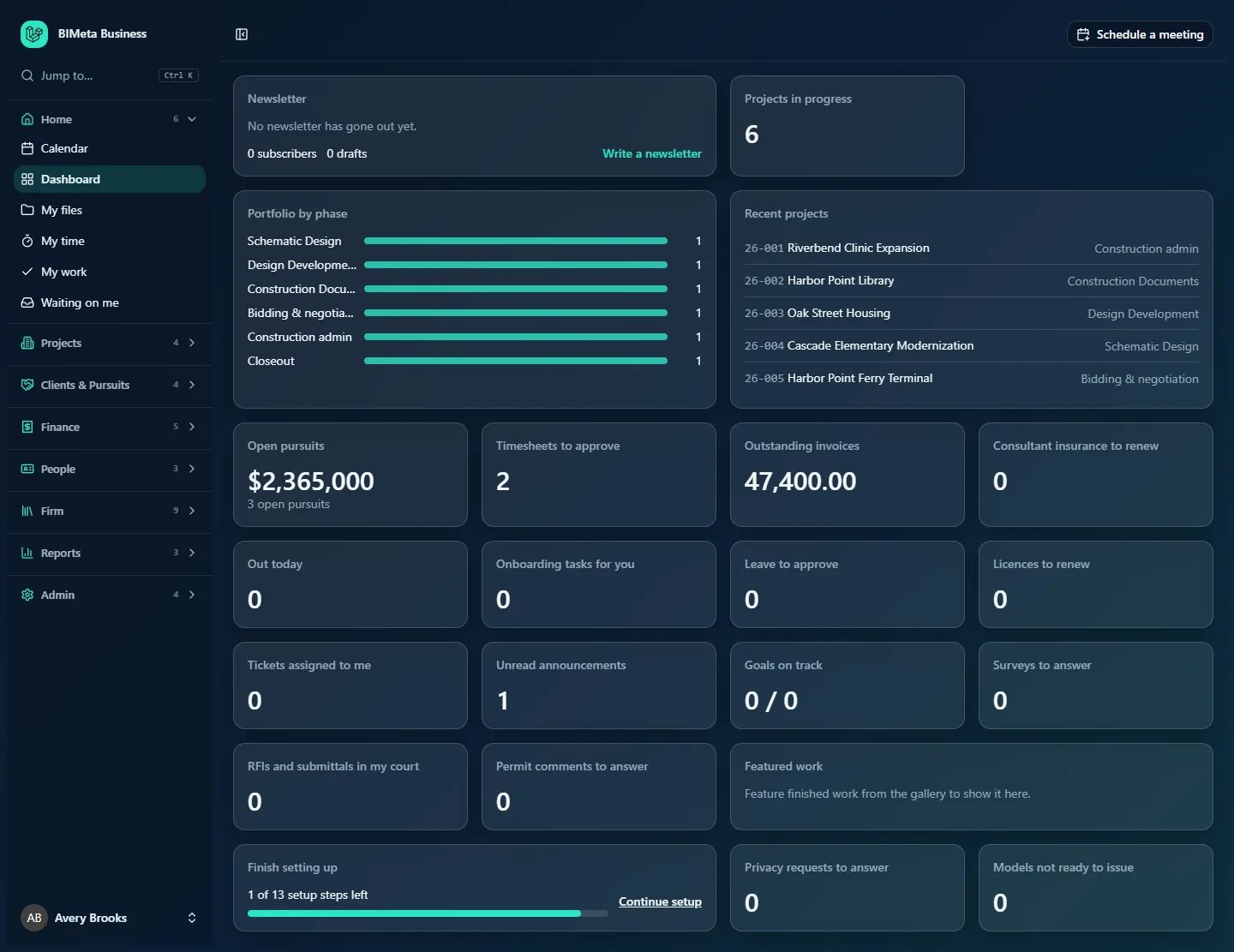
The role guides (Guide for Business Owners, Guide for IT Staff, Guide for BIM Managers and Guide for Users) explain every card and who sees it.
A tour of the sidebar
The sidebar is split into eight groups, always in this order: Home, Projects, Clients & Pursuits, Finance, People, Firm, Reports and Admin. Inside each group the entries are listed alphabetically (unless your firm has set its own order). To keep the menu short, families of related pages are folded into a single entry called a hub: HR, Marketing and IT. Opening a hub shows its pages as tabs along the top of the page. The firm's settings pages are gathered on one Settings page under Admin. Your firm may have moved, reordered or hidden some items for your role (see Finding your way around), so your menu can differ slightly from what is described here.
Home
Your personal starting points: what you need to do and when.
- Calendar: a month view of meetings, events, milestones, leave and task due dates, with an export you can add to Outlook or another calendar app.
- Dashboard: the card grid you land on after signing in, tailored to your role.
- My files: your own personal file space for documents that are yours rather than a project's.
- My time: your timesheet, where you log hours against projects and submit them for approval.
- My work: your open tasks across every project you can see, plus any model clashes assigned to you.
- Waiting on me: RFIs to answer, submittals to review, change orders to sign, punch items and permit comments that are waiting on you, across all projects. Clients and consultants land here when they sign in.
Projects
Everything about the firm's jobs.
- All projects: the list of projects (for example 26-001 Riverbend Clinic Expansion). Opening one shows its tabs, grouped as Project, Design and BIM, Construction, Money and After handover: Overview, Tasks, Files, Drawings, Team, Budget, RFIs, Submittals, Changes, Punch list, Meetings, Field, Permits, Bidding, 3D model and more, depending on your permissions.
- Field: a phone-friendly home screen for site work. Pick a project, then take site photos, add punch items and write daily logs and site reports.
- Firm memory: one search across every project's RFIs, submittals, changes, meeting minutes, permit comments and clashes, so you can find how the firm answered a similar question before. You only see results from projects you can open.
- Visualization Gallery: every rendering, animation and 360° panorama on the projects you can see.
Clients & Pursuits
Winning and keeping work.
- Clients: client companies and their contacts, with their projects and history.
- Marketing (a hub): its tabs are
- Library: key-personnel resumes, project sheets and the firm's general qualifications, kept once and reused.
- SF330s: federal qualification packages (Standard Form 330) assembled from the library for a pursuit.
- Studio: draft, approve and schedule social media posts, with a month calendar.
- Campaigns: groups of posts between two dates, filled into the firm's posting slots, with AI help to plan a month.
- Results: how posts performed per network, link clicks, best times to post and staff reshares.
- Share to LinkedIn: posts the firm has offered to staff, which you can reshare to your own LinkedIn. Nothing is posted unless you press Share.
- Social pages: connect the firm's social networks and choose which pages and projects may be publicized.
- Newsletters: write and send client newsletters, keep subscriber lists and choose what the website feed shows.
- Pipeline: the pursuit pipeline of leads and opportunities, with their stage and value; won leads become projects.
- Proposals: write and send fee proposals for a client, a prospect or an open pursuit, and record whether they were won.
Finance
Billing, approvals and spending.
- Consultants: subconsultants, their insurance certificates (with renewal reminders) and their invoices.
- Expenses: claim your own expenses with receipts; approvers also see claims to approve.
- Invoices: client invoices and payments, with filters such as open invoices.
- Recurring invoices: retainers and fixed fees billed every month, quarter or year, drafted for checking or sent automatically.
- Time approvals: submitted timesheets waiting for you to approve or send back.
People
The HR hub comes first. Its tabs are:
- Hiring: job openings and their candidates by stage, plus the firm's careers page. HR runs hiring; hiring team members see their own openings.
- Onboarding: onboarding and offboarding checklists; everyone sees the tasks assigned to them.
- Growth: reviews, one-to-ones, goals, the career ladder, recognition, CE progress and the path to licensure.
- Capacity: who is booked on which project each week against their available hours and billable target (managers).
- Pay: salary bands and raise, bonus and profit-share cycles (HR and Owners only).
- Payroll: connect the payroll provider, send pay periods and file pay stubs (HR and Owners only).
- Compliance: required trainings and documents, the compliance report, retention rules and legal holds (HR and Owners only).
- Handbook: the firm's policies; read and acknowledge the ones that apply to you, or ask HR a question.
- Report a concern: report an incident or concern, openly or anonymously. HR and Owners handle reports, and the details are kept encrypted.
- Helpers: AI drafts of job descriptions, interview questions and reviews (off until a Business Owner turns them on).
- Licences & CE: your professional licences with renewal dates and continuing-education hours.
Under the You and your team heading come the two pages everyone uses most:
- Directory: the staff list and org chart, plus your own record.
- Leave: request time off, see who is out, and (for approvers) approve or decline requests.
Firm
Firm-wide information and shared libraries.
- Announcements: firm news, pinned items first.
- Goals: what the firm is aiming for this period and how far along it is.
- Knowledge base: how-to articles written by your firm, searchable by category.
- Specifications: the firm's master specification sections by MasterFormat number, which projects copy and edit.
- Support: raise a support ticket with your firm's IT or support team and follow it; support agents work the queue here.
- Surveys: staff surveys waiting for your answers.
- Under the BIM heading: BIM training (training paths assigned to you), Family library (approved Revit families and details to download) and Script library (Dynamo graphs and pyRevit or Python scripts).
Reports
- All reports: the reports hub, including Work in progress, Phase burn, Utilization and Income and costs.
- Fee earned: fee earned against hours and margins by project.
- Portfolio: every active project and what needs attention, with the busiest projects first.
Admin
Administration, shown only to people with admin permissions. The Admin group is now short; at most it holds four entries:
- BIM Manager: the BIM control panel: model health, standards, family, detail and script libraries, training, BIM plugins and program settings deployed to people's machines, the Revit add-in, Autodesk Docs and the Revit upgrade planner.
- Custom Development: ask BIMeta to build something for your firm (a Revit add-in, a script, an integration, a report) and follow the request there: BIMeta replies with questions, an estimate and progress, and you can buy prepaid hours for small requests. Business Owners, IT Staff and BIM Managers see it.
- IT (a hub, for Business Owners and IT Staff): tabs for Overview (servers, security baseline and storage), Accounts (sign-ins and sessions), Alerts, Devices, Licences (software seats), Security (two-factor, sign-out, network and sharing rules), Firewall (request inspection, automatic bans, threat lists, emergency lockdown and the events log), Your encryption key, Directory sync, Connection check, Maintenance, Restore files, Retention and holds, Storage cleanup, Report (the weekly IT summary) and Audit export.
- Settings: one page listing every firm settings page you may open, in sections, with a Search settings box:
- Apps and connections: AI, API & connected apps, Desktop apps, Developers (API keys and webhooks), Drive & Blueprint, Integrations (QuickBooks Online, Procore, Outlook), Office servers, Project assistant and Software Hub.
- People and access: Audit log, Background checks (check your team, new hires and vendors), People & access (invite people, change roles, deactivate accounts, reset two-factor), Personal files (everyone's personal file sections, for Owners and appointed IT), Privacy requests, Roles & permissions, Server access (SSH access to the firm's own servers), Single sign-on and Support access (let BIMeta support look in read-only for a few hours).
- Billing: Billing & storage (your subscription, storage and AI credits) and Rates (billing and cost rates).
- Firm setup: Custom fields, Emails (how the firm's emails are sent and worded), Import from CSV, Navigation (arrange the sidebar per role), Project tabs, Setup (the four-section setup described above), Web address (your own domain) and Wording (change labels and translations).
Other things you'll see on every page
- Schedule a meeting at the top right lets anyone at the firm book a meeting and send invitations.
- On a page that belongs to a hub, a row of tabs under the top bar lets you move between the hub's pages. On a page you opened from the Settings page, a Settings link at the top takes you back to it.
- Your name at the bottom of the sidebar opens the user menu with Settings (your own profile, security, appearance and connected apps), My data & privacy, Language and Log out.
- Banners at the top of a page may tell you about scheduled maintenance, a BIMeta support session in progress, or other firm notices.
Tips and good to know
- If you can't find a page that a colleague uses, it's usually because your role doesn't include it. Ask your Business Owner or Admin.
- Can't remember whether a page is in a hub or on the Settings page? Press Ctrl K and type its name: Jump to… finds every page, including tabs inside hubs and everything on the Settings page.
- Hiding a menu item is only cosmetic: what you can actually open is decided by your role's permissions.
- Some features (such as AI helpers or newsletters) only appear when your firm's plan includes them and someone has switched them on.
- Your firm may ask everyone to pass a background check before using the portal. If so, you're asked to confirm your identity after signing in; see Confirming your identity (when your firm asks for a background check).
- The portal is available in several languages. Pick yours from the user menu under Language, or on the sign-in page.
Troubleshooting / FAQ
Why is my sidebar shorter than a colleague's?
The menu is built for each person from their role. A User, for example, doesn't see Reports or Admin. Your firm may also have hidden items for your role under Admin → Settings → Navigation.
Where did the Admin pages go?
They're all still there. The IT pages are tabs of the IT hub, and the firm's settings pages (Setup, People & access, Roles & permissions, Billing & storage and the rest) are listed on Admin → Settings. Press Ctrl K and type the page name to go straight to it.
I signed in but there's no menu, just a welcome or "finishing its setup" page.
Your firm is new and still going through guided onboarding. The Business Owner finishes Setup, and the full portal with its menu opens for everyone once that's done.
Where do I start?
Read the guide for your role: Guide for Business Owners, Guide for IT Staff, Guide for BIM Managers or Guide for Users. Each one ends with a first-week checklist.
Was this article helpful?
Share