



Waiting on me: RFIs, submittals, change orders, permit comments and punch items that need you
18 views · by Kevin J Bruno · updated 10 hours ago
Waiting on me is your construction-administration inbox. It looks across every project you can see and lists the items where the next move is yours: RFIs to answer, submittals to review, change orders to sign, permit review comments to answer and punch items to complete or verify. Nothing is edited on this page itself; each line is a shortcut to the item, where you do the work. When you've dealt with an item, it drops off the list.
It's also the home page for outside people. Clients and consultants who sign in to your portal land here instead of on the dashboard, so they immediately see what your team is waiting for from them.
Where to find it
- Sidebar → Home → Waiting on me.
- From the Dashboard, click the number on RFIs and submittals in my court or Permit comments to answer.
- Press Ctrl K (⌘K on a Mac), type
waitingand press Enter. - Clients and consultants are taken here automatically when they sign in.
Who can use it
Everyone can open the page: Business Owner, Admin, IT Staff, BIM Manager, Project Manager, Human Resources, User, and outside Clients and Consultants. The list is always about you, so two people see different lists.
Which projects are looked at depends on your access to construction administration (RFIs, submittals and so on):
- Firm staff who can see construction administration on every project (all the standard staff roles) get items from every project that isn't archived.
- Anyone else, including clients and consultants, gets items only from projects where their project role gives them access.
Some sections depend on your role on the project: Change orders to sign appear only on projects where you're on the team as the Client; Punch items depend on whether you verify or complete punch work there (see below).
A tour of the page
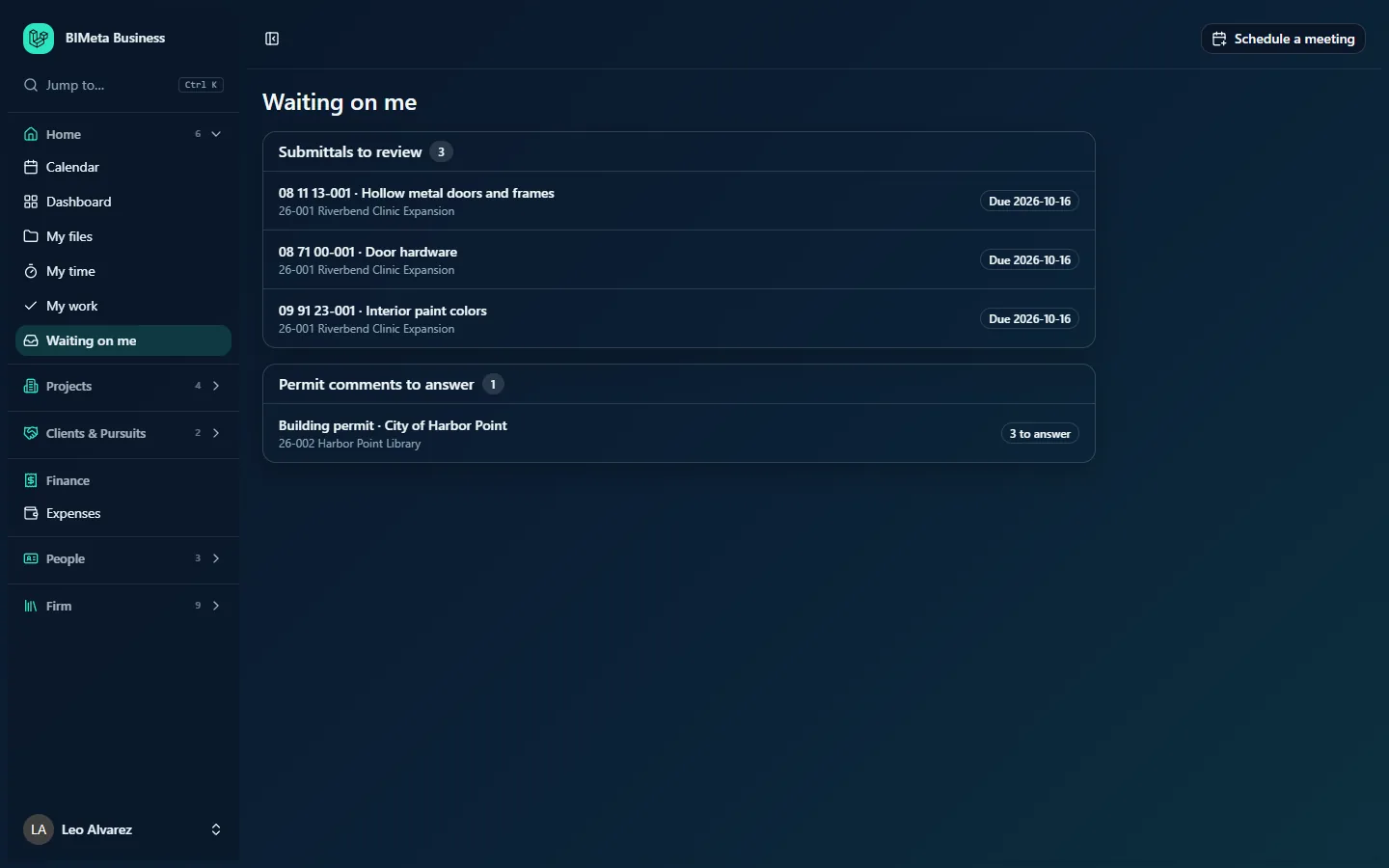
The page has a Waiting on me heading and up to five sections, in this order. A section appears only when it has something in it, and its title carries a count badge, for example Submittals to review 3. Every row shows the item on the first line and the project number and name underneath (for example 26-001 Riverbend Clinic Expansion), with a badge on the right. Click anywhere on a row to open the item.
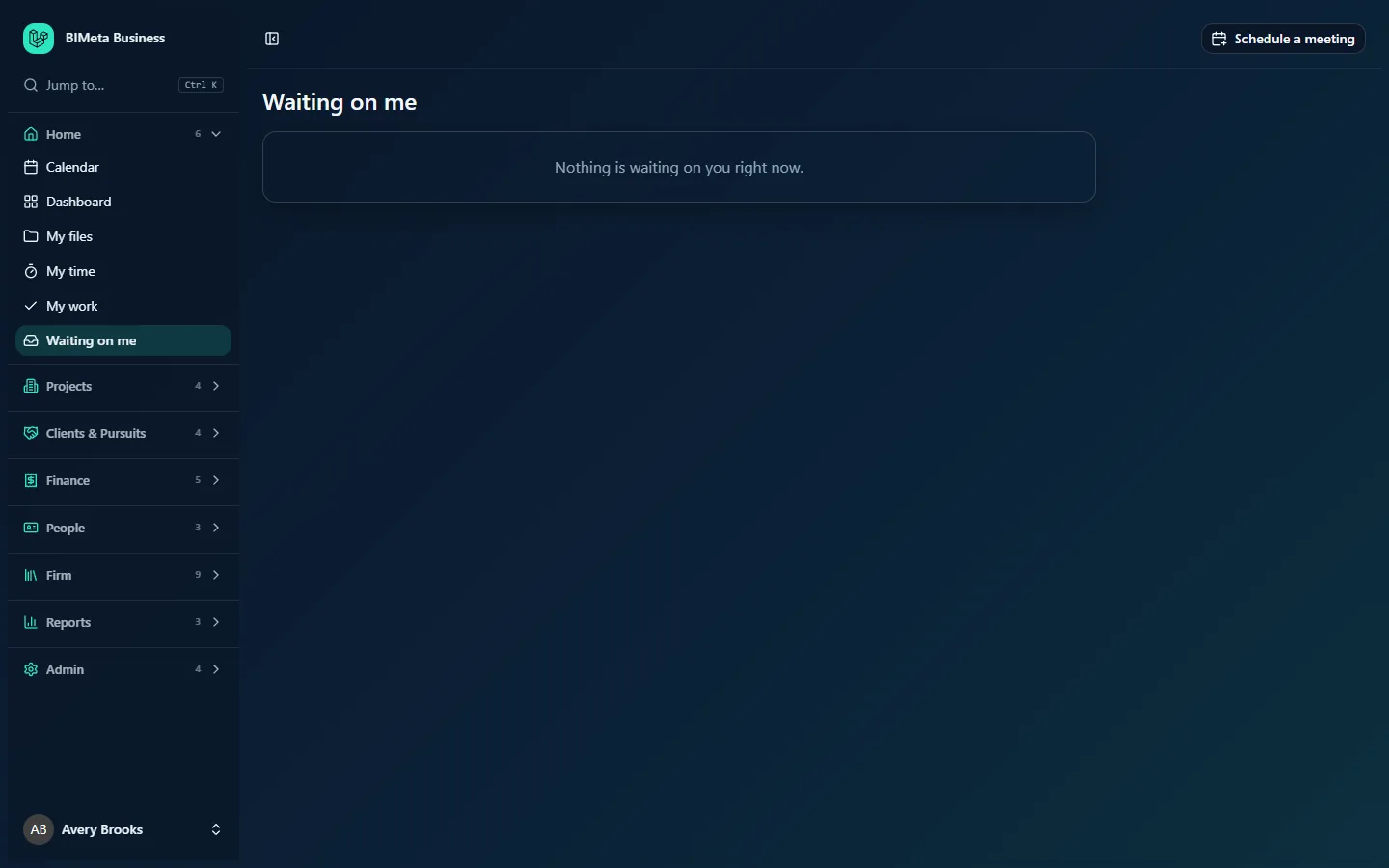
When nothing needs you, the page shows a single box: Nothing is waiting on you right now. That's what the Business Owner sees at the example firm Northlight Architects:
RFIs to answer
Open RFIs where the ball is in your court, meaning you're the person expected to respond. Each row shows the RFI number and subject ("number · subject"). The badge shows the due date: Due 2026-10-16 in outline, or a red Overdue 2026-10-02 once the date has passed. RFIs are sorted by due date, earliest first, and those without a due date come last. Clicking opens the RFI on the project's RFIs page, where you write your response.
Submittals to review
Submittals where the ball is in your court that are either open (waiting for review) or already reviewed but not yet returned. Each row shows the submittal number, plus "Rev n" for resubmittals, and the title, for example 08 71 00-001 · Door hardware. The badge shows the due date (red when overdue). For a submittal you've already reviewed it shows Reviewed, ready to return instead, as a reminder to send your review back. Sorted by due date. Clicking opens the submittal.
Change orders to sign
Change orders that have been issued and are waiting for the owner's signature, on projects where you're on the project team as the Client. Each row shows the change order's number and title, and its amount in your firm's currency on the right. Sorted by issue date, oldest first. Clicking opens the change order, where you sign it. Firm staff normally don't see this section, because they aren't the client on their projects.
Permit comments to answer
Permit review comments that are open and assigned to you, grouped by permit. Each row shows the permit title and the reviewing agency ("Building permit · City of Harbor Point") and a badge such as 3 to answer. Clicking opens that permit on the project, where you respond to each comment.
Punch items
One row per punch list that has items needing you, showing the punch list's name and a badge:
- N ready to verify: on projects where you manage construction administration (the design team: Business Owners, Admins, Project Managers, IT Staff and BIM Managers firm-wide, or a Project Manager or Project Architect on that project), you see items the contractor has marked ready, so you can check the work on site and close them. Clicking opens the list filtered to items that are ready.
- N to complete: on projects where you can respond but not manage (for example as a Designer on the project), you see items that are still open. Clicking opens the list filtered to open items.
How to …
Clear your queue
- Open Waiting on me.
- Start with anything showing a red Overdue badge, then work down by due date.
- Click a row to open the item.
- Do what it needs: answer the RFI, review and return the submittal, sign the change order, answer the permit comments, or complete or verify the punch items.
- Come back to Waiting on me (use your browser's Back button or the sidebar). Items you've handed on, because the ball is now in someone else's court or the item is closed, are gone.
Hand an item to someone else
Open the item and change who it's with (the "ball in court") there, if you're allowed to on that project. It then leaves your list and appears on theirs.
Tips and good to know
- The dashboard card counts less than this page. RFIs and submittals in my court on the dashboard counts open RFIs and open submittals only. This page also shows submittals that are reviewed and ready to return, change orders and punch items.
- Archived projects are ignored for firm staff, so old items on archived jobs don't clutter the list.
- Not the same as My work. Project tasks assigned to you are on My work; this page is only for construction-administration and permit items.
- Clients and consultants see exactly the same layout, limited to the projects they've been invited to. It's a good page to point them to when you explain how your portal works.
Troubleshooting / FAQ
Someone said an RFI is with me, but it's not here.
The RFI only appears when you're set as the person the ball is with and the RFI is open. Ask the sender to check who the ball is with on the RFI. If your access is limited to certain projects, the RFI must also be on one of them.
Why don't I see a "Change orders to sign" section?
That section is only for people on a project team as the Client, who sign change orders as the owner. Firm staff track change orders on the project's change-order page instead.
Why are my punch items "ready to verify" rather than "to complete"?
You manage construction administration on that project, so you're shown the items waiting for the design team's sign-off rather than the open ones.
Was this article helpful?
Share