



Visualization Gallery: renderings, animations and 360° panoramas
17 views · by Kevin J Bruno · updated 20 hours ago
The Visualization Gallery collects the firm's renderings, animations and 360° panoramas from every project in one place, credited to the people who made them. Each project's Gallery tab shows that project's work and is where you upload it. Work moves through three stages, Work in progress, Final and Approved for marketing, and each item has a review page for comments, client sharing and approval.
Where to find it
- Firm-wide: Sidebar → Projects → Visualization Gallery.
- One project: open the project and choose Project → Gallery.
- Featured work also appears on the Dashboard's Featured work card.
Who can use it
- Everyone sees the gallery items of the projects they can see. Clients and consultants with portal accounts only see items that were shown to clients.
- Uploading needs permission to add gallery work, which Business Owner, IT Staff, BIM Manager and User all have. People without it don't see the upload area on the Gallery tab.
- You can edit, change the stage of and remove items you uploaded or are credited as the artist on. Business Owners and Admins can edit anyone's.
- Only people who approve work for marketing can mark an item Approved for marketing: Business Owner, IT Staff, BIM Manager, Admin and Project Manager roles.
- Download original needs permission to download original render files: the same roles. Everyone else sees web versions only.
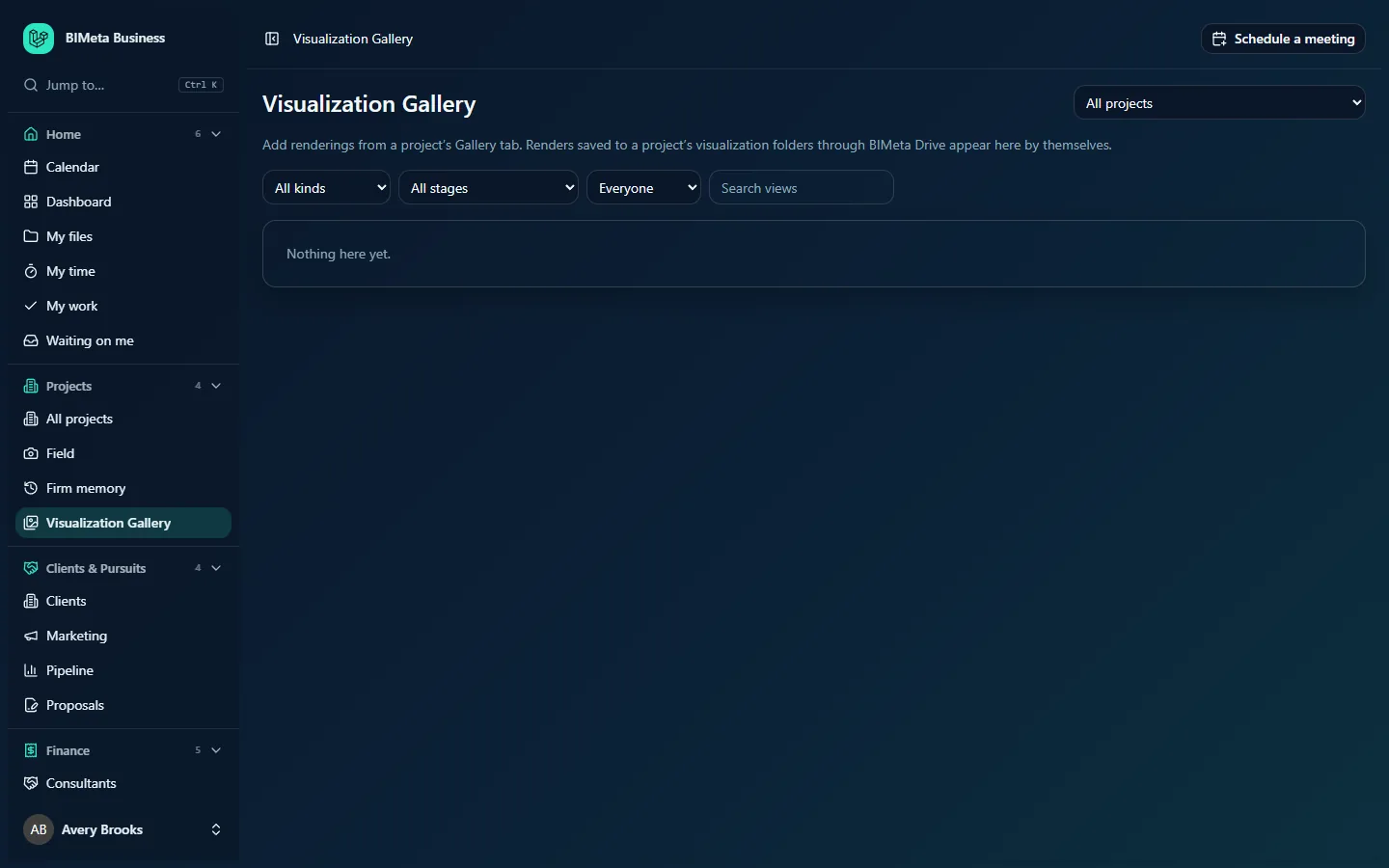
A tour of the Visualization Gallery
- Project drop-down at the top right: All projects or one project.
- The note "Add renderings from a project's Gallery tab. Renders saved to a project's visualization folders through BIMeta Drive appear here by themselves."
- Filters: All kinds (Still, Animation, 360° panorama), All stages (Work in progress, Final, Approved for marketing), Everyone (pick an artist), and Search views (type a view name and press Enter). Clicking a tag in an item's details window filters by it; Tag: name × clears it.
- A grid of items, each with its picture, name, stage and artist ("by name"), and on the firm-wide page its project. With nothing to show: "Nothing here yet."
A tour of a project's Gallery tab
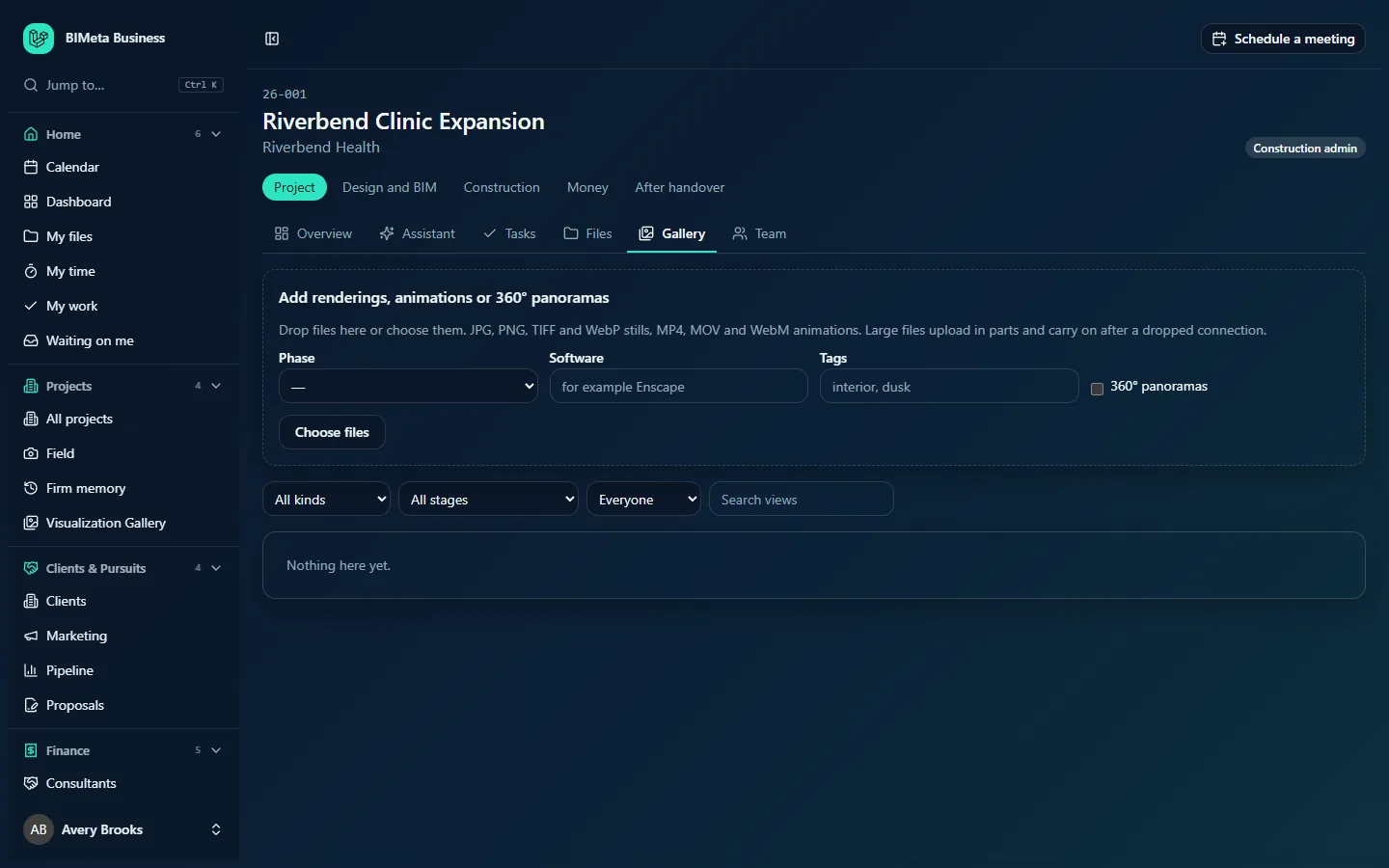
Add renderings, animations or 360° panoramas
"Drop files here or choose them. JPG, PNG, TIFF and WebP stills, MP4, MOV and WebM animations. Large files upload in parts and carry on after a dropped connection." Before choosing files you can set, for the whole batch:
- Phase: the project phase the work belongs to.
- Software: e.g. Enscape.
- Tags: comma separated, e.g. interior, dusk.
- 360° panoramas: tick when the stills are equirectangular panoramas.
Choose files starts the upload; each file shows its progress and "added" when done.
Filters and grid
The same filters and grid as the firm-wide page, limited to this project.
The details window
Click an item to open it:
- The image, animation (with its length in seconds) or a 360° panorama you drag to look around.
- Its stage badge, project and artist (or "artist not set").
- Versions of this view: earlier and later versions, when the item is part of a series.
- Compare with: pick another item (e.g. a site photo, or the day version) to compare with a slider.
- Mark stage buttons to move it to another stage.
- Review and share: opens the item's review page.
- Download original, for people allowed to.
- Edit details: View name, Phase, Software and render engine, Time of day (Morning, Day, Dusk, Night), Tags (comma separated), Artist, Newer version of (link it to the earlier view), This is a 360° panorama, then Save, or Remove from gallery.
- Close.
The review page (from Review and share) is where the team leaves comments pinned to a spot on the image or a moment in an animation, resolves them, shows the item to clients (Show to clients / Hide from clients), creates expiring share links that can allow comments and client approval, sees client decisions, features the item on the Dashboard, and posts it through Marketing Studio (Clients & Pursuits → Marketing, Studio tab).
How to …
Upload work
- Open the project's Gallery tab.
- Set the Phase, Software, Tags and 360° panoramas if they apply to the whole batch.
- Click Choose files or drop files onto the area. Large files upload in parts and resume if your connection drops.
- The item appears as Work in progress, credited to you. New items show "Preparing…" in the grid while their thumbnail and web version are made.
Move an item to Final or Approved for marketing
- Open the item and click Mark Final (or Mark Approved for marketing, if you approve work for marketing). You'll see "Stage changed".
Link a new version to an earlier one
- Open the new item, click Edit details, choose the earlier view under Newer version of and click Save.
Remove an item
- Open it, click Edit details, then Remove from gallery and confirm. The file stays in the project's files.
Tips and good to know
- Credit the right artist: each person's work collects on their gallery portfolio.
- Only items Approved for marketing should go into proposals, SF330s and social posts.
- Stage changes, uploads, edits and removals are written to the audit log; downloads of originals are logged on the project's download activity.
- Upload size is limited only by your firm's per-file limit, because files are sent in parts.
Troubleshooting
I can't see the upload area.
You don't have permission to add gallery work on this project.
"Only people who approve work for marketing can do that."
Ask a Project Manager, BIM Manager, IT Staff or the Business Owner to approve it.
There's no Edit details button.
You can only edit items you uploaded or are credited on, unless you manage the gallery.
Was this article helpful?
Share