



Time approvals: approve or send back timesheets
18 views · by Kevin J Bruno · updated 1 day ago
Time approvals is where timesheets get checked. When someone submits a week on My time, it waits here until an approver approves it or sends it back with a note. Approval is the gate between logging hours and billing them: only approved hours can go onto client invoices, and approving locks them, together with the bill and cost rates they carry.
Where to find it
- Sidebar → Finance → Time approvals.
- Dashboard → Timesheets to approve card: shows how many weeks are waiting for you and opens this page.
- Jump to… (Ctrl K): type timesheets, approve or hours.
Who can use it
- Firm-wide approvers: Business Owner, Admin, Project Manager, IT Staff and BIM Manager have the "approve or send back submitted timesheets" permission for every project. They see every submitted week from everyone else.
- Project-level approvers: someone who isn't a firm-wide approver but is the Project Manager on a project's Team tab can open this page too. They only see, approve and send back the hours logged to the projects they manage. The page may not appear in their sidebar.
- Time that is not on a project (administration, meetings, training and other overhead) has no project, so it has no project approver: only the firm-wide approvers above see it and decide it. A Project Manager approves the hours on their own projects only.
- Everyone else (for example a User with no Project Manager project role) can't open the page.
- Nobody approves their own time. Your own submitted weeks never appear here; another approver must decide them.
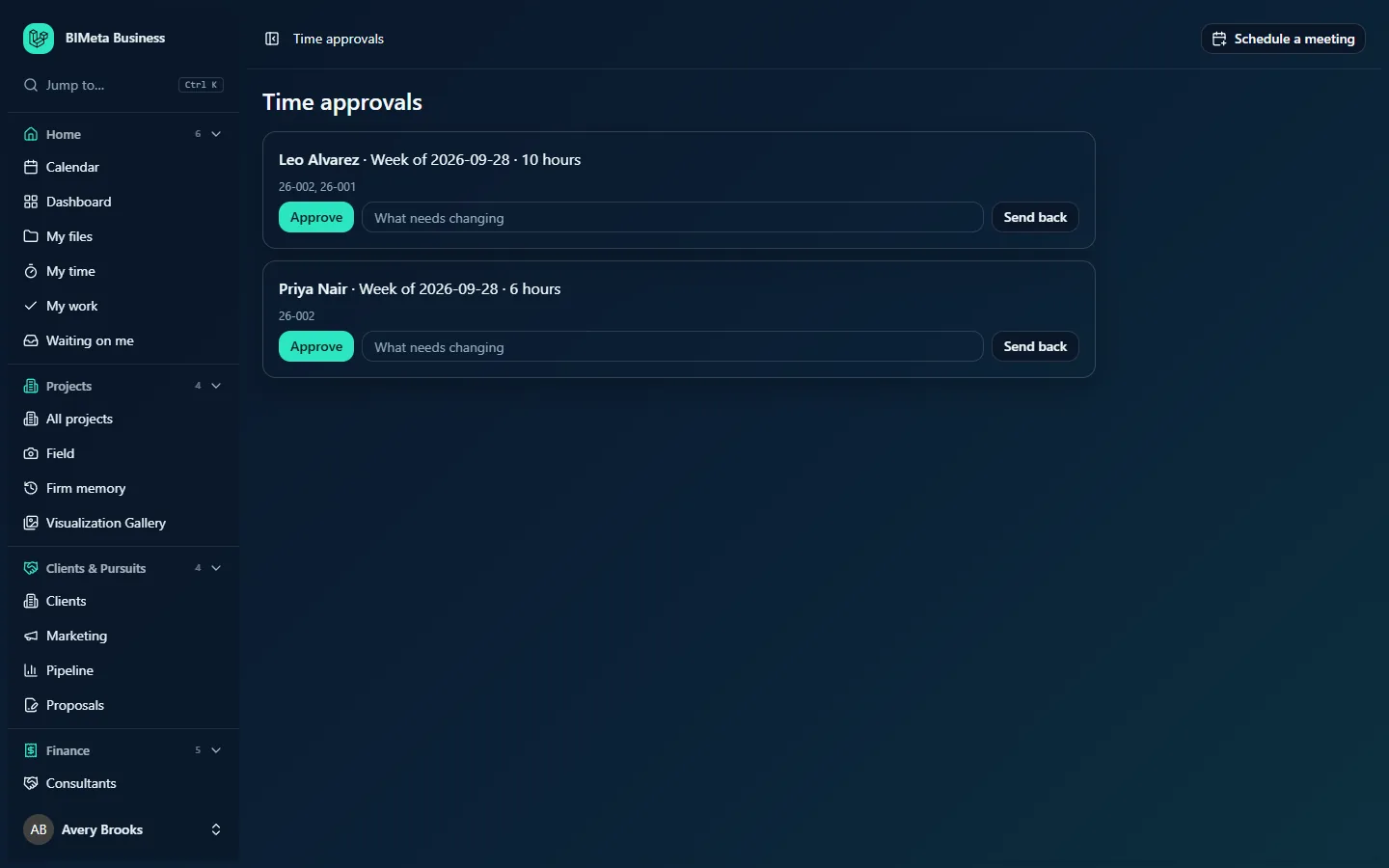
A tour of the page
The page is a list of cards, one per person per week, oldest week first. Each card shows:
- The person's name, e.g. Leo Alvarez.
- Week of and the Monday the week starts on, e.g. Week of 2026-09-28. Weeks run Monday to Sunday.
- Hours: the total submitted hours for that week that you may decide on, e.g. 10 hours (rounded to two decimals).
- Projects (small text under the name): the numbers of the projects those hours were logged to, e.g. 26-002, 26-001. At Northlight Architects, Priya Nair's week shows only 26-002.
- Approve: approves the week.
- What needs changing: a note box (required to send back, up to 500 characters).
- Send back: returns the week to the person to fix.
When there's nothing to decide, the page shows Nothing is waiting for approval.
How to …
Review a week before deciding
The card shows totals only. To check the detail (hours per day, project and phase, and the person's note on each row), look at the project's figures on Reports → Fee earned (submitted hours count there already) or ask the person. If anything looks wrong, send it back rather than approving.
Approve a week
- Find the person's card.
- Click Approve.
- You see Timesheet approved and the card disappears.
What happens:
- Every submitted entry in that week that you're allowed to decide becomes approved. A project-level approver only approves the entries on their own projects; entries on other projects stay waiting for their approvers.
- Approved hours are locked: the person can no longer change them on My time, where they show as Approved.
- Each hour keeps the bill rate and cost rate it was saved with. Later rate changes under Admin → Settings → Rates no longer affect it.
- The hours become billable: they can go onto the project's next invoice via Invoice approved hours, a recurring schedule billing Approved hours worked, or a phase billing rule that bills hours.
- The decision is recorded in the Audit log with the number of entries.
Send a week back
- Type what needs fixing in What needs changing, e.g. Tuesday's 6 hours belong to 26-001, not 26-002. The note is required.
- Click Send back. You see Timesheet sent back.
- The entries become editable again for the person. On My time they see This week was sent back. Fix the hours and submit again. They correct the week and click Submit week, and it comes back to this page.
Your note is saved with the entries and in the Audit log, but the person isn't sent an email and My time only shows the general "sent back" message. Tell them directly what to change as well, for example in a chat or on the phone.
Tips and good to know
- How hours get here: on My time, people fill in a weekly grid (a row per project and phase), click Save, then Submit week. Only submitted weeks appear on this page; saved but unsubmitted hours (drafts) don't.
- One card per person per week. If someone submitted two different weeks, you see two cards.
- Rates: each hour's rates come from the person's rates under Admin → Settings → Rates on the day worked. Changing a rate updates hours that aren't yet approved from the rate's start date. If a person has no bill rate, their hours bill at $0, so set rates before approving and invoicing.
- All hours are billable. Every approved hour on a project is billed when you invoice hours. Hours that shouldn't be billed should be logged to an internal or overhead project.
- Approved hours feed reports: fee earned (hours, labour value and cost by phase), utilization and capacity, the pay planning figures and the project's unbilled work.
- An approved week can't be "un-approved" here. If approved hours were wrong and are already on a draft invoice, void that draft so they aren't billed, and correct the client invoice by hand.
Troubleshooting / FAQ
Why don't I see Time approvals in my sidebar?
Your firm role doesn't approve time firm-wide. If you're the Project Manager on a project's team, you can still approve that project's hours; ask your Admin for the page link and bookmark it.
Why isn't my own timesheet here?
Nobody can approve their own time. Another approver will see your week.
A colleague says they submitted, but I don't see their week.
It may already be decided by another approver, they may have saved but not clicked Submit week, or (for project-level approvers) the hours are on projects you don't manage.
I got "Nothing in that week is waiting for you."
Someone else decided the week while you had the page open, or the person changed it. Reload the page.
Was this article helpful?
Share