



Surveys: staff and client surveys
17 views · by Kevin J Bruno · updated 23 hours ago
Surveys lets the firm ask questions and collect answers in two ways: staff surveys, which everyone at the firm answers inside BIMeta Business (optionally anonymously), and client surveys, such as post-occupancy or project close-out feedback, which go out by email as private links that clients answer without signing in. Results are summed up for you: average ratings with their spread, counts for choices and yes/no questions, and every written answer.
Where to find it
- Sidebar → Firm → Surveys.
- Jump to… (Ctrl K): type
surveys, orfeedbackorquestionnaire. - The Surveys to answer card on the Dashboard shows how many open staff surveys are waiting for your answers and opens this page.
Who can use it
- Everyone on staff sees the Waiting for your answers list and answers open staff surveys.
- Running surveys (writing, opening, closing, deleting drafts, sending client links and reading results) is for people allowed to run surveys. By default that is the Business Owner, Admin and Human Resources roles. Only they see All surveys, New survey and a survey's results page. IT Staff, BIM Managers and Users see only the surveys waiting for them.
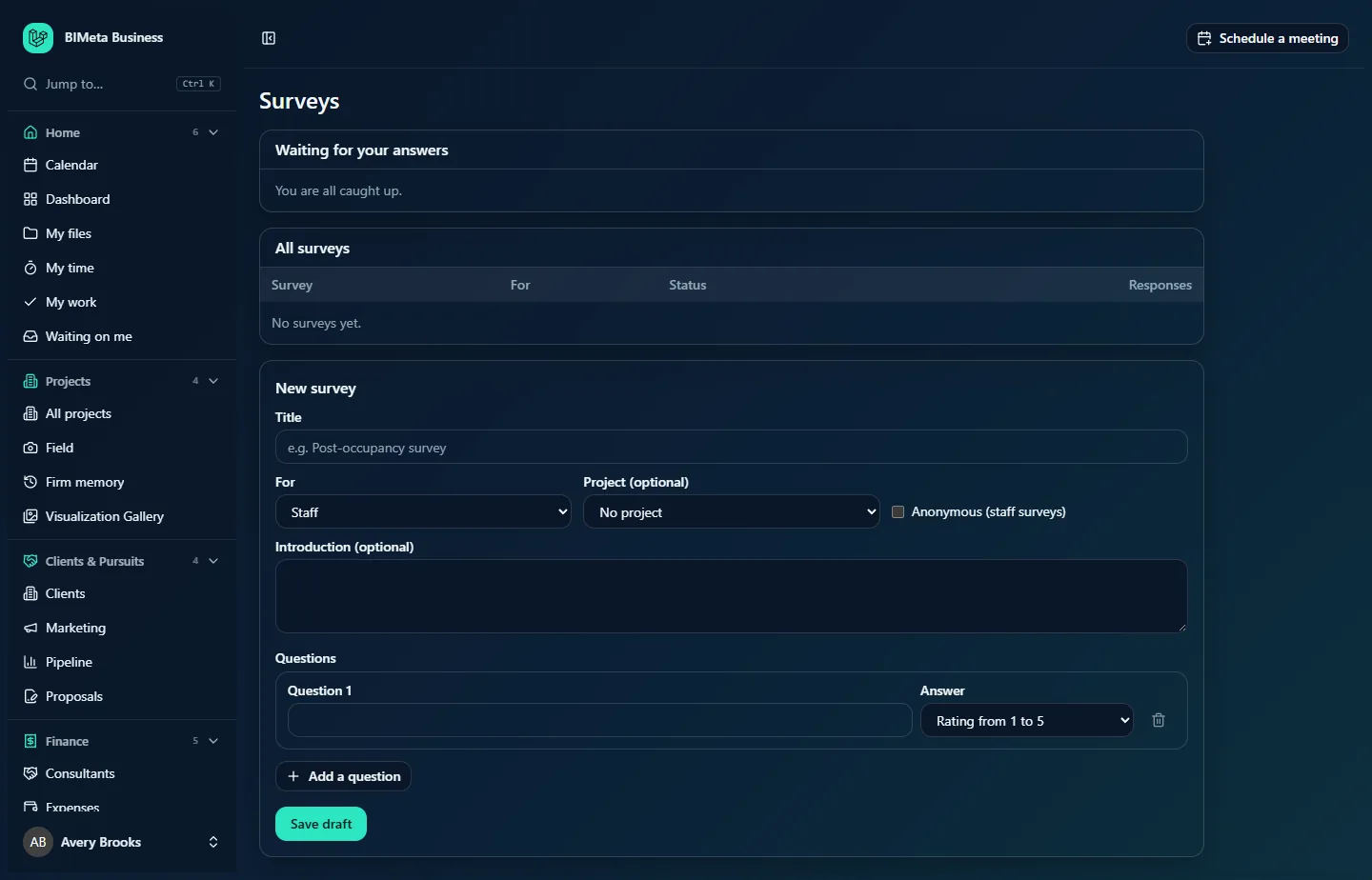
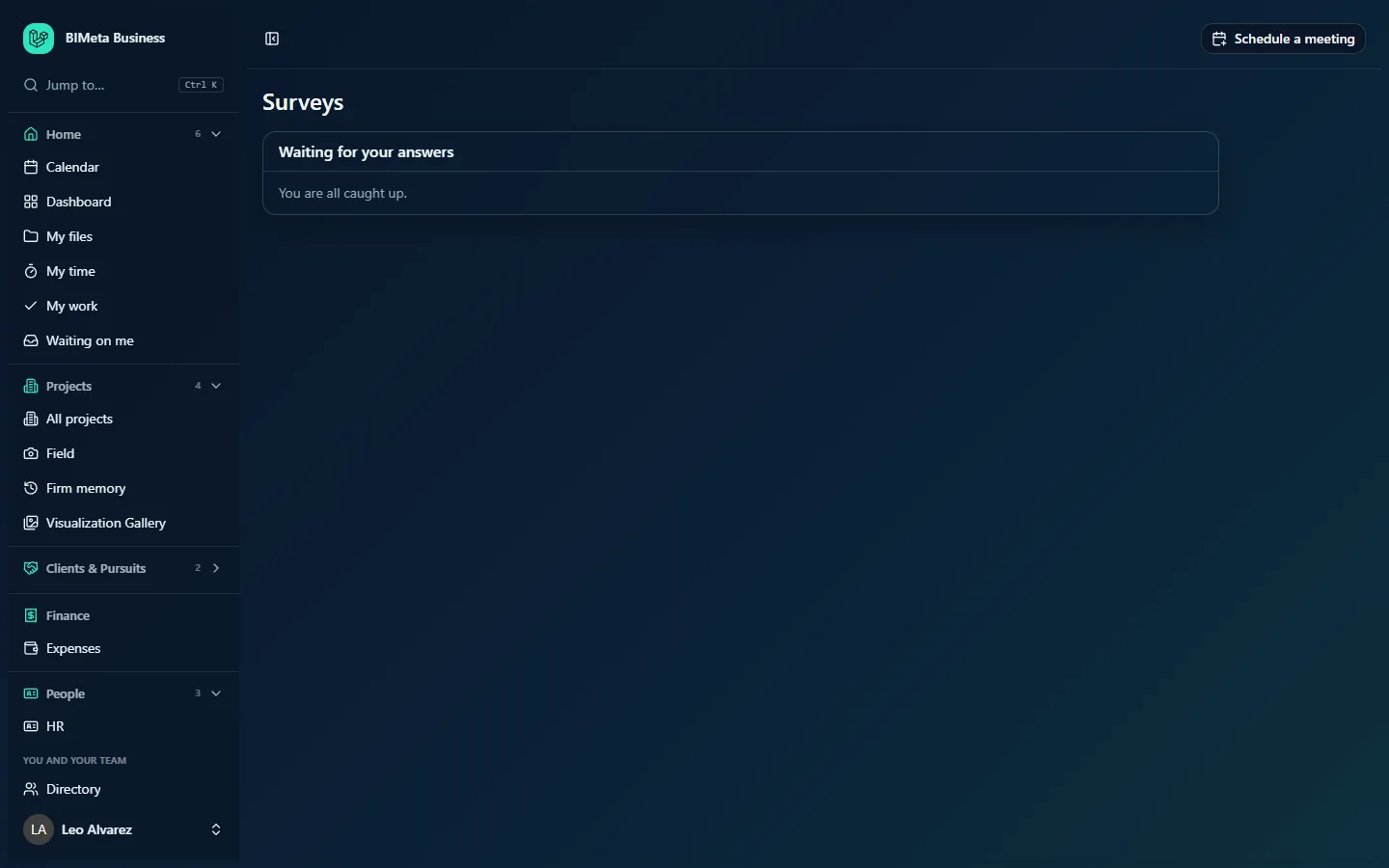
Above: a Business Owner's view, with the All surveys table and the New survey form. Below: a User's view, with only Waiting for your answers.
A tour of the page
Waiting for your answers
Every open staff survey you haven't answered yet, newest first, with an Anonymous badge where your answers won't be linked to you, and an Answer button. When there's nothing to answer it says You are all caught up.
All surveys (survey runners)
| Column | What it shows |
|---|---|
| Survey | The title (a link to the survey's page) and, underneath, the project it's about, if one was chosen. |
| For | Staff or Clients. |
| Status | Draft (being written, not visible to anyone answering), Open (taking answers) or Closed (finished). |
| Responses | For staff surveys, the number of responses. For client surveys, responses out of people invited, for example 7 / 20. |
The newest 200 surveys are listed. An empty table says No surveys yet.
New survey (survey runners)
- Title (required): up to 200 characters, for example Post-occupancy survey.
- For: Staff or Clients.
- Project (optional): link the survey to a project (useful for client surveys about a finished building). It is shown under the title for reference.
- Anonymous (staff surveys): when ticked on a staff survey, answers are stored without the person's name, and even the time of answering is kept only to the day. It has no effect on client surveys.
- Introduction (optional): up to 2,000 characters shown above the questions, and included in the email to clients.
- Questions: each has a Question text (up to 300 characters) and an Answer type:
- Rating from 1 to 5: answered on a scale from Poor (1) to Excellent (5).
- One choice from a list: a Choices, one per line box appears; give between 2 and 12 choices (up to 120 characters each; duplicates are dropped).
- Yes or no.
- Written answer: free text up to 4,000 characters.
- Save draft: saves the survey as a Draft and opens its page.
A survey's page (survey runners)
Click a survey's title in All surveys. What you see depends on its status:
- Draft: an Edit draft form (the same fields as above, saved with Save draft), plus Open for answers and Delete buttons.
- Open: a Close survey button, and for client surveys the Client links section.
- Client links (client surveys that are open or closed): an Email addresses, one per line (optionally "Name <email>") box with a Send survey button (open surveys only), and the list of people invited, each marked Not sent, Sent or Answered. Before anyone is invited it says Nobody has been sent this survey yet.
- Results (open or closed surveys): the total number of responses, then for each question how many people answered it and:
- ratings: the Average out of 5 and how many people chose each score from 1 to 5;
- choices and yes/no: how many people picked each option;
- written answers: every answer, with the name of who wrote it (staff name, or the client's name or email), except on anonymous surveys, where no names are shown.
How to…
Answer a staff survey
- Open Firm → Surveys (or click Surveys to answer on your Dashboard).
- Click Answer next to the survey.
- The page tells you whether the survey is anonymous (This survey is anonymous. Your answers are not linked to your name.) or not (Your name is shown with your answers.).
- Answer the questions you want to. You must answer at least one; the others can be left blank.
- Click Send answers. You'll see Thank you. Your answers are in. and the survey leaves your waiting list. You can answer each survey once, and you can't change your answers afterwards.
Run a staff survey
- In New survey, enter a Title, set For to Staff, tick Anonymous if you want candid answers, and write an Introduction.
- Add your questions and click Save draft.
- Check the draft on its page; fix anything with Edit draft → Save draft.
- Click Open for answers. The survey appears immediately in everyone's Waiting for your answers list and their Dashboard count goes up. No email is sent for staff surveys, so let people know it's there.
- Watch Results fill in. When you're done, click Close survey and confirm Close the survey? No more answers will be taken.
Send a client survey
- Create the survey with For set to Clients and, ideally, the Project it's about. Save the draft.
- Click Open for answers. You can't invite anyone until the survey is open.
- In Client links, paste the addresses, one per line (commas and semicolons also separate them). Add names like
Dana Lee <[email protected]>so the email greets people by name and their answers are labelled. - Click Send survey. Each person gets their own email, with the subject [your firm] would like your feedback: [survey title], the introduction, and a private link. You'll see Survey sent to N people.
- Their status changes to Sent, then to Answered when they submit.
Clients answer on a simple page headed A survey from [your firm], greeting them by name if you gave one, with the title and introduction, and click Send answers. They don't sign in. Each link accepts one set of answers; opening it again shows Your answers have been received. Thank you. After the survey is closed, the link shows This survey has closed. Thank you for your interest. instead of the questions.
Delete a survey
Only a Draft can be deleted: open it, click Delete and confirm Delete this draft survey?. Once a survey has been opened, it and its answers are kept.
Tips and good to know
- Questions can only be changed while the survey is a draft. Once it's open, close it and start a new survey if you need different questions.
- A client survey can go to at most 200 people. Addresses already invited are skipped, so you can paste the same list again with new names added. If everyone on the list was already invited, you'll see Everyone on that list has already been invited.
- If some emails fail, you'll see Sent X of Y invitations…; those people stay Not sent. Try them again later.
- Anonymous staff surveys record only that someone answered, so nobody gets the survey twice; which answers were theirs is never stored.
- The invitation email follows the firm's email template, which can be adjusted under Admin → Settings → Emails.
- Saving, opening, closing, deleting and inviting are all recorded in the audit log.
Troubleshooting
Why can't I see All surveys or New survey?
Only people allowed to run surveys (by default Business Owners, Admins and Human Resources) see them.
I get "Open the survey before inviting anyone."
Click Open for answers first, then send the links.
I get "Only a draft survey can be changed."
The survey is already open or closed. Close it (if open) and create a new survey with the changes.
A client says their link shows that their answers have already been received.
Each link takes one set of answers. If they need to answer again, invite a different address.
Was this article helpful?
Share