



Support: raise a help desk ticket and work the queue
19 views · by Kevin J Bruno · updated 14 hours ago
Support is the firm's own internal help desk. Anyone on staff can ask for help here, whether Revit won't open a central model, a laptop needs replacing, a software licence has run out, or there's a question for HR, and follow the conversation until it's solved. The people who run the help desk (the support agents) use the same page as a queue: they see everyone's tickets, assign them, set priorities, reply, leave internal notes and resolve them.
This article covers the ticket list, raising a ticket, a ticket's own page and the Assigned to me view that agents use.
Where to find it
- Sidebar → Firm → Support (between Specifications and Surveys; the Firm group lists its pages alphabetically).
- Jump to… (Ctrl K): type
support, or a related word such astickets,help deskorit. - For agents, the Tickets assigned to me card on the Dashboard shows how many open tickets are assigned to you and opens the Assigned to me view.
- The emails the help desk sends (replies and assignments) contain a link straight to the ticket.
Who can use it
- Everyone on staff can raise tickets, see the tickets they raised, reply on them and mark them solved. That includes BIM Managers and Users.
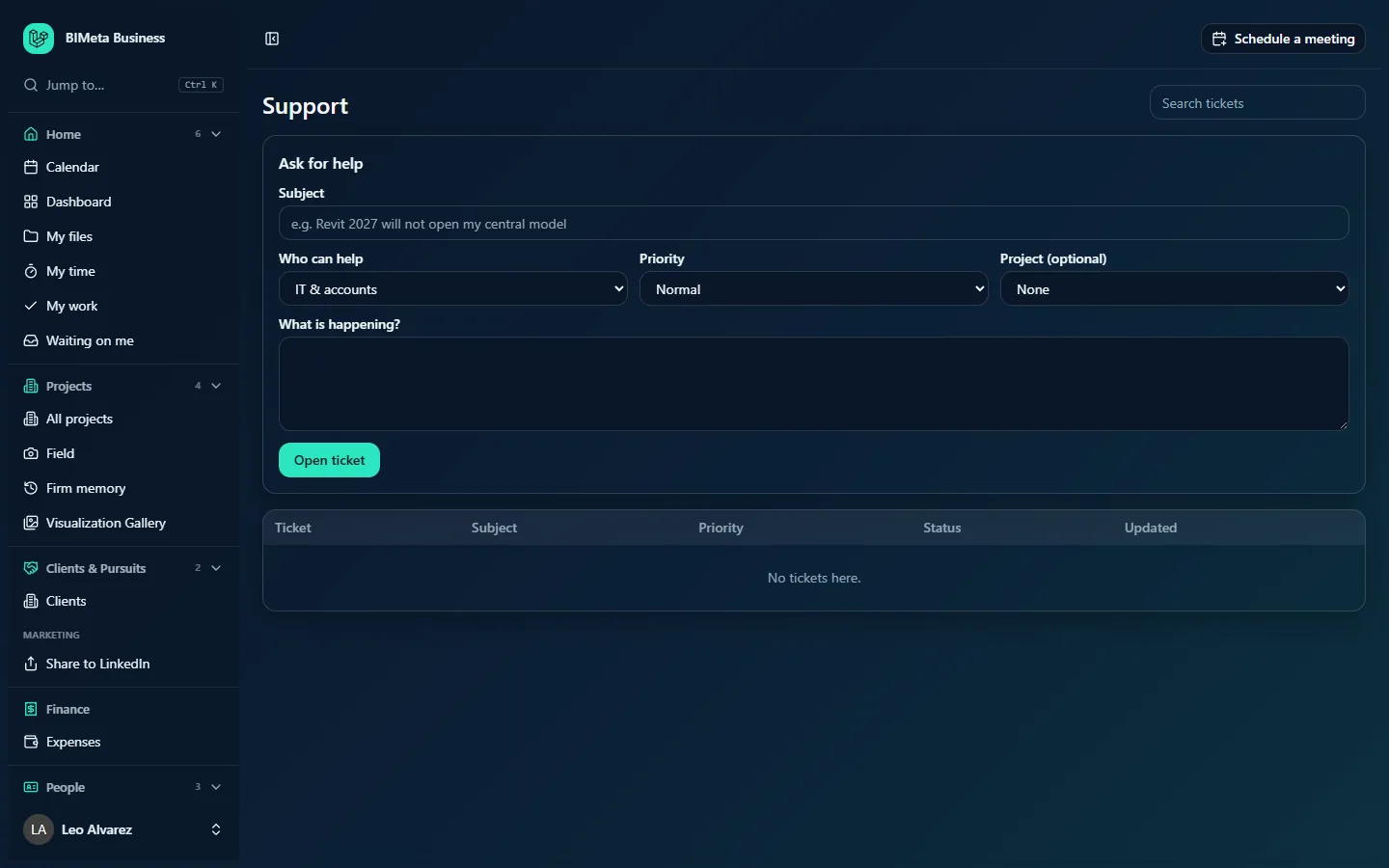
- Support agents work the queue: they see every ticket, choose a queue view, see the Requester and Assignee columns, assign tickets, change status, priority and department, and write internal notes. By default the agents are Business Owners, Admins and IT Staff. A BIM Manager or User sees only their own tickets and never sees the queue selector.
- A ticket is private to the person who raised it and the agents. Anyone else who follows a link to it gets a "not found" page.
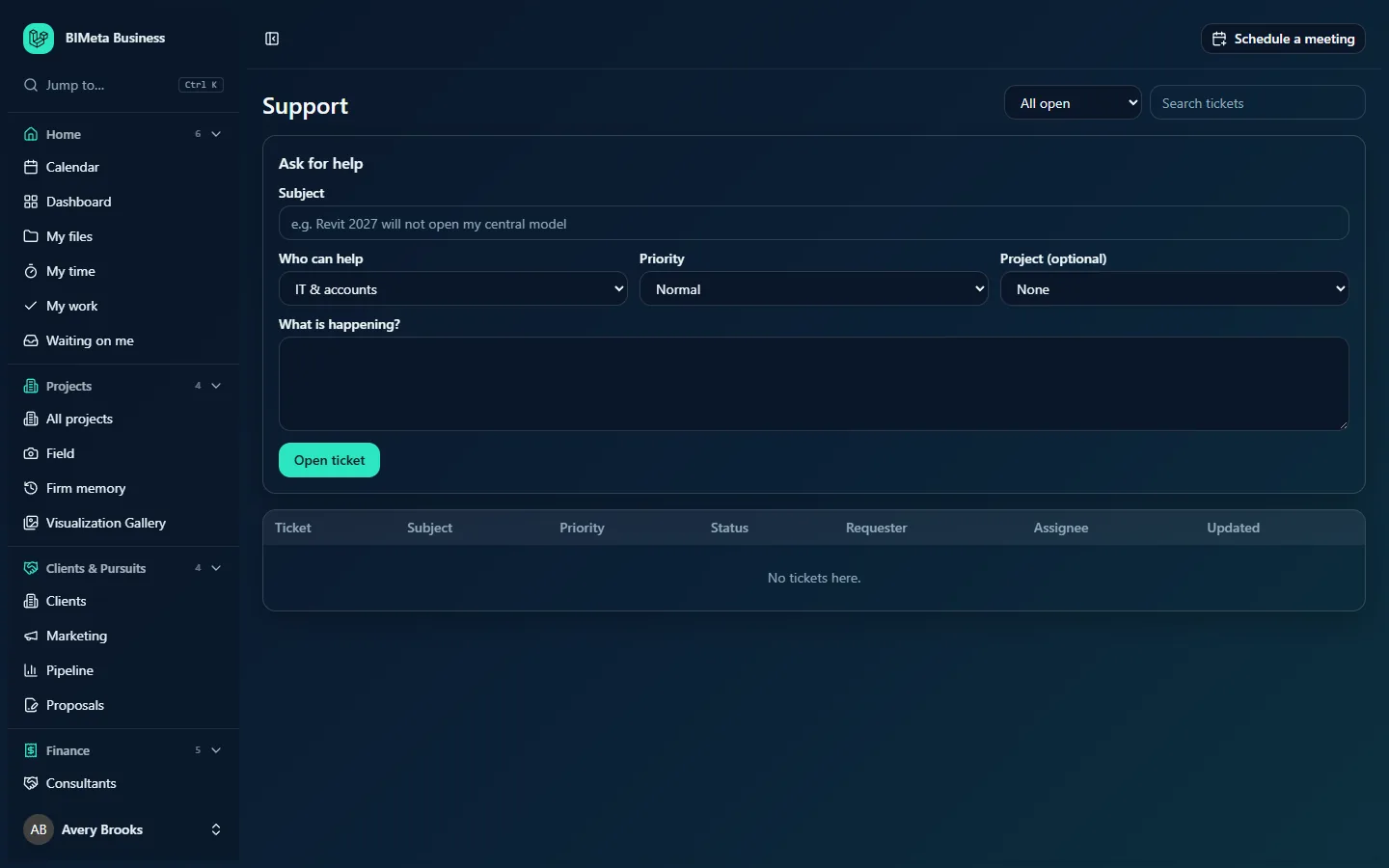
Above: a Business Owner's view (an agent), with the queue selector set to All open. Below: what a User such as Leo Alvarez sees, with no queue selector and no Requester or Assignee columns.
A tour of the page
Header
- Queue selector (agents only), with five views:
- All open: every ticket that is Open or Waiting on requester. This is the view agents land on.
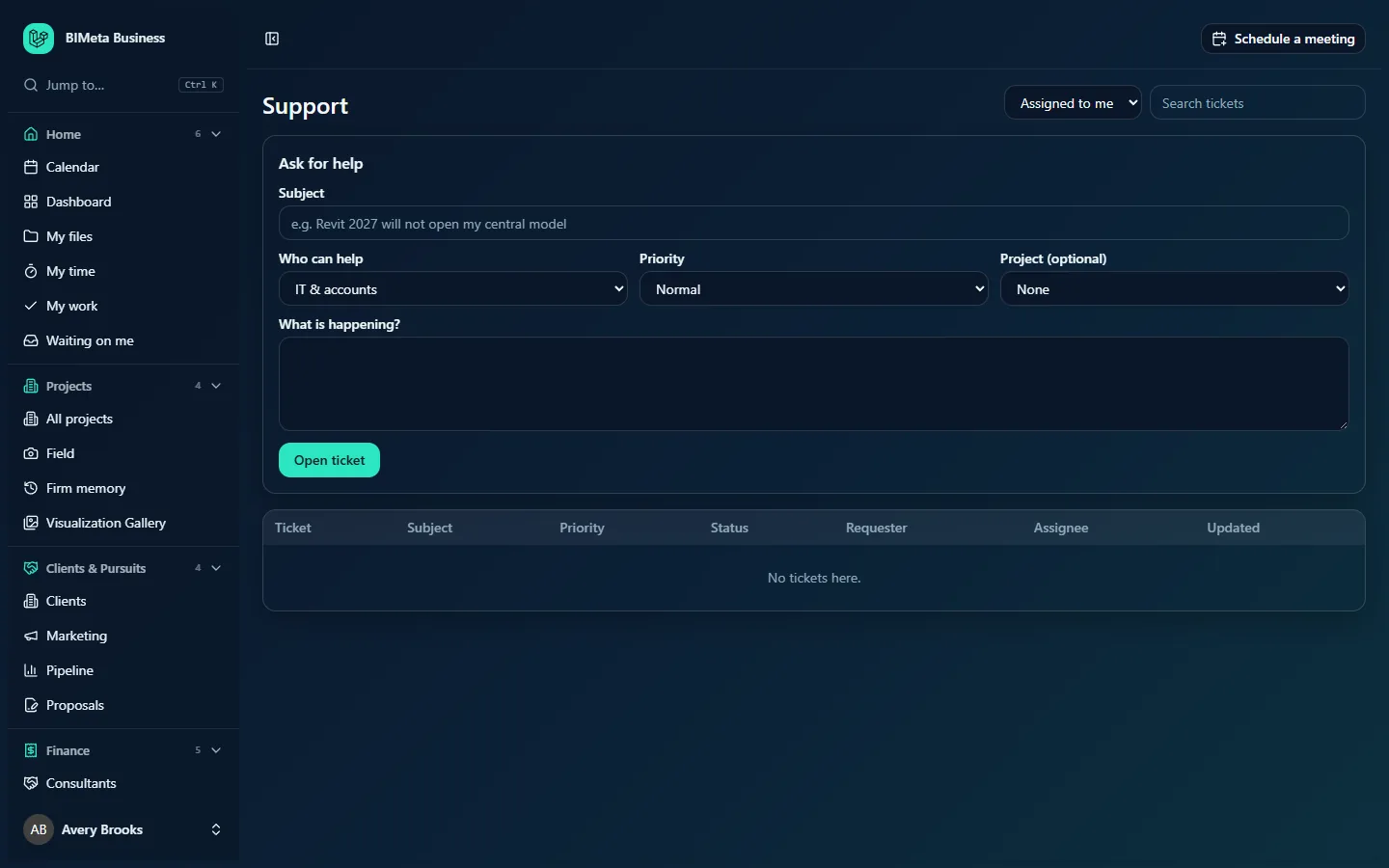
- Assigned to me: open and waiting tickets assigned to you.
- Unassigned: open and waiting tickets nobody has picked up yet.
- Raised by me: tickets you opened yourself, in any status.
- Everything: every ticket in any status, including resolved and closed.
- Search tickets: type part of a subject or a ticket number (for example
TKT-26) and press Enter. The search works within the current view.
Ask for help
The form for raising a new ticket:
- Subject (required): a short summary, up to 200 characters, for example Revit 2027 will not open my central model. Agents see this first, so make it specific.
- Who can help (required): the department: IT & accounts, BIM & CAD, Software & licences, Office & facilities, HR & payroll or Something else.
- Priority: Low, Normal (the default), High or Urgent.
- Project (optional): link the ticket to one of the firm's active projects, or leave it at None.
- What is happening? (required): the full description, up to 20,000 characters. Say what you were doing, what you expected and what happened, and include any error message word for word.
- Open ticket: creates the ticket and takes you to its page.
The ticket list
| Column | What it shows |
|---|---|
| Ticket | The ticket number, a link to the ticket. Numbers follow the firm's numbering pattern; by default TKT-, the two-digit year and a four-digit sequence (for example TKT-260001). |
| Subject | The subject, with the department underneath. |
| Priority | A badge: Urgent is red, High is filled, Normal and Low are outlined. |
| Status | Open, Waiting on requester, Resolved or Closed. |
| Requester (agents) | Who raised the ticket. |
| Assignee (agents) | The agent who has it, or Nobody yet. |
| Updated | Date and time of the last change or message. |
Tickets are sorted by priority (Urgent, High, Normal, Low) and then by most recently updated. Up to 300 tickets are listed; use search or a narrower view to find older ones. An empty view says No tickets here.
A ticket's page
Click a ticket number to open it. You'll see:
- Header: the ticket number, the department and the linked project (if any), the subject, the priority badge and the status.
- The conversation: every message with its author and time, oldest first. Agents also see Internal note messages, which the requester never sees.
- Reply box: type a reply and click Send reply. Agents also see a checkbox, Only agents can see this; ticking it turns the box into an Internal note and the button into Add note. The reply box is hidden on a Closed ticket.
- Side panel: Requester, Assignee (or Nobody yet) and Opened date.
- Agent controls (agents only): Assignee (any agent, or Nobody yet), Status, Priority and Department, saved with Update ticket.
- My problem is solved: shown to the person who raised the ticket while it is Open or Waiting on requester.
- These articles might help: up to three published Knowledge base articles whose titles share words with the ticket's subject. Check them while you wait; the answer may already be written down.
How to…
Raise a ticket
- Open Firm → Support.
- In Ask for help, fill in Subject, choose Who can help and a Priority, optionally pick the Project, and describe the problem in What is happening?.
- Click Open ticket. You land on the ticket's page with the message Ticket TKT-… is open. We will reply here.
Opening a ticket doesn't email anyone. Agents pick new tickets up from their All open and Unassigned views. If something is truly urgent, set the priority to Urgent so it sorts to the top of every agent's list.
Follow up or answer a question on your ticket
- Open the ticket from your list or from the link in the email you received.
- Type in the reply box and click Send reply.
If the ticket was Waiting on requester or Resolved, your reply automatically sets it back to Open, and the assigned agent gets an email with the first 500 characters of your reply.
Mark your own ticket as solved
- Open the ticket and click My problem is solved.
- The status changes to Resolved and you'll see Marked resolved. Reply if it comes back. Replying later reopens it.
Work the queue (agents)
- Choose Unassigned in the queue selector to see new tickets nobody owns.
- Open a ticket. Under the agent controls, set Assignee to yourself or a colleague, adjust Priority and Department if needed, and click Update ticket. When you assign a ticket to someone else, they get an email: Ticket … is now assigned to you.
- Reply to the requester with Send reply. The requester gets an email with your reply and a link back to the ticket. Your first public reply records the ticket's first response time.
- If you need the requester to do something before you can continue, set Status to Waiting on requester. Their next reply sets it back to Open.
- When the problem is fixed, set Status to Resolved (the requester can still reply and reopen it) or Closed (no more replies; they'd have to open a new ticket).
Leave an internal note (agents)
- On the ticket, tick Only agents can see this.
- Write the note and click Add note. It appears in the conversation with an Internal note badge. No email is sent and the requester never sees it.
See only the tickets assigned to you (agents)
Choose Assigned to me in the queue selector, or click Tickets assigned to me on your Dashboard. The view lists open and waiting tickets assigned to you; resolved and closed ones drop off it.
Tips and good to know
- Who gets emailed: a public reply from anyone other than the requester emails the requester; a reply from the requester emails the assignee (if there is one); assigning a ticket to someone other than yourself emails the new assignee. Internal notes, status changes and new tickets don't send emails. Email wording follows the firm's templates under Admin → Settings → Emails.
- Resolved vs. Closed: Resolved means "we think it's fixed" and the requester can still reply. Closed is final; nobody can reply, and the reply box disappears.
- Ticket numbering can be changed by a Business Owner or Admin in Admin → Settings → Setup: open the Project standards section and its Document numbering step, where Support tickets has its own pattern.
- Every ticket opened, reply, update and resolution is recorded in the audit log.
- Write repeat answers up as Knowledge base articles (see Knowledge base: find answers to common questions). Their titles are matched against new ticket subjects and suggested under These articles might help.
Troubleshooting
Why don't I see the queue selector or other people's tickets?
Only support agents (by default Business Owners, Admins and IT Staff) see the queue. Everyone else sees only the tickets they raised.
Why can't I reply to my ticket?
The ticket is Closed. Open a new ticket and mention the old ticket number in the description.
Why can't I find someone in the Assignee list?
The list shows only active people who can work the support queue. Ask a Business Owner to give them a role with support agent access.
Was this article helpful?
Share