



Support access: let BIMeta support look, read-only
18 views · by Kevin J Bruno · updated 6 hours ago
Support access is where a Business Owner lets BIMeta's support team look at your portal for a few hours, so they can see a problem exactly the way you see it. It is a consent switch: by default BIMeta support cannot see inside your portal at all. When you allow it, support can only look. Nothing can be changed, every page they open is written to your firm's audit log, and you are emailed the moment a session starts. You can end access at any time.
Use it when you have opened a support request and the support agent asks to see the screen, for example a report that shows unexpected numbers or a page that behaves oddly for one role.
Where to find it
- Sidebar → Admin → Settings, then Support access in the People and access section. You can also type
supportin Search settings at the top of the Settings page. A Settings link at the top of the Support access page takes you back. - Press Ctrl K (Jump to…) and type
support access.
Who can use it
| Role | What they can do |
|---|---|
| Business Owner | Open the page, let support in, end access, and see the list of past support sessions. |
| Admin | Can open the page (it belongs to the firm settings that Admins manage) and see whether access is on and the past sessions, but sees the message Only an Owner can let BIMeta support in. instead of the form, and has no End support access now button. |
| IT Staff, BIM Manager, User | Can't open this page and don't see it on the Settings page. |
Letting someone from outside the firm see your data is deliberately an Owner-only decision.
The page
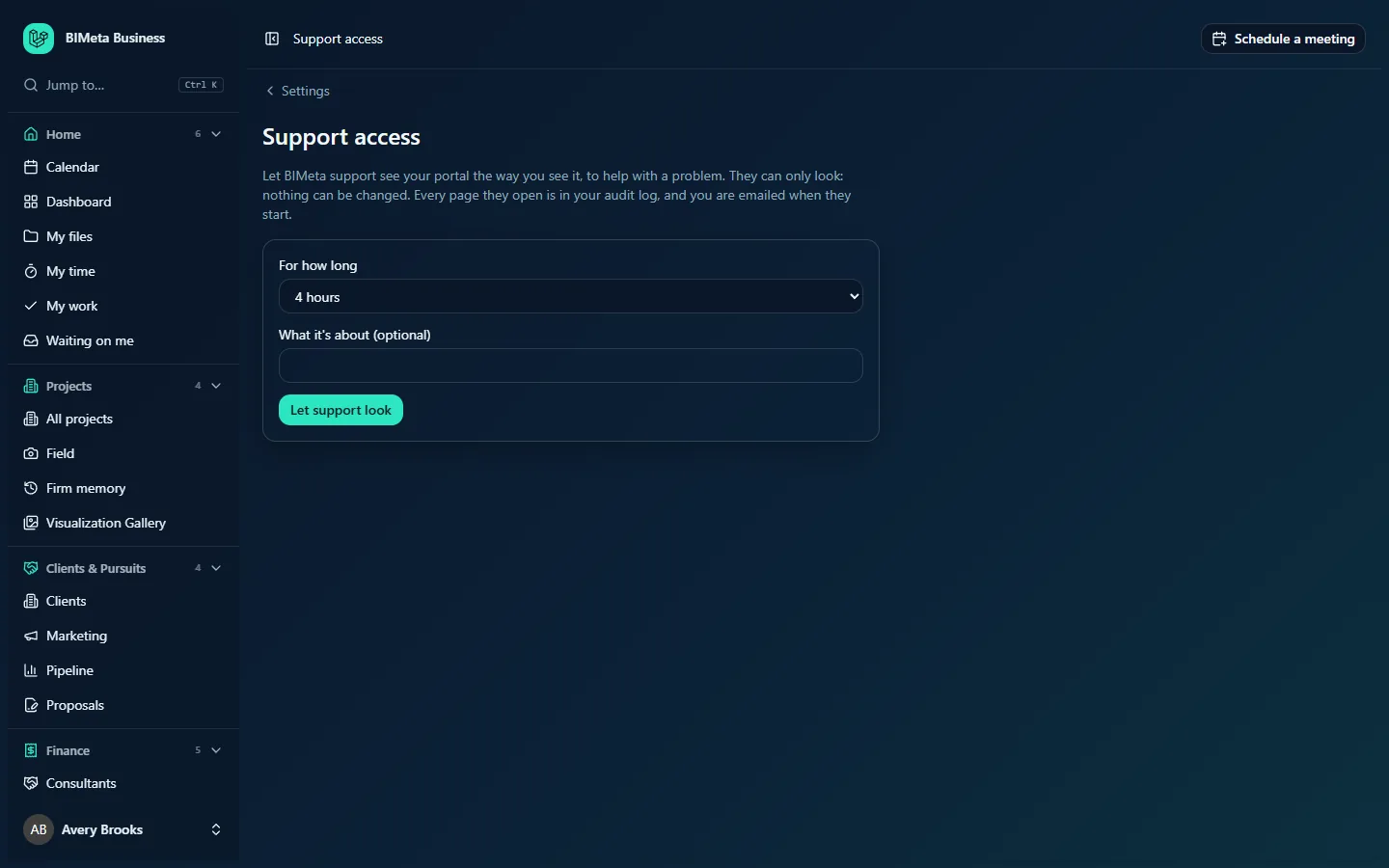
Here is the page as Avery Brooks, the Owner of the example firm Northlight Architects, sees it when support access is off:
The explanation at the top
A short paragraph reminds you of the three promises: support sees the portal the way you see it, they can only look, every page they open is logged, and you're emailed when they start.
When access is off: the form
- For how long: how many hours support may look. Choose 1 hours, 4 hours (the default), 24 hours or 72 hours. No other values are accepted.
- What it's about (optional): a short note, up to 255 characters, such as the ticket number or "Fee earned report shows zero for March". It's shown next to the grant so anyone looking later knows why support was let in.
- Let support look: turns access on.
When access is on: the active grant
The form is replaced by a highlighted box that says Support may look until followed by the end date and time, and Allowed by with the email address of the Owner who allowed it, plus the note if one was given. Owners see an End support access now button here.
Support sessions
Once support has actually used access, a Support sessions list appears at the bottom. Each line shows the support agent's email address, when the session started, and how many pages they viewed, for example "agent@…, 2026-10-05 14:02, 12 pages viewed". The last 20 sessions are listed.
How support access works
It helps to know the difference between a grant and a session:
- A grant is your permission. It lasts the number of hours you chose and is the only thing that makes a session possible. There is at most one active grant: giving a new one replaces the old one.
- A session is one support agent actually opening your portal. The agent starts it from BIMeta's support console with a one-time link that must be used within two minutes. A session lasts at most two hours, and never past the end of your grant.
During a session:
- The agent sees the portal exactly as the Owner who allowed access sees it, with the same menus and pages.
- Every change is refused. Support cannot save, approve, upload, delete or send anything.
- A banner tells the agent it's a read-only support session.
- Every page they open is recorded in your Audit log, labeled with the agent's email address and the Owner they're viewing as, so you can see exactly what they looked at.
- You (the Owner who allowed access) get an email when the session starts, naming the agent and when the session ends.
- Support entering does not count as you signing in: it doesn't appear in your sign-in history or change your last sign-in time.
How to let support look
- Go to Admin → Settings → Support access.
- In For how long, choose the shortest time that will do. For a quick look while you're on a call, 1 hours or 4 hours is usually enough.
- Optionally, fill in What it's about (optional) with the ticket number or a one-line description.
- Click Let support look.
- You'll see "BIMeta support may look, read-only, for n hours. You can end it here at any time." Tell the support agent they can go ahead.
Giving access is recorded in your audit log (with the number of hours).
How to end support access early
- Go to Admin → Settings → Support access.
- Click End support access now.
- You'll see "Support access ended." Any session that is open ends too: the agent's next click takes them out of your portal. Unused links stop working.
Ending access is recorded in your audit log.
How to see what support looked at
- Check the Support sessions list on this page for who came in, when, and how many pages they opened.
- For the page-by-page detail, open Admin → Settings → Audit log and look for entries by "BIMeta Support (agent email) as your email".
Tips and good to know
- Keep it short. Choose the shortest time that works, and end access as soon as the issue is solved. Access also ends on its own when the time runs out.
- Support sees what you see. Because the agent views the portal as the Owner who allowed access, they can see anything that Owner can see, including finance and people pages. If the problem is on a page that holds sensitive data, mention it in the note so the agent knows to go straight to the page in question.
- Read-only really means read-only. Support can't fix data for you inside the portal; they will tell you what to change, or fix it on BIMeta's side.
- If the Owner who allowed access is deactivated, support can't enter through that grant.
- A one-time link that is not used within two minutes expires. If the agent says the link expired, they simply request a new one; you don't need to do anything as long as your grant is still active.
Troubleshooting
I'm an Admin. Why can't I let support in?
Only a Business Owner can grant access. Ask an Owner to open Admin → Settings → Support access and click Let support look.
Support says they can't get in.
Check that the page shows Support may look until with a time in the future. If it shows the form instead, access has expired or was ended: give access again. If access is on, the agent's link may have expired (they're valid for two minutes); ask them to open a fresh one.
I didn't get the email when support started.
The email goes to the Owner who allowed access. Check spam and your firm's mail filters. The Support sessions list and the audit log always show the session even if an email is delayed.
Can support change something by mistake?
No. Every change is refused during a support session.
Was this article helpful?
Share