



Specifications: the firm’s master specification sections
17 views · by Kevin J Bruno · updated 1 hour ago
The Specifications page holds the firm's master specification: the specification sections the firm uses again and again, filed by MasterFormat number (for example 08 71 00 Door Hardware), each written in the three standard parts: Part 1 General, Part 2 Products and Part 3 Execution. Projects don't edit these masters directly. Instead, each project copies the sections it needs onto its own Specs tab and edits them for the job, so the master stays clean and every new project starts from the firm's best version.
Where to find it
- Sidebar → Firm → Specifications.
- Jump to… (Ctrl K): type
specifications. - From a project's Specs tab, where the master sections are offered for copying.
Who can use it
- Everyone on staff can read and search the master sections.
- Adding, editing and removing master sections is limited to people allowed to edit the firm's master specification. By default that is Business Owners and Admins. Only they see Add a section, Edit and Remove. IT Staff, BIM Managers, Project Managers and Users read only (Project Managers edit their own projects' copies on the project's Specs tab).
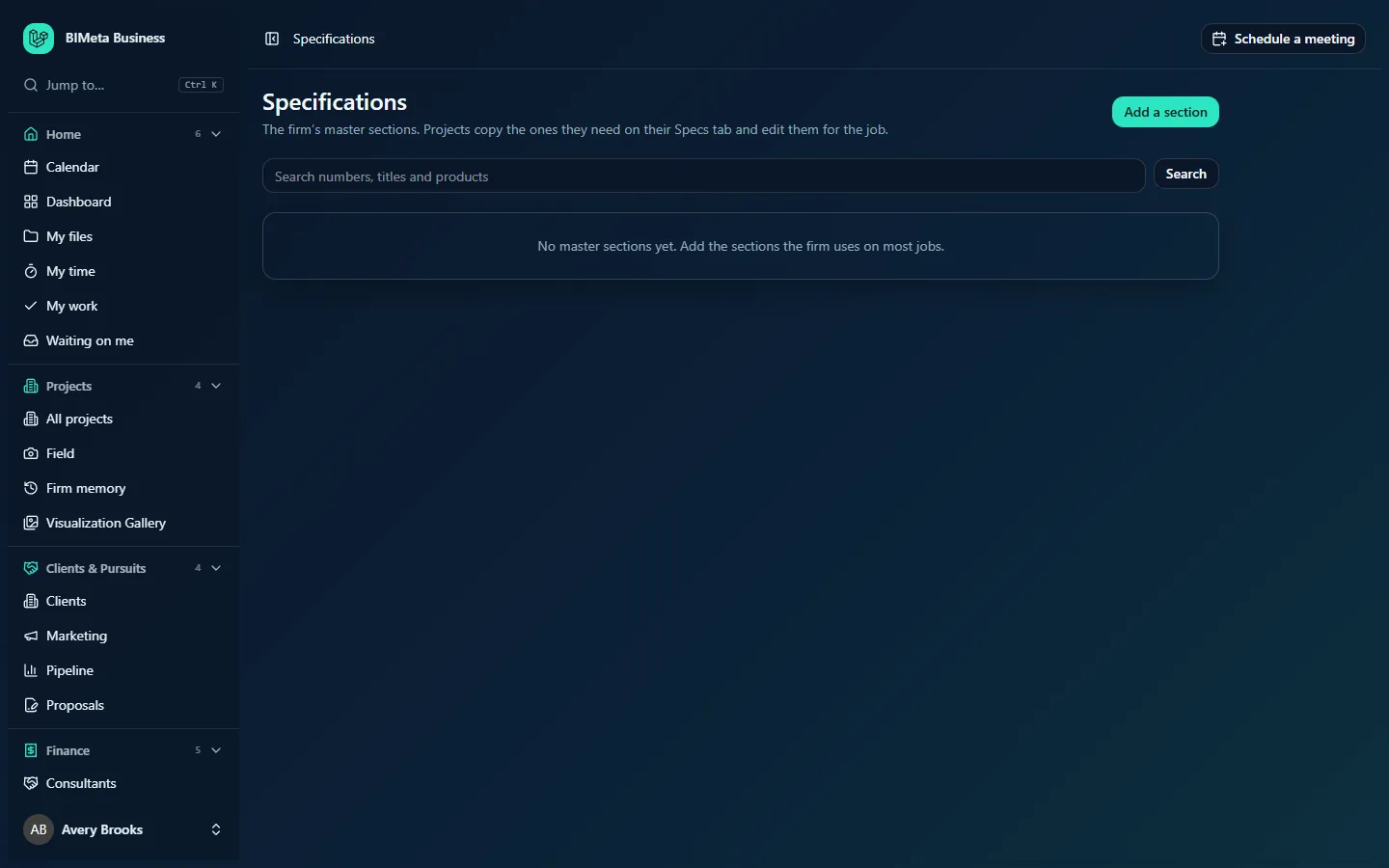
The screenshot shows a Business Owner's view before any master sections have been added.
A tour of the page
- Header: the title and the reminder The firm's master sections. Projects copy the ones they need on their Specs tab and edit them for the job.
- Add a section (editors only): opens the section editor at the top of the page.
- Search numbers, titles and products with a Search button: finds sections whose number, title or Part 2 Products text contains what you typed.
- The section list, in number order. Each row shows the number and title; click it to expand the section and read its three parts. Editors also get Edit and Remove on each row.
- Empty states: No master sections yet. Add the sections the firm uses on most jobs., or Nothing matches. after a search with no results.
The section editor
- Section number (required): a MasterFormat number written as three pairs of digits separated by spaces, for example
08 71 00, optionally followed by a two-digit extension such as08 71 00.13. Extra spaces are tidied up. Each number can appear only once in the master. - Title (required): up to 200 characters, for example Door Hardware.
- Draft it from manufacturer data: paste the manufacturer's product data (at least a few lines) and click Draft the three parts. AI writes a first draft of Part 1, 2 and 3 from that data. The note beside the button says roughly how many AI credits it uses. Anything the data doesn't support is marked [Confirm: …] for you to fill in.
- Part 1 - General, Part 2 - Products, Part 3 - Execution: the section's text. All three are optional and can be very long.
- Save section and Cancel.
How to…
Add a master section by hand
- Click Add a section.
- Enter the Section number and Title.
- Type or paste the text of the three parts.
- Click Save section. You'll see Section saved and it appears in number order.
Draft a section from manufacturer data with AI
- Click Add a section and enter the number and title first; the draft uses them.
- Paste the manufacturer's product data sheet text into the Draft it from manufacturer data box.
- Click Draft the three parts and wait. The three parts fill in.
- Read every part carefully, replace each [Confirm: …] marker, and adjust the wording to the firm's standards.
- Click Save section. Nothing is saved until you do.
Edit or remove a section
Click Edit on its row, change the fields and click Save section. Click Remove to delete it from the master. Remove takes effect straight away, without a confirmation question. Copies already made on projects aren't affected either way.
Tips and good to know
- The Family library lets BIM Managers tag each family with its specification section number. A project's Specs tab uses those tags to check the products placed in its synced models against its specification: which are covered, which need a section the project hasn't added yet, and which families have no section tag. Use the same numbers here and in the family library.
- Drafting uses the firm's AI credits; if the firm's AI allowance is used up or AI is turned off, drafting won't work but you can still write sections by hand.
- Adding, saving and removing sections is recorded in the audit log.
Troubleshooting
I get "Enter the MasterFormat number like 08 71 00."
The number must be three groups of two digits separated by single spaces (with an optional .13-style extension). Dashes, missing spaces or five-digit numbers are refused.
I get "Section 08 71 00 is already in this specification."
That number already exists in the master. Search for it and edit the existing section instead.
The draft says to paste more product data.
The AI needs at least a few lines of real product information to work from.
Was this article helpful?
Share