



Software Hub: install BIMeta desktop apps and content libraries
17 views · by Kevin J Bruno · updated 1 day ago
The Software Hub is your firm's shelf of BIMeta software. BIMeta publishes desktop apps (for example add-ins and companion programs) and content libraries to firms, and this page is where you decide which of them your firm uses. Installing an app here is what allows it to sign in to your portal; removing it signs everyone out of it straight away. Use it when you roll out a new BIMeta tool, when a newer version is announced, or when you want to stop the firm using an app.
Where to find it
- Sidebar → Admin → Settings, then Software Hub in the Apps and connections section. You can also type in Search settings at the top of the Settings page. A ‹ Settings link above the page title takes you back.
- Press Ctrl K (⌘K on a Mac) and type
software,appsordownloads.
Since the menu was shortened, the firm's settings pages are no longer listed one by one in the sidebar: they are gathered on the Settings page under Admin, grouped into sections. Each person sees only the pages they may open there. Jump to… (Ctrl K) still finds every page, and you can pin a page to the top of your sidebar if you use it often.
Who can use it
Business Owners, Admins and IT Staff, the people allowed to install and remove apps and libraries from the Software Hub. BIM Managers and Users don't see it in the sidebar, and opening the page directly shows an error. Everyone who can open the page can also install and remove items; there is no separate view-only level.
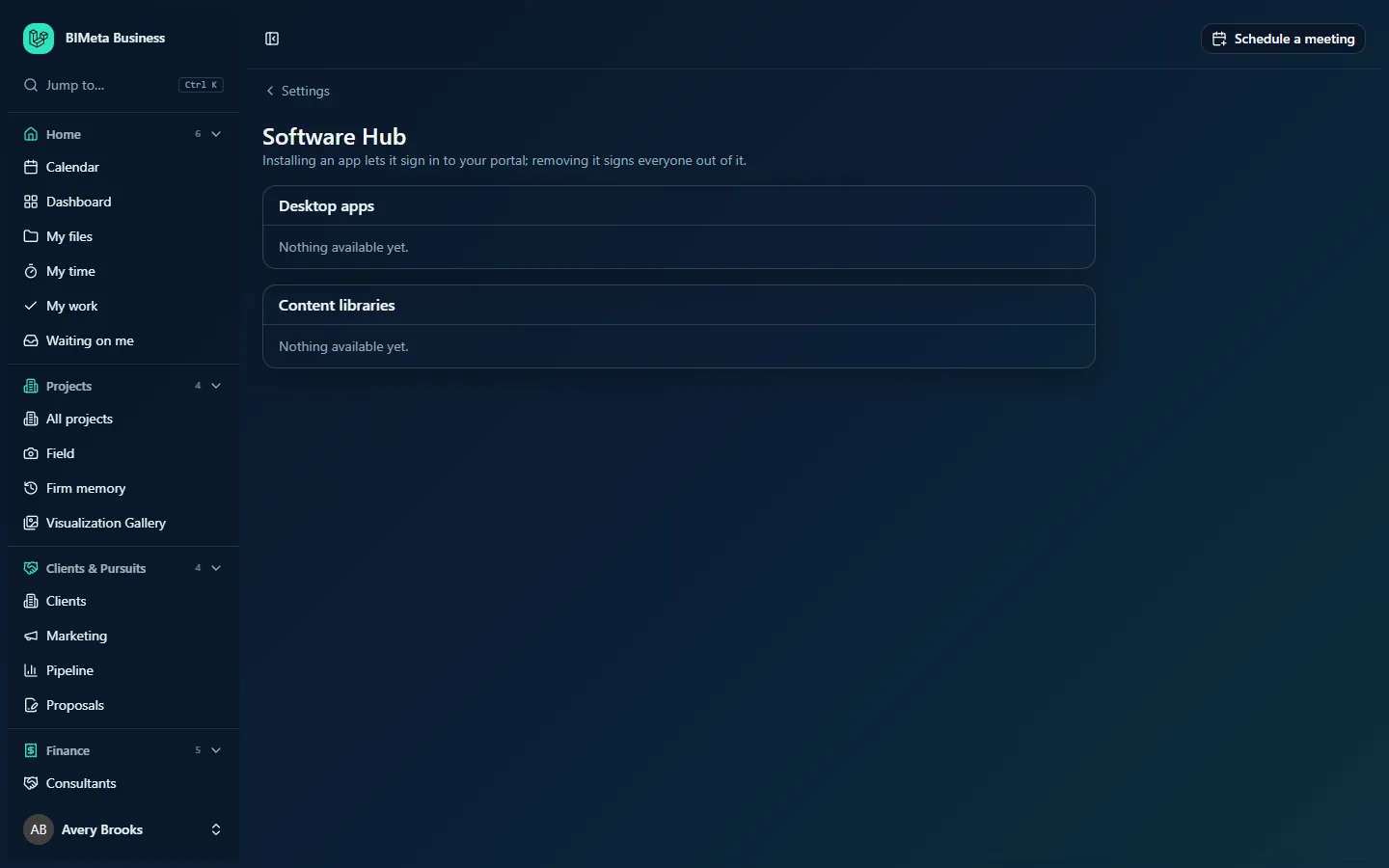
A tour of the page
Heading
Under the Software Hub title a line reminds you of the one rule that matters: Installing an app lets it sign in to your portal; removing it signs everyone out of it.
Desktop apps
The first box lists the desktop programs BIMeta has published to your firm. Each row shows:
- The app's name, with an Installed badge if your firm has it installed.
- An Update: version badge when your firm installed an older version than the one now published, for example Update: 2.4.0.
- A small grey line with the publisher, the category and the latest Version, separated by dots.
- A description of what the app does, when BIMeta has written one.
- A download button (an arrow icon), when an installer is available for the latest version. It downloads the installer for the latest version so you can deploy it on people's computers.
- An Install button (for items you haven't installed) or a Remove button (for installed items).
Content libraries
The second box works the same way for content libraries (for example family or template collections that BIMeta tools read from). Libraries don't sign in on their own, so installing or removing one only changes whether your firm has it.
Empty lists
If BIMeta hasn't published anything of a kind to your firm yet, the box says Nothing available yet., as in the screenshot of the example firm Northlight Architects.
How to install an app or library
- Find the item in Desktop apps or Content libraries.
- Click Install. The button shows it's working while the change is saved.
- You'll see a message such as BIMeta for Revit installed, and the row gets the Installed badge.
- To put the program on people's computers, use the download button to fetch the installer (or deploy it the way your IT team usually does).
What happens behind the scenes: for a desktop app that signs in, installing it registers the app with your firm so people can sign in to it with their portal account. The app then appears under Admin → Settings → Desktop apps in Registered apps, and under Admin → Settings → API & connected apps. The install is recorded in the firm's Audit log, with who installed it and which version.
How to update to a newer version
When BIMeta publishes a newer version, the row shows Update: version. Download the new installer with the download button and roll it out to the computers that use the app. The badge compares against the version your firm installed; to record the new version on the hub, click Remove and then Install again, bearing in mind that removing signs everyone out of the app (see below).
How to remove an app or library
- Find the installed item (it has the Installed badge).
- Click Remove. There is no extra confirmation, so be sure first.
- You'll see Removed. Anyone signed in to it has been signed out.
For a desktop app, removing it turns the app's sign-in off for the firm and ends every signed-in session at once: the app stops working for everyone until it's installed again. Files people saved locally are not touched. The removal is recorded in the Audit log. You can install it again at any time; people then sign in again from the app.
Tips and good to know
- Only BIMeta can add items to the hub. If you're expecting an app that isn't listed, it hasn't been published to your firm yet; contact BIMeta support from Firm → Support.
- The BIMeta Hub desktop app (when your firm uses it) shows people the items you installed here, with the latest version to download.
- Apps you register yourself (for example your own in-house tools) are not on this page; they're registered under Admin → Settings → Desktop apps.
- Removing an app is the quickest way to stop everyone using it at once, for example if a version misbehaves. To sign out just one person, use Admin → Settings → Desktop apps → Signed-in devices instead.
Troubleshooting / FAQ
Why can't I see Software Hub in the sidebar?
It needs the permission to install and remove Software Hub items, which Business Owners, Admins and IT Staff have. The Software Hub is no longer a separate sidebar item: open Admin → Settings and look in Apps and connections, or press Ctrl K and type software.
I see "That item isn't available to your firm."
BIMeta withdrew the item from your firm after the page loaded. Reload the page; it will no longer be listed.
People say the app suddenly signed them out.
Someone probably removed it from the Software Hub, or turned it off under Admin → Settings → Desktop apps. Check the Audit log, then install it again if that was a mistake.
Was this article helpful?
Share