



Social pages: connect networks and clear projects for publicity
18 views · by Kevin J Bruno · updated 11 hours ago
Social pages is where the firm connects its social networks to Marketing Studio, chooses exactly which pages Marketing Studio may post to, and decides which projects may be publicized at all. It's the safety switchboard for the firm's social media: new pages start switched off, every project starts "not cleared", and projects under a non-disclosure agreement can never be used.
Where to find it
- Sidebar → Clients & Pursuits → Marketing, then the Social pages tab at the top of the page.
- The composer's warning No pages are switched on yet… points you here.
Who can use it
- People allowed to connect social pages and keep the brand kit: by default Business Owners and Admins.
- The project buttons (Cleared for publicity / Not cleared and Mark under NDA / Remove NDA) appear only for people allowed to clear projects for publicity or mark them under NDA: by default Business Owners and Admins.
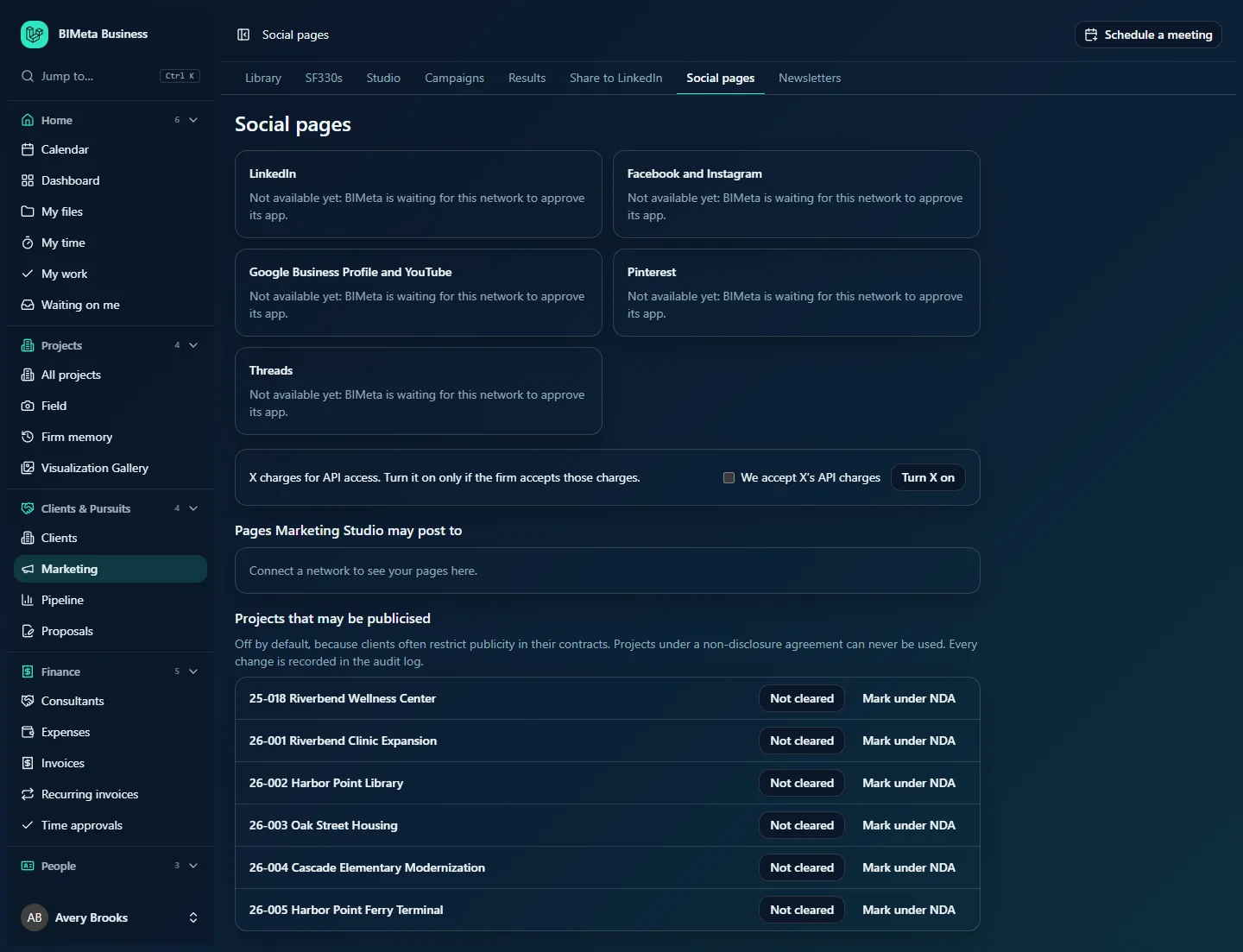
A tour of the page
Network cards
One card per network login: LinkedIn, Facebook and Instagram, Google Business Profile and YouTube, Pinterest, Threads and, when turned on, X. Each card shows:
- A Connected or Needs reconnecting badge once connected.
- Connect (or Connect again): signs in to the network to grant access.
- Find pages again (once connected): looks for pages added since, e.g. a new LinkedIn company page.
- Any error the network reported.
- Not available yet: BIMeta is waiting for this network to approve its app. when the network can't be connected yet on your server (as for every network in the screenshot).
What each login finds: LinkedIn company pages you administer; Facebook pages, with any Instagram professional account linked to each; Google Business Profile locations and YouTube channels; Pinterest boards; Threads and X profiles.
X opt-in
X charges for API access. Turn it on only if the firm accepts those charges. Tick We accept X's API charges and click Turn X on; the X card then appears. When it's on, the box reads X is on for the firm. with Turn X off; turning it off also switches off the firm's X pages.
Pages Marketing Studio may post to
Every page found behind the connected logins, with its name, network, a Needs reconnecting badge if its connection is broken, and an On/Off button. Only pages that are On appear under Post to in the composer. New pages always start Off. Until a network is connected: Connect a network to see your pages here.
Projects that may be publicised
Off by default, because clients often restrict publicity in their contracts. Projects under a non-disclosure agreement can never be used. Every change is recorded in the audit log. Every project is listed by number and name (e.g. 26-001 Riverbend Clinic Expansion), with:
- An Under NDA badge when it's marked as under a non-disclosure agreement.
- Not cleared / Cleared for publicity: click to switch. Greyed out while the project is under NDA.
- Mark under NDA / Remove NDA: click to switch. Marking a project under NDA also withdraws its publicity clearance.
How to…
Connect a network and choose pages
- On the network's card, click Connect.
- Sign in to the network with an account that manages the firm's pages, and approve access.
- Back on Social pages, the card shows Connected and the pages found are listed under Pages Marketing Studio may post to, all Off.
- Click Off on each page you want to use to switch it On.
Pick up a new page
Click Find pages again on the network's card. You'll see how many pages were found; switch the new one On.
Fix a broken connection
When a card or page shows Needs reconnecting (for example after a password change or when access expires), click Connect again and sign in. Then retry any failed posts on Marketing Studio.
Clear a project for publicity
- Check the client's contract allows publicity.
- Find the project under Projects that may be publicised and click Not cleared. It changes to Cleared for publicity (Publicity setting saved).
Cleared projects can now be chosen in posts, their images offered as pictures, their moments drafted with AI, and their project sheets shown on the website feed.
Mark a project under NDA
Click Mark under NDA. The project is un-cleared and can't be cleared again until you click Remove NDA.
Tips and good to know
- Withdrawing clearance takes effect immediately: posts about that project can't be approved any more, and its sheet drops off the website feed.
- The connection belongs to the firm, not to the person who connected it, but it uses that person's network access. If they leave or lose admin rights on the page, reconnect with someone else's account.
- Switching pages on and off, the X choice and publicity changes are recorded in the firm's audit log.
Troubleshooting / FAQ
Every card says "Not available yet".
The network hasn't approved BIMeta's app on your server yet, so it can't be connected. Nothing to do on your side; check back later or contact BIMeta support.
"Tick the box to confirm the firm accepts X's API charges."
Tick We accept X's API charges before clicking Turn X on.
"A project under a non-disclosure agreement can't be cleared for publicity."
Click Remove NDA first (only if the agreement no longer applies), then clear it.
My company page isn't listed after connecting LinkedIn.
Only pages the connecting person administers are found. Ask a page admin to connect, or make the person an admin of the page on LinkedIn and click Find pages again.
Was this article helpful?
Share