



Signing in: passwords, two-factor, passkeys and single sign-on
19 views · by Kevin J Bruno · updated 3 hours ago
This article covers everything about getting into BIMeta Business and out again: accepting your invitation, signing in with a password, a passkey or your firm's single sign-on, two-factor sign-in (who must use it, how to set it up, and what to do with recovery codes), resetting a forgotten password, staying signed in, and signing out.
Where to find it
Each firm has its own web address, for example yourfirm.bimeta.net, or a custom address like portal.yourfirm.com if your firm set one up. Open it in your browser and you'll see the Sign in to your account page, with your firm's name above the form. There is no "sign up" button: firms sign up on the public BIMeta site, and people are invited by their firm. Bookmark your firm's address so you can find it again.
Once signed in, you manage your password, two-factor sign-in and passkeys under your name at the bottom of the sidebar → Settings → Security. You can also press Ctrl K and type 2fa, passkey or security to jump to Password and two-factor sign-in.
Who can use it
Everyone with an account at the firm signs in here, including clients and consultants your firm has invited. Two-factor sign-in is required for these firm roles: Business Owner, Admin, Human Resources, IT Staff and BIM Manager. Your firm can also require it for other roles (under Admin → Settings → Roles & permissions) or for everyone (under Admin → IT → Security). Everyone else can still turn it on voluntarily, and it is strongly recommended.
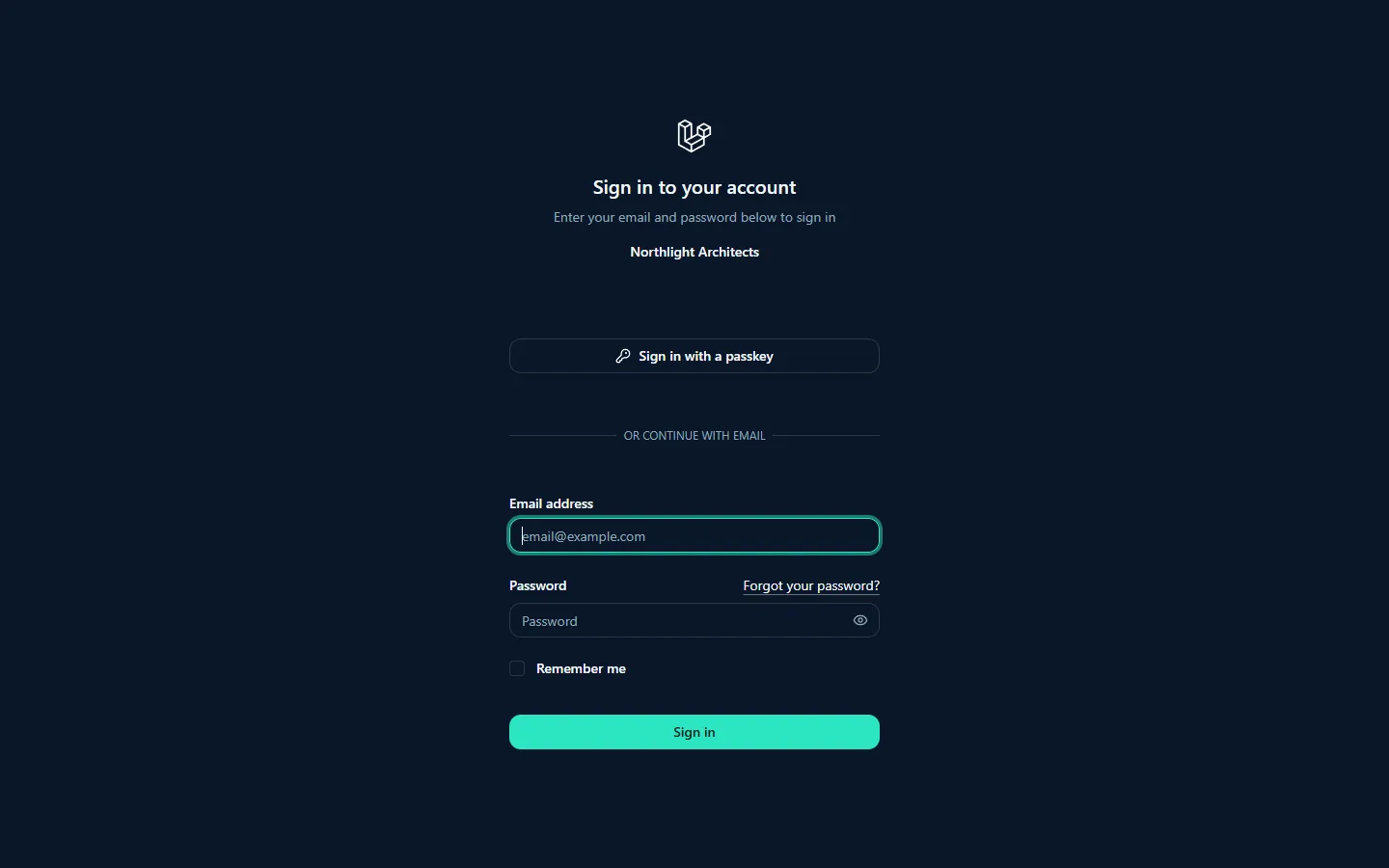
A tour of the sign-in page
- Firm name: shown at the top so you know you're on the right portal.
- Language: a language button lets you choose your language before you sign in.
- Single sign-on button (only if your firm set up single sign-on): a button such as "Sign in with Microsoft". Under it you'll see either Or sign in with your password (passwords still work) or Your firm signs in with SSO. Business Owners can still use a password below. (SSO is required).
- Sign in with a passkey: shown when your browser supports passkeys. Below it, Or continue with email separates it from the password form.
- Email address and Password: your work email and password. The eye button in the password box shows or hides what you typed.
- Forgot your password?: opens the password reset page.
- Remember me: keeps you signed in on this browser (see "Staying signed in" below).
- Sign in: signs you in.
How to accept your invitation (first sign-in)
- Your firm's Admin, Business Owner or IT Staff invites you from Admin → Settings → People & access. You receive an email with a personal invitation link.
- Open the link. The Join your firm page greets you by name and shows the email address the account is for.
- Enter a Password of at least 12 characters (a short phrase works well) and type it again in Confirm password. Don't include the part of your email before the @ in your password; it will be refused. Passwords known from public data breaches are also refused.
- Optionally pick a look under Appearance (you can change it later in Settings → Appearance).
- Click Set password. You're taken to the sign-in page with the message Password set. Sign in to continue.
Invitation links are single-use and expire after 7 days. If the link has expired or was already used, you'll see This invitation link has expired or was already used. Ask your firm Admin for a new one. If your firm uses single sign-on, you can also simply click the SSO button on the sign-in page: your invited account is activated the first time you sign in that way.
How to sign in with your password
- Go to your firm's web address.
- Enter your Email address and Password.
- Tick Remember me if this is your own computer.
- Click Sign in.
- If two-factor sign-in is turned on for your account, you're asked for a code next (see below).
- You land on your Dashboard. Clients and consultants land on Waiting on me or their projects instead.
After five wrong attempts in a minute for the same email, you'll see Too many attempts. Try again in a minute. Wait a minute and try again carefully.
Where you land the first time
Most people land on the Dashboard. Two situations send you somewhere else first:
- Your firm is brand new. The Business Owner who signed the firm up is taken to a Welcome to BIMeta Business page and then through Setup, section by section (Get started, Your firm, Project standards, Your team), before the full portal and its menu appear. Anyone else who signs in during that time sees a page saying the firm is finishing its setup, and is let in once it's ready. See What is BIMeta Business? for the full onboarding walk-through.
- Your firm asks for a background check. If your firm has turned on background checks for team members (under Admin → Settings → Background checks), you're asked to confirm your identity before you can use the portal. Your own account settings and sign-out still work while you do. See Confirming your identity (when your firm asks for a background check).
How to sign in with single sign-on
If your firm connected its identity provider (Microsoft Entra ID, Google, Okta or another OpenID Connect provider) under Admin → Settings → Single sign-on, the sign-in page shows a button for it.
- Click the single sign-on button (for example Sign in with Microsoft).
- Sign in at your provider as you normally would, including any extra verification it asks for.
- You're returned to BIMeta Business, signed in.
Good to know:
- When your firm makes SSO required, everyone except Business Owners must use the SSO button; a password sign-in is refused with Your firm signs in with SSO. Use the button below. Business Owners keep their password so that a broken provider can never lock the firm out.
- Your firm may limit SSO to certain email domains, and may or may not create accounts automatically for new people. If there's no account for you, you'll see a message asking you to ask your firm Admin for an invitation.
- If your firm trusts the provider's own multi-factor check, you won't be asked to set up BIMeta two-factor when you sign in with SSO.
How to sign in with a passkey
A passkey lets you sign in with your fingerprint, face, device PIN or a security key instead of typing a password. You first add a passkey in Settings (see below), then:
- On the sign-in page, click Sign in with a passkey.
- Your browser or device asks you to confirm (for example with Windows Hello, Touch ID or your phone).
- You're signed in and taken to your dashboard.
If your browser doesn't support passkeys, the button doesn't appear.
Two-factor sign-in
Two-factor sign-in (2FA) adds a second step: after your password, you enter a 6-digit code from an authenticator app on your phone, such as Microsoft Authenticator, Google Authenticator or another app that supports time-based codes (TOTP). Someone who learns your password still can't get in without your phone.
If your role requires two-factor
If you're a Business Owner, Admin, HR, IT Staff or BIM Manager (or your firm requires it for your role or for everyone) and you haven't set it up yet, you're taken straight to the Security settings page after signing in, with the message Your role requires two-factor sign-in. Set it up to continue. You can't open other pages until you finish. A registered passkey also satisfies this requirement.
How to set up two-factor sign-in
- Open your name at the bottom of the sidebar → Settings → Security. You may be asked to Confirm password first (or Confirm with passkey); this is asked again only after a few hours.
- Under Two-factor authentication, click Enable 2FA.
- The Enable two-factor authentication window shows a QR code. Open your authenticator app, add an account and scan the code. If you can't scan, choose or, enter the code manually and type the setup key shown.
- Click Continue. In Verify authentication code, enter the 6-digit code your app now shows and click Confirm.
- Two-factor is now on. Under 2FA recovery codes, click View recovery codes and store them safely (see below).
If you close the window before finishing, click Continue setup to pick up where you left off.
Signing in with a code
- After entering your email and password, the Authentication code page appears.
- Open your authenticator app and type the current 6-digit code into the boxes.
- Click Continue.
Codes change every 30 seconds; if one is refused, wait for the next. After five wrong codes in a minute you'll be asked to wait a minute.
Recovery codes
Recovery codes let you get in if you lose or replace your phone. Keep them in a secure password manager, not in a file on your desktop.
- To see them: Settings → Security → View recovery codes (and Hide recovery codes to hide them again).
- To use one: on the Authentication code page, click login using a recovery code, type one code into Enter recovery code and click Continue. Click login using an authentication code to switch back.
- Each recovery code works once and is then removed. When you run low, click Regenerate codes: you get a fresh set and the old ones stop working.
Turning two-factor off
You can click Disable 2FA in Settings → Security. If your role requires two-factor, you'll be asked to set it up again the next time you open a page, so only do this if you're about to set it up on a new phone.
How to add and manage passkeys
- Go to Settings → Security and scroll to Passkeys. If you have none you'll see No passkeys yet.
- Click Add passkey.
- Enter a Passkey name so you can recognize it later, for example Work laptop or iPhone.
- Click Register passkey and confirm on your device (fingerprint, face, PIN or security key).
Each passkey is listed with its name, when it was added and when it was last used. To remove one you no longer use (for example when you replace a laptop), click its remove button and confirm in the Remove passkey window. If the page says Passkeys are not supported in this browser., use an up-to-date Edge, Chrome, Safari or Firefox.
How to reset a forgotten password
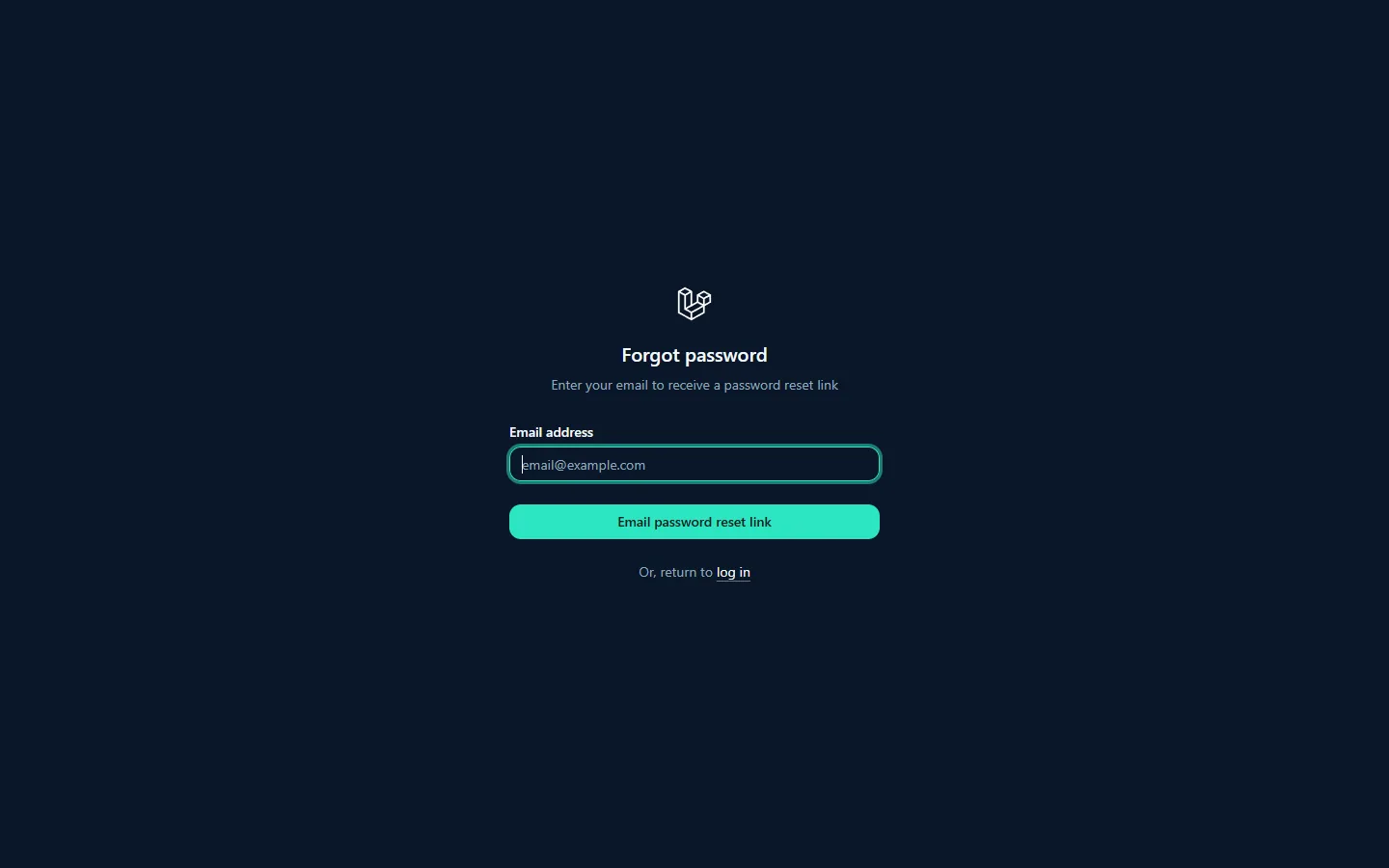
- On the sign-in page click Forgot your password?
- Enter your Email address and click Email password reset link.
- Open the email and click the reset link. The link is valid for 60 minutes, and you can only request a new one once a minute.
- On the Reset password page your email is already filled in. Enter a new Password, repeat it in Confirm password and click Reset password.
- Sign in with your new password (and your two-factor code if it's on).
New passwords must be at least 12 characters and mix upper and lower case letters, numbers and symbols, and can't be one known from data breaches. Click log in under the form to go back without resetting. If your firm requires single sign-on, reset your password with your identity provider instead (Business Owners excepted).
How to change your password
- Go to Settings → Security.
- Under Update password, enter your Current password, a New password and Confirm password.
- Click Save.
Staying signed in
- Without Remember me, you're signed out after about two hours without using the portal.
- With Remember me ticked, this browser stays signed in until you log out. Only use it on your own device.
- Your firm's IT team can set an automatic sign-out after a period of inactivity (15 minutes up to 8 hours) under Admin → IT → Security. This applies even with Remember me. You'll then see You were signed out after … minutes without activity.
- IT Staff can end any session from Admin → IT → Accounts. If that happens you'll see Your session was ended by your IT team. Sign in again.
- Some areas ask you to confirm your password (or passkey) again before opening, such as Security settings. This lasts a few hours.
How to sign out
- Click your name at the bottom of the sidebar.
- Click Log out.
Signing out also clears anything the Field pages kept on this device for offline use. If you've been capturing site photos or logs without a connection, make sure they've finished sending before you log out.
Tips and good to know
- If your firm turned on sign-in alerts, the IT team is told when you sign in from a new device or when there are repeated failed sign-ins on your account. That's normal; it protects you.
- Your firm may restrict sign-in to the office network or certain countries. If you can't reach the sign-in page from home, ask IT.
- Every request to the portal also passes through the BIMeta firewall, which blocks attacks and temporarily bans addresses that behave abusively. Office networks are never banned. If you're suddenly refused from a hotel or site network, IT can check Admin → IT → Firewall and give that address a temporary travel pass.
- You can't delete your own account. When someone leaves, an Admin deactivates their account under Admin → Settings → People & access.
- Lost your phone and your recovery codes? A Business Owner, Admin, IT Staff or HR can reset your two-factor sign-in under Admin → Settings → People & access, then you set it up again.
Troubleshooting / FAQ
It says my email or password is wrong, but I'm sure it's right.
Check you're on your own firm's address (the firm name shows above the form) and that your account has been activated from the invitation. If your firm requires SSO, use the SSO button. Otherwise use Forgot your password?
My authentication code is always refused.
The clock on your phone may be off. Turn on automatic date and time on your phone, then try the newest code. You can also use a recovery code.
I'm stuck on the Security page and can't open anything else.
Your role requires two-factor sign-in. Finish setting it up (or add a passkey) and the rest of the portal opens.
"Your account in this firm is switched off."
Your account was deactivated. Ask your firm Admin.
"That sign-in took too long or was already used."
The SSO sign-in timed out. Go back to the sign-in page and click the SSO button again.
Was this article helpful?
Share