



Share to LinkedIn: reshare the firm's posts
17 views · by Kevin J Bruno · updated 1 day ago
Share to LinkedIn lets you share the firm's posts with your own LinkedIn network, in your own words. The marketing team picks published posts they'd love staff to share and suggests some wording; you choose which ones to share and can change the text first. It's always your choice: nothing is ever posted to your LinkedIn unless you press Share.
Where to find it
- Business Owners, Admins, IT Staff, BIM Managers and Project Managers: Sidebar → Clients & Pursuits → Marketing, then the Share to LinkedIn tab at the top of the page.
- Users (and anyone else whose only marketing page is this one): Sidebar → Clients & Pursuits → Share to LinkedIn, listed under a small Marketing heading. There is no Marketing hub or tab row for them, because a hub only appears when you can open at least two marketing pages.
- Press Ctrl K and type "Share".
Who can use it
- Everyone in the firm by default: Business Owners, Admins, IT Staff, BIM Managers, Project Managers, Human Resources and Users all have permission to reshare the firm's posts.
- The page only offers posts when the firm has staff sharing turned on (on Results) and someone has offered posts to staff.
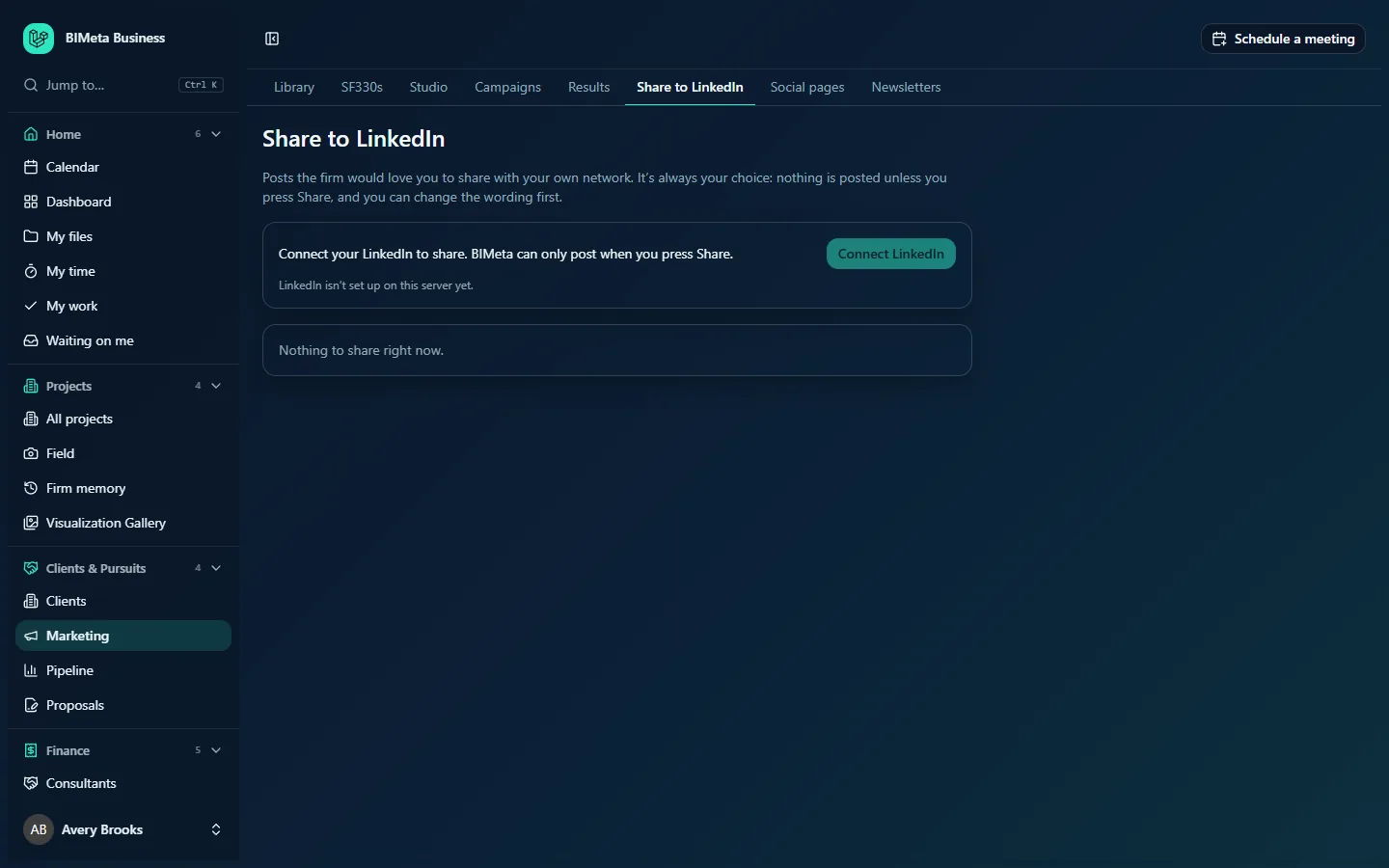
A tour of the page
- Intro: Posts the firm would love you to share with your own network. It's always your choice: nothing is posted unless you press Share, and you can change the wording first.
- Staff sharing is turned off for the firm. appears instead of posts when the firm has switched the feature off.
- Your LinkedIn connection:
- Not connected: Connect your LinkedIn to share. BIMeta can only post when you press Share. and a Connect LinkedIn button.
- Connected: Connected as [your name] and a Disconnect button.
- Expired: Your LinkedIn needs connecting again. and a Reconnect button.
- If your firm's server doesn't have LinkedIn set up yet, a note says LinkedIn isn't set up on this server yet. (as in the screenshot) and connecting isn't possible.
- Offered posts, newest first. Each card shows:
- The post's title and, when the firm published it on a LinkedIn company page, the label Reshares the firm's post (your share will be a reshare of the company post; otherwise it's a new post of your own).
- How many colleagues have shared it (n people shared).
- The post's text.
- If you've already shared it: You shared this. and See it on LinkedIn.
- Otherwise: a Your words box pre-filled with the firm's suggested wording (or the post's own text if none was suggested), up to 2,800 characters, and a Share button. If a previous attempt failed, the reason is shown.
- When nothing is offered: Nothing to share right now.
How to…
Connect your LinkedIn
- Click Connect LinkedIn.
- Sign in to LinkedIn if asked and approve access for BIMeta.
- You come back to the page, now Connected as your name.
Share a post
- Read the post and edit the text in Your words as you like. Make it personal: what you worked on, what you're proud of.
- Click Share.
- You'll see Shared to your LinkedIn, and the card changes to You shared this. with a link to your post.
Disconnect your LinkedIn
Click Disconnect. BIMeta can no longer post to your LinkedIn until you connect again. You can also remove BIMeta's access from your LinkedIn settings.
Tips and good to know
- Your connection is personal: it's yours alone and isn't used for the firm's company page.
- Each post can be shared once per person.
- If the firm counts clicks on staff links, web addresses in your text are swapped for a tracked short link, and your shares and their clicks appear on the firm's Results page (the leaderboard is shown to approvers, and to everyone in Marketing only if the firm chooses).
- Each share is recorded in the firm's audit log.
Troubleshooting / FAQ
"Connect your LinkedIn first."
Click Connect LinkedIn (or Reconnect) and try again.
"LinkedIn refused the post: …" or "LinkedIn couldn't be reached."
LinkedIn rejected or didn't answer the request. Wait a few minutes and try again; if it keeps failing, reconnect your LinkedIn.
"Write a few words to go with it (up to 2,800 characters)."
The text box is empty or too long. Add or trim your words.
"That post isn't offered for sharing any more."
The marketing team withdrew it. Reload the page to see what's currently offered.
Was this article helpful?
Share