



SF330s: prepare federal qualifications packages
17 views · by Kevin J Bruno · updated 22 hours ago
The SF330s page is where you put together Architect-Engineer Qualifications (the federal Standard Form 330) for a specific pursuit. Instead of typing the form from scratch, you enter the contract details and your proposed team, then tick the key people and example projects you want from the Marketing library. BIMeta Business assembles the full form, including each person's résumé, the project write-ups, the participation matrix and your firm's Part II, ready to print or save as a PDF.
Where to find it
- Sidebar → Clients & Pursuits → Marketing, then the SF330s tab at the top of the page.
- From the Marketing library, click the SF330s button at the top right.
- Press Ctrl K and type "SF330".
Who can use it
- View and print (people allowed to see résumés, project sheets and SF330s): by default Business Owners, Admins, Project Managers, IT Staff and BIM Managers. They can open any SF330 and use Print or save as PDF, but its form is read-only.
- Create and edit (people allowed to keep the marketing library and prepare SF330s): by default Business Owners and Admins. Only they see the New SF330 form, Save SF330, Mark as submitted and Delete SF330.
- Users and Human Resources don't see SF330s.
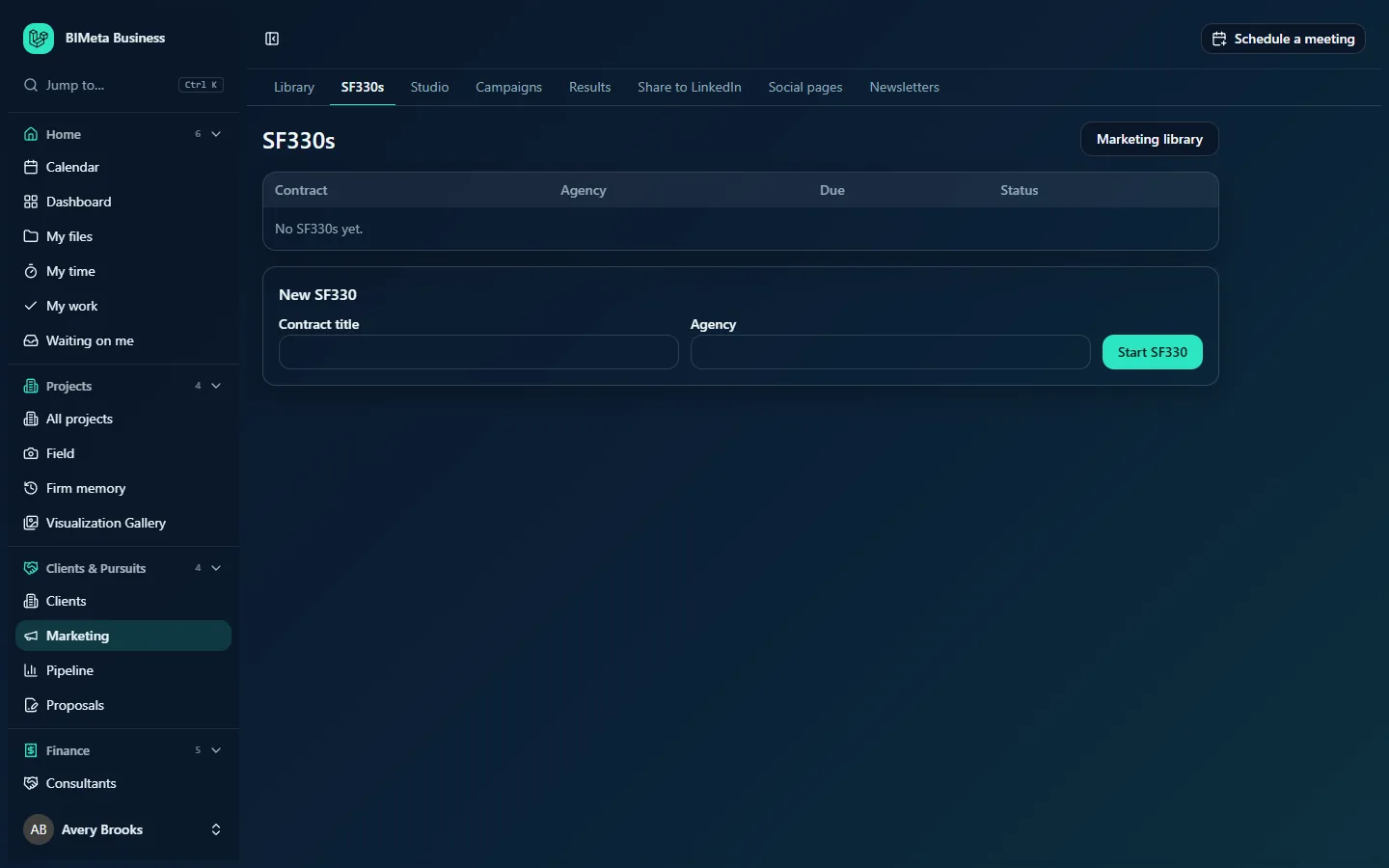
A tour of the SF330s page
- Marketing library button (top right): jumps to the library, where people and projects are kept.
- The list, newest first, with columns:
- Contract: the contract title as a link, with the solicitation number and linked pursuit underneath in grey when set.
- Agency: the agency issuing the notice.
- Due: the submission due date.
- Status: Draft or Submitted.
- New SF330 (editors): Contract title (required, up to 200 characters), Agency (optional) and Start SF330.
A tour of an SF330
Clicking a contract title opens the SF330 itself. The header shows the title, a Draft or Submitted badge, Print or save as PDF and, for editors, Mark as submitted (or Back to draft). Below is one form, section by section:
A. Contract information
- Title and location (required), Agency, Solicitation or project number (up to 80 characters), Public notice date and Due date.
- Pursuit (optional): link the SF330 to a pursuit on the Pipeline, or leave Not linked. The pursuit's name then shows in the SF330s list.
B. Architect-engineer point of contact
Name, Title, Firm name, Address, Phone and Email of the person the agency should contact (each up to 200 characters).
C. Proposed team
One row per firm on the team (up to 30): Firm name, Address, Role (Prime, Joint venture partner or Subcontractor) and Role in this contract (the work they'll do). Use Add firm for more rows and Remove to delete one. Rows without a firm name are ignored.
E. Key personnel
Every person in the library who is offered on new SF330s, each with their role and how many projects they're linked to. Tick up to 20; the counter shows e.g. 6 of 20 chosen. The order you tick them is the order they're numbered on the form. If the library is empty: Add people in the marketing library first.
F. Example projects
Every project sheet offered on new SF330s, with location and year. Tick up to 10 (3 of 10 chosen). If none: Add project sheets in the marketing library first.
H. Additional information
A large text box (up to 50,000 characters) for why this team fits the selection criteria in the notice. Section G, the participation matrix, isn't typed: it's filled in from the library.
Buttons at the bottom
- Save SF330 (editors).
- Delete SF330 (editors): asks Delete this SF330? The library is kept.
How to…
Prepare an SF330 for a pursuit
- Make sure the Marketing library has the people and projects you need, that each person is linked to the projects they worked on, and that Firm qualifications (Part II) is filled in.
- On SF330s, type the Contract title (as in the notice) and the Agency, then click Start SF330. The new SF330 opens: SF330 started. Choose the team, people and projects.
- Complete A. Contract information and link the Pursuit if you track it on the Pipeline.
- Fill in B. Architect-engineer point of contact.
- Add every firm on the team in C. Proposed team, starting with your own firm as Prime.
- Tick the people in E. Key personnel and the projects in F. Example projects, in the order you want them numbered.
- Write H. Additional information.
- Click Save SF330.
Print it or save it as a PDF
- Click Print or save as PDF. A print-ready Architect-Engineer Qualifications document opens in a new tab.
- Use your browser's Print and choose "Save as PDF" or a printer.
The printed form contains: A (contract information), B (point of contact), C (proposed team), E (a résumé for each chosen person, with up to five relevant projects each: projects on this SF330 first, then their other linked projects, marked Performed with another firm where relevant), F (a write-up for each example project from its project sheet), G (the matrix of chosen people against chosen projects, showing each person's role on each project, or an X where no role was typed), H (additional information) and Part II: general qualifications from the library.
Mark it as submitted
- After you've sent the SF330 to the agency, click Mark as submitted. The badge changes to Submitted.
- If you need to change it again, click Back to draft.
Delete an SF330
- Open it and click Delete SF330.
- Confirm. The SF330 is deleted; the people, projects and firm details in the library are kept.
Tips and good to know
- The SF330 always uses the current library content. Improve a person's résumé or a project's description in the library and every SF330 that uses them picks up the change the next time it's printed.
- Section G comes from the links between people and projects in the library. If a cell is blank, open the person in the library and use Link project.
- The form refuses more than 20 people or 10 projects, matching the federal form's limits.
- Submitted status is a record for your firm; you can still edit the content after going back to draft.
- Saving, status changes and deletion are recorded in the firm's audit log.
Troubleshooting / FAQ
"Enter the contract title from the notice."
The title is required. Type it as it appears in the public notice.
I can't tick another person or project.
You've reached the limit (20 people or 10 projects). Untick one first.
Someone is missing from E. Key personnel.
Only library entries with Offer on new SF330s ticked are listed. Turn it back on in the Marketing library.
Why is everything greyed out?
You can view SF330s but not edit them. Ask a Business Owner or Admin to make changes.
Was this article helpful?
Share