



Security: password, two-factor sign-in and passkeys
29 views · by Kevin J Bruno · updated 1 day ago
The Security page keeps your account safe. Here you change your password, turn on two-factor authentication (a six-digit code from an app on your phone each time you sign in), view or renew your recovery codes, and add passkeys so you can sign in with your fingerprint, face or device PIN instead of a password. Because these settings are sensitive, BIMeta asks you to confirm your password before showing the page.
Where to find it
- Click your name at the bottom of the sidebar, then Settings. Settings opens on Profile; the four settings pages are listed on the left: Profile, Security, Appearance and Connected apps.
- Ctrl K and type
2fa,passkeyorpassword; it's listed as Password and two-factor sign-in under Your account. - If your role requires two-factor sign-in and you haven't set it up, BIMeta brings you here automatically with Your role requires two-factor sign-in. Set it up to continue.
- Reminder emails from IT about two-factor sign-in link here.
- These pages stay open even while a new firm is waiting for its background check, or while your firm asks you to confirm your identity before using the portal (see Confirming your identity (when your firm asks for a background check)).
Who can use it
Everyone with an account, for their own sign-in only. Business Owners, Admins, HR, IT Staff and BIM Managers must use two-factor sign-in; until they set it up they can only reach this page. Your firm's IT team can also require it for everyone under Admin → IT → Security. If your firm signs in with single sign-on and trusts the directory's own two-step check, you may not be asked to set it up here.
Step 1: confirm your password
When you open Security, BIMeta first shows a Confirm password screen: This is a secure area of the application. Please confirm your password before continuing.
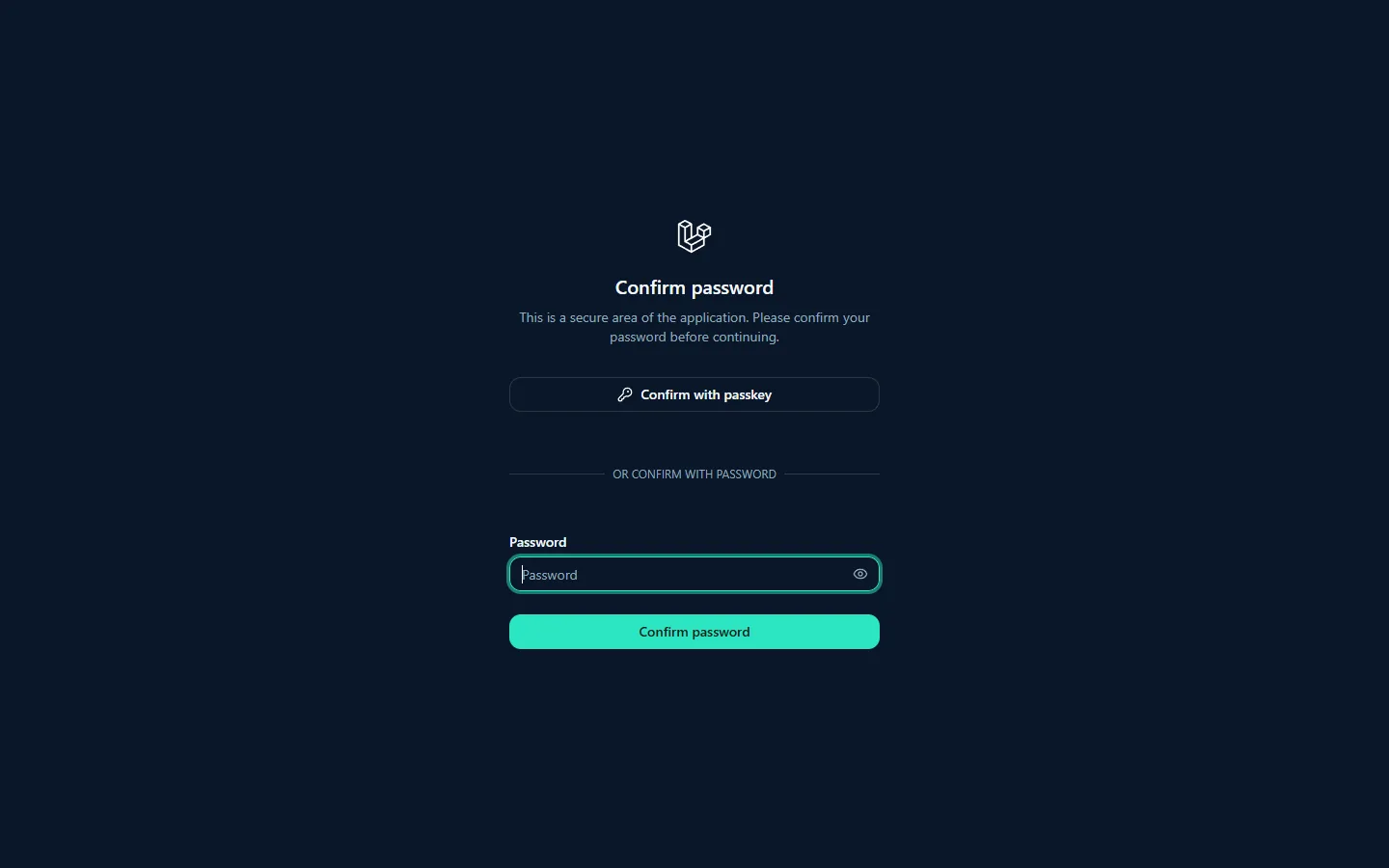
- Confirm with passkey: if you've added a passkey, click this and use your fingerprint, face or device PIN.
- Or, under OR CONFIRM WITH PASSWORD, type your Password (the eye icon shows what you typed) and click Confirm password.
Once confirmed, you won't be asked again for about three hours in that browser.
A tour of the page
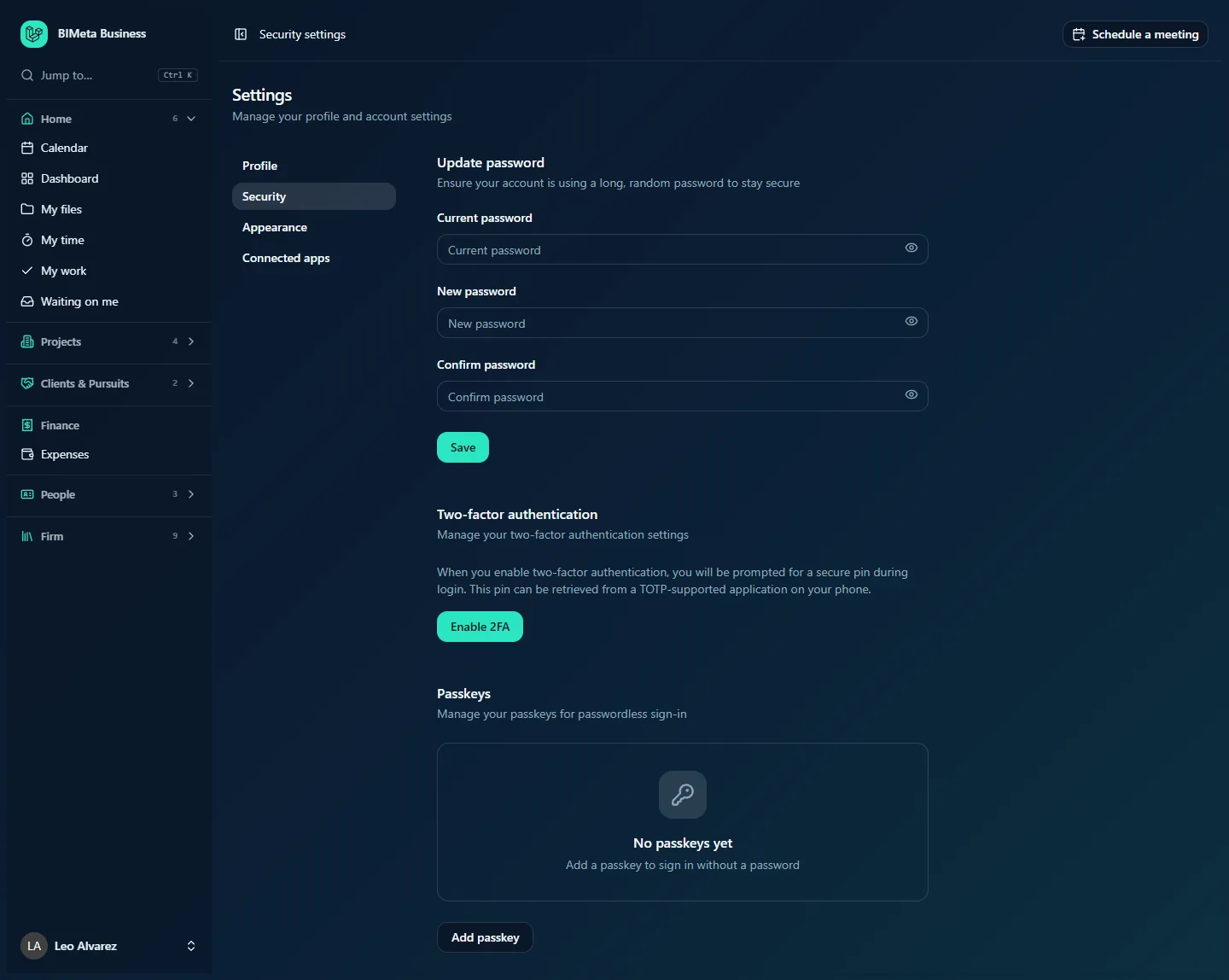
Update password
Ensure your account is using a long, random password to stay secure. Three boxes: Current password, New password and Confirm password, each with an eye icon to show or hide it, and Save.
Two-factor authentication
Manage your two-factor authentication settings. When it's off, the page explains that you'll be prompted for a secure pin during login, retrieved from a TOTP-supported app on your phone (such as Microsoft Authenticator, Google Authenticator or 1Password), and shows Enable 2FA (or Continue setup if you started but didn't finish). When it's on, you'll see Disable 2FA and the 2FA recovery codes card with View recovery codes / Hide recovery codes and Regenerate codes.
Passkeys
Manage your passkeys for passwordless sign-in. Each passkey shows its name, Added … and Last used …, with Remove. With none, a box says No passkeys yet. Add a passkey to sign in without a password. Below is Add passkey.
How to change your password
- Type your Current password.
- Type a New password and repeat it in Confirm password. On BIMeta's live service, passwords must be at least 12 characters with upper- and lower-case letters, a number and a symbol, and must not appear in known data breaches.
- Click Save. You'll see Password updated. and the boxes clear.
You can try at most six times a minute. If your firm signs in only with single sign-on, change your password in your company directory instead.
How to turn on two-factor sign-in
- Install an authenticator app on your phone if you don't have one.
- Click Enable 2FA. A window titled Enable two-factor authentication shows a QR code and, under or, enter the code manually, a setup key.
- Scan the QR code with the app (or type the setup key into it), then click Continue.
- Under Verify authentication code, enter the 6-digit code the app shows and click Confirm (or Back to see the QR code again).
- You'll see Two-factor authentication enabled. Click Close.
- Click View recovery codes and store them somewhere safe, such as a password manager.
From your next sign-in you'll enter a code from the app after your password. Never share the QR code or setup key: anyone with them can generate your codes.
Recovery codes
- Recovery codes let you regain access if you lose your 2FA device. Store them in a secure password manager.
- Each code works once and is removed after use.
- Regenerate codes replaces them all with a new set (the old ones stop working). Do this if you used several or think someone saw them.
How to turn two-factor sign-in off
Click Disable 2FA. You'll no longer be asked for a code. If your role or firm requires two-factor sign-in, you'll be sent back here to set it up again before you can use the rest of the portal. More detail is in Signing in: passwords, two-factor, passkeys and single sign-on.
How to add or remove a passkey
- Click Add passkey.
- Type a Passkey name (A name helps you identify this passkey later.), for example MacBook Pro or iPhone; your browser and system are suggested.
- Click Register passkey and follow your device's prompt (fingerprint, face or PIN). It shows Registering... meanwhile.
- The passkey appears in the list. Next time, choose the passkey option on the sign-in page.
To remove one, click Remove on it, then confirm with Remove passkey (or Cancel). Remove passkeys for devices you no longer own. If your browser can't create passkeys you'll see Passkeys are not supported in this browser.
Tips and good to know
- A passkey can't be phished and is faster than a password plus code. Add one on each device you use regularly.
- Use a password you don't use anywhere else; a password manager makes that easy.
- If you lose your phone, sign in with a recovery code, then turn two-factor off and on again to link your new phone.
- If you're locked out completely, ask your firm's IT Staff or Admin for help.
Troubleshooting / FAQ
The authenticator code is always refused.
Your phone's clock is probably off. Turn on automatic date and time on the phone and try again.
I keep landing on Security and can't open anything else.
Your role or firm requires two-factor sign-in. Finish setting it up and the rest of the portal opens.
Why am I asked for my password again?
The confirmation lasts about three hours. After that, or in a new browser, Security asks again.
Was this article helpful?
Share