



Profile: change your name and email address
16 views · by Kevin J Bruno · updated 1 day ago
Your Profile holds the two things that identify you in BIMeta Business: your name, which colleagues see on projects, timesheets, tasks and comments, and your email address, which you sign in with and where the portal sends your notifications. Change them here when you change your name or move to a new email address.
Where to find it
- Click your name at the bottom of the sidebar, then Settings. Settings opens on Profile; the four settings pages are listed on the left: Profile, Security, Appearance and Connected apps.
- Ctrl K and type
profile; it's listed under Your account. - These pages stay open even while a new firm is waiting for its background check, or while your firm asks you to confirm your identity before using the portal (see Confirming your identity (when your firm asks for a background check)).
Who can use it
Everyone with a BIMeta Business account: Business Owners, Admins, IT Staff, BIM Managers, Project Managers, HR and Users. You can only change your own profile. To change someone else's details, an Admin uses Admin → Settings → People & access.
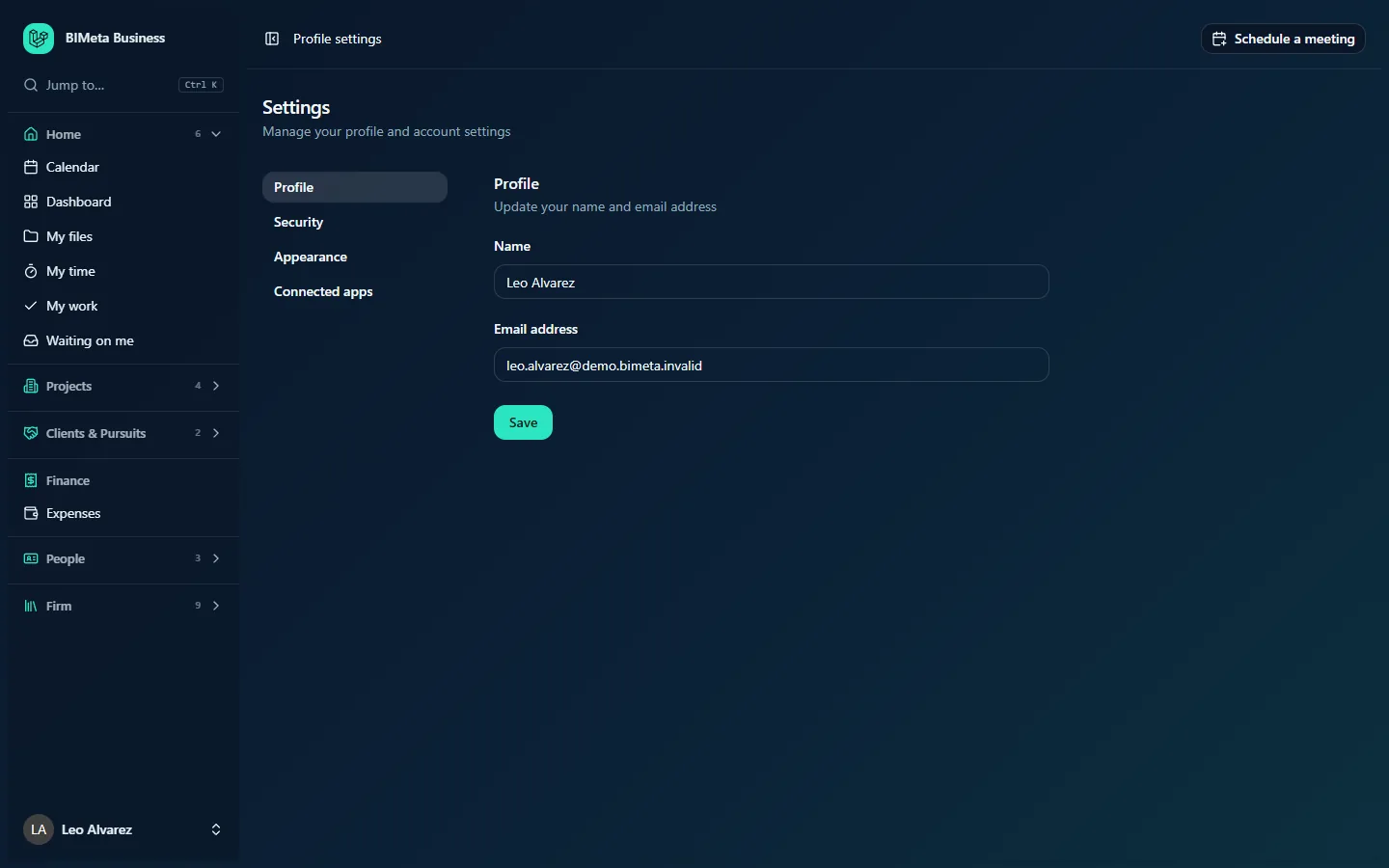
A tour of the page
- Settings heading with Manage your profile and account settings, and the settings menu on the left (Profile is highlighted).
- Profile: Update your name and email address.
- Name: your full name as colleagues see it, for example Leo Alvarez.
- Email address: the address you sign in with and receive emails at.
- Save.
How to change your name or email
- Edit Name (required, up to 255 characters) and/or Email address (required, a valid email address, up to 255 characters).
- Click Save. You'll see Profile updated.
The new name appears everywhere straight away. From now on you sign in with the new email address, and notifications go there. The change is recorded in the firm's Audit log (which fields changed, not the old values).
Tips and good to know
- Each email address can belong to only one account. If the address is already in use, you'll see an error under the field.
- If your firm signs in with single sign-on (for example Microsoft Entra ID or Okta), check with IT before changing your email, so it still matches your company account.
- You can't delete your own account. When you leave, an Admin switches your account off. To ask for your personal data to be erased, use My data & privacy.
Troubleshooting / FAQ
"The email has already been taken."
Another account uses that address. Use a different address or ask an Admin.
I changed my email and now can't sign in.
Sign in with the new address. If your firm uses single sign-on and it still fails, ask IT to check your account under Admin → Settings → People & access.
Was this article helpful?
Share