



Connected apps: put the portal calendar in your Outlook
18 views · by Kevin J Bruno · updated 1 day ago
Connected apps is where you link your own accounts in other services to BIMeta Business. Today that's Microsoft Outlook: once connected, BIMeta puts the portal calendar (the meetings, milestones, bid dates, leave and due dates you can see) into a separate calendar in your Outlook, and keeps it up to date. Your own Outlook events are never read or changed. This connection is yours alone; nobody else at the firm can see or change it.
Where to find it
- Click your name at the bottom of the sidebar, then Settings. Settings opens on Profile; the four settings pages are listed on the left: Profile, Security, Appearance and Connected apps.
- The Connect yours link in the Microsoft Outlook box on Admin → Settings → Integrations.
- These pages stay open even while a new firm is waiting for its background check, or while your firm asks you to confirm your identity before using the portal (see Confirming your identity (when your firm asks for a background check)).
Who can use it
Everyone at the firm whose role lets them connect their own apps, which by default is every firm role: Business Owners, Admins, IT Staff, BIM Managers, Project Managers, HR and Users. Client and consultant accounts don't have it. Admins see only how many people have connected, never who.
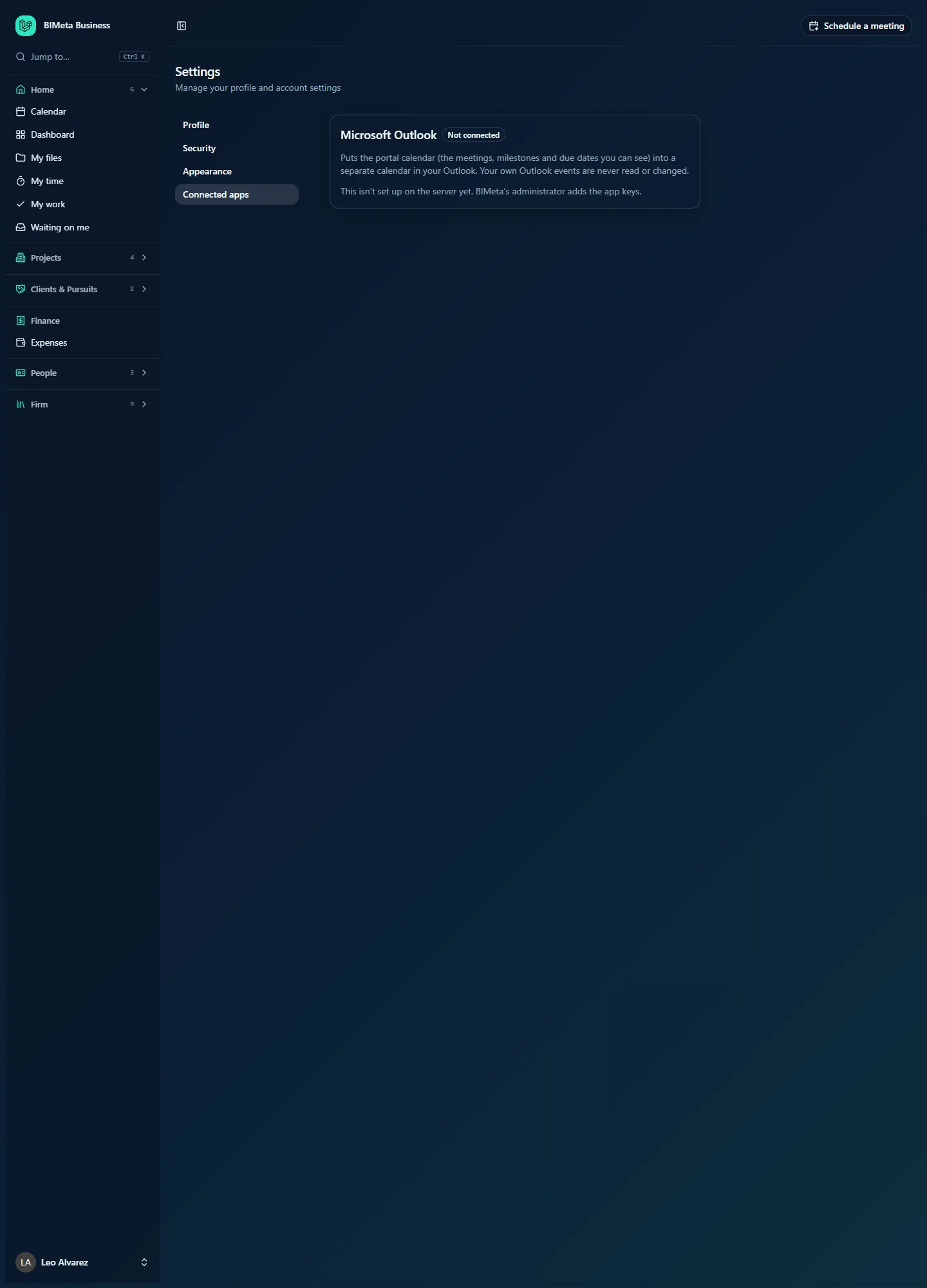
A tour of the page
Microsoft Outlook card
- The name and a status badge: Not connected, Connected, Problem or Connect again.
- Puts the portal calendar (the meetings, milestones and due dates you can see) into a separate calendar in your Outlook. Your own Outlook events are never read or changed.
- If Outlook isn't set up for your portal's server yet: This isn't set up on the server yet. BIMeta's administrator adds the app keys. (as in the example). You can't connect until BIMeta does this.
- Once connected: Account (your Microsoft account), Last synced and, if the last sync failed, Last problem.
- Buttons: Connect Microsoft Outlook (or Connect again), Sync now, and Disconnect with the tick box Also remove the BIMeta calendar from Outlook.
- Recent syncs: the last 10 syncs with OK, Some skipped or Failed and what changed.
What goes to Outlook
Shown once you're connected:
- Calendar name in Outlook (up to 60 characters): starts as BIMeta - followed by your firm's name.
- Include: Meetings, Milestones, Bid dates, Leave, Other events and Task due dates. All are ticked at first.
- Task due dates: Only tasks assigned to me (default), Every task I can see or No tasks.
- How far ahead: 30, 90 (default), 180 or 365 days.
- Reminder: None, 15 minutes before, 1 hour before (default) or 1 day before.
- Time zone for timed events: starts as the firm's time zone.
- Copy event notes into Outlook: on by default.
- Save.
How to connect Outlook
- Click Connect Microsoft Outlook.
- Sign in to your Microsoft account and approve access to your calendar.
- You come back to Connected apps with Microsoft Outlook is connected.
- Adjust What goes to Outlook and click Save. You'll see Saved. The next sync uses these settings.
- Click Sync now, or wait: BIMeta syncs every 15 minutes. After a manual sync you'll see, for example, Synced: 14 added, 2 updated, 0 removed.
A new calendar with the name you chose appears in Outlook on all your devices.
How to disconnect
- Tick Also remove the BIMeta calendar from Outlook if you want the copied events removed too.
- Click Disconnect and confirm Disconnect Microsoft Outlook?.
- You'll see Microsoft Outlook disconnected. Syncing stops.
Connecting, settings changes and disconnecting are recorded in the firm's Audit log.
Tips and good to know
- Only things you can see in the portal are copied. If you can't see a project's milestones in BIMeta, they won't appear in Outlook either.
- The BIMeta calendar is a copy of the portal calendar: make changes in BIMeta (for example on the Calendar page), not in Outlook. Changes in BIMeta reach Outlook on the next sync.
- Choose Every task I can see only if you want the whole team's due dates; it can be busy.
- Firm-wide connections such as QuickBooks Online and Procore are on Admin → Settings → Integrations.
Troubleshooting / FAQ
The card says "Connect again".
Microsoft ended the connection (for example after a password change). Click Connect again and sign in.
There's no Connect button.
Outlook isn't set up for your portal's server yet. Ask your IT team to contact BIMeta support.
I don't want some events in Outlook.
Untick that kind of event under Include (or change Task due dates) and click Save. The next sync updates the BIMeta calendar in Outlook.
Was this article helpful?
Share