



Appearance: light or dark mode and themes
18 views · by Kevin J Bruno · updated 18 minutes ago
Appearance lets you make BIMeta Business look the way you like. Choose Light, Dark or System mode, then pick one of more than twenty themes, from the standard BIMeta navy, teal and mint look to a high-contrast theme for accessibility or a true-black theme for OLED screens. Your choice only affects what you see. Business Owners and Admins can also set the firm's default theme for everyone who hasn't chosen one.
Where to find it
- Click your name at the bottom of the sidebar, then Settings. Settings opens on Profile; the four settings pages are listed on the left: Profile, Security, Appearance and Connected apps.
- Ctrl K and type
themeordark; it's listed under Your account. - These pages stay open even while a new firm is waiting for its background check, or while your firm asks you to confirm your identity before using the portal (see Confirming your identity (when your firm asks for a background check)).
Who can use it
Everyone, for their own view. Only people who manage the firm's settings (Business Owners and Admins) see the extra option Set the firm's default instead.
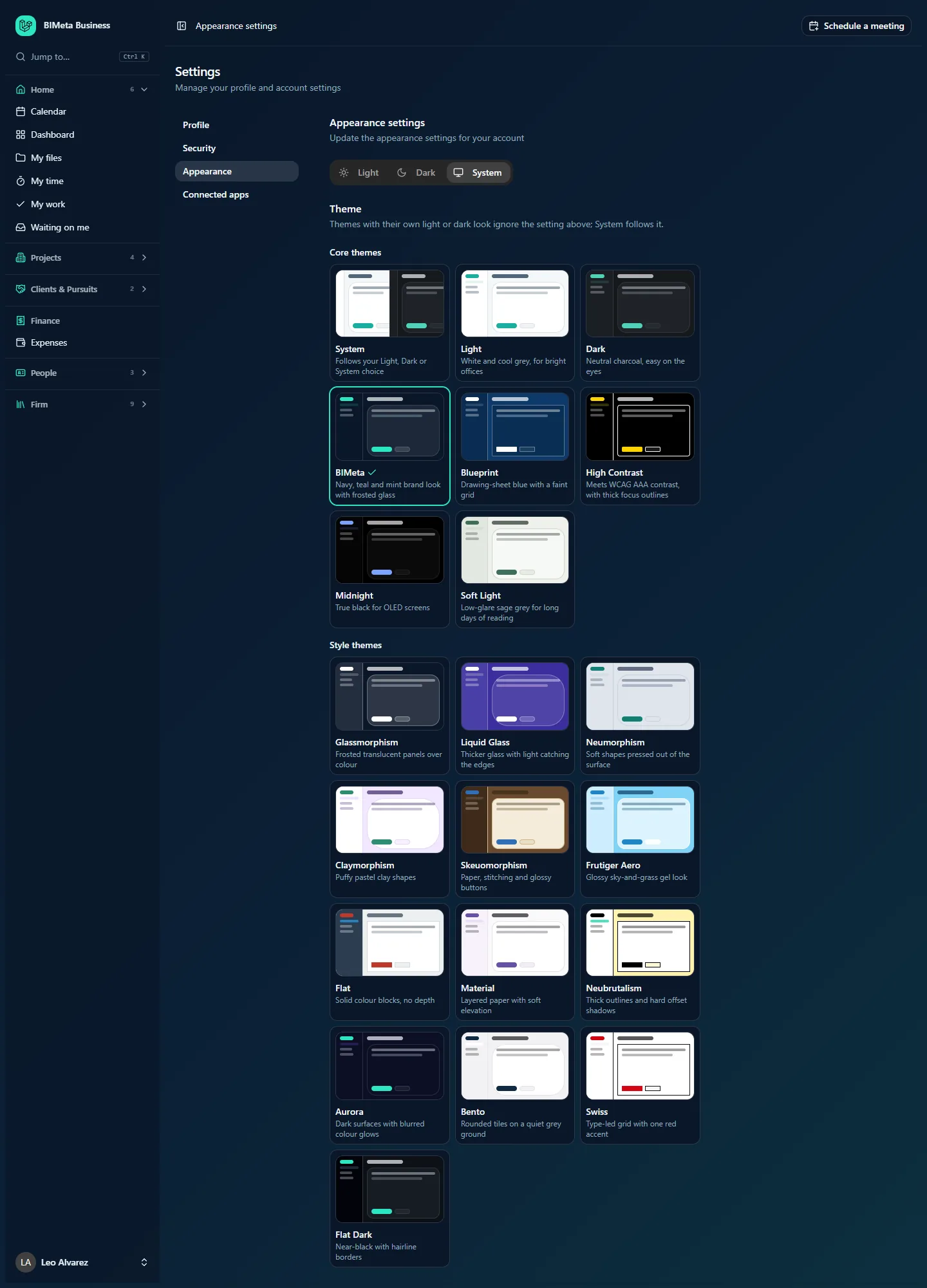
A tour of the page
Appearance settings
Update the appearance settings for your account. Three buttons: Light, Dark and System (follows your computer's setting). This choice is remembered in this browser, so you can use light mode at the office and dark at home.
Theme
Themes with their own light or dark look ignore the setting above; System follows it. Each theme is a card with a small preview, its name and a description. The one in use has a tick and a highlighted border.
Core themes:
- System: follows your Light, Dark or System choice.
- Light: white and cool grey, for bright offices.
- Dark: neutral charcoal, easy on the eyes.
- BIMeta: the navy, teal and mint brand look with frosted glass. This is the standard default.
- Blueprint: drawing-sheet blue with a faint grid.
- High Contrast: meets WCAG AAA contrast, with thick focus outlines.
- Midnight: true black for OLED screens.
- Soft Light: low-glare sage grey for long days of reading.
Style themes: Glassmorphism (frosted translucent panels over color), Liquid Glass (thicker glass with light catching the edges), Neumorphism (soft shapes pressed out of the surface), Claymorphism (puffy pastel clay shapes), Skeuomorphism (paper, stitching and glossy buttons), Frutiger Aero (glossy sky-and-grass gel look), Flat (solid color blocks, no depth), Material (layered paper with soft elevation), Neubrutalism (thick outlines and hard offset shadows), Aurora (dark surfaces with blurred color glows), Bento (rounded tiles on a quiet grey ground), Swiss (type-led grid with one red accent) and Flat Dark (near-black with hairline borders).
Buttons under the themes
- Use the firm's default: appears once you've picked your own theme; goes back to whatever the firm chose.
- Set the firm's default instead (for everyone who hasn't picked a theme): a tick box for Owners and Admins, above the themes.
How to change your theme
- Choose Light, Dark or System at the top.
- Click a theme card. It's saved at once (you'll see Theme saved) and the page changes immediately.
- To go back to the firm's choice, click Use the firm's default.
Your theme is saved on your account, so it follows you to any computer. The Light/Dark/System choice is kept per browser.
How to set the firm's default theme (Owners and Admins)
- Tick Set the firm's default instead. The highlighted card now shows the firm's current default.
- Click the theme everyone should see.
- You'll see The firm's default theme is saved. People who haven't picked their own see it. The change is recorded in the Audit log.
- Untick the box to go back to choosing your own theme.
Tips and good to know
- Some themes have a fixed light or dark look (for example Midnight is always dark), so the Light/Dark buttons don't change them. Choose System as your theme if you want the buttons to decide.
- High Contrast is the best choice for low vision or bright, glare-prone screens.
- Screenshots in this help use the BIMeta theme in dark mode.
- Themes change only colors and styling; every page, button and feature is the same in all of them.
Troubleshooting / FAQ
I switched to Dark but nothing changed.
Your theme has its own fixed look. Pick System, Light or Dark under Core themes, or a theme that follows the setting.
My light/dark choice reset on another computer.
That choice is stored per browser. Set it once on each computer; your theme itself follows your account.
Was this article helpful?
Share