



Script library: Dynamo, pyRevit and Python scripts
17 views · by Kevin J Bruno · updated 1 day ago
The Script library is the firm's approved collection of automation for Revit: Dynamo graphs, pyRevit scripts and Python scripts. Staff find a script, read what it does, and download the current approved version. BIM Managers add scripts and new versions, and each version must be approved by someone other than its uploader. The library also shows how often each script has actually been run in the last 90 days, as reported by the BIMeta Revit add-in, so the firm can see which tools are earning their keep.
Where to find it
- Sidebar → Firm → Script library (under the BIM heading).
- Jump to… (Ctrl K): type
script. - The Family library link next to the title takes you to the family library.
Who can use it
- Everyone on staff can search and download the current approved version of every script. Scripts with no approved version are hidden from them.
- Adding scripts and uploading versions: by default Business Owners, Admins and BIM Managers.
- Approving versions: by default Business Owners, Admins, BIM Managers and IT Staff, never the person who uploaded that version.
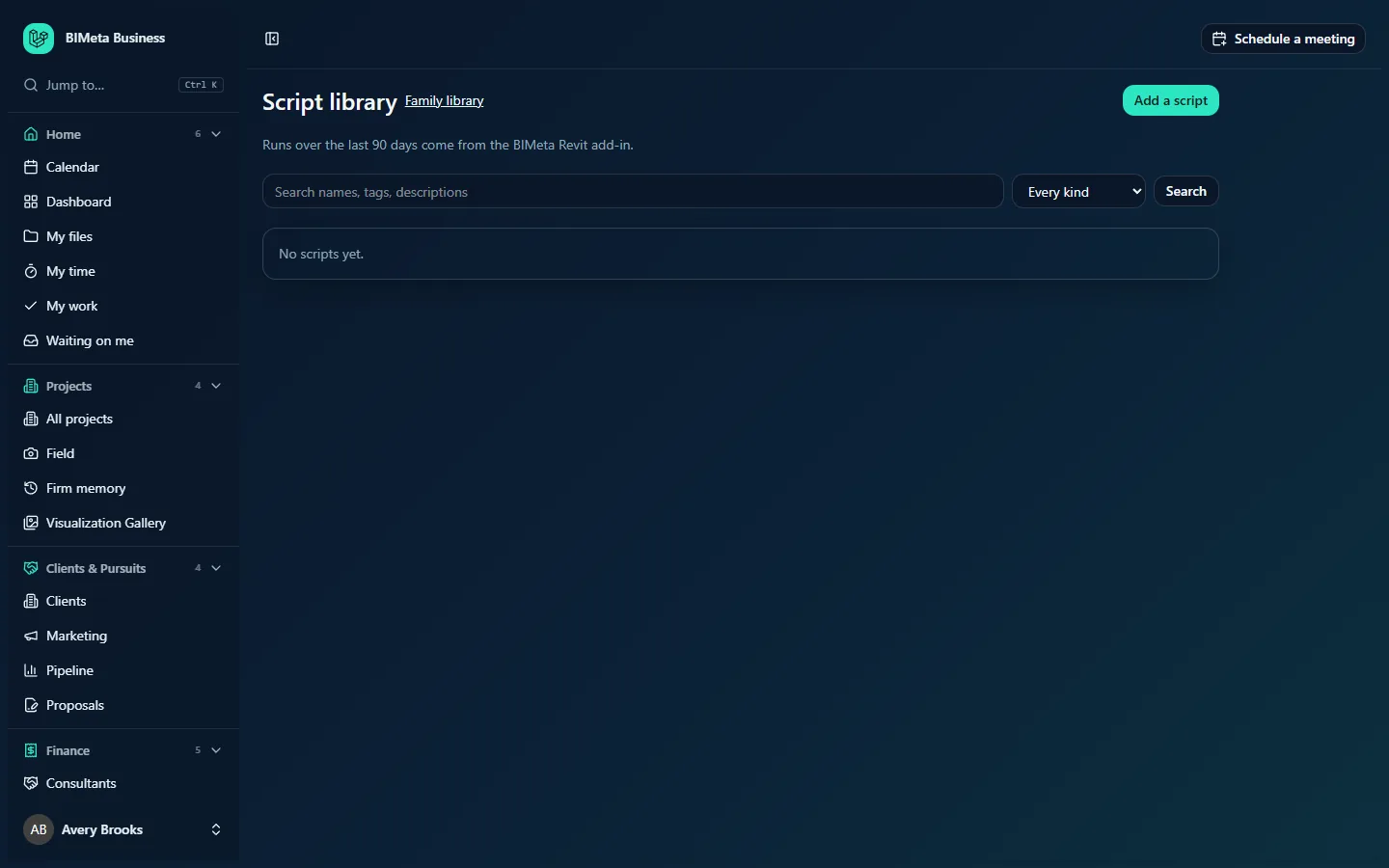
A tour of the page
- Add a script (content managers): opens the add form.
- The note Runs over the last 90 days come from the BIMeta Revit add-in.
- Search names, tags, descriptions, an Every kind filter (Dynamo graph, pyRevit script, Python script) and Search.
- Script cards, alphabetically (up to 500). Each shows:
- the name and a badge for its kind;
- usage: 12 runs by 5 people in 90 days, or No runs reported in 90 days;
- Download v… for the current approved version, or Waiting for approval;
- the description and clickable tags (clicking a tag searches for it);
- for content managers and approvers, the version list with each version's uploader and notes, and Approved, Approve or Waiting for approval;
- for content managers, New version.
- Empty states: No scripts yet. or Nothing matches.
How to…
Find and download a script
- Search by name, tag or description, or pick a kind, and click Search.
- Read the description to check what it does and how to use it.
- Click Download v… and open the file in Dynamo or pyRevit as usual.
Add a script (content managers)
- Click Add a script.
- Fill in:
- Name (required): up to 160 characters, for example Renumber sheets. It must be unique in the library. Use the name the script runs under in Revit so the add-in's run reports match it.
- Kind (required): Dynamo graph (
.dyn), pyRevit script (.pyor a.zipbundle) or Python script (.py). - What it does and how to use it: the description, up to 2,000 characters.
- Tags, separated by commas: up to 300 characters.
- File (required): of the type the kind accepts, up to 20 MB.
- Click Add script. You'll see Script added. Someone else approves it before staff see it.
Upload a new version (content managers)
- On the card, use New version: choose the file and describe What changed (up to 1,000 characters).
- Click Upload. Staff keep getting the previous approved version until this one is approved.
Approve a version (approvers)
Download the waiting version, test it on a copy of a model, then click Approve next to it. You'll see Approved. Staff see this version now.
Tips and good to know
- Run counts come only from the BIMeta Revit add-in, and only for runs whose script name matches a library script (capital letters don't matter). Runs older than a year are discarded.
- A
.dynupload is checked to make sure it really is a Dynamo graph. - Low run counts can mean a script isn't needed, or that people don't know about it. Consider adding it to a BIM training path.
- Adding scripts, uploading and approving versions, and downloads are recorded in the audit log.
Troubleshooting
I get "This kind of script takes .dyn files." (or similar)
The file type doesn't match the script's kind. A script's kind can't be changed, so add it as a new script with the right kind if needed.
My script shows no runs though people use it.
Runs are reported by the BIMeta Revit add-in. Check that people run it with the add-in installed and that the name in the library matches the name the script runs under.
Was this article helpful?
Share