



Utilization report
20 views · by Kevin J Bruno · updated 3 days ago
The Utilization report shows, for each person at the firm, how many hours they logged, how many of those were billable, and their utilization: billable hours as a share of the hours they were available to work. It's the standard way to see whether people are busy on client work, overloaded, or spending a lot of time on overhead.
Where to find it
- Sidebar → Reports → All reports, then the Utilization card.
- Jump to… (Ctrl K): type
utilization.
Who can use it
The Reports group is for people who can see the firm's reports. By default that is Business Owners, Admins, Project Managers, IT Staff, BIM Managers and Human Resources. Everyone in those roles sees the same numbers for the whole firm; reports are not filtered to your own projects. Users don't have the Reports group in their sidebar and can't open report pages. Being a Project Manager on a project's team is not enough; the permission comes from the firm role.
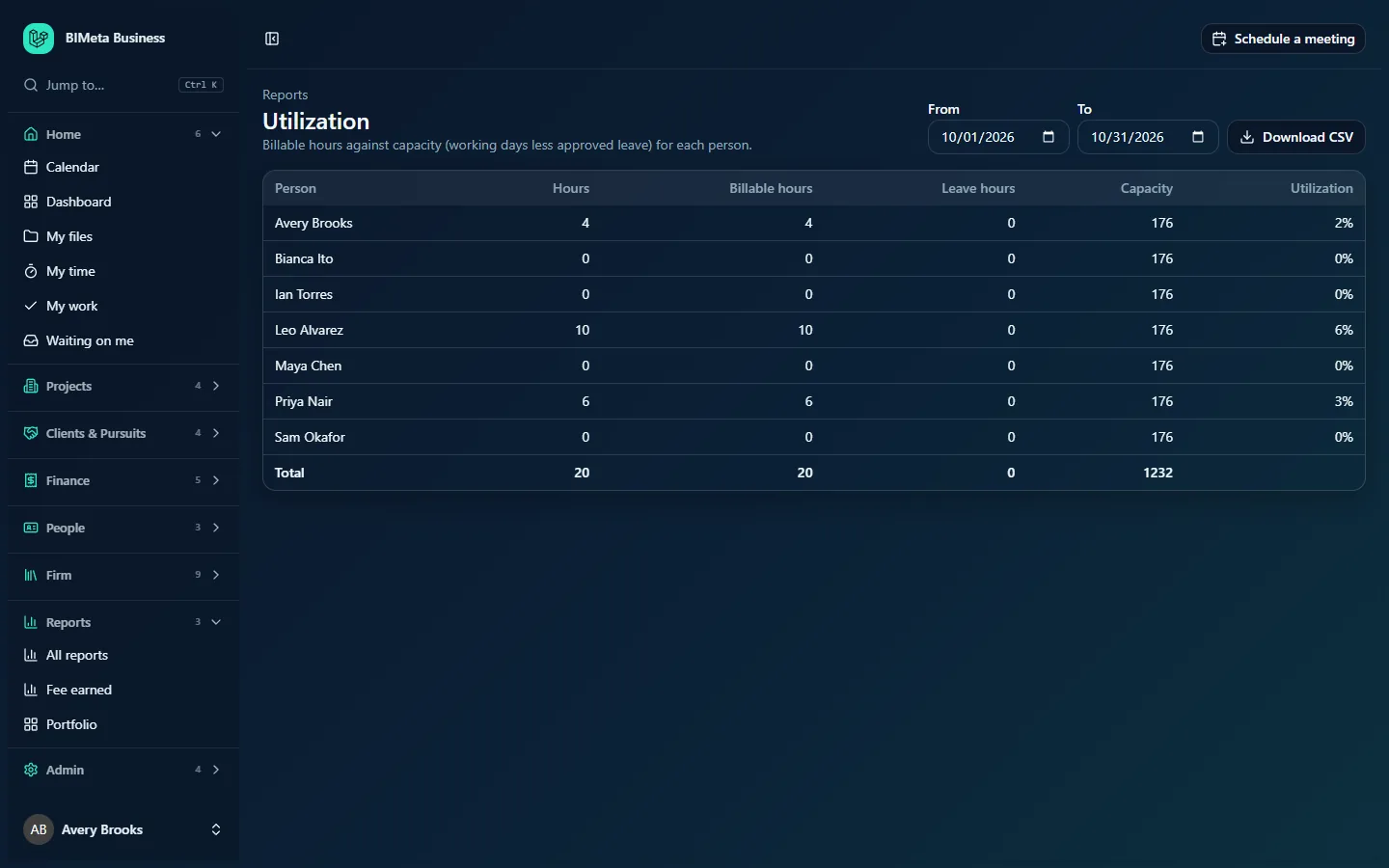
Shown here as an IT Staff member at Northlight Architects sees it; everyone who can open the report sees the same firm-wide figures.
A tour of the page
Filters
- From and To: the date range. It opens on the current calendar month (in the screenshot, 10/01/2026 to 10/31/2026). Changing either date reloads the report straight away.
- The range can be up to 366 days. If To is before From, or the range is longer than that, the report quietly goes back to the current month, so check the dates shown after changing them.
Columns
One row per active staff member (anyone with a role other than Client / Consultant), alphabetically:
| Column | How it's calculated |
|---|---|
| Person | The person's name. |
| Hours | All submitted and approved timesheet hours with a work date in the range (to one decimal place). Drafts and sent-back hours don't count. |
| Billable hours | The part of Hours marked billable. |
| Leave hours | Approved leave whose first day falls in the range, at 4 hours per half day (8 per full day). |
| Capacity | Working days in the range (Monday to Friday) × 8 hours, minus Leave hours, never below zero. |
| Utilization | Billable hours ÷ Capacity, as a whole percentage. 0% if capacity is zero. |
Example from the example firm: October 2026 has 22 weekdays, so everyone's capacity is 22 × 8 = 176 hours. Leo Alvarez logged 10 billable hours, so his utilization is 10 ÷ 176 = 6%. The Total row adds up hours, billable hours, leave and capacity (1,232 hours for seven people) and leaves utilization blank.
The table and its totals
- A Reports link above the title takes you back to All reports.
- The last row, Total, adds up the money and hours columns. Percentage columns are left blank there, because adding percentages gives nonsense.
- When there's nothing to show, the table says Nothing to report yet.
Download CSV
The Download CSV button saves the report, with the same filters, as a spreadsheet file named like bimeta-utilization-20261005.csv. Things to know about the file:
- It opens directly in Excel with accented characters intact.
- Money is written as plain numbers with two decimals and no currency symbol (for example
42500.00), so you can do sums on it; percentages keep their%sign. - It has one row per table row and no totals row.
- Each download is recorded in the firm's audit log, with the number of rows.
The CSV uses the From and To dates currently shown.
How to read the numbers
- Many AEC firms aim for roughly 70–85% for production staff and much less for principals and support staff. Set expectations per role, not one number for everyone.
- Hours well below capacity usually means timesheets aren't up to date rather than people being idle. Check that everyone has submitted their time for the period.
- Utilization over 100% means more billable hours than an 8-hour working day allows: overtime, weekend work, or leave recorded in a way that reduced capacity.
How to…
Check last quarter's utilization
- Set From to the first day of the quarter and To to its last day.
- Read the table, then click Download CSV to keep a copy or compare people in a spreadsheet.
Tips and good to know
- Capacity assumes an 8-hour day, Monday to Friday, for everyone. Part-time schedules and public holidays aren't taken off automatically, so part-time staff will look under-utilized.
- Leave counts in full in the range where it starts. A two-week holiday starting on the 28th counts entirely in that month, and leave that started before your From date doesn't count at all. Use whole months or quarters to keep this even.
- Only approved leave reduces capacity (see People → Leave).
- Everyone with a staff role is listed, including principals and IT staff, so firm-wide totals include overhead people.
Troubleshooting
I changed the dates and the report jumped back to this month.
The range was longer than 366 days or To was before From.
Someone's hours are missing.
Their timesheet entries are still drafts, or were sent back. Only submitted and approved hours count.
Was this article helpful?
Share