



Portfolio: every active project and what needs attention
17 views · by Kevin J Bruno · updated 1 day ago
Portfolio puts every active project on one page with the things a principal should look at: whether the fee is heading over budget, RFIs that are overdue, models that aren't ready to issue, open clashes, consultant deliverables that are late and building maintenance that is overdue. Projects with the most to look at come first, so the top of the list is where your attention is needed. Every number is a link to the place where you can deal with it.
Where to find it
- Sidebar → Reports → Portfolio. The Reports group lists its items alphabetically (All reports, Fee earned, Portfolio), unless your firm has arranged the menu itself.
- Jump to… (Ctrl K): type
portfolio.
Who can use it
The Reports group is for people who can see the firm's reports. By default that is Business Owners, Admins, Project Managers, IT Staff, BIM Managers and Human Resources. Everyone in those roles sees the same numbers for the whole firm; reports are not filtered to your own projects. Users don't have the Reports group in their sidebar and can't open report pages. Being a Project Manager on a project's team is not enough; the permission comes from the firm role.
The Fee health column appears only for people who can see fee earned, hours and margins (by default the same roles), because it is based on cost rates. Without that permission, the column is left out and projects are ranked without it.
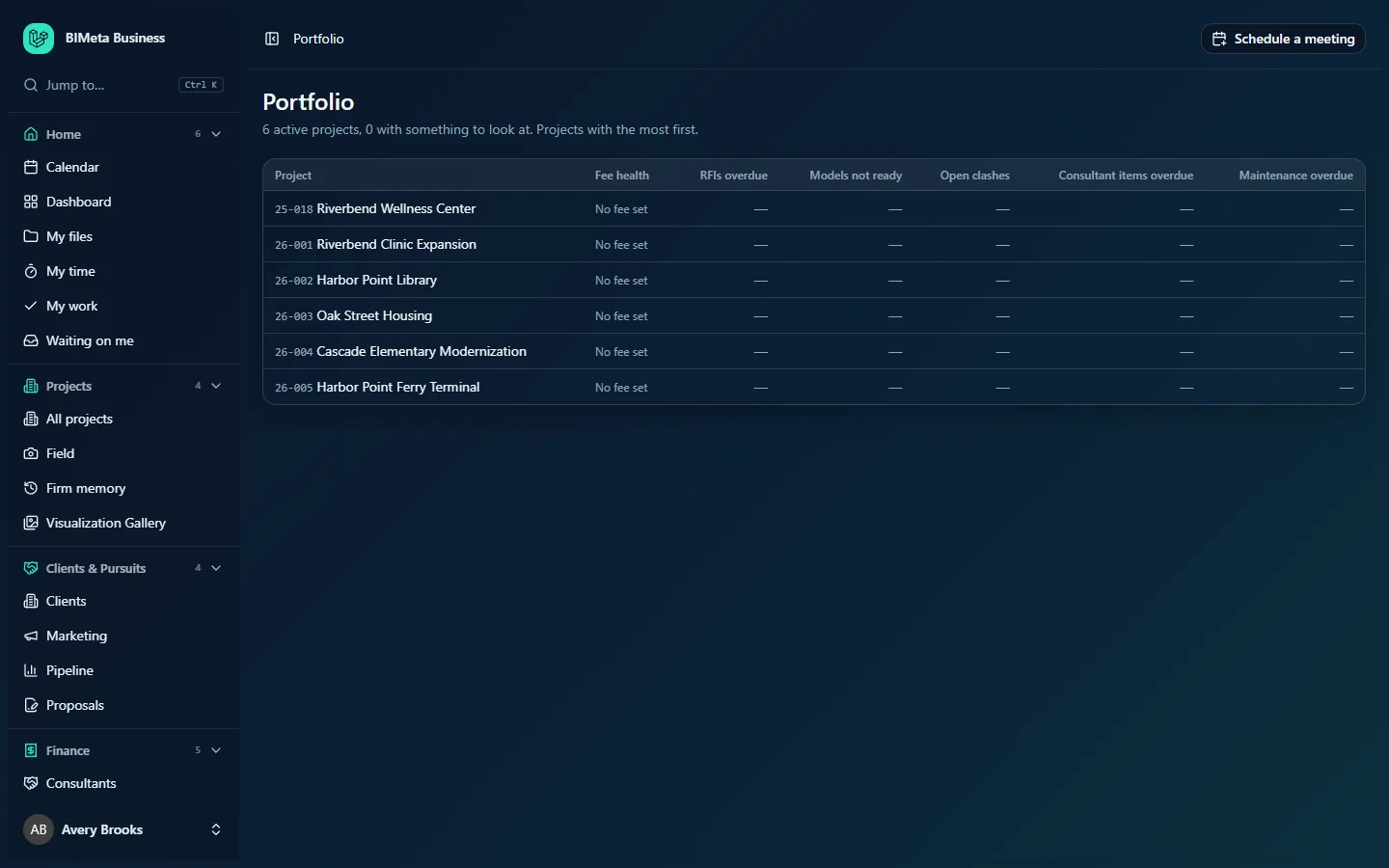
In the example firm Northlight Architects, the header reads 6 active projects, 0 with something to look at, and every project shows No fee set because no phase fees have been entered on their Budget tabs yet.
A tour of the page
The header gives a count of active projects and how many have at least one thing to look at. The table has one row per active project (up to 300):
| Column | What it shows and how it's worked out | Click it to go to |
|---|---|---|
| Project | Project number and name, for example 26-001 Riverbend Clinic Expansion. | The project's page. |
| Fee health | A badge and N% earned (see below). No fee set if the project has no phase fees. | The project's Budget tab. |
| RFIs overdue | RFIs still open whose due date is before today. | The project's RFIs tab. |
| Models not ready | The project's models whose latest model review verdict is fix first or not ready. | The BIM Manager's Models page. |
| Open clashes | Clashes that are open or in progress. | The project's Clashes tab. |
| Consultant items overdue | Consultant deliverables not yet received whose due date is before today. | The project's Consultants tab. |
| Maintenance overdue | Facility maintenance jobs whose next due date is before today. | The project's Maintenance tab. |
A dash (—) means zero. Counts above zero are links; all of them except Open clashes are shown in red, because they're overdue or blocking, while open clashes are a normal part of coordination. If a part of BIMeta Business isn't switched on for your firm (for example clash management), its column simply counts zero.
Fee health
Fee health forecasts whether the project will finish within its fee, at the rate it's going:
- Fee = all phase fees on the project (baseline scope plus approved Additional Services).
- Earned = each phase fee × its percent complete, added up. The badge's N% earned is earned ÷ fee.
- Cost so far = all submitted and approved hours on the project at each person's cost rate.
- Estimated cost to finish = cost so far × fee ÷ earned. In words: if every dollar earned has cost this much so far, this is what the whole fee will cost.
| Badge | Meaning |
|---|---|
| On track | The estimated cost is at or below the fee. |
| Watch | The estimate is above the fee by up to 10%. |
| Over fee (red) | The estimate is more than 10% above the fee. |
| No progress yet | There's a fee, but nothing has been earned yet (every phase is at 0% complete), so no forecast can be made. |
| No fee set | The project has no phase fees. |
Example: a project with a 200,000 fee is 40% earned (80,000) and has used 96,000 of staff cost. The estimate is 96,000 × 200,000 ÷ 80,000 = 240,000, which is 20% over the fee, so the badge is Over fee.
How the order is decided
Each project gets an attention score, and the highest score comes first (ties are in project-number order):
- each model not ready: 5 points
- each overdue RFI: 3 points
- each overdue consultant item: 3 points
- each overdue maintenance job: 2 points
- each open clash: 1 point (counting at most 50 clashes, so a big clash run doesn't swamp everything else)
- fee health Over fee: 20 points; Watch: 8 points
A project with a score above zero counts as having "something to look at" in the header.
How to…
Run a weekly portfolio review
- Open Reports → Portfolio.
- Start at the top. For each red number, click it to open the list behind it and follow up with the project team.
- For any Watch or Over fee badge, click it to open the project's Budget tab and review the forecast with the Project Manager, then check the phase detail in Fee earned or Phase burn.
Tips and good to know
- Fee health is only as good as the percent complete figures. If Project Managers don't update progress on Fee earned, projects will drift towards Over fee because cost keeps rising while earned stands still.
- Only projects with status active are listed.
- Dates are compared with today; an item due today isn't overdue yet.
Troubleshooting
Every project says No fee set.
Phase fees haven't been entered. Add them on each project's Budget tab.
A project shows Over fee but the Project Manager says it's fine.
Check that the percent complete for each phase on Fee earned is current, and that cost rates under Admin → Settings → Rates are right.
I don't see the Fee health column.
Your role can see reports but not fee earned, hours and margins.
Was this article helpful?
Share