



Fee earned: phase progress, labour and margin
19 views · by Kevin J Bruno · updated 1 day ago
Fee earned looks at one project, phase by phase: each phase's fee, how complete it is, how much fee that has earned, the hours spent, what those hours are worth at bill rates and what they cost the firm, and whether the phase is making or losing money. It is also the place where the firm records each phase's percent complete, the number every other fee report depends on.
Where to find it
- Sidebar → Reports → Fee earned.
- Reports → All reports, then the Fee earned card.
- Jump to… (Ctrl K): type
fee earned.
Who can use it
- Viewing needs permission to see fee earned, hours and margins. By default that is Business Owners, Admins, Project Managers, IT Staff, BIM Managers and Human Resources. Users can't open it.
- Setting percent complete needs permission to manage project budgets: by default Business Owners, Admins, Project Managers, IT Staff and BIM Managers. They see a number box in the Complete column; Human Resources see the percentage only.
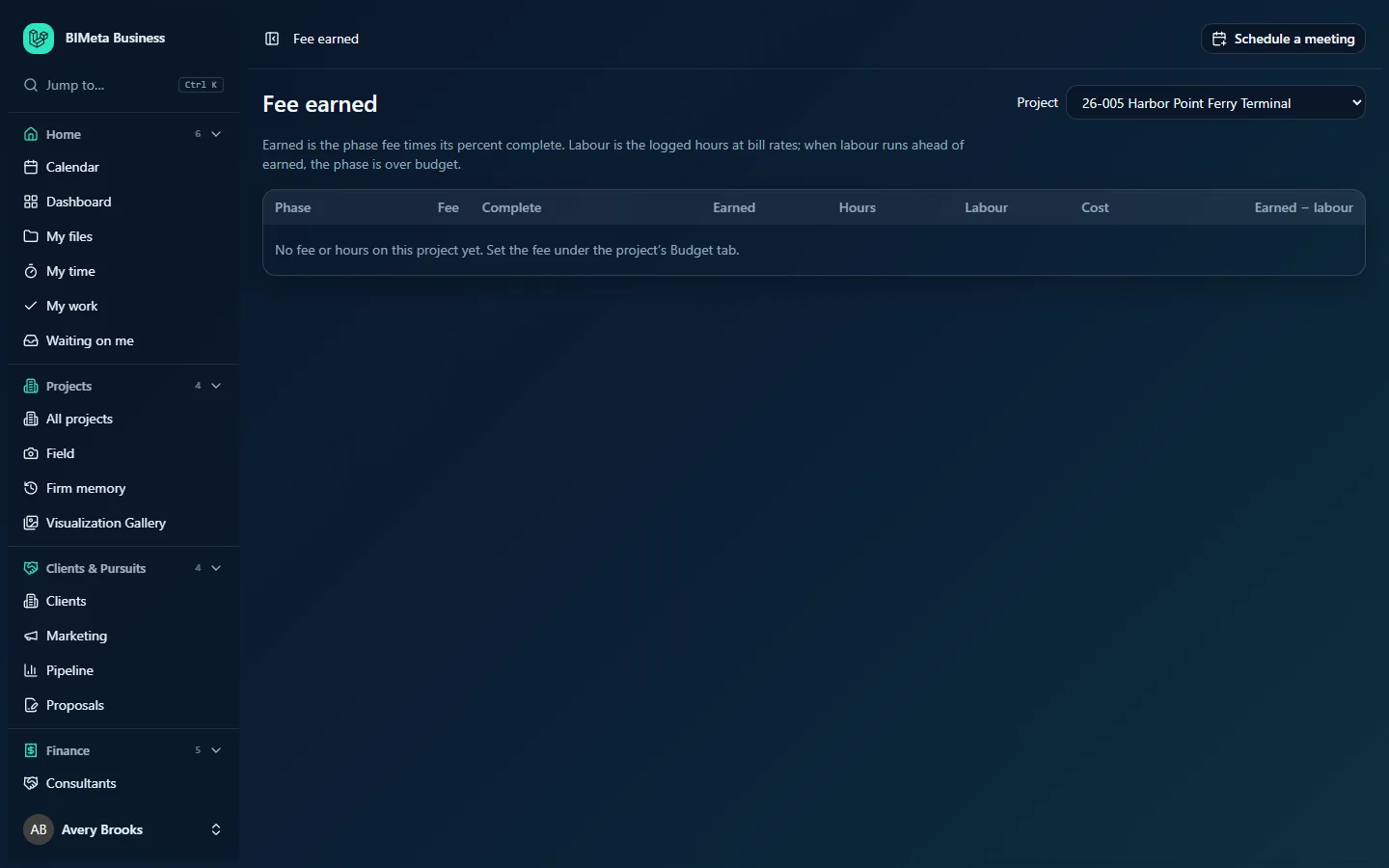
In the example firm the selected project, 26-005 Harbor Point Ferry Terminal, has no fee or hours yet, so the table shows No fee or hours on this project yet. Set the fee under the project's Budget tab.
A tour of the page
Project
The Project selector at the top right lists every active project, highest project number first; the page opens on the first one. Pick another project to reload the table.
Under the title, a reminder: Earned is the phase fee times its percent complete. Labour is the logged hours at bill rates; when labour runs ahead of earned, the phase is over budget.
Columns
One row per phase that has a fee or hours, in the firm's phase order. Only phases in the firm's phase list, or phases that have a fee, are shown.
| Column | How it's calculated |
|---|---|
| Phase | The phase name from the firm's phase list. |
| Fee | Baseline scope fee for the phase (project Budget tab) plus approved Additional Services for that phase. |
| Complete | A bar and the percent complete (0–100). Editable for people who manage budgets. |
| Earned | Fee × Complete. |
| Hours | Submitted and approved hours on the phase, to one decimal. |
| Labour | Those hours at each person's bill rate on the day worked: what the time would be worth if billed hourly. |
| Cost | Those hours at each person's cost rate: what the time cost the firm. |
| Earned − labour | Earned minus Labour. Shown in red when negative. |
The Total row adds up every money and hours column. Its Complete figure is total earned ÷ total fee, i.e. how complete the whole project is, weighted by fee. Money on this page is rounded to whole currency units.
How to read the numbers
- Earned − labour positive: the fee earned so far is worth more than the time spent at bill rates. The phase is making money compared with billing it hourly.
- Earned − labour negative (red): the team has spent more time, at bill rates, than the progress has earned. The phase is over budget unless progress is understated.
- Cost shows the firm's actual staff cost; Earned − Cost is the margin over staff cost. Phase burn (see Phase burn report) compares the same Cost with the fee.
- Example: a Design Development phase with a 60,000 fee, 50% complete, has earned 30,000. If 220 hours at an average bill rate of 150 have been logged, Labour is 33,000 and Earned − labour is −3,000: the phase is about 10% behind where its hours say it should be.
How to…
Update a phase's percent complete
- Choose the project in Project.
- In the phase's Complete box, type a whole number from 0 to 100.
- Click or tab out of the box. The value is saved as soon as the box loses focus (if it changed), and you'll see Progress saved. Earned and Earned − labour update.
Important: changing progress can bill the client. If the project has automatic phase billing rules (set up on Finance → Invoices), reaching a progress percentage, or setting a phase to 100%, fires those rules and drafts or sends an invoice. Setting 100% marks the phase complete. Check the project's billing rules before entering large jumps.
Set up a project so this report works
- Enter phase fees on the project's Budget tab.
- Make sure people log time to the project and phase on their timesheets.
- Make sure bill and cost rates are set under Admin → Settings → Rates.
- Update percent complete here regularly, for example every month before the WIP review.
Tips and good to know
- Percent complete set here feeds Work in progress, Phase burn, the Portfolio fee health badge and the project's Budget tab forecast.
- Every progress change is recorded in the audit log, with the phase and percentage.
- Only active projects are in the selector.
Troubleshooting
The Complete column has no box I can type in.
Your role can view fee earned but not manage project budgets (for example Human Resources).
I get "Enter a percentage from 0 to 100."
Type a whole number between 0 and 100.
Labour and Cost are zero but Hours aren't.
Bill or cost rates haven't been set for the people who logged the hours, or were set with a start date after the hours were worked.
Was this article helpful?
Share