



All reports: the firm’s reports at a glance
20 views · by Kevin J Bruno · updated 15 hours ago
All reports is the front page of the firm's reporting. It lists every report you're allowed to open, each as a card with a one-line description. Click a card to open the report. Most reports show the whole firm on one table that you can download as a spreadsheet; Fee earned looks at one project at a time.
Where to find it
- Sidebar → Reports → All reports.
- Jump to… (Ctrl K): type
reports. - From any report, the Reports link above its title.
Who can use it
The Reports group is for people who can see the firm's reports. By default that is Business Owners, Admins, Project Managers, IT Staff, BIM Managers and Human Resources. Everyone in those roles sees the same numbers for the whole firm; reports are not filtered to your own projects. Users don't have the Reports group in their sidebar and can't open report pages. Being a Project Manager on a project's team is not enough; the permission comes from the firm role.
Two cards depend on extra permissions: Fee earned appears for people who can see fee earned, hours and margins (by default the same roles as above), and Pipeline appears only for people who manage pursuits (by default Business Owners and Admins). That's why an IT Staff member sees five cards and a Business Owner six.
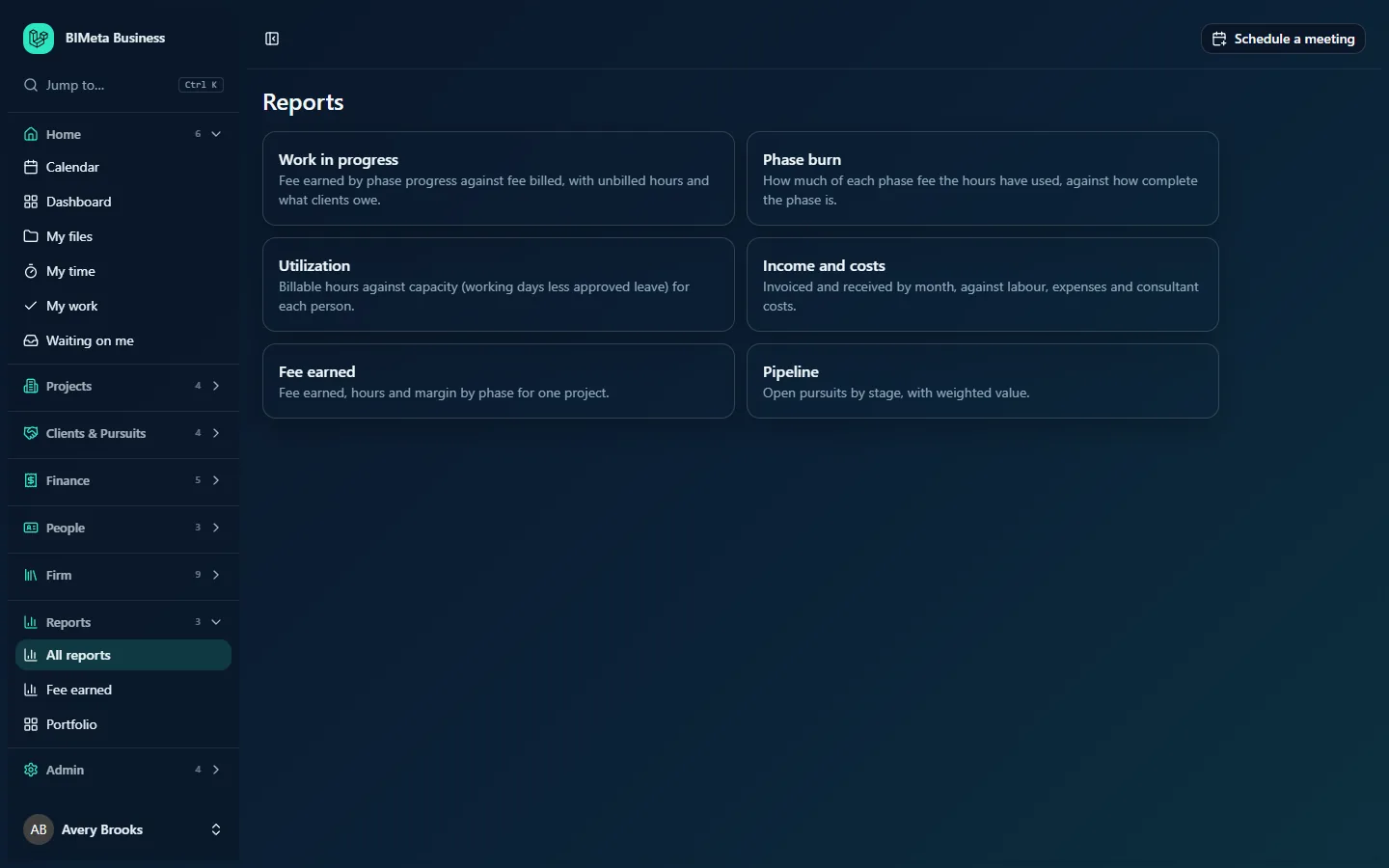
An IT Staff member's view at the example firm Northlight Architects: five cards. A Business Owner (or Admin) sees the same five plus a sixth card, Pipeline.
A tour of the page
| Card | What the report answers | Read more |
|---|---|---|
| Work in progress | For each active project: fee earned by phase progress against fee billed, the value of approved hours not yet invoiced, and what the client still owes. | Work in progress report |
| Phase burn | For each phase of each active project: how much of the phase fee the hours have used, against how complete the phase is. Phases spending ahead of progress are highlighted. | Phase burn report |
| Utilization | For each person: billable hours against capacity (working days less approved leave) over a date range. | Utilization report |
| Income and costs | For each month of a year: invoiced and received against labour, expenses and consultant costs. | Income and costs report |
| Fee earned | For one project: fee, percent complete, earned, hours, labour, cost and margin by phase. Also where you set each phase's percent complete. | Fee earned: phase progress, labour and margin |
| Pipeline | Open pursuits by stage, with weighted value. | The Pipeline article in Clients, Pursuits & Marketing |
Portfolio isn't on this page; it has its own sidebar item, Reports → Portfolio. See Portfolio: every active project and what needs attention.
How the reports fit together
All of the financial reports are built from the same few sources, so it helps to know where each number starts:
- Phase fees come from each project's Budget tab: the baseline scope fee for each phase, plus any approved Additional Services for that phase.
- Percent complete per phase is set on the Fee earned report by people who manage project budgets. Earned everywhere means phase fee × percent complete.
- Hours come from timesheets (Home → My time). Most reports count hours that are submitted or approved; drafts and sent-back hours are ignored. Work in progress counts only approved billable hours not yet on an invoice.
- Bill and cost rates per person come from Admin → Settings → Rates. Each hour carries the rates in force on the day it was worked. If cost rates aren't set, every "cost" figure is zero; if bill rates aren't set, every "labour" figure is zero.
- Invoices and payments come from Finance → Invoices. Draft and void invoices never count.
- Expenses come from Finance → Expenses (approved ones only), and consultant invoices from Finance → Consultants (anything not rejected).
- The project reports include only projects whose status is active.
How to…
Open a report
- Go to Reports → All reports.
- Click the card. The report opens with its default filters (for example the current month for Utilization, the current year for Income and costs).
Tips and good to know
- Reports are calculated fresh every time you open them; there's nothing to refresh or rebuild.
- Reports cover the firm's whole history: nothing is cut off at the date a feature was switched on.
- To share numbers outside BIMeta Business, use each report's Download CSV button.
Troubleshooting
Why don't I see Reports in my sidebar?
Your role doesn't include seeing firm reports. Ask a Business Owner or Admin if you need it.
Why are all the costs zero?
Cost rates haven't been set for people under Admin → Settings → Rates, or the hours were logged before a rate's start date. Hours keep the rates in force on the day they were worked.
Was this article helpful?
Share