



Recurring invoices: retainers and scheduled billing
19 views · by Kevin J Bruno · updated 1 day ago
Recurring invoices bill a project automatically on a schedule: every month, quarter or year. Use them for retainers, maintenance agreements and any fixed fee billed on a regular cycle, and also for monthly progress billing or monthly billing of hours. Each time a schedule comes due, BIMeta makes an ordinary invoice for the project, either as a draft for you to check or sent straight to the client.
Where to find it
- Sidebar → Finance → Recurring invoices.
- Jump to… (Ctrl K): type recurring, retainers or subscriptions.
- The Invoices link above the page title takes you back to the Invoices list, where every invoice a schedule makes also appears.
Who can use it
- Business Owner and Admin: see every schedule and can create, edit, pause, resume and end schedules, and bill the next period early.
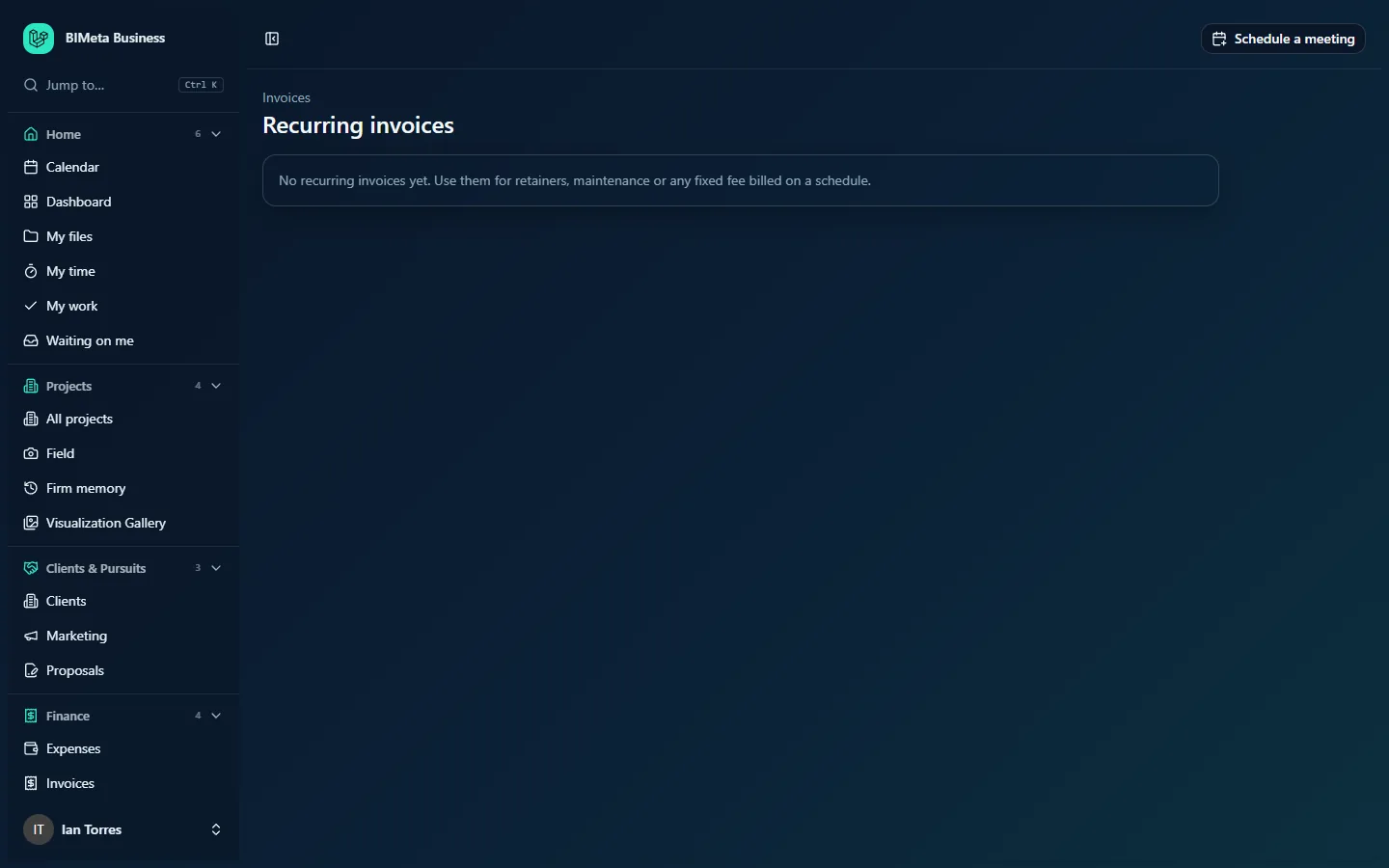
- IT Staff, BIM Manager and Project Manager: can see the schedules (read only). They don't get the buttons or the New recurring invoice form.
- User: can't open this page.
An IT Staff member sees the same page without the form:
A tour of the page
When there are no schedules
You see No recurring invoices yet. Use them for retainers, maintenance or any fixed fee billed on a schedule. This is the case at the example firm Northlight Architects.
Schedule cards
Each schedule is a card. Active schedules come first, then paused, then ended; within each, the soonest next invoice first.
- Name, e.g. Monthly retainer, with a status badge: Active, Paused or Ended.
- Sent automatically badge, if invoices go straight to the client.
- On the right: for a Fixed lines (retainer) schedule, the amount each invoice bills (the sum of its lines, before tax); for other kinds, what it bills, e.g. Phase progress since the last invoice.
- A summary line, with the parts separated by dots: the project; how often (Every month, Every quarter, Every year); Next 2026-11-01 (not shown once ended); Until 2027-06-01 if it has a last invoice date; plus $500.00 of fixed lines if a progress or hours schedule also has fixed lines; with reimbursables if it passes them through; and 3 invoices so far.
- Last invoice INV-… (or Last invoice (draft)): a link to the most recent invoice it made.
- A red box Paused because billing failed: … if the last attempt failed, with the reason.
Owners and Admins also see these buttons on active and paused schedules (not on ended ones):
- Bill next period now (active only): makes the next invoice immediately instead of waiting for its date, after you confirm.
- Pause / Resume: stops or restarts the schedule.
- Edit: opens the schedule's form inside the card (the button becomes Cancel).
- End schedule: stops it for good, after you confirm.
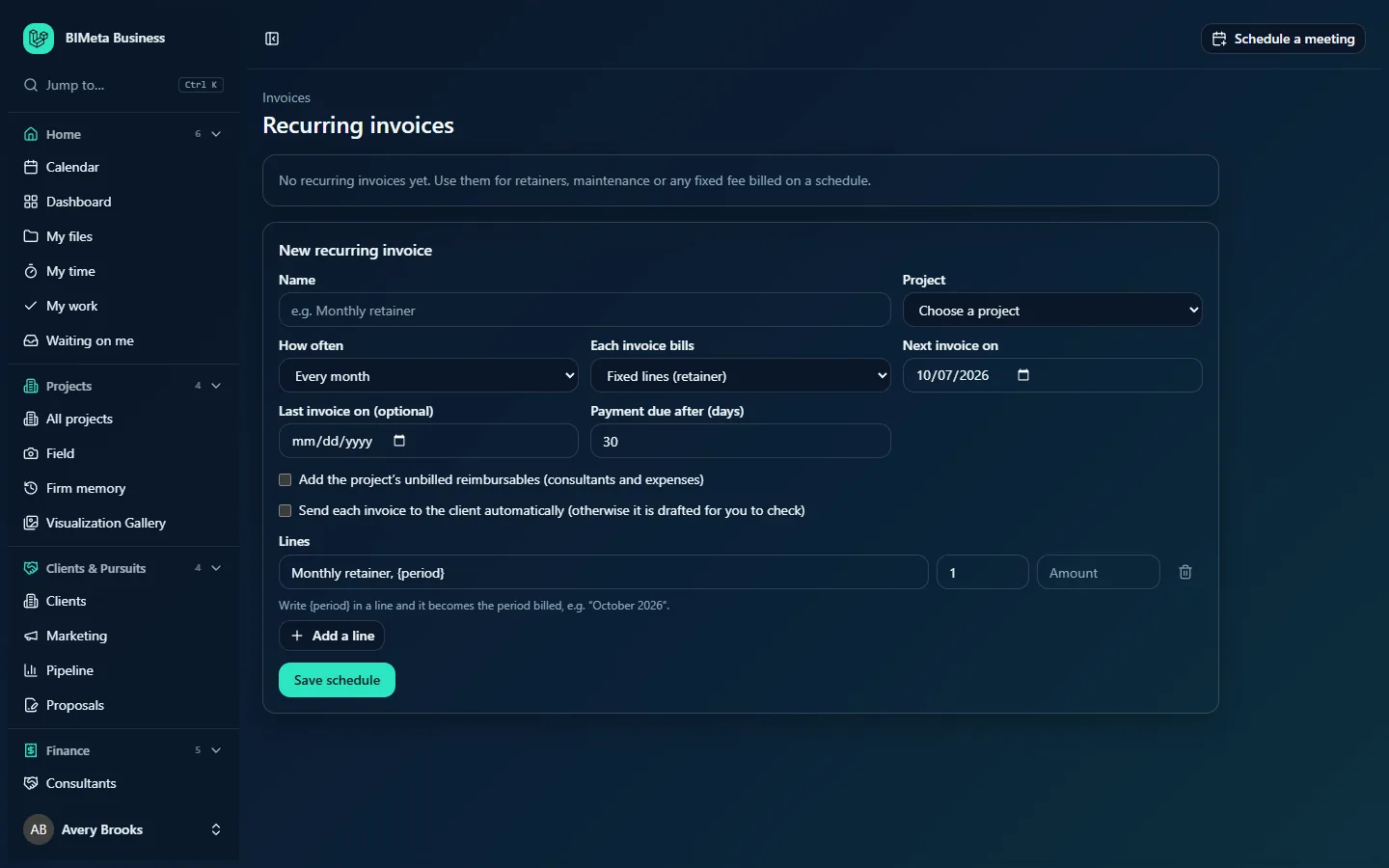
New recurring invoice (Owners and Admins)
| Field | What it means |
|---|---|
| Name | Required, up to 200 characters, e.g. Monthly retainer. For your reference; it isn't printed on the invoice. |
| Project | Required. The active project to bill. The invoice is addressed to that project's client. |
| How often | Every month (default), Every quarter or Every year. |
| Each invoice bills |
Fixed lines (retainer) (default): only the lines you enter below. Phase progress since the last invoice: each phase's earned fee less what was billed before, exactly like the Invoice phase progress button on the Invoices page. Good for monthly progress billing. Approved hours worked: all approved hours on the project not yet billed, at each person's bill rate, like Invoice approved hours. |
| Next invoice on | Required. The date of the first (next) invoice, today or later for a new schedule. After each invoice, it moves on by one month, quarter or year. If you pick the 31st, months without one use their last day. |
| Last invoice on (optional) | The date after which no more invoices are made. Must be on or after Next invoice on. Leave empty to bill until you end the schedule. |
| Payment due after (days) | Payment terms for each invoice, 0 to 120 days (default 30). Used when the invoice is issued. |
| Add the project's unbilled reimbursables (consultants and expenses) | Tick to pass approved, billable consultant invoices and expenses through on each invoice (amount plus markup, each once). |
| Send each invoice to the client automatically (otherwise it is drafted for you to check) | Ticked: each invoice is numbered, issued and emailed to the client's contact as soon as it's made. Unticked: it waits as a draft on the Invoices page for you to review and send. |
| Lines / Extra fixed lines (optional) | Description (up to 300 characters), quantity (above zero) and Amount (the price per unit, above zero), with a bin icon to remove a line. With Fixed lines (retainer) at least one line is required; with the other kinds lines are optional extras added to every invoice. Up to 30 lines; Add a line adds another. The first line starts as Monthly retainer, {period}. |
The hint under the lines explains the placeholder: write {period} in a line and it becomes the period billed: the month for monthly schedules (e.g. October 2026), the quarter for quarterly ones (e.g. Q4 2026) and the year for yearly ones (e.g. 2026). The period is the one that starts on the invoice date.
Save schedule creates it; when editing, the button reads Save changes.
How to …
Set up a monthly retainer
- Under New recurring invoice, enter a Name such as Monthly retainer and choose the Project.
- Keep How often at Every month and Each invoice bills at Fixed lines (retainer).
- Set Next invoice on to the first billing date, e.g. the 1st of next month.
- Optionally set Last invoice on (e.g. the end of the agreement) and change Payment due after (days).
- In Lines, keep Monthly retainer, {period} (or write your own), quantity 1, and enter the monthly Amount. Add more lines if needed.
- Decide whether to tick the reimbursables and automatic sending boxes.
- Click Save schedule. You see Recurring invoice saved. The first one is drafted on followed by the date.
Set up monthly progress billing or monthly hours billing
- Fill in the name, project and dates as above.
- Set Each invoice bills to Phase progress since the last invoice or Approved hours worked. The lines heading changes to Extra fixed lines (optional).
- Clear the default line's description if you don't want an extra fixed charge, or keep a line such as a monthly admin fee.
- Click Save schedule.
For progress billing, make sure the Project Manager updates phase progress on Reports → Fee earned before each invoice date. For hours, make sure timesheets are approved on Time approvals in time.
Bill the next period early
- On an active schedule, click Bill next period now.
- Confirm Draft the next invoice now? (or Make and send the next invoice now? for schedules that send automatically).
- The invoice for the period dated Next opens with Invoice drafted. Check it and send it when ready. or Invoice made and sent. The schedule moves on to the following period, so the scheduled run won't bill that period again.
If there's nothing to bill (for example no new progress or no approved hours), you see There was nothing to bill for this period. The schedule has moved on to the next one.
Edit a schedule
- Click Edit on the card. The form opens inside the card with the current values.
- Change what you need. When editing, Next invoice on may be any date. If the project is no longer active it still appears in the list so you can keep it.
- Click Save changes (Recurring invoice saved). Saving also clears an earlier failure message. Invoices already made are not changed.
Pause, resume or end a schedule
- Pause: no invoices are made while paused (Schedule paused).
- Resume: restarts it (Schedule resumed). Periods that passed while it was paused are not billed: the next invoice date jumps forward to the first one that is today or later. Use Bill next period now before pausing, or a manual invoice, if you need to bill a skipped period.
- End schedule: confirm End this schedule? Invoices already made are kept. An ended schedule can't be resumed or edited; start a new one instead. A schedule also ends by itself after its Last invoice on date has been billed.
Tips and good to know
- When invoices are made: schedules are checked once a day, early in the morning. A schedule dated today is billed in that day's run.
- Catching up: if a schedule falls behind, for example its date was set in the past while editing, the daily run bills each missed period in turn, up to 12 in one run.
- Failures pause the schedule. If an invoice can't be made, the schedule is paused with the reason, so it doesn't fail every day. Fix the cause and click Resume.
- Nothing to bill, no invoice. A run that finds nothing to bill makes no empty invoice; the schedule just moves on and the run still counts towards invoices so far.
- Tax on each invoice uses your firm's default rate. If tax applies and you don't send automatically, check it on the draft.
- Sending automatically emails the client's primary contact. If the client has no contact email, the invoice is still issued; you'll need to send it yourself.
- The invoices a schedule makes are ordinary invoices: they appear on Invoices, can be edited while drafts, receive payments and can be voided like any other.
- Creating, editing, pausing, resuming, ending and early billing are recorded in the Audit log.
Troubleshooting / FAQ
Why don't I see the New recurring invoice form?
Your role can view invoices but not manage them. Only Business Owners and Admins can set up schedules by default.
Why can't I save with a past "Next invoice on" date?
A new schedule's first invoice can't be in the past. Choose today or later.
My schedule says "Paused because billing failed". What do I do?
Read the reason, fix it (for example add an amount to every line or make sure the project exists), then click Resume. Periods missed while paused are skipped.
Why is there no Edit or Pause button on a schedule?
It has ended. Ended schedules are kept for reference only.
Was this article helpful?
Share