



All projects: find and open a project
18 views · by Kevin J Bruno · updated 1 day ago
All projects is the firm's project list. It shows every project you're allowed to see, newest number first, with its client and current phase. Use it to find a project quickly and open it, or to start a new one.
Where to find it
- Sidebar → Projects → All projects.
- Jump to… (Ctrl K): type "projects".
- The All projects breadcrumb at the top of any project page brings you back here.
- The Dashboard's Projects in progress card links here.
Who can use it
- Business Owner, IT Staff, BIM Manager and User all see every project in the firm, because their roles include seeing every project.
- Only people who can create projects see the New project button: Business Owners, IT Staff, BIM Managers, Admins and Project Managers. Regular Users don't see it.
- Clients and consultants with a portal account only see the projects they were added to on the Team tab.
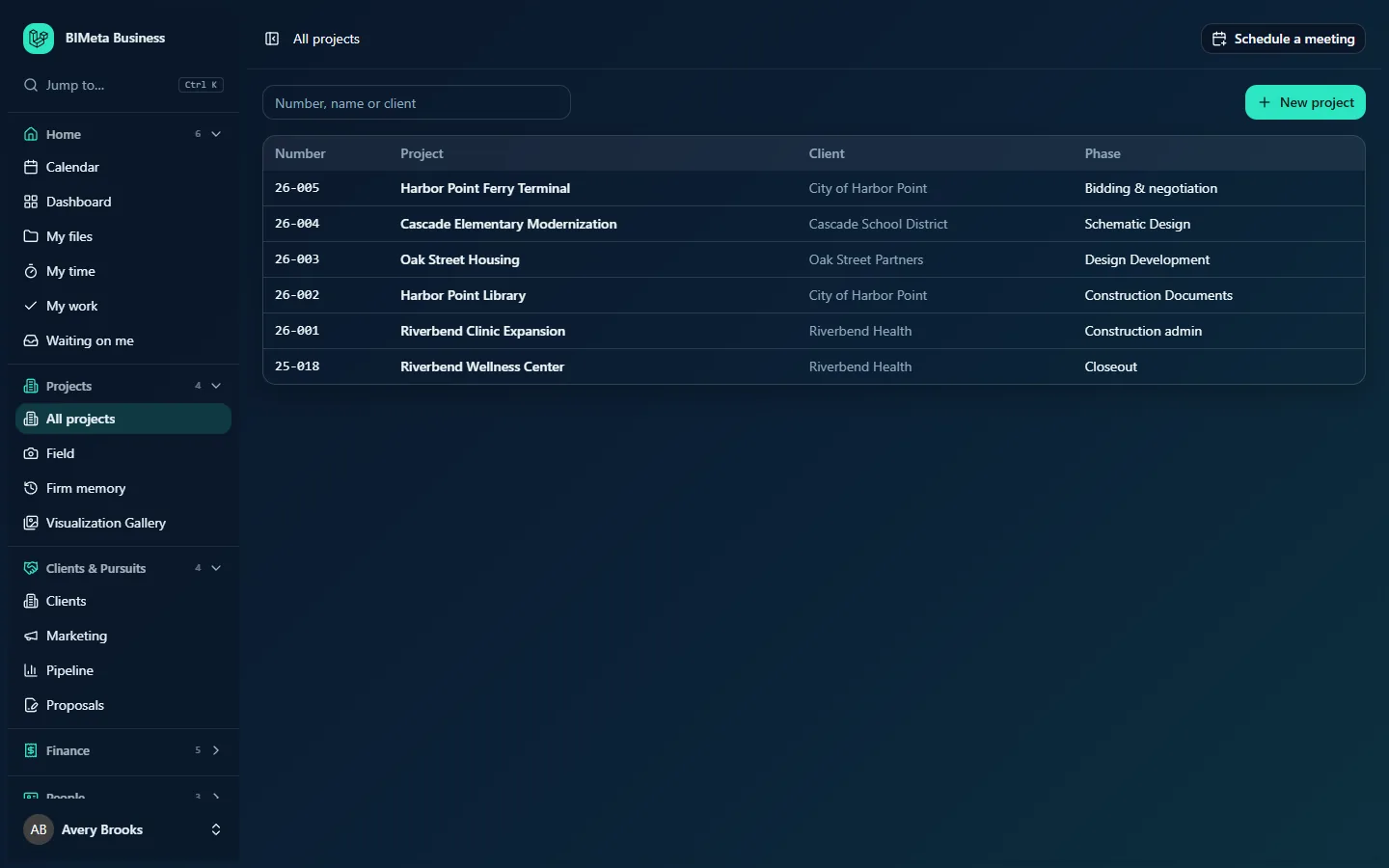
A tour of the page
Search box
The box labelled Number, name or client filters the list as you type. It matches any part of the project number, the project name or the client name, and ignores upper and lower case. For example, typing harbor at the example firm Northlight Architects leaves 26-005 Harbor Point Ferry Terminal and 26-002 Harbor Point Library; typing riverbend also finds both projects for the client Riverbend Health. If nothing matches you'll see No projects match. Clear the box to see everything again.
New project button
New project (top right) opens the new project form. See Creating a project.
The project table
| Column | What it shows |
|---|---|
| Number | The project number, e.g. 26-001. The list is sorted by number, highest first, so new projects are at the top. |
| Project | The project name as a link; click it to open the project's Overview. A grey badge appears next to the name when the project isn't active, for example archived after it has been closed out. |
| Client | The client name, e.g. City of Harbor Point. |
| Phase | The current lifecycle phase, e.g. Bidding & negotiation, Schematic Design or Closeout. |
| Custom field columns | If your firm has project custom fields set to show in lists (under Admin → Settings → Custom fields), each one gets its own column at the end. |
If there are no projects at all you'll see No projects yet with the note "Projects you create or are added to appear here."
How to …
Open a project
- Type part of the number, name or client in the search box.
- Click the project's name. Its Overview tab opens.
Start a new project
- Click New project.
- Fill in the form and click Create project (see Creating a project).
Tips and good to know
- The search runs in your browser on the list already loaded, so it's instant and doesn't need Enter.
- The list includes archived (closed-out) projects; their badge tells them apart.
- For a phase-by-phase picture of the firm's work, use the Dashboard's Portfolio by phase card or Reports → Portfolio.
- Projects also get created from a won pursuit in Pipeline or an accepted proposal in Proposals; they appear here straight away.
Troubleshooting
I don't see the New project button.
Your role can't create projects. Ask a Project Manager, Admin or the Business Owner to create it, or to give you a role that can.
A project I worked on isn't in the list.
Check the spelling in the search box, or clear it. If you're a client or consultant, you only see projects you were added to; ask the project manager.
Was this article helpful?
Share