



Project tasks: assign, schedule and track work
18 views · by Kevin J Bruno · updated 1 day ago
The Tasks tab is the project's to-do list. Each task has a title, an assignee, an optional due date, a priority, an optional phase and notes. Tasks you're given also show up on your My work page and on the Calendar on their due date, so nothing gets lost between projects.
Where to find it
- Open a project and choose the Tasks tab (in the Project group).
- From Sidebar → Home → My work: each task's project link opens this tab.
- Action items from AI meeting minutes (Meetings tab) are added here automatically.
Who can use it
- Everyone who can see the project can see its tasks.
- Adding, editing and removing tasks needs permission to edit the project: Business Owner, IT Staff, BIM Manager, Admin and Project Manager roles, or a project role of Project Manager, Project Architect or Designer. These people see the New task panel and can click a task's title to edit it.
- The person a task is assigned to can always change its status, even without edit rights.
- Everyone else sees each task's status as a badge.
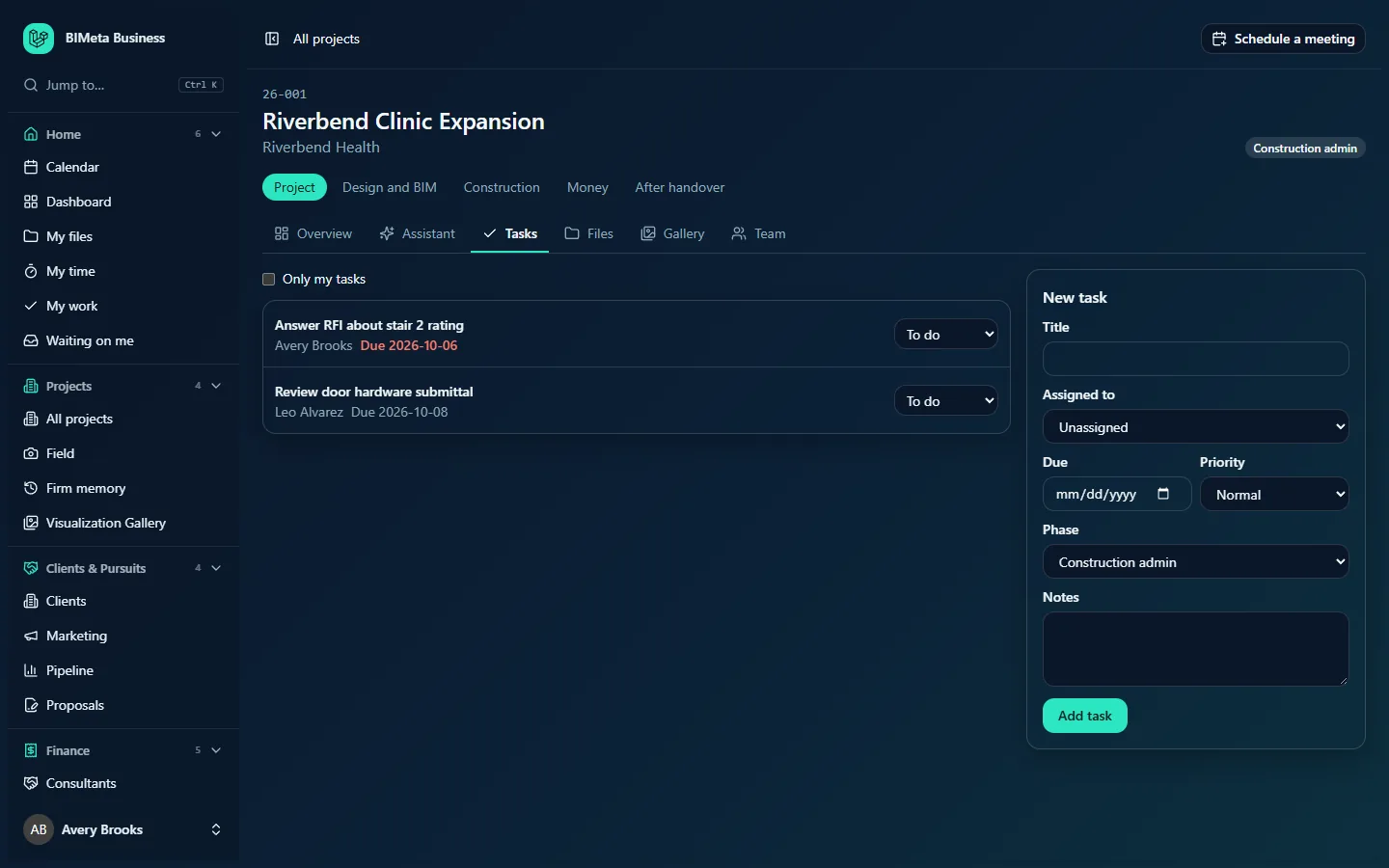
A tour of the page
Only my tasks
Tick Only my tasks above the list to show only tasks assigned to you. Untick it to see everything again.
Task list
Each row shows:
- The title, e.g. Answer RFI about stair 2 rating. For people who can edit, the title is a link that opens it in the edit panel. Done tasks are struck through. A red High badge marks high-priority tasks.
- Underneath: the assignee (or Unassigned), Due date (in red when overdue), and the phase, e.g. "Avery Brooks Due 2026-10-06".
- On the right: the status, To do, In progress or Done, as a drop-down if you can change it, otherwise as a badge.
Tasks are sorted with unfinished tasks first, then by due date (no date last), then high priority before normal. An empty list shows "No tasks here."
New task / Edit task panel
| Field | Required? | Details |
|---|---|---|
| Title | Yes | Up to 200 characters. |
| Assigned to | No | Unassigned, or anyone on the project team plus anyone whose firm role lets them see every project. |
| Due | No | A date. |
| Priority | No | Normal (default) or High. |
| Phase | No | Defaults to the project's current phase, e.g. Construction admin; choose No phase or another phase. |
| Notes | No | Up to 5,000 characters. |
Buttons: Add task for a new task; when editing, Save task, Cancel and Remove.
How to …
Add a task
- In New task, type the Title.
- Choose who it's Assigned to, a Due date, Priority and Phase, and add Notes if useful.
- Click Add task. You'll see "Task added" and the form clears.
Edit a task
- Click the task's title. The panel changes to Edit task with its details filled in.
- Make your changes and click Save task ("Task saved"), or Cancel.
Move a task along
- Pick To do, In progress or Done in the status drop-down on its row. It saves at once.
Remove a task
- Click its title, then Remove ("Task removed").
Adding, editing, status changes and removals are all recorded in the audit log.
Tips and good to know
- The Open tasks card on the Overview counts tasks that aren't done, and shows how many are overdue.
- Your open tasks across all projects are on My work; tasks with due dates appear on the Calendar.
- Removing someone from the team unassigns their unfinished tasks on that project, so check for Unassigned tasks after team changes.
- Assigning a task doesn't send an email; people see it on My work.
Troubleshooting
"That person can't see this project. Add them to the team first."
The assignee isn't on the team and can't see every project. Add them on the Team tab, then assign the task.
"Enter the due date as a date."
The due date wasn't a valid date. Pick it from the date picker.
I can't edit a task assigned to me.
Without edit rights you can only change its status. Ask the project manager to change the details.
Was this article helpful?
Share