



Project tabs: choose which tabs people see
17 views · by Kevin J Bruno · updated 1 day ago
Project tabs lets you choose which tabs people see across the top of every project. Set a default for everyone, then give anyone who needs a different set their own: for example, hide Bidding and Permits for interior designers, or hide the BIM tabs for people who never touch models. Hiding a tab only tidies the tab bar; what people are allowed to open still depends on their role and their role on the project.
Where to find it
- Sidebar → Admin → Settings, then Project tabs in the Firm setup section. (The Settings page gathers the firm's settings pages in one place; you can also type in its Search settings box.) For a BIM Manager, Project tabs is the only item on the Settings page. A ← Settings link at the top of the page takes you back to the Settings page.
- Jump to… (Ctrl K): type
project tabs.
Who can use it
People allowed to choose which project tabs each person sees: the Business Owner, IT Staff and the BIM Manager. All three see and use the page the same way. The Admin role and Users don't have it by default.
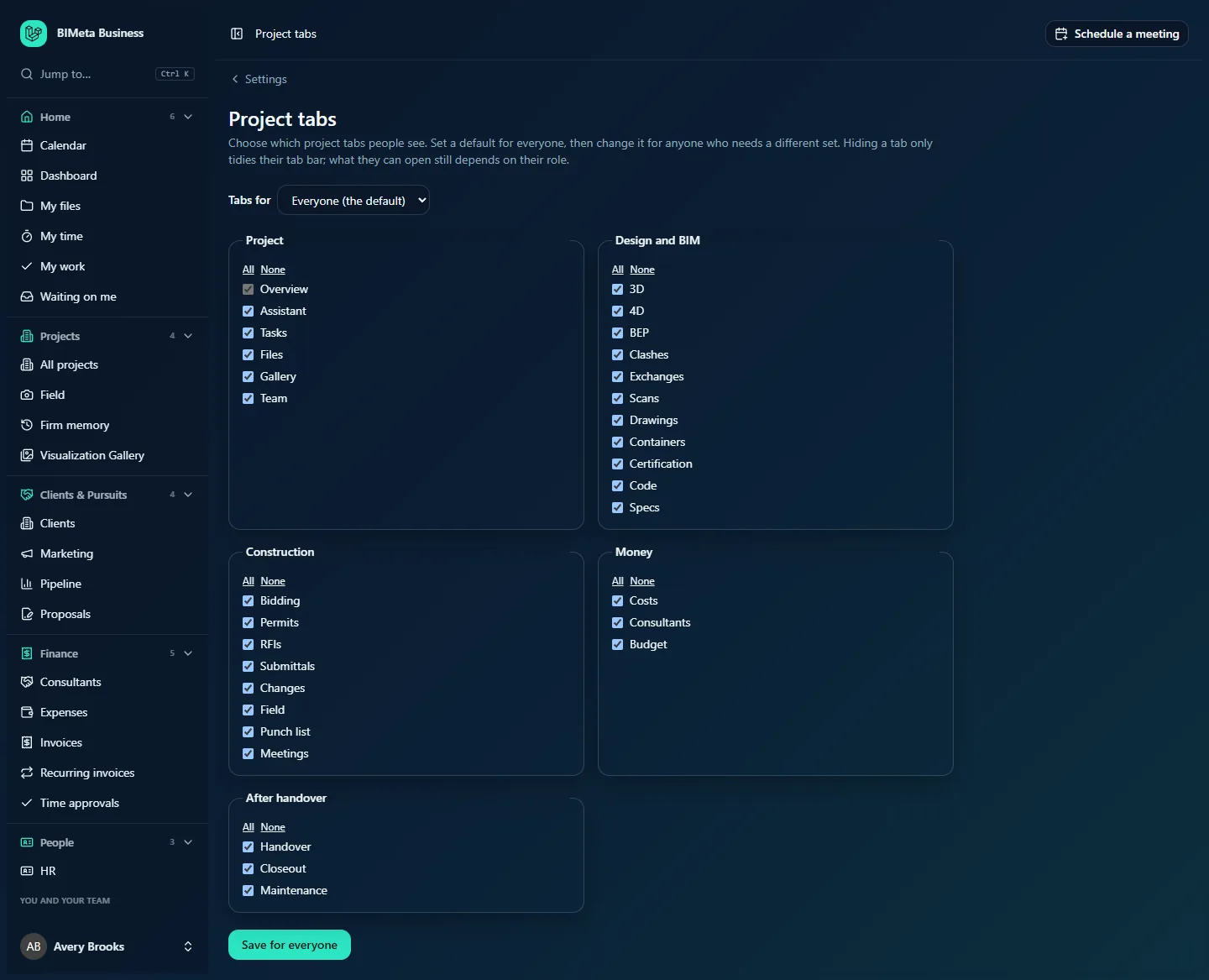
The screenshot shows the default for everyone at the example firm Northlight Architects, with every tab shown.
A tour of the page
- Project tabs and the explanation: "Choose which project tabs people see. Set a default for everyone, then change it for anyone who needs a different set. Hiding a tab only tidies their tab bar; what they can open still depends on their role."
- Tabs for: Everyone (the default) or any active person by name. Choosing a person loads their set. Next to the person, a note says Has their own set or Uses the default for everyone.
- Tab groups, each in its own box with All and None links to tick or untick the whole group, and a tick box per tab (ticked means shown):
- Project: Overview, Assistant, Tasks, Files, Gallery, Team. Overview is always shown and can't be unticked.
- Design and BIM: 3D, 4D, BEP, Clashes, Exchanges, Scans, Drawings, Containers, Certification, Code, Specs.
- Construction: Bidding, Permits, RFIs, Submittals, Changes, Field, Punch list, Meetings.
- Money: Costs, Consultants, Budget.
- After handover: Handover, Closeout, Maintenance.
- Save for everyone (or Save for this person when a person is selected).
- Use the default for everyone: shown for a person who has their own set; it deletes their set so they follow the default again.
How to set the default for everyone
- Leave Tabs for on Everyone (the default).
- Untick the tabs most people don't need (use None to clear a whole group, All to restore it).
- Click Save for everyone. You'll see "Saved for everyone". Everyone without their own set sees the new tab bar on their next page load. The change is recorded in the audit log.
How to give one person their own set
- In Tabs for, choose the person. The boxes show what they see now (the default, if they have no set).
- Tick and untick tabs.
- Click Save for this person. You'll see "Saved for this person", and the note changes to Has their own set.
How to put someone back on the default
- Choose the person in Tabs for.
- Click Use the default for everyone. You'll see "This person now sees the firm's default tabs". This is recorded in the audit log.
Tips and good to know
- A person's own set replaces the default completely. Later changes to the default don't reach them until you click Use the default for everyone for them.
- Hiding is not a permission. People who can't open a tab (for example Budget without budget rights) won't see it whatever you choose, and a hidden tab isn't locked away from someone who has the rights.
- Set the default first, then make exceptions; it keeps the number of personal sets small.
- The project tabs added by BIM tools (BEP, Clashes, Containers, 3D, Costs, Exchanges, Scans, Handover) are listed on the BIM Manager panel under On each project.
Troubleshooting / FAQ
A person still sees a tab I hid.
Check whether they have their own set (the note next to their name). If they do, change their set or put them back on the default.
A person doesn't see a tab I ticked.
They don't have permission for it, or their role on that project doesn't allow it. Check their role under Admin → Settings → People & access and their place on the project's Team tab.
Why can't I untick Overview?
Every project opens on Overview, so it's always shown.
Was this article helpful?
Share