



Submittals: log, review, return and resubmit
19 views · by Kevin J Bruno · updated 1 day ago
A submittal is something the contractor sends to the design team to show exactly what they intend to build or install before they do it: shop drawings for the steel, product data sheets for door hardware, paint samples, mock-ups, test certificates or engineering calculations. The architect (and the consultants for their parts) reviews each one against the design intent and returns it with a formal action such as No exceptions taken or Revise and resubmit. The Submittals tab is the project's submittal log: every submittal with its spec section, who is reviewing it, when the review is due, the reviewers' comments, the final action and every resubmitted revision.
This article covers both the log and the page for a single submittal.
Submittals in plain words
- Spec section. Submittals are organized by the specification section that requires them, written in the six-digit MasterFormat style, e.g. 08 11 13 (Hollow metal doors and frames). The submittal number is built from it: 08 11 13-001 is the first submittal for that section.
- Ball in court. The one person who owes the next move. While a submittal is being reviewed, the ball is with the reviewer. When they record their review, it comes back to whoever logged it, who then returns it to the contractor.
- Review due. If you don't pick a date, BIMeta gives the reviewer 14 days.
- Two steps: review, then return. A reviewer (a consultant, or someone in your firm) records a review with an action and comments. The firm then returns the submittal to the contractor with the final, official action. These can differ: for example the structural engineer reviews, and the architect returns it with a combined action.
- Revisions. When a submittal comes back Revise and resubmit or Rejected, the contractor sends a new version. BIMeta logs it as the next revision of the same number: 08 11 13-001 Rev 1.
Review actions
| Action | What it tells the contractor |
|---|---|
| No exceptions taken | Approved as submitted; go ahead. |
| Make corrections noted | Approved with the corrections in the notes; go ahead, applying them. No resubmittal needed. |
| Revise and resubmit | Not acceptable yet; fix it and send it again. |
| Rejected | Doesn't meet the requirements; send something different. |
| Received for record | Filed for information only (e.g. certificates); no approval given. |
Submittal statuses
| Status | What it means |
|---|---|
| In review | Logged and waiting on the reviewer. A red badge means the review is overdue. |
| Reviewed | The reviewer has recorded their action; the ball is back with whoever logged it, ready to return to the contractor (or send to another reviewer). |
| Returned | Sent back to the contractor with the final action. The badge then shows the action itself, e.g. No exceptions taken; Revise and resubmit and Rejected show in red. |
| Void | Withdrawn. |
Where to find it
- Open a project, choose the Construction group, then the Submittals tab.
- Click a submittal number in the log to open it. The breadcrumb (Submittals · 08 11 13) takes you back.
- Submittals waiting for your review also appear on Waiting on me (Sidebar → Home), in the RFIs and submittals in my court dashboard card, and in the email you get when one is sent to you.
Who can use it
- Everyone who can open the project (Business Owner, IT Staff, BIM Manager and User) can see the log and every submittal.
- Logging, sending for review, returning, logging the next revision and voiding need permission to manage construction admin: Business Owners, Admins, IT Staff, BIM Managers and Project Managers firm-wide, and anyone with the Project Manager or Project Architect role on the project's team.
- Recording a review (Your review) is only for the person the submittal is currently with, while it's In review, and only if they may respond on the project (for example a Designer, Consultant or Client on the team, or a manager). Managers can't record a review on someone else's behalf, but they can return the submittal directly.
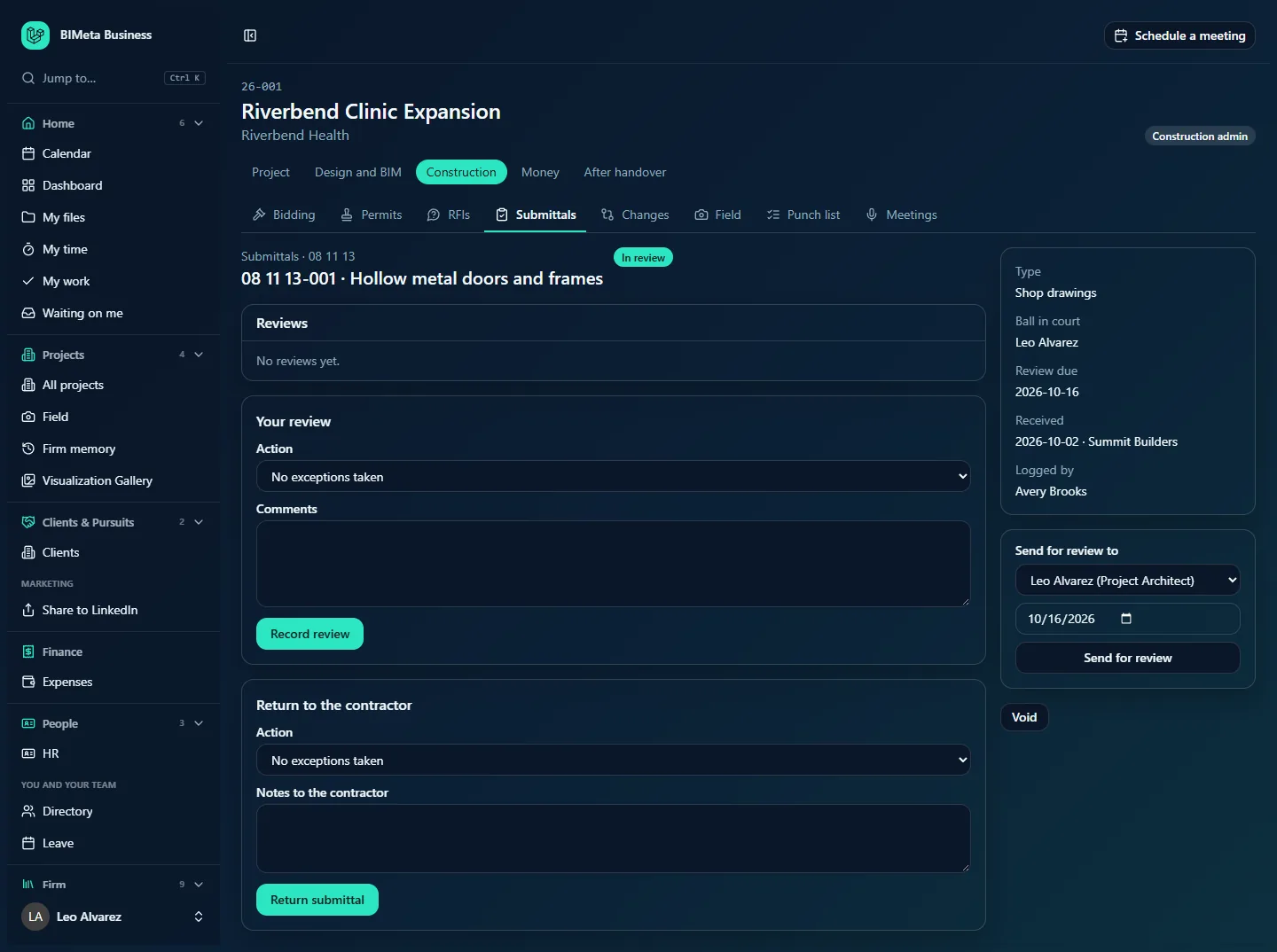
In the example firm Northlight Architects, the User Leo Alvarez is the project's Project Architect and the reviewer of the door submittal, so he sees both Your review and Return to the contractor.
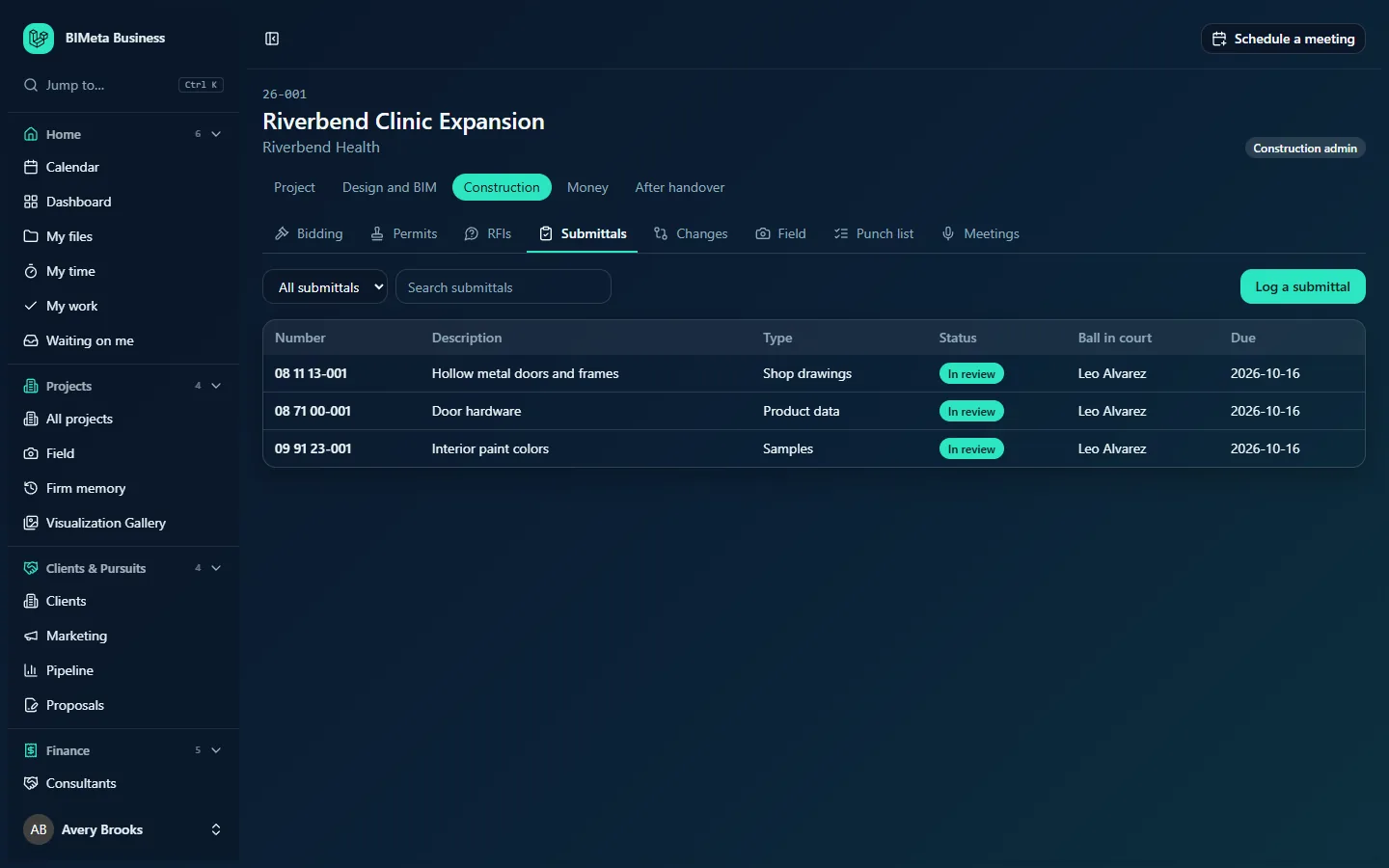
A tour of the submittal log
Filter, search and Log a submittal
- Show drop-down:
- All submittals: everything, every revision.
- Open: In review or Reviewed (not yet returned).
- In my court: open submittals waiting on you.
- Overdue: In review and past the review due date.
- Search submittals: type part of a description, number or spec section and press Enter.
- Log a submittal (managers only) opens the form. It reads Cancel while open.
The list
Sorted by spec section, then number, then revision, so all revisions of a submittal sit together. Up to 1,000 rows are shown.
| Column | Shows |
|---|---|
| Number | The submittal number, with Rev n for revisions, e.g. 08 11 13-001. Click to open. |
| Description | What it is, e.g. Hollow metal doors and frames. |
| Type | Shop drawings, Product data, Samples, Mock-ups, Certificates, Calculations or Other. |
| Status | The status badge, or the returned action. |
| Ball in court | Who it's waiting on, e.g. Leo Alvarez. |
| Due | The review due date (shown only while In review). |
If nothing matches you'll see No submittals here.
How to log a submittal
- Click Log a submittal.
- Fill in:
- Spec section (required, up to 20 characters): letters, digits, spaces, dots and dashes, starting with a letter or digit, e.g.
05 12 00. - Description (required, up to 200 characters), e.g. Structural steel shop drawings.
- Type (required).
- Received from (optional, up to 160 characters): usually the contractor or subcontractor.
- Received: the date it arrived; today if left blank.
- Reviewer: who will review it, from the project team, or Nobody yet.
- Review due: defaults to 14 days from today.
- Spec section (required, up to 20 characters): letters, digits, spaces, dots and dashes, starting with a letter or digit, e.g.
- Click Log submittal.
The submittal is numbered from your firm's submittal pattern (by default the spec section followed by a three-digit count, e.g. 05 12 00-001; your firm can change this under Sidebar → Admin → Settings → Setup, step Document numbering in the Project standards section), opens as In review, and the reviewer is emailed "Submittal … is waiting for your review" with the due date and a link (unless the reviewer is you). The action is recorded in the audit log.
A tour of a single submittal
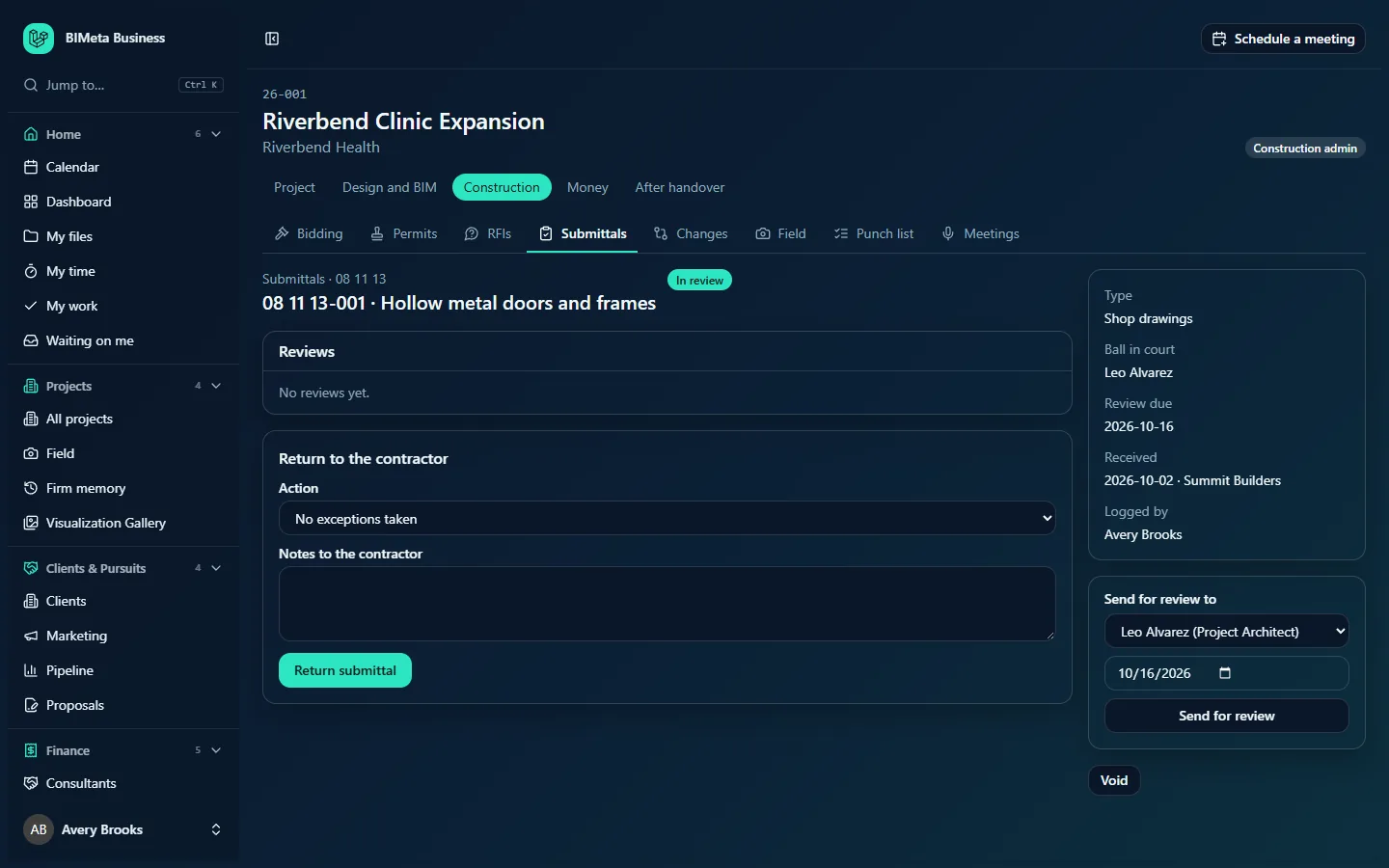
- Header: breadcrumb with the spec section, the number and description as the title (e.g. 08 11 13-001 · Hollow metal doors and frames), and the status badge.
- Revisions: if the submittal has been resubmitted, a row of buttons (Original, Rev 1, Rev 2…) lets you jump between versions. The one you're viewing is highlighted.
- Returned box: once returned, a highlighted box shows "Returned: action", the notes to the contractor, who returned it and when.
- Reviews: every review recorded on this revision: reviewer, action, time and comments. No reviews yet. until the first one.
- Your review (reviewer only): Action, Comments and Record review.
- Return to the contractor (managers, while In review or Reviewed): Action, Notes to the contractor and Return submittal.
- Details panel: Type, Ball in court, Review due (while In review; red if overdue), Received (date and from whom) and Logged by.
- Send for review to (managers): a person picker, a due date and Send for review.
- Resubmittal received (managers, on a returned Revise and resubmit or Rejected submittal that has no next revision yet): a date and Log the next revision.
- Void (managers, while In review or Reviewed).
The User view of the same submittal, with the reviewer's form:
How to …
Send a submittal for review (or to another reviewer)
- Open the submittal. In Send for review to, choose the reviewer.
- Adjust the date if needed, then click Send for review. You'll see "Sent for review".
The status becomes In review (even if it was Reviewed), the reviewer is emailed and their overdue reminder is reset. Use this to pass a submittal from one consultant to the next.
Record your review
- Open the submittal from Waiting on me, the log or the email.
- Under Your review, choose the Action and write any Comments (up to 20,000 characters).
- Click Record review. You'll see "Review recorded".
The status becomes Reviewed, the ball goes back to the person who logged it, and they're emailed "Submittal … has been reviewed: action".
Return a submittal to the contractor
- Read the reviews. Under Return to the contractor, choose the final Action.
- Write the Notes to the contractor (optional, up to 20,000 characters).
- Click Return submittal. You'll see "Returned: action".
The ball in court is cleared and the badge shows the action. Returning doesn't email the contractor: send them the result as your contract requires.
Log the contractor's resubmittal
- Open the returned submittal (it must have been returned as Revise and resubmit or Rejected).
- In Resubmittal received, enter the date it arrived (today if blank).
- Click Log the next revision.
A new revision is created with the same number and details (e.g. Rev 1), due in 14 days, and goes straight to the last reviewer, who is emailed. You land on the new revision. Each returned submittal can have only one next revision.
Void a submittal
Click Void on an In review or Reviewed submittal to withdraw it. A submittal that has already been returned can't be voided.
Tips and good to know
- Overdue reminders. Each morning BIMeta emails the reviewer of any submittal past its review due date ("Overdue: …"), once per assignment. Sending it for review again resets the reminder.
- Reviewers must be on the team. Add consultants to the project's Team tab with the Consultant role so they can be chosen and can record reviews.
- The project's Specs tab holds the specification sections; use the same section numbers here so submittals line up with the spec.
- Reviews and returns can't be edited afterwards. If a return was wrong, log the correct outcome as a new revision or explain in your transmittal.
Troubleshooting
"Enter the spec section, like 05 12 00."
The spec section must start with a letter or digit and use only letters, digits, spaces, dots and dashes, up to 20 characters.
Why can't I see Your review?
It only appears to the person the submittal is with, while it's In review, and only if you may respond on the project. Check the Ball in court line.
"This submittal has already been returned."
Returned submittals can't be sent for review, reviewed, returned again or voided. If the contractor resubmits, use Log the next revision.
Log the next revision isn't showing.
It appears only for submittals returned as Revise and resubmit or Rejected, and only until the next revision has been logged. Use the revision buttons at the top to find the latest one.
Was this article helpful?
Share