



Specs: the project specification, model check and submittal register
17 views · by Kevin J Bruno · updated 1 day ago
The Specs tab holds the project's specification, section by section, in the usual three parts (General, Products, Execution). You can copy sections from your firm's master specification, write new ones, or have AI draft a section from manufacturer data. The tab also checks the products placed in the project's models against the specification and, where your firm uses it, shows the submittal register section by section. Project manual prints the whole specification.
Where to find it
Open a project and choose Design and BIM → Specs. The firm's master sections are under Sidebar → Firm → Specifications.
Who can use it
- Everyone who can see construction admin on the project can read the specification and print the project manual. That includes every Business Owner, IT Staff, BIM Manager and User.
- Writing, editing, removing sections, adding sections from the master and AI drafting need permission to manage construction admin on the project: Business Owner, IT Staff, BIM Manager, Admin and Project Manager roles, or a project role of Project Manager or Project Architect. Regular Users don't see Write a section, Edit or Remove.
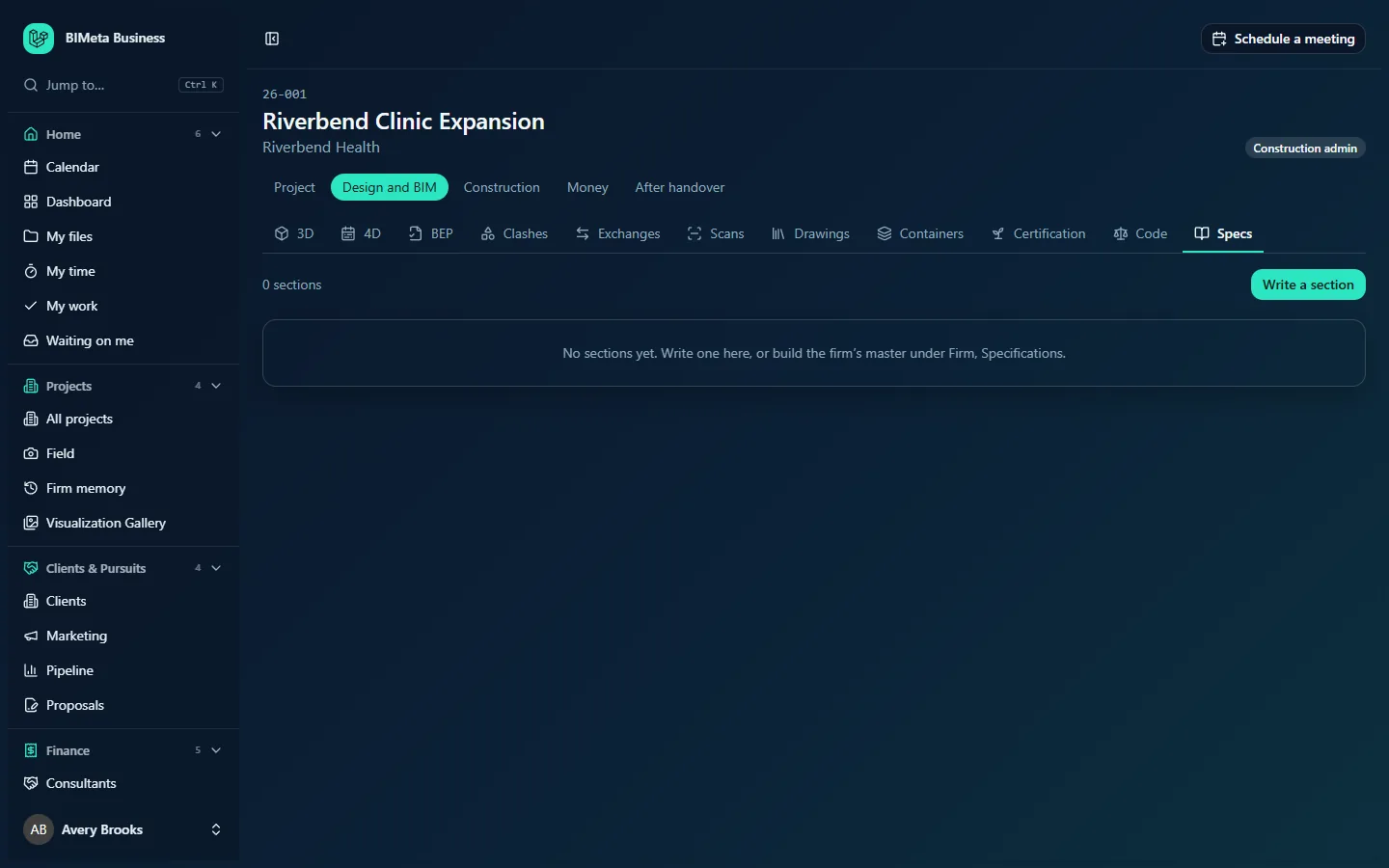
A tour of the page
Top line
The number of sections (e.g. "0 sections"), a Project manual link once there are sections, and for managers Add from the master (when the firm's master has sections this project doesn't have yet) and Write a section.
Products in the model
When the project has models synced with the BIMeta add-in, this card shows "Families placed in this project's synced models, by the section the family library gives them":
- Sections that are Covered, with the families they cover.
- "Placed in the model, but the section isn't in this specification": sections the model needs but the spec lacks, each with an Add from the master button when your firm's master has that section, or marked "Not in the master either".
- "No section given in the family library:" families that have no section yet. Fix these in the Family library.
- A count of families in the models that aren't in the firm's family library and so can't be checked.
- When all is well: "Every checked product in the model has its section in this specification."
Submittal register
If your firm has the submittal register turned on, a card lists each section with its state and the latest revision of each submittal against it, with a summary such as "2 in the model with no submittal yet · 1 to resubmit · 3 in review · 5 accepted". States are No submittal yet, Resubmit, In review, Accepted and None yet. Submittals that name a section the specification doesn't have are listed separately. All submittals opens the Submittals tab.
Sections
Each section shows its number and title, e.g. 08 71 00 Door Hardware, with its three parts, and Edit and Remove for managers. Without sections you'll see "No sections yet. Add them from the firm's master, or write one." (or, when the firm has no master yet, "…or build the firm's master under Firm, Specifications.").
Section editor
- Section number (required, up to 20 characters) and Title (required, up to 200 characters), e.g. Door Hardware.
- Part 1 - General, Part 2 - Products and Part 3 - Execution: free text, each up to 200,000 characters.
- Draft it from manufacturer data: opens a Manufacturer product data box where you paste the product data sheet, then Draft the three parts. The note under it gives the AI credit cost and says anything the data doesn't cover is marked
[Confirm: ...]for you to fill in. - Save section and Cancel.
How to …
Add sections from the firm's master
- Click Add from the master.
- Tick the sections you need under Add sections from the firm's master.
- Click Add n sections. Sections already in the project are skipped ("Those sections are already in the project").
Write a section
- Click Write a section.
- Enter the Section number and Title, then the three parts.
- Click Save section ("Section saved").
Draft a section with AI
- In the editor, fill in the number and title first.
- Click Draft it from manufacturer data, paste the product data (materials, sizes, finishes, standards, installation notes…).
- Click Draft the three parts. The three parts are filled in for you to check.
- Replace every
[Confirm: ...], edit as needed and click Save section.
Print the project manual
- Click Project manual. A printable page with your firm's name, the project and every section opens; print it or save it as PDF from your browser.
Tips and good to know
- A section copied from the master becomes the project's own copy: editing it here doesn't change the master, and later master changes don't flow in.
- The model check relies on the section each family has in the Family library and on models being synced with the BIMeta add-in.
- AI drafting uses your firm's AI credits; the cost is shown before you draft. The draft is a starting point, never a finished specification.
- The project Assistant and Firm memory don't search specification text.
Troubleshooting
"The draft didn't work."
Check the number, title and product data, then try again. AI must be switched on for your firm (Admin → Settings → AI).
I can read the specification but can't edit it.
You need to manage construction admin on this project. Ask the project manager for the Project Architect or Project Manager role.
Was this article helpful?
Share