



Share links: send project files to people outside the firm
20 views · by Kevin J Bruno · updated 12 hours ago
Share links let you give people without a BIMeta account (a consultant, contractor or client contact) access to project files. A link can cover one file, a folder or the whole project, always expires, can have a password and a download limit, and can be turned off at any time. Every download through a link is logged.
Where to find it
- On a project's Files tab, click Share links (top right). It opens with the folder you were in chosen.
- Click the link icon on a file's row to open it with that file chosen.
- The page keeps the Files tab highlighted.
Who can use it
People who can edit the project: Business Owner, IT Staff, BIM Manager, Admin and Project Manager roles, or a project role of Project Manager, Project Architect or Designer. Others can't open the page.
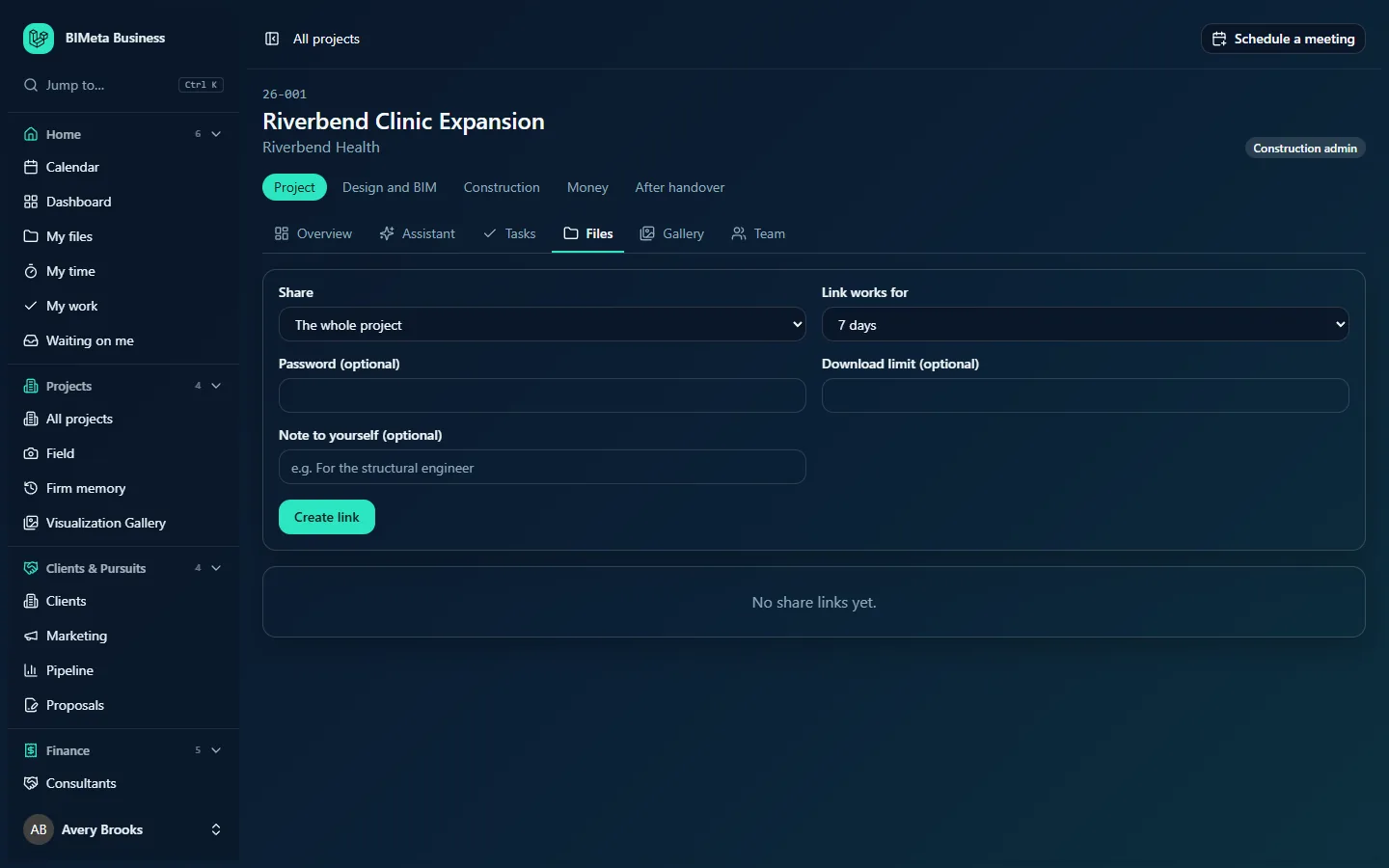
A tour of the page
New link form
| Field | Details |
|---|---|
| Share | One file (always its latest version), A folder and everything in it (including subfolders) or The whole project. |
| File | Shown for one file: pick it (listed with its folder path). |
| Folder | Shown for a folder: pick it. |
| Link works for | 1 day, 7 days (default), 30 days or 90 days. Your firm may allow fewer days. |
| Password (optional) | At least 8 characters, or leave blank. Your firm may require one. |
| Download limit (optional) | A whole number from 1 to 10,000, or blank for no limit. |
| Note to yourself (optional) | Up to 200 characters, e.g. For the structural engineer. Only your firm sees it. |
Create link saves.
New link box
Straight after you create a link, a box at the top shows the link with Copy link (it changes to Copied) and the reminder "Copy it now: for security it isn't shown again."
Links list
Every link made on this project, with what it shares (file name, folder path or Whole project), your note, and a line such as "Until 2026-10-12 · 3 downloads / 10 · Password · Avery Brooks" (expiry, downloads so far and the limit, whether it has a password, and who made it). Active links have Turn off; others show Turned off or Expired. With none yet: "No share links yet."
How to …
Create a share link
- Choose what to Share, and the file or folder.
- Choose how long the Link works for.
- Optionally set a Password, a Download limit and a Note to yourself.
- Click Create link.
- Click Copy link and send it to the recipient. If you set a password, send it separately (for example by phone or text).
Turn a link off
- Click Turn off next to it ("Link turned off"). It stops working at once.
Creating and turning off links are recorded in the audit log.
What the recipient sees
- A page listing the files the link covers (always the current versions), each to download. No BIMeta account is needed.
- If the link has a password they're asked for it once per browser session. After too many wrong tries they must wait an hour.
- Expired, turned-off and used-up links simply show a missing page.
- If your firm watermarks shared downloads, PDFs and images are stamped with the link number and the recipient's network address.
Tips and good to know
- Every download through a link appears on the Files tab's Download activity as Share link: note, which is why a note is worth adding.
- A folder or whole-project link includes files added after you made it, until it expires.
- Your IT team sets the link rules under the Security tab of Admin → IT: the longest allowed expiry, whether a password is required, and file types that may never be shared by link.
Troubleshooting
I lost the link.
It can't be shown again. Turn the old link off and create a new one.
"Your firm allows shared links for up to n days." / "Your firm requires a password on every shared link."
Your firm's rules are stricter than what you chose. Pick a shorter time or add a password.
"Your firm keeps .type files off shared links."
That file type is blocked from sharing. Ask IT, or send it another way your firm approves.
Was this article helpful?
Share