



RFIs: log, forward, answer and close requests for information
18 views · by Kevin J Bruno · updated 9 hours ago
A request for information (RFI) is a formal written question about the construction documents, almost always sent by the contractor during construction: "The drawings show anchors at 600 mm but the spec says 450 mm. Which is right?" The design team must answer each one in writing, by a deadline, and say whether the answer changes the cost or the schedule. The RFIs tab is the project's RFI log. It keeps every question with its number, who it is waiting on, when the answer is due, the discussion, and the official answer, so nothing slips and you always have a record of what was decided.
This article covers both the RFI log (the list) and the page for a single RFI.
RFIs in plain words
If you're new to construction administration, these are the ideas the page is built on:
- Logging an RFI. When a question arrives (by email, at a site meeting, from the contractor's own system), someone who manages construction admin on the project enters it in the log. BIMeta gives it the next number, for example RFI-0014.
- Ball in court. Every open RFI is "in someone's court": the one person who owes the next move. Usually that's the architect or consultant who must answer. When it's answered, the ball goes back to whoever logged it, so they can check the answer and close it. The phrase comes from tennis: the ball is on your side, so it's your turn.
- Due date. Contracts usually give the design team a set number of days to answer. If you don't pick a date, BIMeta sets the answer due 7 days from today.
- Official answer and impacts. The answer is the formal response. It always records the Cost impact and Schedule impact (Yes, No or To be decided). An answer that costs money or time usually leads to a change (see Changes: ASIs, proposal requests, CCDs and change orders).
- Comments. Before the answer, team members can discuss the RFI in a comment thread. Comments are not the answer.
RFI statuses
| Status | What it means | What can happen next |
|---|---|---|
| Draft | Created but not sent yet. Open questions captured from meeting minutes arrive as drafts, waiting for a manager to check them. | Forward it, or Issue RFI to make it Open. |
| Open | Waiting for an answer from whoever has the ball. Shown in red when it's past its due date (overdue). | Comment, forward, send the official answer, or void. |
| Answered | The official answer has been given. The ball is back with the person who logged it. | Close RFI, or Reopen if the answer didn't settle it. |
| Closed | Finished. Nobody has the ball. | Nothing; it stays in the log as a record. |
| Void | Withdrawn (a duplicate, logged by mistake, or no longer relevant). Nobody has the ball. | Nothing. |
Where to find it
- Open a project (Sidebar → Projects → All projects, then click the project), choose the Construction group in the row of project areas, then the RFIs tab. If you have only a few project tabs, they're shown in one row without the groups.
- Open a single RFI by clicking its number in the log. The breadcrumb above the subject (RFIs · RFI-0014) takes you back to the log.
- RFIs in your court also appear on Waiting on me (Sidebar → Home → Waiting on me) and in the RFIs and submittals in my court dashboard card, and the email you get when an RFI lands in your court links straight to it.
- An RFI raised from a drawing markup links back to that markup (see the From markup line below).
Who can use it
Access depends on your firm role and on your role on the project's team (set on the project's Team tab):
- Everyone who can open the project (Business Owner, IT Staff, BIM Manager and User) can see the RFI log and read every RFI.
- Logging, forwarding, issuing, closing, reopening and voiding need permission to manage construction admin. Business Owners, Admins, IT Staff, BIM Managers and Project Managers have it firm-wide; on a single project, a team member with the Project Manager or Project Architect project role has it too. Without it, you won't see Log an RFI, the Forward to box or the close buttons.
- Answering: the person whose court the RFI is in can send the official answer if they're allowed to respond on the project (for example a Designer, Consultant or Client on the team). Managers can answer any open RFI.
- Comments can be added by anyone who can respond to or manage RFIs on the project. A User who is on the team only as a viewer sees the comment box, but saving a comment is refused.
In the example firm Northlight Architects, the User Leo Alvarez sees exactly what the Business Owner sees on 26-001 Riverbend Clinic Expansion, because he is the project's Project Architect.
A tour of the RFI log
Project header and tabs
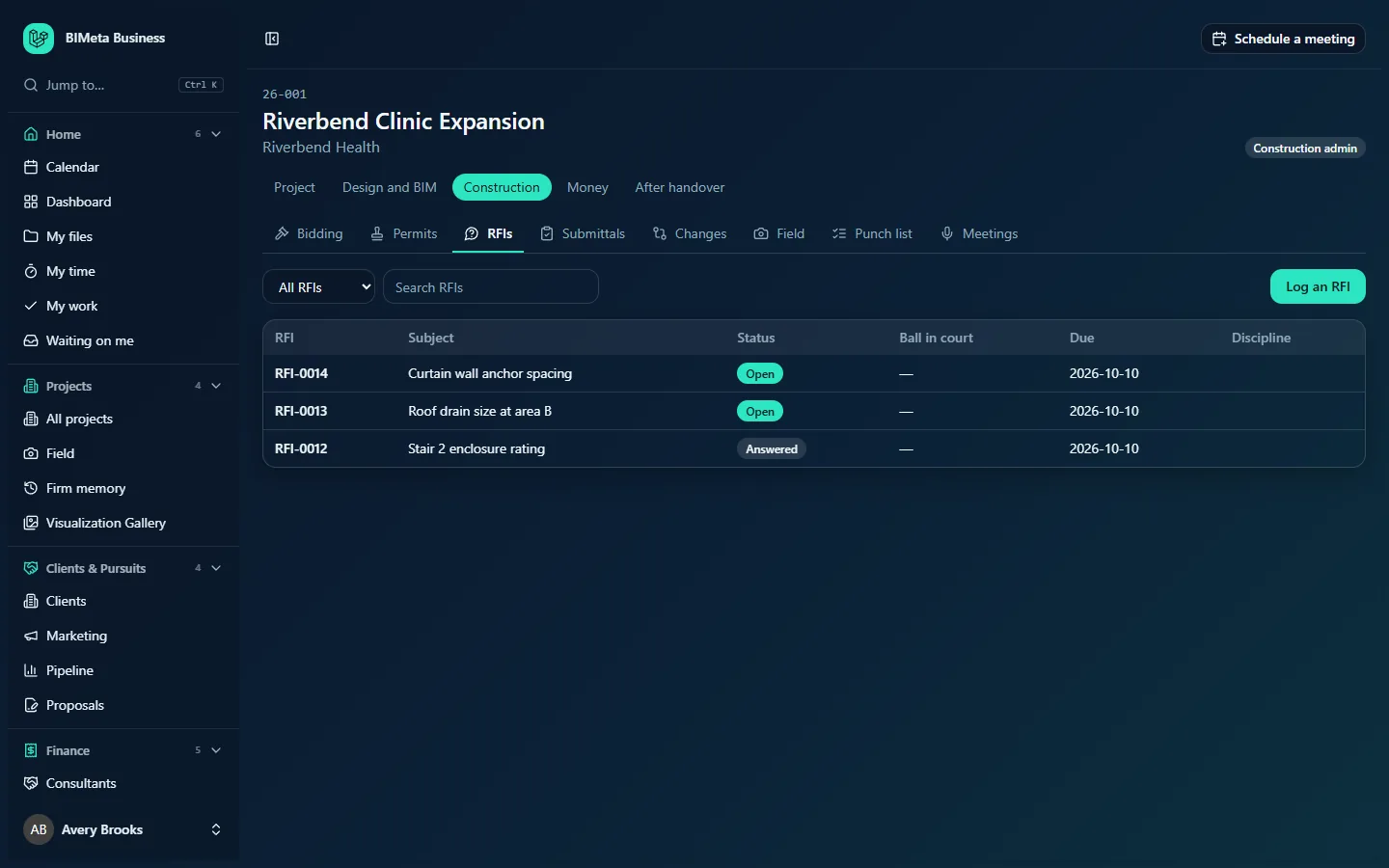
Every project tab shares the same header: the project number (e.g. 26-001), its name (Riverbend Clinic Expansion), the client (Riverbend Health) and, on the right, a badge with the current phase (e.g. Construction admin). Below that is the row of project areas (Project, Design and BIM, Construction, Money, After handover) and the tabs in the selected area. The Construction area holds Bidding, Permits, RFIs, Submittals, Changes, Field, Punch list and Meetings. Your firm may hide some tabs for some people.
Filter and search
- Show drop-down (shows All RFIs at first):
- All RFIs: every RFI on the project, any status.
- Open: only RFIs waiting for an answer.
- In my court: RFIs that are Open or Answered and waiting on you.
- Overdue: Open RFIs whose due date has passed.
- Search RFIs: type part of a subject, an RFI number or words from the question and press Enter. Clear the box and press Enter to show everything again. The filter and search can be combined.
- Log an RFI (managers only) opens the new-RFI form above the list. While the form is open the button reads Cancel.
The list
Newest RFIs come first. The log shows up to 500 at a time; use the filter or search to narrow a long log.
| Column | Shows |
|---|---|
| RFI | The RFI number, e.g. RFI-0014. Click it to open the RFI. |
| Subject | The one-line summary, e.g. Curtain wall anchor spacing. |
| Status | A badge: Open (highlighted), Answered, Closed, Void or Draft. An overdue open RFI shows a red badge. |
| Ball in court | Who the RFI is waiting on, or — if nobody yet. |
| Due | The answer due date (year-month-day). |
| Discipline | Architectural, Structural, Mechanical, Electrical, Plumbing, Civil, Landscape or Other, if set. |
If nothing matches, you'll see No RFIs here.
How to log an RFI
- On the RFIs tab, click Log an RFI.
- Fill in the form:
- Subject (required, up to 200 characters): a short summary of the question.
- Received from (optional, up to 160 characters): who asked, e.g. Summit Builders or "the contractor".
- Question (required, up to 20,000 characters): the full question as asked.
- Suggested solution (optional): the contractor's proposed answer, if they offered one.
- Discipline (optional): which discipline the question belongs to. Leave on Not set if unsure.
- Sheet (optional): the drawing sheet the question is about, from this project's sheet list.
- Location (optional, up to 160 characters): where on the building, e.g. Level 2, grid C/4.
- Ball in court (optional): who must answer. The list shows active people on the project's team with their project role, e.g. Leo Alvarez (Project Architect). Choose Nobody yet to assign it later.
- Answer due: defaults to 7 days from today. It can't be set to a date in the past.
- Priority: Normal, High or Urgent.
- Click Open RFI.
What happens next:
- The RFI gets the next number from your firm's RFI numbering pattern (by default RFI-0001, RFI-0002… counted per project; your firm can change it under Sidebar → Admin → Settings → Setup, step Document numbering in the Project standards section). If the pattern is missing something it needs, you'll see "Numbering needs a setting first" with the reason.
- The RFI opens with status Open and you land on its page with the notice "RFI RFI-0014 opened".
- If you chose someone for Ball in court (and it isn't you), they get an email: "RFI … is in your court", with the project, the due date and a link.
- The action is written to the firm's audit log, and any connected apps your firm has set up are told a new RFI was opened.
"Asked before on other projects"
While you type the subject and question, BIMeta searches your firm's other projects for RFIs that asked something similar and were answered. Once you've typed a dozen or so characters, matches appear under the question in a box headed Asked before on other projects, each with its title, project, date and the start of its answer. Click one to open it in a new tab. This is a quick way to reuse a past answer or spot a recurring detailing problem. If nothing similar exists, the box doesn't appear.
A tour of a single RFI
Header
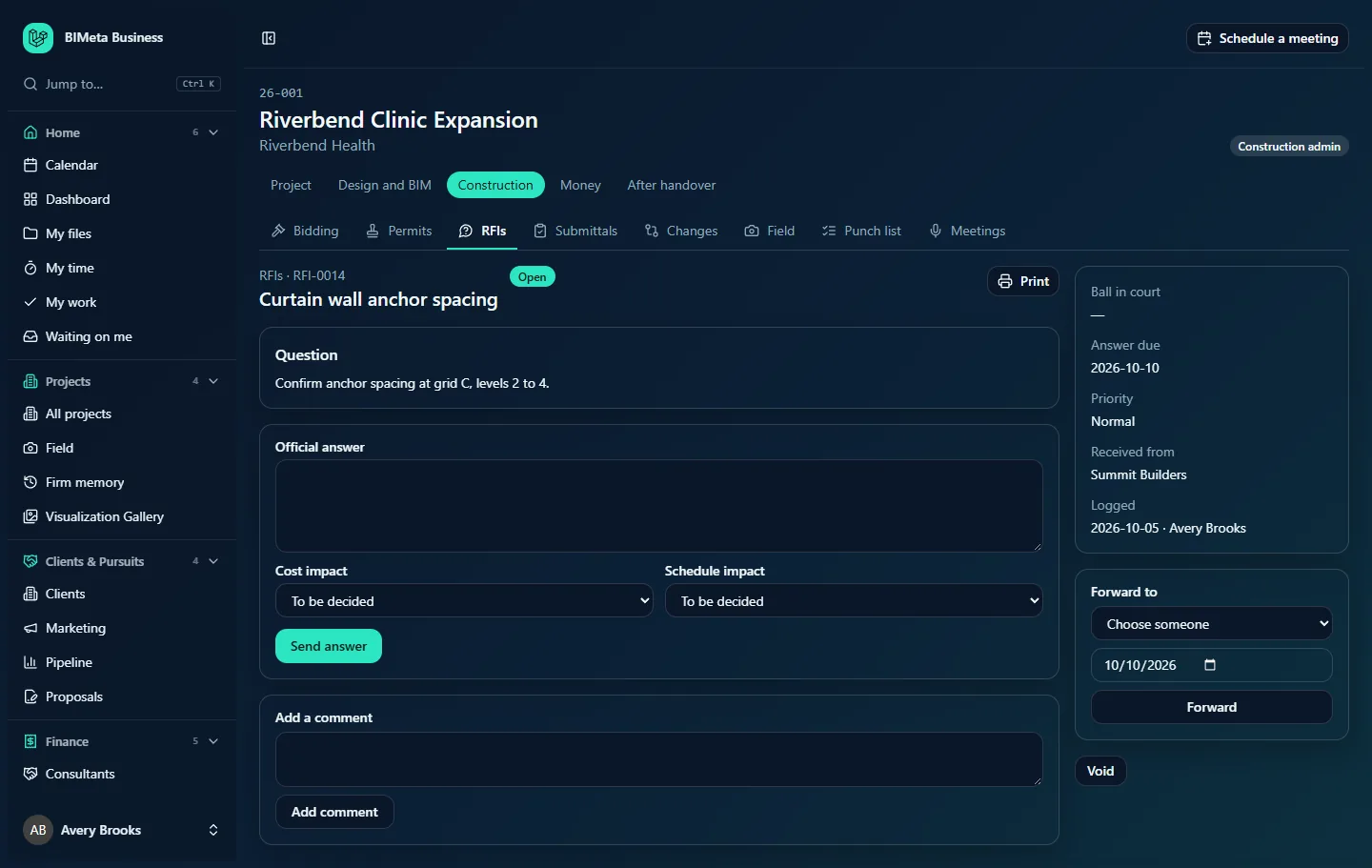
The breadcrumb (RFIs · RFI-0014), the subject as the heading, the status badge (red if overdue), and a Print button. Print opens a clean "Request for information" sheet in a new tab with the firm and project, the subject, question, suggested solution, answer with its impacts, the comments, and the sidebar details. Use your browser's Print to print it or save it as a PDF to send to the contractor.
Question
The full question, and the Suggested solution if one was entered.
Answer
Once answered, a highlighted Answer box shows the official answer, who answered and when, and the Cost impact and Schedule impact.
Responses
All comments, oldest first, with the author and time. The official answer also appears in this thread with an Official answer badge.
Official answer form
Shown on an Open RFI to the person whose court it is in (if they may respond) and to managers. It has a large Official answer box, Cost impact and Schedule impact drop-downs (To be decided, No, Yes) and a Send answer button.
Add a comment
Shown on Open RFIs: a text box and an Add comment button for discussion that isn't the answer.
Details panel (right)
- Ball in court: who it's waiting on, or —.
- Answer due: in red when overdue.
- Priority.
- Discipline, Sheet, Location and Received from, when set.
- From markup: if the RFI was raised from a markup on a drawing sheet, a link such as "A-201.pdf, page 2" opens the sheet at that markup.
- Logged: the date and who logged it, e.g. 2026-10-05 · Avery Brooks.
Manager boxes (right)
- Issue RFI (Drafts only): a dashed box explaining "This RFI is a draft. Check it, then issue it to put it in the ball-in-court's hands."
- Forward to (Draft or Open): a person picker, a due-date field and a Forward button.
- Void (Open), or Close RFI and Reopen (Answered).
How to …
Forward an RFI (change the ball in court)
- Open the RFI. In Forward to, choose the person (only people on the project team, plus the firm's Business Owners and Admins, are accepted).
- Change the date if you want a new due date; leave it to keep the current one.
- Click Forward. You'll see "RFI forwarded".
The new person is emailed (unless it's you), and the overdue reminder is reset for them.
Answer an RFI
- Open the RFI from the log, Waiting on me or the email.
- Write the answer in Official answer (required, up to 20,000 characters).
- Set Cost impact and Schedule impact. Choose Yes if the answer adds cost or time, No if it doesn't, or To be decided if the contractor still needs to price it.
- Click Send answer. You'll see "Answer sent".
The RFI becomes Answered, the ball goes back to the person who logged it, and they are emailed that it has been answered. The answer is added to the thread as the official answer.
Add a comment
- On an Open RFI, type in Add a comment.
- Click Add comment. You'll see "Response added". Comments don't change the status or the ball in court and don't send emails.
Close, reopen or void
- Close RFI (Answered RFIs): marks it finished and clears the ball in court. You can only close an RFI that has been answered; otherwise void it.
- Reopen (Answered RFIs): if the answer didn't settle the question, the RFI goes back to Open with the ball returned to the person who answered it.
- Void (Open RFIs): withdraws the RFI. It stays in the log as Void.
Issue a draft RFI
- Open the draft (filter the log by All RFIs and look for the Draft badge).
- Check the question. If needed, choose who should answer in Forward to and click Forward first.
- Click Issue RFI. It becomes Open, due 7 days from today, and the person in court is emailed.
Tips and good to know
- Overdue reminders. Every morning BIMeta emails whoever holds an overdue Open RFI ("Overdue: …"), once per assignment. Forwarding the RFI resets that, so the new person gets their own reminder if it goes overdue again.
- Where else RFIs come from. Open questions picked up in meeting minutes on the Meetings tab arrive as draft RFIs. Markups on drawing sheets can be turned into RFIs, which link back to the markup. Connected apps with the right access can also read and open RFIs.
- From RFI to change. On the Changes tab, a new change can be linked to an answered or closed RFI whose cost impact isn't "No", so the paper trail runs from question to change order.
- Waiting on me collects everything in your court across all your projects, which is easier than checking each project.
- Dates are always year-month-day, e.g. 2026-10-10.
- Comments and answers can't be edited or deleted once saved, so write carefully: they're part of the project record.
Troubleshooting
Why don't I see Log an RFI?
You don't have permission to manage construction admin on this project. Ask the project manager to give you the Project Manager or Project Architect role on the project's Team tab, or ask them to log it.
I can't find the answer form on an RFI assigned to me.
The form appears only while the RFI is Open and you're the ball in court with permission to respond on the project. If it's Draft, a manager must issue it first; if it's Answered, it's already been answered.
The person I need isn't in the Ball in court list.
Only active people on the project team are listed. Add them on the project's Team tab first (consultants and clients can be added there with their own project roles).
"Answer the RFI before closing it, or void it."
Open RFIs can't be closed. Send the official answer first, or use Void if it's no longer needed.
"Enter dates as year-month-day."
Use the date picker, or type the date as 2026-10-10.
Was this article helpful?
Share