



Permits: applications, review rounds, comments and responses
19 views · by Kevin J Bruno · updated 15 hours ago
Most projects need approvals from public agencies before and during construction: a building permit, planning or zoning approval, fire, grading, health, right-of-way and finally a certificate of occupancy. Getting a permit is rarely one step. You apply, the agency's plan reviewers send back a list of comments ("Show the rating of the stair enclosure on A-201"), your team answers each one, revises the drawings and resubmits, and the cycle repeats until the permit is approved and issued. The Permits tab keeps each application, its status, every review round with the agency's comments and your responses, the related documents and the expiry date, and it can print a tidy response letter for the agency.
Key terms
- Agency: the authority having jurisdiction, e.g. City of Harbor Point.
- Review round: one submission and the agency's comments on it. Round 1 starts when you mark the permit submitted; each resubmittal opens the next round.
- Comment status: To answer (no response yet), Answered (your team has written a response) and Resolved (the agency accepted it). Comments that aren't resolved carry forward to the next round, marked From the last round.
- Response letter: the formal letter listing each comment with your response, sent with a resubmittal.
Permit statuses
Preparing (new permits start here), Submitted, In review, Comments to answer, Resubmitted, Approved, Issued, Expired, Withdrawn and Denied.
Kinds of permit
Building; Planning / zoning; Demolition; Grading / site; Fire; Mechanical, electrical, plumbing; Health; Encroachment / right of way; Environmental; Certificate of occupancy; Other.
Where to find it
- Open a project, choose the Construction group, then the Permits tab. Click a permit to open it; All permits takes you back.
- Permit comments assigned to you are counted in the Permit comments to answer dashboard card, which links to Waiting on me.
- The neighbouring Code tab (in Design and BIM) holds the project's code analysis.
Who can use it
- Everyone who can open the project (Business Owner, IT Staff, BIM Manager and User) can see permits, their rounds, comments, responses and documents, and print the response letter.
- Answering comments needs permission to respond to permit comments: Project Managers firm-wide, and on the project, the Project Manager, Project Architect and Designer roles. People who can respond (but not manage) can only answer comments assigned to them or to nobody.
- Managing permits (adding, editing details, updating status, pasting comments, assigning, attaching documents and resubmitting) needs permission to manage permits: Business Owners, Admins, IT Staff, BIM Managers and Project Managers, plus the Project Manager or Project Architect role on the project.
In the example firm Northlight Architects, the User Leo Alvarez is the project architect on 26-002 Harbor Point Library and looks after its building permit, so he sees every form on the permit page.
A tour of the Permits tab
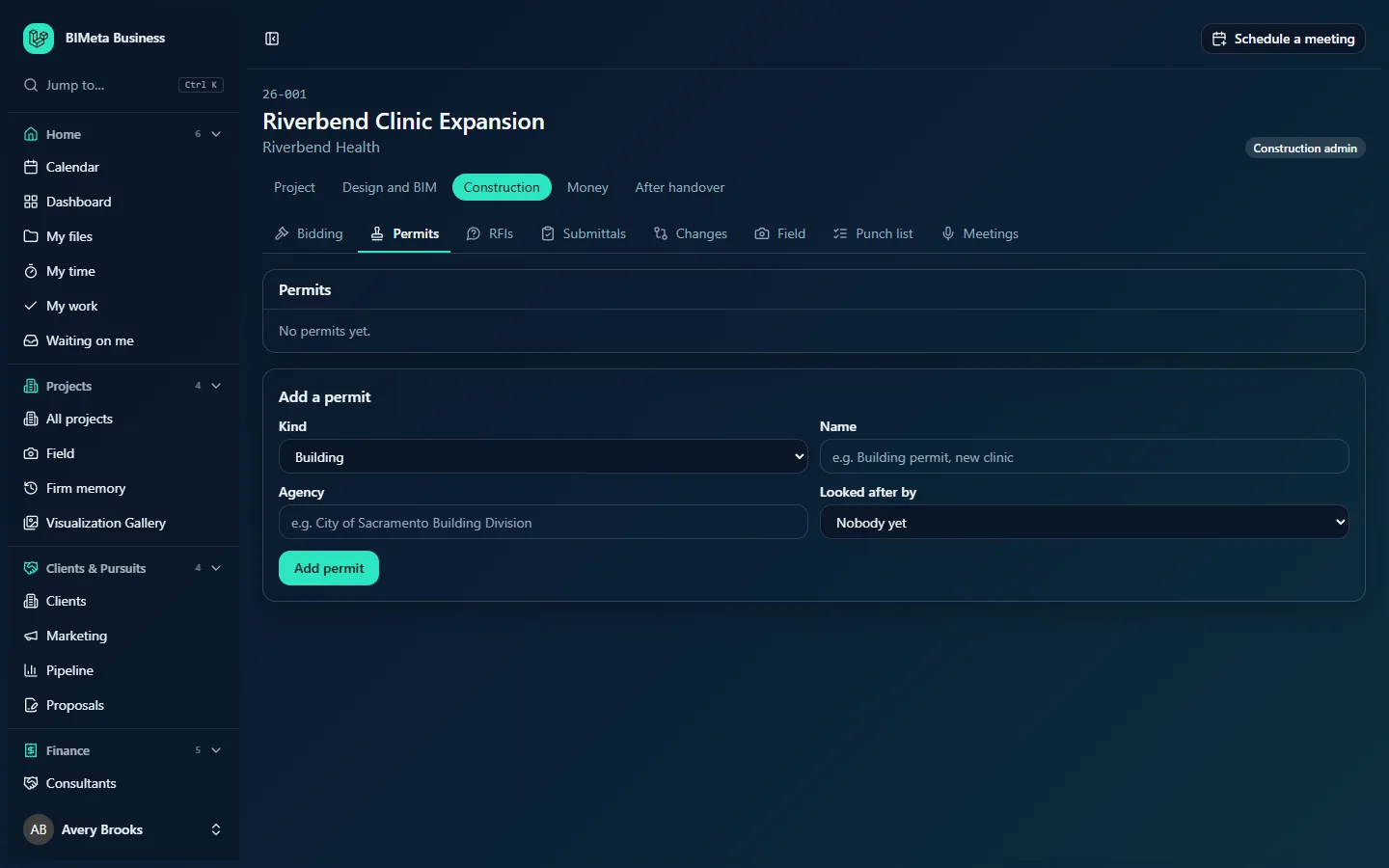
Permits
Each permit is a row with its name, agency and application number, a status badge (highlighted when there are comments to answer), "n to answer" when comments are open, and a red "Expires date" badge when it expires within 30 days. Permits with comments to answer come first, then those being prepared, then the rest, alphabetically. With none you'll see No permits yet.
Add a permit (managers)
Kind, Name (e.g. Building permit, new clinic), Agency (e.g. City of Sacramento Building Division), Looked after by (anyone active at the firm, or Nobody yet) and Add permit.
A tour of a permit
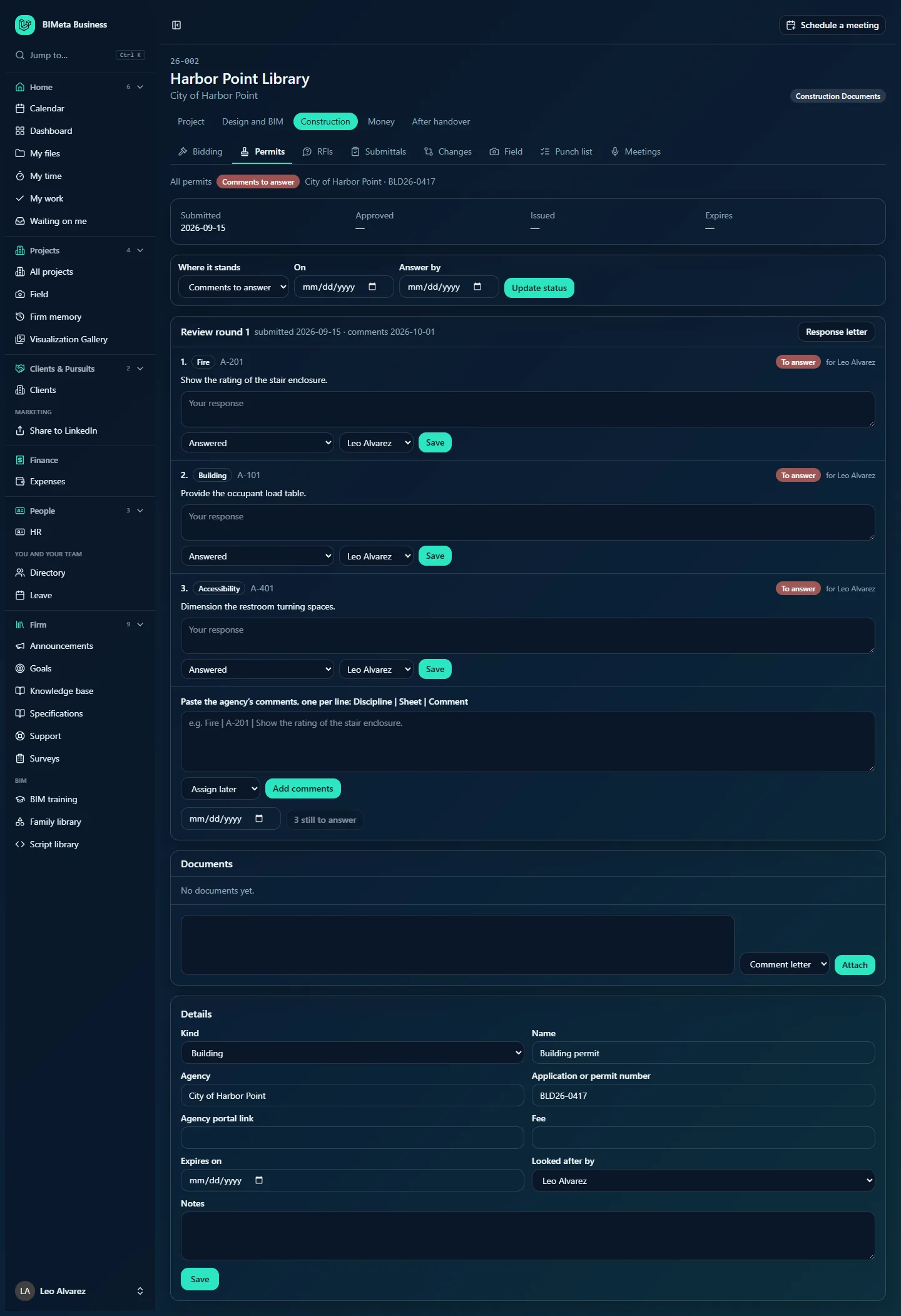
- Header line: All permits, the status badge, the agency and application number (e.g. City of Harbor Point · BLD26-0417), and an Agency portal link if one is saved.
- Key dates: Submitted, Approved, Issued and Expires (— until set).
- Where it stands (managers): a status picker, an On date, an Answer by date and Update status.
- Review rounds, newest first. Each is headed "Review round n" with "submitted", "comments", "answer by" and "resubmitted" dates, and a Response letter button. Under it, each comment shows its number, discipline badge (e.g. Fire), sheet or reference (e.g. A-201), From the last round if carried forward, a status badge (To answer, Answered, Resolved), "for name" if assigned, the comment text and the response. On the latest round, people who may answer get a Your response box, a status picker, an assignee picker (managers only) and Save. Older rounds are read-only. If the permit hasn't been submitted you'll see "Review rounds start when the permit is marked submitted."
- Paste the agency's comments (managers, latest round): a large box, an Assign to picker (Assign later to leave unassigned) and Add comments.
- Resubmit (managers, latest round): a Resubmitted on date and a button that reads "n still to answer" (and can't be clicked) until every comment has a response or is resolved, then Resubmit.
- Documents: files linked to the permit with their kind. Managers can pick project files, choose the Kind (Application, Comment letter, Response, Permit card, Other) and click Attach. Otherwise No documents yet.
- Details (managers): Kind, Name, Agency, Application or permit number, Agency portal link, Fee, Expires on, Looked after by, Notes and Save.
How to …
Add a permit
- On the Permits tab, choose the Kind, enter the Name and Agency (both required, up to 200 characters) and optionally who it's Looked after by.
- Click Add permit. It opens with status Preparing ("Permit added").
- Under Details, add the application number (up to 80 characters), the agency's online portal (a web address starting with https://), the fee, the expiry date and notes (up to 10,000 characters), then Save.
Record where the permit stands
- In Where it stands, choose the new status and the date it happened in On (today if blank).
- When choosing Comments to answer, also set Answer by: the agency's deadline for your response.
- Click Update status.
Marking it Submitted the first time records the submitted date and opens review round 1. Approved and Issued record those dates. Comments to answer records when comments arrived on the current round and needs the permit to have been submitted first.
Paste the agency's comments
- Copy the comments from the agency's letter or portal and paste them, one per line, as
Discipline | Sheet | Comment, e.g.Fire | A-201 | Show the rating of the stair enclosure.Two parts are read asDiscipline | Comment, and a line on its own is just the comment. - Choose who should answer them in Assign to, or Assign later.
- Click Add comments ("n comments added").
Comments are numbered within the round, up to 500 per round. The permit's status changes to Comments to answer unless it's already approved or issued.
Answer a comment
- On the latest round, type in Your response (up to 10,000 characters), e.g. "Rating added to A-201, detail 4."
- Leave the status on Answered, or choose Resolved (the agency accepted it) once the agency signs it off, or Still to answer to save a draft.
- Managers can reassign the comment with the person picker.
- Click Save ("Response saved"). Your name and the time are recorded with the response.
Print the response letter
Click Response letter on a round. A letter titled "Response to review comments, round n" opens in a new tab with your firm, the permit, the application number, the date of the comments and each comment followed by your response. Use Print or save as PDF.
Resubmit
- Make sure every comment in the latest round has a response or is resolved.
- Enter the Resubmitted on date (today if blank) and click Resubmit, then confirm.
The round is closed, the next round opens ("Resubmitted. Review round 2 is open."), every comment that isn't resolved is copied into it with its response (status Answered, marked From the last round), and the permit becomes Resubmitted.
Attach documents
- Under Documents, pick one or more project files (up to 100; upload them on the Files tab first).
- Choose the Kind and click Attach. They're linked to the current round.
Tips and good to know
- Expiry reminders. Every morning BIMeta emails the person who looks after each permit expiring within 30 days (or, if nobody does, the firm's Business Owners and Admins), once per permit. Changing the expiry date sets up a new reminder. Expired, withdrawn and denied permits are skipped.
- Set Looked after by on every permit so reminders reach the right person.
- Edits, status changes, comments, responses, attachments and resubmittals are all written to the audit log.
Troubleshooting
"Mark the permit submitted first; comments belong to a review round."
Use Where it stands to set the status to Submitted, then paste the comments.
The Resubmit button is greyed out.
It shows how many comments are still to answer. Answer or resolve them all first.
"This comment is assigned to someone else."
Only the assignee or a manager can answer an assigned comment.
"Enter the agency portal as a web address starting with https://."
Paste the full address, including https://.
Was this article helpful?
Share