



Project overview: lifecycle, deliverables and moving to the next phase
19 views · by Kevin J Bruno · updated 12 hours ago
A project's Overview tab is the first thing you see when you open a project. It tells you at a glance how much work is open, who's on the team, where the project is in its lifecycle and what still has to be delivered before it can move to the next phase. Project managers also use it to move the project forward.
Where to find it
- Sidebar → Projects → All projects, then click a project's name.
- On any project page, the Overview tab (first tab of the Project group).
- Jump to… (Ctrl K) with the project's number or name, or the Dashboard's Recent projects card.
Who can use it
- Everyone who can see the project can read the Overview.
- Ticking deliverables and adding new ones needs permission to edit the project: Business Owner, IT Staff, BIM Manager, Admin and Project Manager roles, or a project role of Project Manager, Project Architect or Designer. Others see the checklist greyed out and no Add a deliverable box.
- The Move to … button only appears for people who can move projects to the next phase: Business Owner, IT Staff, BIM Manager, Admin and Project Manager roles, or the project's own Project Manager. It's also hidden when the project is already in its last phase.
- The custom fields card can be edited by people allowed to edit those fields.
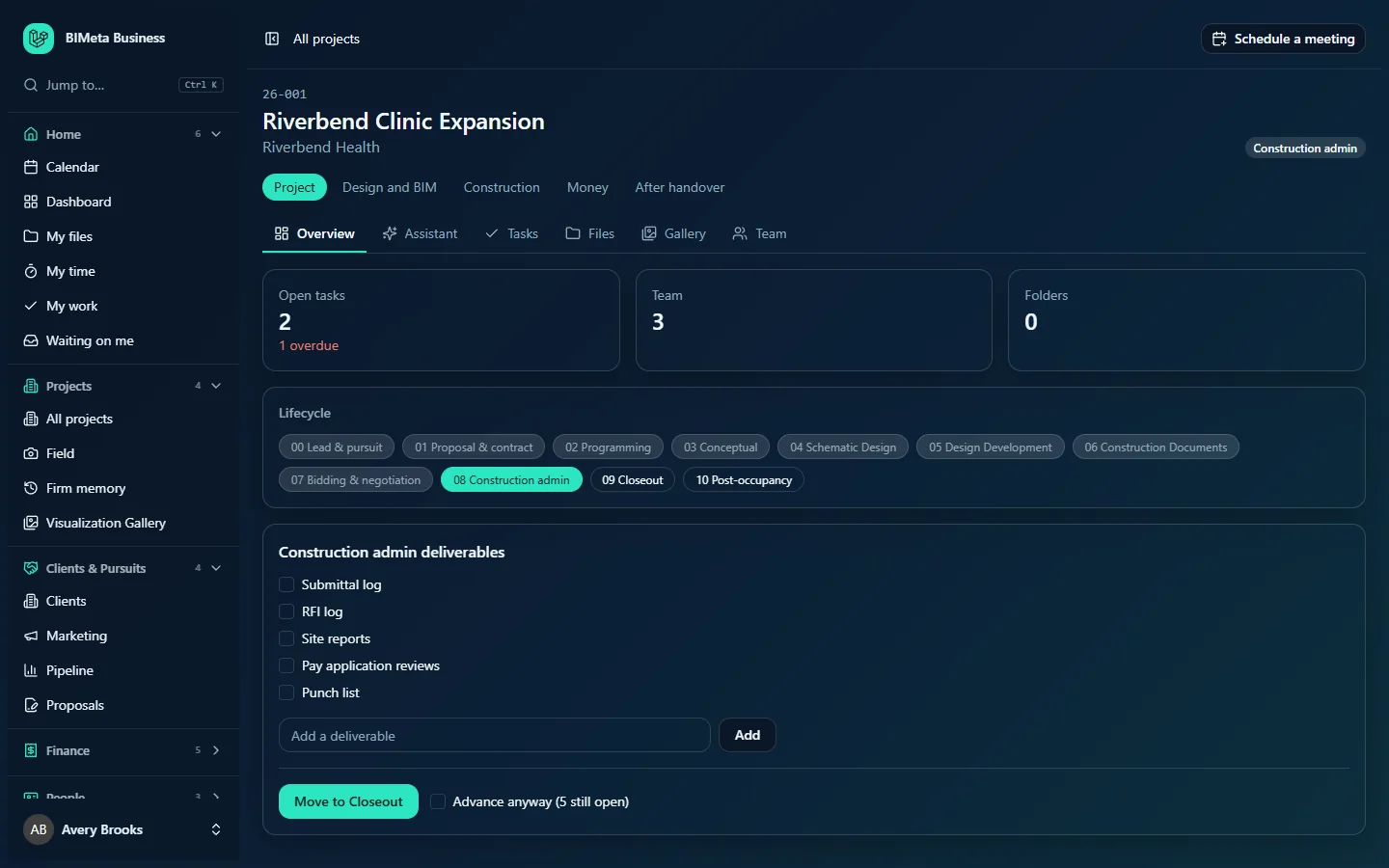
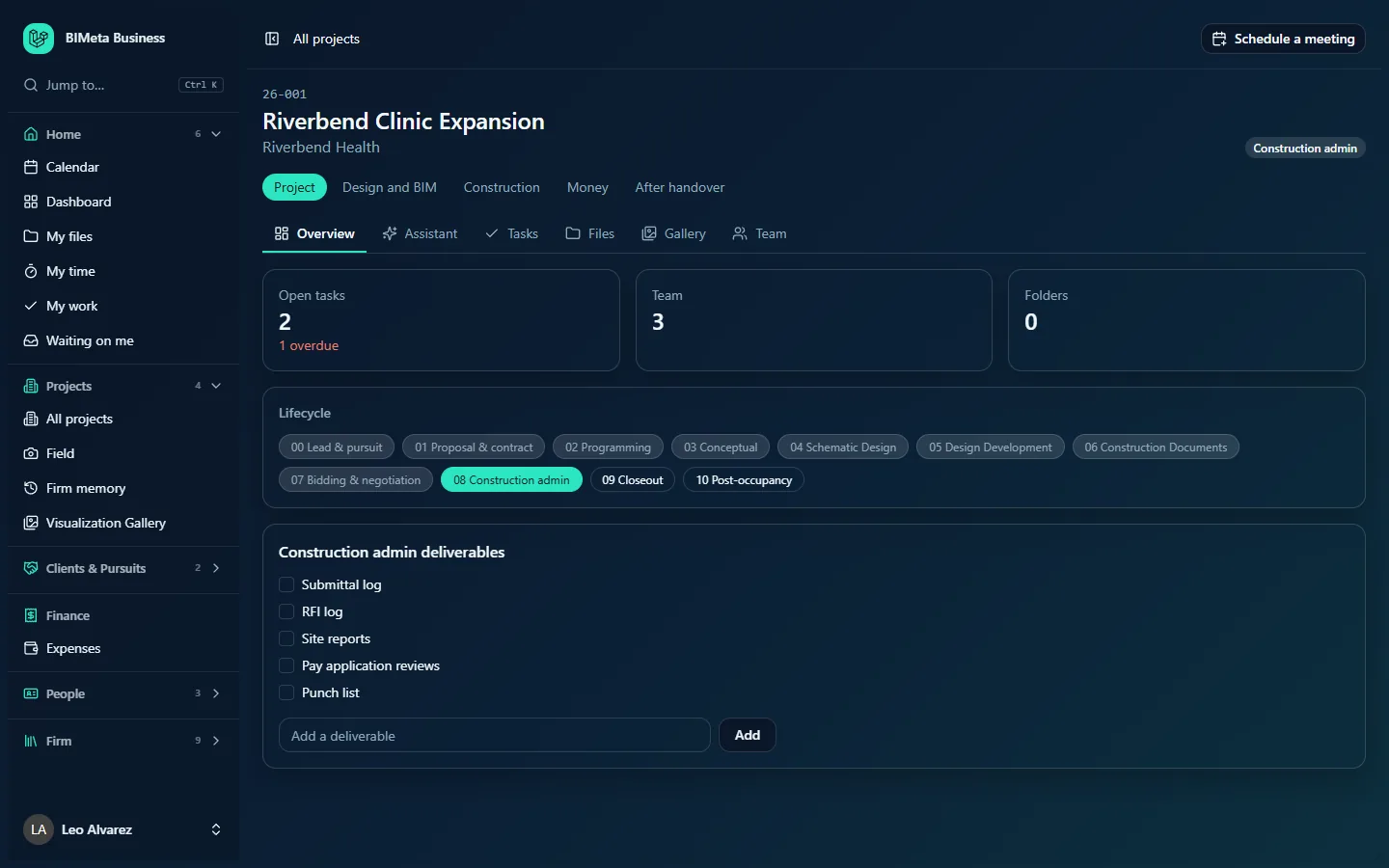
In the screenshots, the Business Owner (first) sees Move to Closeout; a User who is the project's Project Architect (second) can tick and add deliverables but has no Move button.
A tour of the page
Header and tabs
Project number, name, client and the phase badge, then the tab bar. See Projects: how a project is organised.
Summary cards
- Open tasks: tasks that aren't done yet. If any are past their due date, a red line underneath says how many, e.g. "2 overdue".
- Team: how many people are on the project team.
- Folders: how many folders the project has in its Files tab.
Lifecycle
Every phase of your firm's lifecycle as a row of pills, in order, each with its code and name, e.g. 00 Lead & pursuit … 10 Post-occupancy. Phases already passed are greyed, the current phase is highlighted, and later phases are plain. In the example, 08 Construction admin is highlighted.
Deliverables checklist
The card is titled with the current phase, e.g. Construction admin deliverables. It lists what has to be delivered in this phase, each with a checkbox, e.g. Submittal log, RFI log, Site reports, Pay application reviews, Punch list. Ticked items are struck through. The list starts from your firm's checklist for that phase (set under Admin → Settings → Setup → Phases & fee split (a step in the Project standards section of Setup)); if the phase has none you'll see "No deliverables for this phase yet."
Under the list, people who can edit the project see an Add a deliverable box with an Add button.
Phase gate
At the bottom of the card, people who can advance the project see Move to next phase, e.g. Move to Closeout. If deliverables are still open, a checkbox appears beside it: Advance anyway (5 still open).
More details (custom fields)
If your firm has added custom fields for projects (under Admin → Settings → Custom fields), a More details card shows them below, with Edit, Save and Cancel for people allowed to change them. Empty fields show Not set; yes/no fields show Yes or No. The card is left out when there are no project custom fields.
How to …
Tick off a deliverable
- Click the checkbox next to the item. It's saved at once and the item is struck through.
- Click it again to reopen the item.
Each tick and untick is recorded in the audit log with who did it.
Add a deliverable to this phase
- Type it in Add a deliverable (up to 200 characters), e.g. Fire marshal walk-through.
- Click Add. It's added to the end of the current phase's checklist for this project only.
Move the project to the next phase
- Tick the remaining deliverables, if they're done.
- Click Move to next phase.
- If items are still open and you didn't tick Advance anyway, nothing moves and you see a message such as "5 deliverables are still open. Finish the checklist, or tick "Advance anyway" to move on." Either finish the checklist or tick Advance anyway and click the button again.
When the project moves:
- The phase badge and the lifecycle bar update, and the next phase's deliverables checklist appears. You'll see "Moved to phase".
- The move is recorded in the audit log, including how many deliverables were still open, so an override is always traceable.
- The finished phase counts as completed: any phase billing rules waiting on that phase's completion in Finance are run (which can draft or send an invoice), and Marketing may suggest a "phase finished" moment to share.
Projects only move forward one phase at a time. If the project is already in its last phase, the button isn't shown.
Tips and good to know
- The checklist belongs to the current phase. Items you add to this project don't change your firm's standard checklist.
- Completing a phase on Reports → Fee earned (setting it to 100%) also counts as completing it for billing, without moving the project.
- Open and overdue task counts come from the Tasks tab; the team count from the Team tab; folders from the Files tab.
Troubleshooting
The checkboxes are greyed out.
You can see the project but not edit it. Ask the project manager for a project role such as Designer or Project Architect.
There's no Move button.
Either you can't advance projects, or the project is in the last phase of your lifecycle.
I moved the project by mistake.
Phases only move forward here. Ask your Business Owner or IT Staff; the audit log shows the move and who made it.
Was this article helpful?
Share