



Meetings: AI minutes from a recording or notes
16 views · by Kevin J Bruno · updated 5 days ago
The Meetings tab turns a project meeting into proper minutes without anyone typing them up. Upload the recording or paste your rough notes, and AI writes a summary, records the decisions, turns action items into project tasks (assigned to the right team member where it can tell who) and turns open questions into draft RFIs for a manager to check and issue. Each meeting gets its own page with everything that came out of it.
Where to find it
- Open a project and choose Construction → Meetings.
- Click a meeting in the list to open its page (the breadcrumb line reads Meetings · date).
Who can use it
- Everyone who can see construction admin on the project can read the meetings and their minutes. That includes every Business Owner, IT Staff, BIM Manager and User, and the project's clients and consultants.
- Adding meetings and Try again need permission to manage construction admin on the project: Business Owner, IT Staff, BIM Manager, Admin and Project Manager roles, or a project role of Project Manager or Project Architect.
- The form to add a meeting only appears when AI is switched on for your firm (Admin → Settings → AI). The Recording field only appears when transcription is set up.
A tour of the Meetings tab
Minutes from a meeting (form)
- Meeting: the meeting's name (required, up to 200 characters), e.g. OAC meeting #12.
- Held on: the date (required, defaults to today).
- Recording: an audio file (mp3, m4a, wav, webm, mp4, mpeg, mpga, ogg or flac) up to 25 MB. The note says the recording is kept in the project's files and that transcription uses 1 AI credit per minute.
- Or paste rough notes: your notes from the meeting (up to 200,000 characters).
- When the project has clash checks: a checkbox for a coordination meeting, to include the open clashes so decisions and action items name the clash they're about (with See the coordination round to preview them).
- Write the minutes (shows Writing… while sending). The note under it: "AI writes the minutes; action items become tasks and open questions become draft RFIs for you to check."
Meeting list
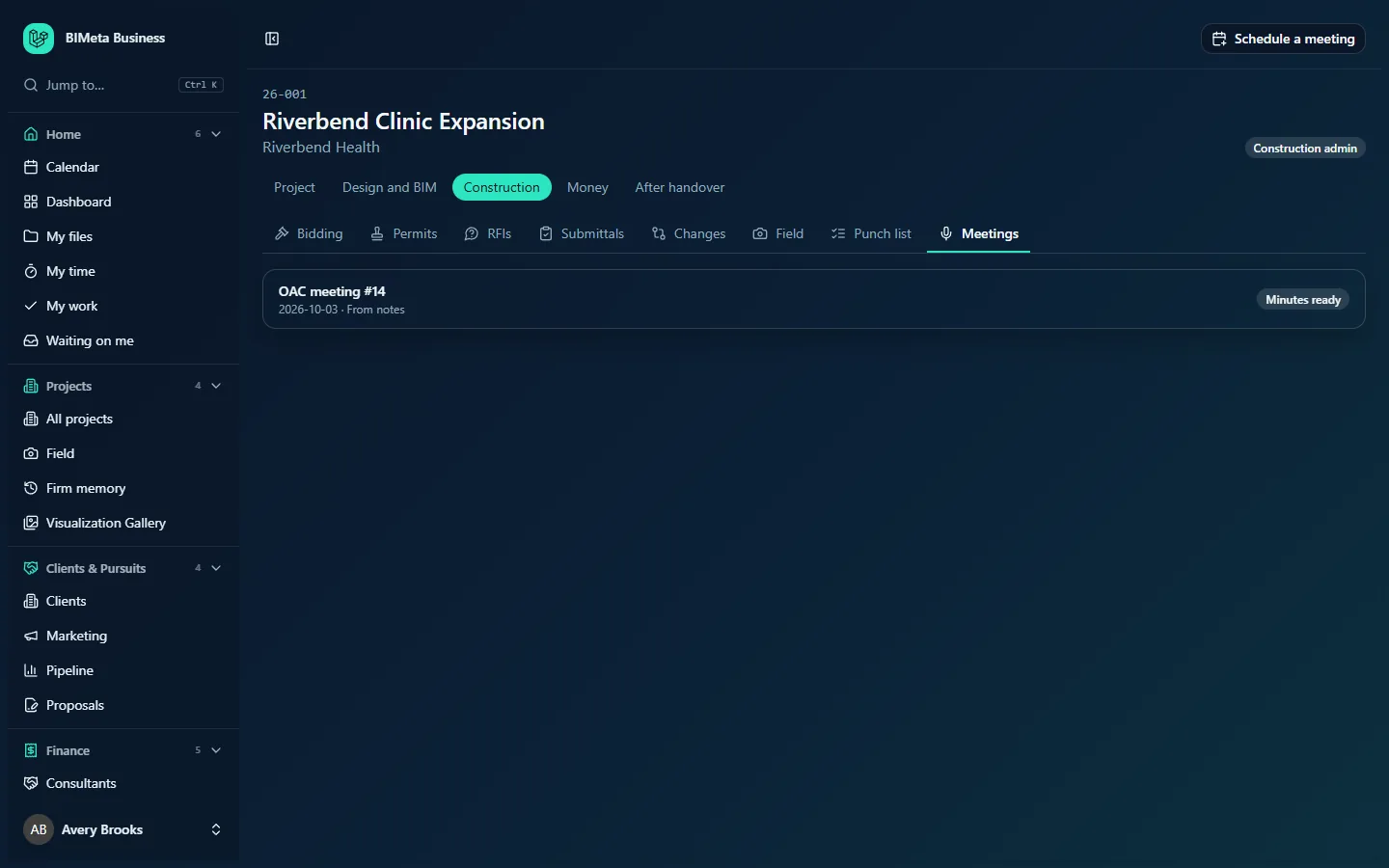
Every meeting, newest first: its name (e.g. OAC meeting #14), the date and where it came from (From a recording or From notes), and a status badge: Minutes ready, Writing… or Failed. With none: "No meetings yet."
A tour of a meeting's page
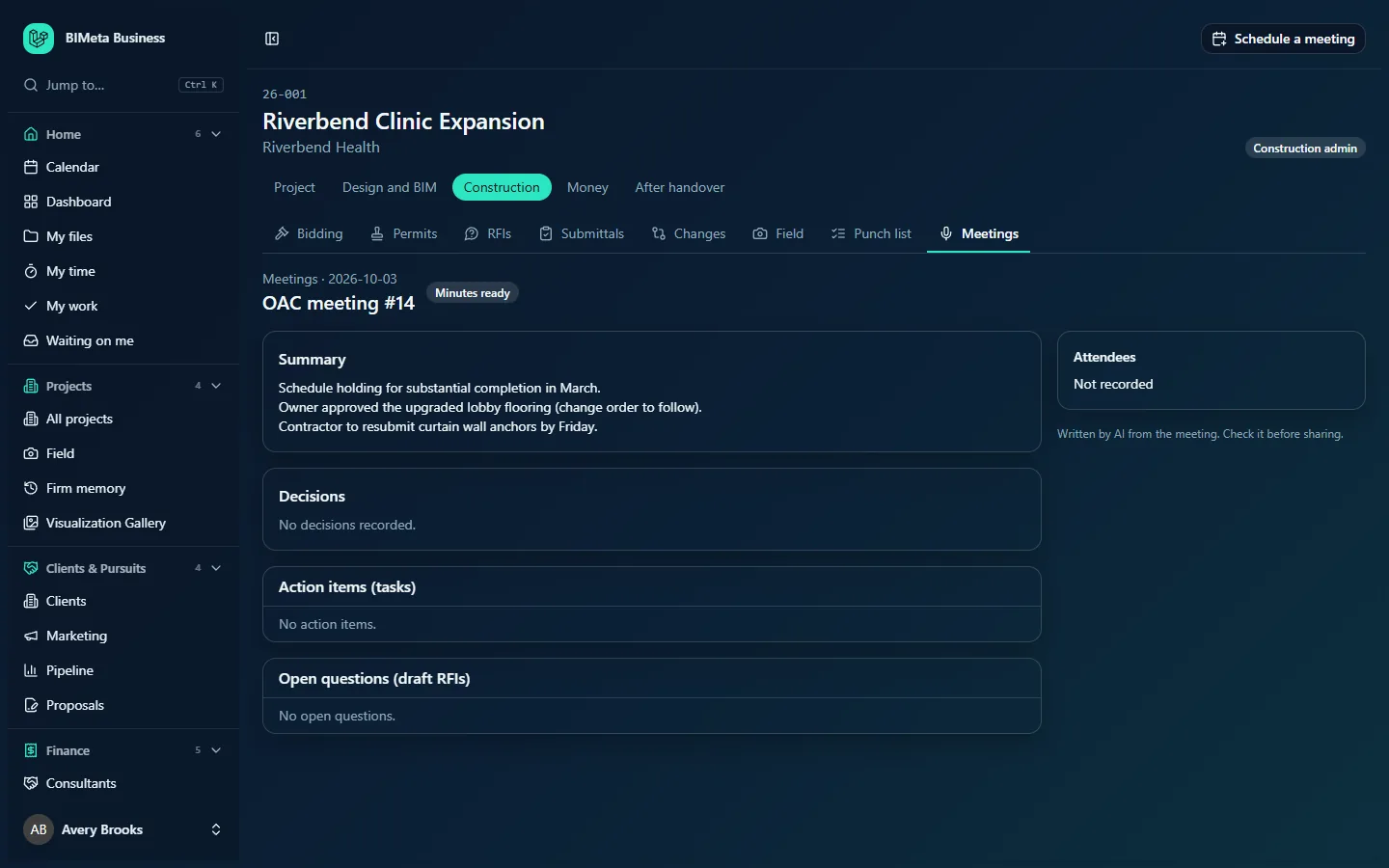
- Header: a Meetings link back to the list, the date, the meeting's name and its status badge, plus a Recording link when one was uploaded.
- While the minutes are being written: "AI is writing the minutes. This page updates by itself."
- If writing failed: the reason, and Try again for managers.
- Summary: a short account of the meeting, e.g. "Schedule holding for substantial completion in March."
- Clash round given to the minutes: the open clashes that were included, for coordination meetings.
- Decisions: each decision as a bullet, or "No decisions recorded."
- Action items (tasks): the tasks created, each with its assignee (or Unassigned) and due date, or "No action items."
- Open questions (draft RFIs): the RFIs created, each with its number and subject linking to the RFI, and a Draft or Issued badge, or "No open questions."
- Attendees: who was there, or Not recorded.
- Transcript: the full transcript when the minutes came from a recording.
- The reminder "Written by AI from the meeting. Check it before sharing."
How to …
Get minutes for a meeting
- On the Meetings tab, enter the Meeting name and Held on date.
- Choose the Recording, or paste your notes into Or paste rough notes. You need one or the other.
- For a coordination meeting, tick the clashes option if you want clashes named in the minutes.
- Click Write the minutes. You go to the meeting's page ("Writing the minutes. This page updates when they are ready.").
- When the badge shows Minutes ready, read the minutes, then check the new tasks on the Tasks tab and the draft RFIs on the RFIs tab before issuing them.
Retry minutes that failed
- Open the meeting and click Try again ("Trying again").
Tips and good to know
- Action items are assigned automatically only when the person named in the meeting matches someone on the project team; otherwise they're left unassigned for you to assign.
- Draft RFIs aren't sent to anyone until a manager checks and issues them on the RFIs tab.
- The recording is stored, encrypted, in the project's files; transcription and minutes use your firm's AI credits.
- Meeting minutes can be searched across all projects in Firm memory and asked about in the project Assistant.
- Adding a meeting is recorded in the audit log.
Troubleshooting
I don't see the form to add a meeting.
Either you can't manage construction admin on this project, or AI isn't switched on for your firm. An Admin can check Admin → Settings → AI.
"Upload the recording, or paste the notes from the meeting."
Add one of the two and try again.
"Transcription isn't set up on this server yet."
Paste the notes instead of uploading a recording.
"Your firm's IT team has blocked AI for this."
Your IT team has turned AI off for this kind of work in the Security tab of Admin → IT. Ask them.
Was this article helpful?
Share