



Maintenance: the building's maintenance plan after handover
20 views · by Kevin J Bruno · updated 2 days ago
Once a building is handed over, its owner has to look after it: filters changed every three months, fire dampers tested every year, equipment serviced before warranties run out. That information is in the COBie workbook handed over at the end of the project: the Component sheet lists each asset, the Type sheet its warranty durations, and the Job sheet the maintenance tasks and how often they're due. The Maintenance tab reads that workbook and turns it into a working maintenance plan, so your firm (or the owner's facilities team, if they're on the project) can see what's overdue, what's coming up and which warranties are about to end, and record jobs as they're done.
Where to find it
Open a project, choose the After handover group, then the Maintenance tab. Check the workbook's completeness first on the Handover tab.
Who can use it
- Everyone who can open the project, including the owner's facilities people if they're on the project team, can see the plan and record jobs as done.
- Importing the COBie workbook needs permission to edit the project: Business Owners, Admins, IT Staff, BIM Managers and Project Managers, plus the Project Manager, Project Architect and Designer roles on the project.
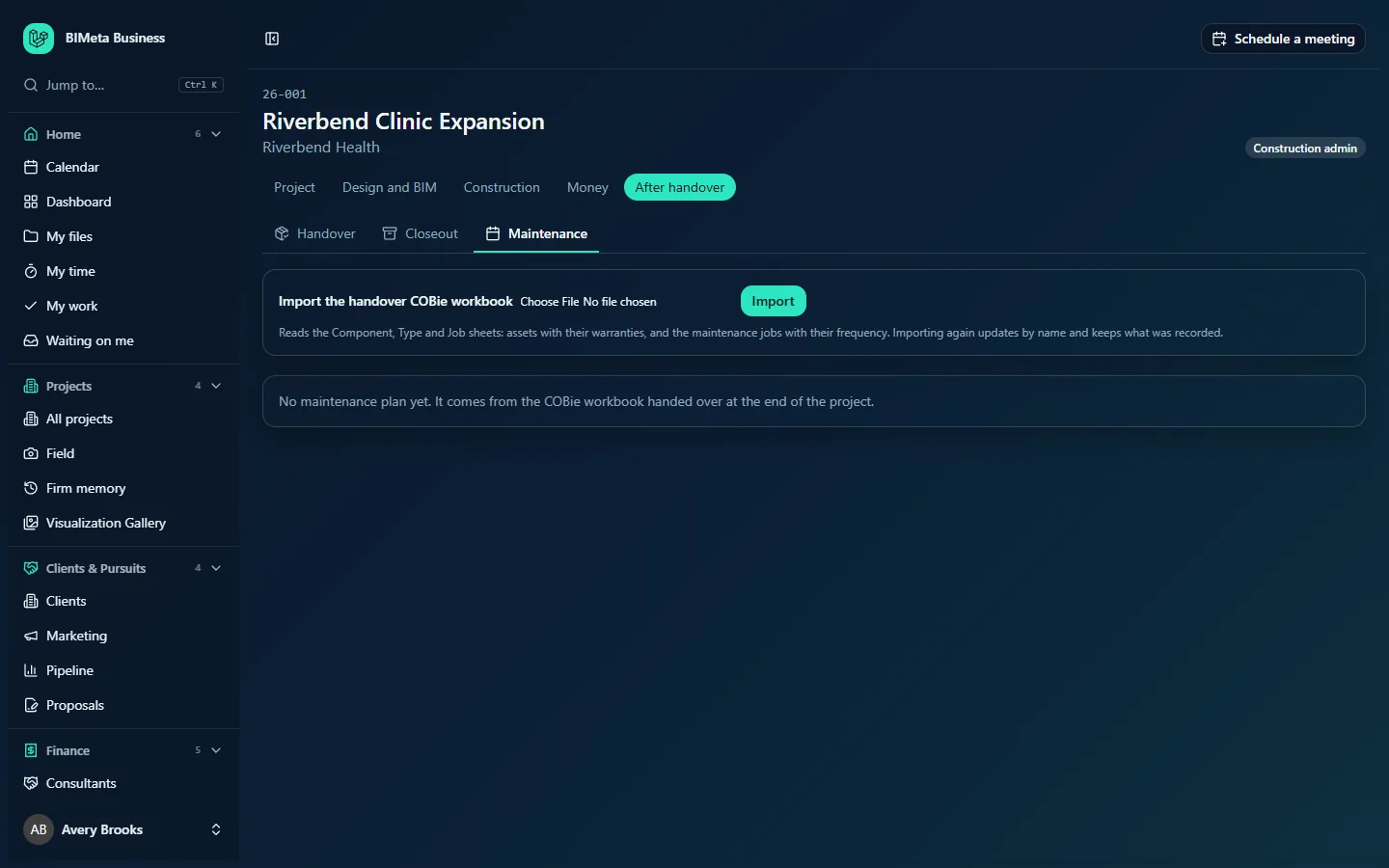
A tour of the page
Import
Import the handover COBie workbook (later Import an updated COBie workbook), a file picker and Import, with the note: "Reads the Component, Type and Job sheets: assets with their warranties, and the maintenance jobs with their frequency. Importing again updates by name and keeps what was recorded."
Summary
Three counts: Overdue jobs, Due in the next 30 days and Warranties ending in 90 days.
Jobs
A table with Job, How often (Daily, Weekly, Monthly, Yearly, or "Every n days/weeks/months/years"), Next due (with an Overdue badge when past), Last done and a Done today button.
Assets
"Assets (n)": each asset's name, with its type, space and serial number, and "Warranty to date" when the warranty end is known (worked out from the component's warranty start date and its type's warranty duration).
Before an import: "No maintenance plan yet. It comes from the COBie workbook handed over at the end of the project."
How to …
Import the COBie workbook
- Choose the handover COBie .xlsx file (up to 50 MB) and click Import.
- You'll see "Maintenance plan: n assets, n jobs".
Components become assets, and jobs from the Job sheet become maintenance jobs with their frequency; a new job is first due one interval from the day you import. Import an updated workbook at any time: items are matched by name, updated, and their recorded history is kept.
Record a job as done
Click Done today on the job. Today is recorded as the last done date ("Recorded") and the next due date moves forward by the job's frequency.
Tips and good to know
- A good maintenance plan depends on complete COBie data: check the workbook on the Handover tab first, especially warranty and Job sheet fields.
- To let the owner's facilities team use this tab, add them to the project's Team with the Client role.
- Use the warranty count to remind the owner to claim warranty repairs before they expire.
Troubleshooting
"That workbook has no Component or Job sheet to read."
You've chosen a file that isn't a COBie workbook, or its sheets are named differently. Export COBie again with the standard sheet names.
Some jobs from the workbook are missing.
Jobs are only imported when the Job sheet gives them a name and a frequency the import can read (a number and a unit such as day, week, month or year). Correct those rows in the workbook and import again.
Was this article helpful?
Share