



Handover: checking COBie asset data before handover
17 views · by Kevin J Bruno · updated 1 day ago
At the end of a project, many owners want more than drawings: they want the building's asset data (every room, piece of equipment, its manufacturer, model number, serial number, warranty and expected life) so their facilities team can run the building. The usual format is COBie (Construction Operations Building information exchange), a spreadsheet with standard sheets such as Facility, Floor, Space, Type, Component and System. COBie files are often incomplete. The Handover tab checks a COBie workbook against exactly what the client needs and shows how complete each field is and which rows are missing data, so you can fix gaps before handing over.
Where to find it
Open a project, choose the After handover group, then the Handover tab (next to Closeout and Maintenance).
Who can use it
- Everyone who can open the project can see the requirements and past check results.
- Checking a workbook and changing the requirements need permission to edit the project: Business Owners, Admins, IT Staff, BIM Managers and Project Managers, plus the Project Manager, Project Architect and Designer roles on the project.
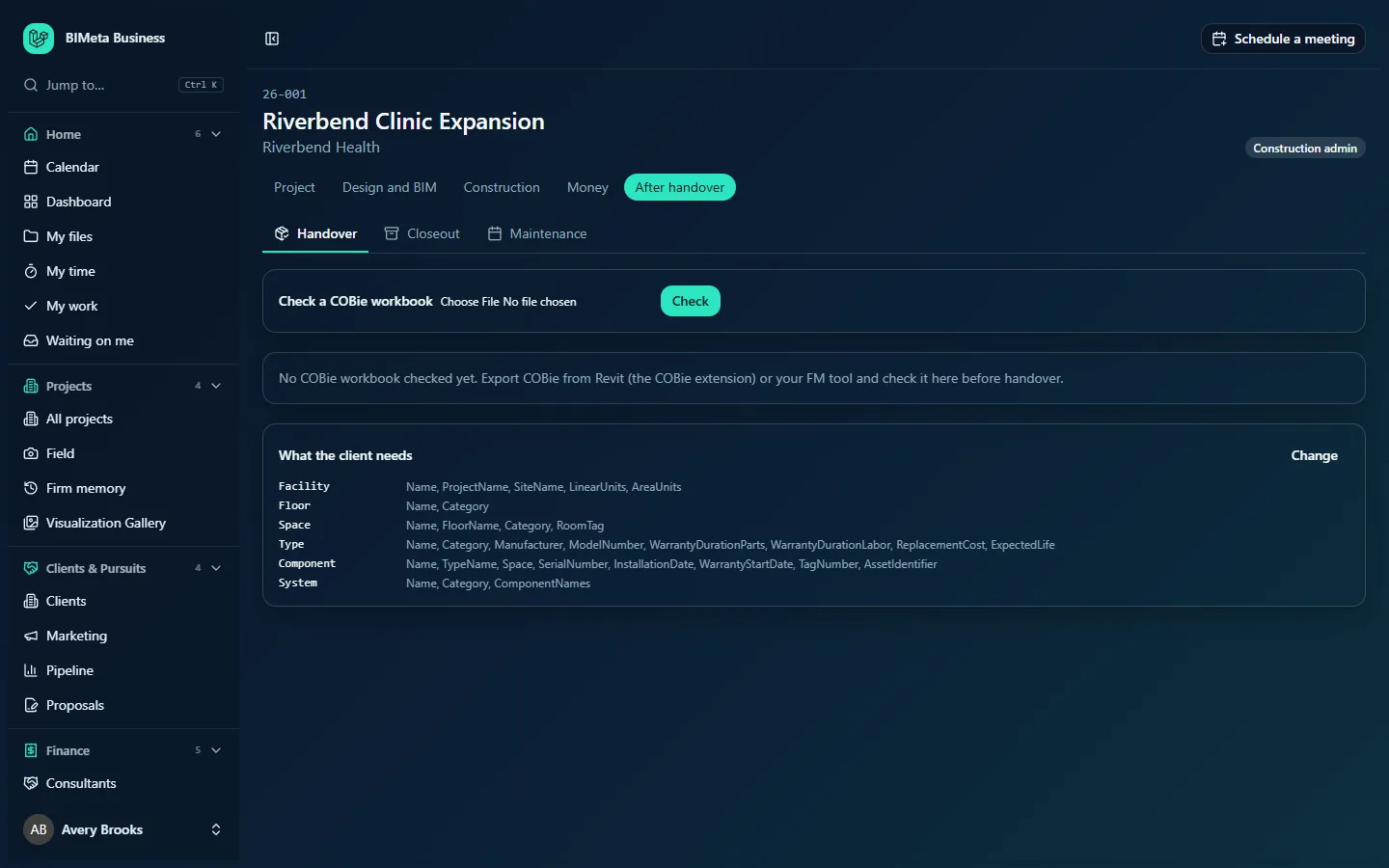
A tour of the page
Check a COBie workbook
A file picker for the COBie workbook (.xlsx) and a Check button (editors).
Latest result
After a check, the result shows the overall "n% complete" and, for each required sheet, each field's completeness percentage with the number of rows missing it ("1 row", "n rows") and "Missing in: names" (the first ten row names, "and n more"). A sheet that isn't in the workbook at all is flagged Sheet missing from the workbook. Values such as blank, n/a, TBD, TBC, none or "-" count as missing.
Earlier checks
The last 20 checks: file name, score, who ran it and when, so you can see the data improving.
Before any check: "No COBie workbook checked yet. Export COBie from Revit (the COBie extension) or your FM tool and check it here before handover."
What the client needs
The required fields per sheet, with Change for editors. The starting requirements are:
| Sheet | Fields |
|---|---|
| Facility | Name, ProjectName, SiteName, LinearUnits, AreaUnits |
| Floor | Name, Category |
| Space | Name, FloorName, Category, RoomTag |
| Type | Name, Category, Manufacturer, ModelNumber, WarrantyDurationParts, WarrantyDurationLabor, ReplacementCost, ExpectedLife |
| Component | Name, TypeName, Space, SerialNumber, InstallationDate, WarrantyStartDate, TagNumber, AssetIdentifier |
| System | Name, Category, ComponentNames |
How to …
Check a COBie workbook
- Export COBie from Revit (with the COBie extension) or from your facilities management tool as an .xlsx file.
- Choose it next to Check a COBie workbook (up to 50 MB) and click Check.
- Read the result: "COBie checked: n% of the required data is there." Work through the fields with missing rows, fix them in the model or the spreadsheet, and check again.
Each check is kept in Earlier checks and recorded in the audit log. The workbook itself isn't stored; keep the final version on the project's Files tab.
Change what the client needs
- Click Change.
- For each sheet, list the required fields separated by commas, using the COBie column names exactly (e.g.
Name, Category, Manufacturer). Clear a sheet to stop checking it. - Click Save requirements ("Requirements saved"), or Cancel.
Take the requirements from the client's Employer's Information Requirements (EIR) or asset information requirements, if they have them.
Tips and good to know
- Check early (for example at construction documents) as well as at handover: missing manufacturer and warranty data is much easier to collect while submittals are still coming in.
- The Maintenance tab can import the same COBie workbook to build the building's maintenance plan.
Troubleshooting
"List at least one sheet with the fields the client needs."
At least one sheet must have required fields before you save.
A field shows 0% though the data is there.
Check the column heading in the workbook matches the field name exactly, and that the cells don't hold placeholders such as "n/a" or "TBD".
Was this article helpful?
Share