



Project files: folders, uploads, versions and download activity
18 views · by Kevin J Bruno · updated 1 day ago
The Files tab is the project's document store. It holds the project's folder tree (usually created from your firm's folder template), every file uploaded to it with all its earlier versions, and the tools to share files outside the firm. Its Download activity page shows who downloaded which file, including people using share links.
Where to find it
- Open a project and choose the Files tab (in the Project group).
- Download activity: the button at the top right of the Files tab.
- Files saved into a project folder from BIMeta's desktop tools also land here.
Who can use it
- Everyone who can see the project can browse folders and download files.
- Uploading, adding and removing folders, removing files, the Share links and Download activity buttons, and the share icon on each file need permission to edit the project: Business Owner, IT Staff, BIM Manager, Admin and Project Manager roles, or a project role of Project Manager, Project Architect or Designer.
- The mark-up icon on PDFs appears for people who can see construction admin.
A tour of the Files tab
Folder path
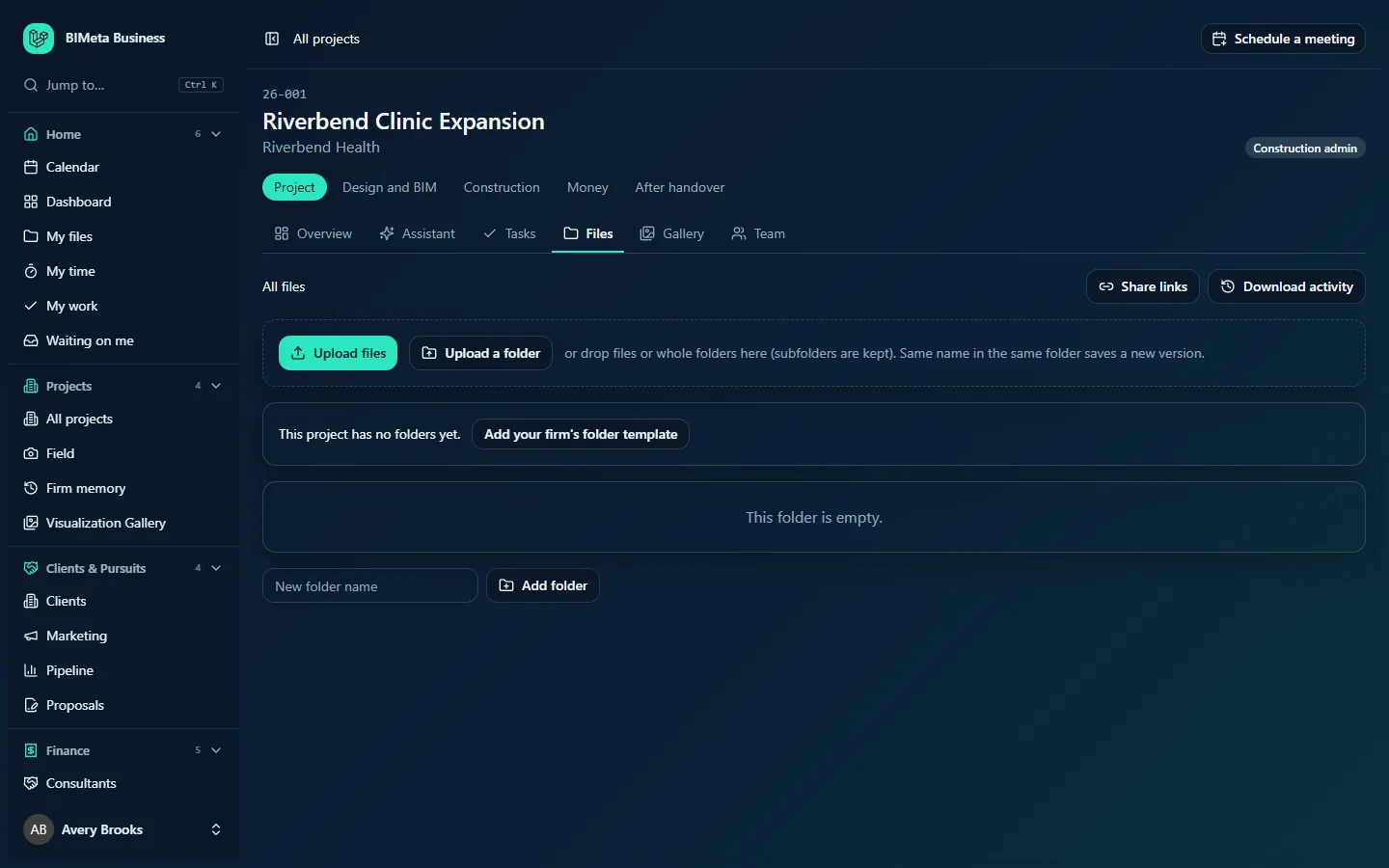
At the top left, All files followed by the folders you've opened, e.g. All files / 03 Design / Revit. Click any part to go back up.
Share links and Download activity
Top right, for people who can edit the project: Share links (opens the share links page for the folder you're in; see Share links: send project files to people outside the firm) and Download activity.
Upload area
A dashed box with Upload files and Upload a folder, and the note "or drop files or whole folders here (subfolders are kept). Same name in the same folder saves a new version." Files go into the folder you're in. Each file shows its progress (waiting, sending, done, too big or failed).
Folder template prompt
If the project has no folders at all, you'll see "This project has no folders yet." with Add your firm's folder template.
Folder and file list
- Subfolders first, each with a folder icon. Some carry a small label naming the app your firm's template links them to, e.g. Revit, AutoCAD, Navisworks, Enscape, Twinmotion, Bluebeam, Super Print output, BIMeta Blueprint or Microsoft 365; BIMeta's desktop tools use these links to know where to save.
- Files next, each with its name (click to download), size, who uploaded it and when. Then, on the right:
- Version n when the file has more than one version: opens its version history.
- A mark-up (ruler and pencil) icon on PDFs: opens the sheet in the mark-up viewer.
- A download icon.
- For editors, a share (link) icon, which opens the share links page with this file chosen, and a remove (bin) icon.
An empty folder shows "This folder is empty."
New folder
Below the list, editors get a New folder name box (up to 80 characters) and Add folder. Inside an empty subfolder, Remove this folder appears too.
Version history
Clicking Version n opens Versions for that file: every version, newest first, marked Current for the latest, with size, uploader and date, and a Download link for each one.
A tour of Download activity
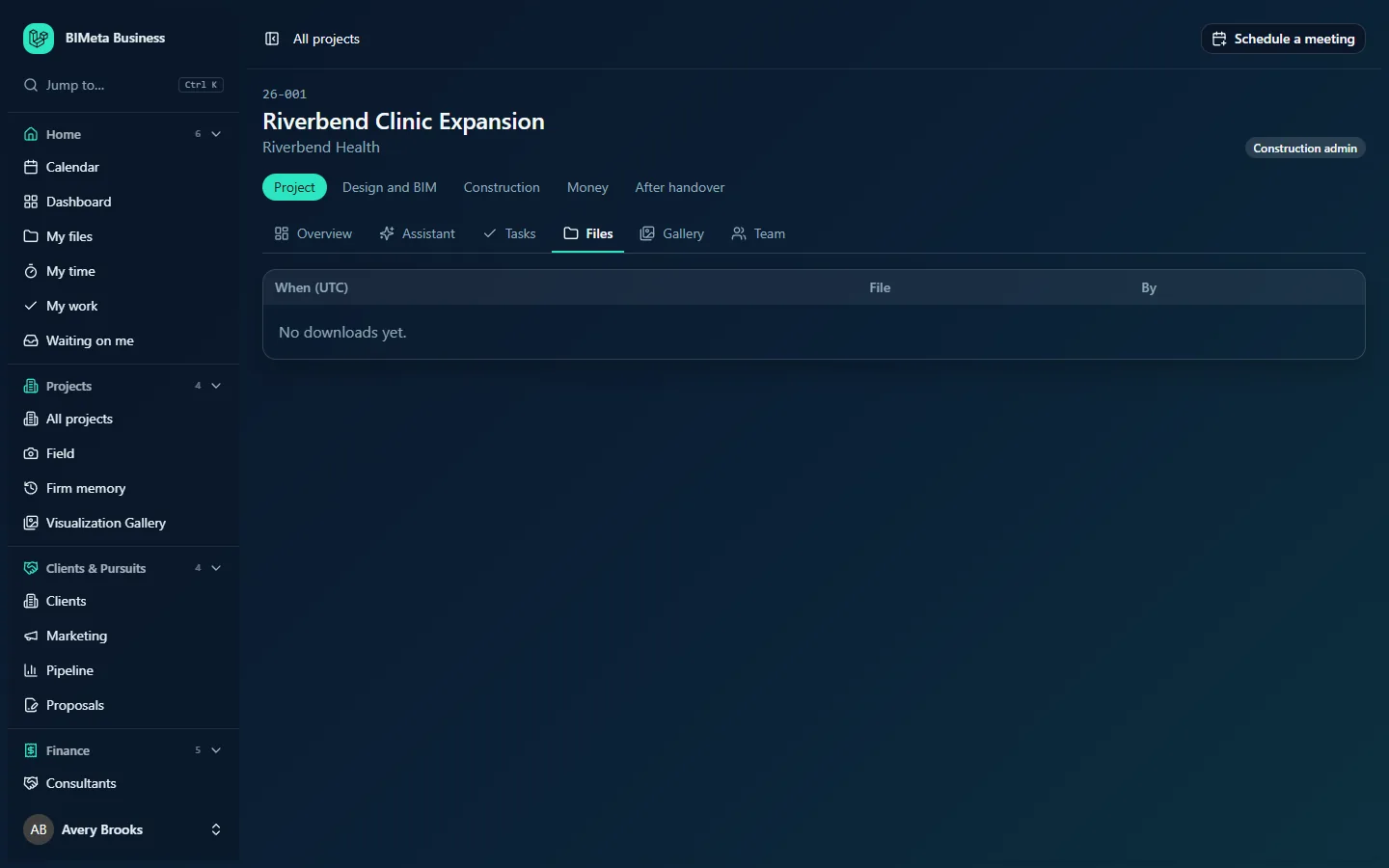
A table of the latest 200 downloads on the project, newest first:
- When (UTC): date and time of the download, in UTC.
- File: the file name, with the version, e.g. (v3), when it wasn't the first.
- By: the person's name for portal downloads, or Share link: note (or the link's number) for downloads through a share link.
With nothing downloaded yet it says "No downloads yet."
How to …
Upload files
- Open the folder you want the files in.
- Click Upload files and choose files, or drag them onto the upload area. Choose Upload a folder, or drop a folder, to upload a whole folder: its subfolders are created for you.
- Wait for each file to show done. You'll see "Uploaded file" or "Uploaded n files".
Large selections are sent in batches automatically. A file larger than your firm's per-file limit shows too big and isn't sent.
Upload a new version
- Upload a file with exactly the same name into the same folder. It becomes the current version and the old one is kept under Version n.
Download a file
- Click its name or the download icon. Older versions: click Version n, then Download next to the version you want.
Each download is logged on Download activity and in the audit log. If your IT team has turned on watermarking, PDFs and images are stamped with your name and email as they download.
Add or remove a folder
- Open the parent folder, type a name in New folder name and click Add folder ("Folder added").
- To remove a folder, empty it first, open it and click Remove this folder.
Remove a file
- Click the bin icon on its row and confirm "Remove file and all its versions?".
Removed files go to the recycle bin rather than being destroyed at once, and IT Staff can bring files back from the firm's backup copies with the Restore files tab of Admin → IT.
Add the firm's folder template to an older project
- On a project with no folders, click Add your firm's folder template. You'll see "Added n folders from your firm's template".
Tips and good to know
- Folders can be nested up to eight levels deep (with a full path of up to 500 characters), and two folders in the same place can't share a name.
- The folder template is set under Admin → Settings → Setup → Project folders & app bindings (a step in the Project standards section of Setup).
- Files under a legal hold, or on a closed project whose records are locked for retention, can't be removed; you'll see a message saying so.
- Meeting recordings uploaded on the Meetings tab are kept in the project's files.
- To give someone outside the firm a file, use Share links rather than emailing attachments; every download is then logged.
Troubleshooting
"That folder no longer exists. Pick another and upload again."
Someone removed the folder while you were uploading. Choose another folder and upload again.
"Only empty folders can be removed."
Move or remove everything inside the folder first.
A download says the file couldn't be watermarked.
Your firm watermarks downloads and this file couldn't be stamped, so it wasn't sent. Try again later or ask IT.
I don't see Upload, Share links or Download activity.
You can see the project but not edit it. Ask the project manager for a suitable project role.
Was this article helpful?
Share