



Field tab and daily logs: site photos, punch items, daily logs and site visit reports
19 views · by Kevin J Bruno · updated 4 days ago
The Field tab is where everything captured on the construction site comes together: photos (optionally pinned to the exact spot on a drawing sheet), punch items noted during a walk, the daily log and site visit reports. It works on a phone in the field as well as on a computer in the office, and anything captured on a phone with a poor signal waits on the phone and is sent automatically when the connection comes back.
This article covers the Field tab and the page for a single day's daily log.
Key terms
- Daily log (also called a daily report or site diary): one record per project per day of the weather, who was on site (by trade and company, with head counts and hours), the work done, delays and problems, safety observations, visitors and inspections. Daily logs are an important record if there's ever a dispute about delays or conditions. It's written through the day, then submitted, which locks it.
- Site visit report (field observation report): the architect's formal record of a site visit: the purpose, who was present, a summary, and numbered observations, each For information, Action required or a Punch item. Once issued it's numbered (by default SR-001, SR-002…), locked and emailed to its distribution list.
- Pin: a point on a PDF sheet from the project's files that a photo or punch item is attached to, so others can see exactly where it is.
Where to find it
- Open a project, choose the Construction group, then the Field tab.
- Open a day's log from the Daily logs card: click a date, or Today's log.
- On a phone, Sidebar → Projects → Field lists your active projects for quick capture.
Who can use it
- Viewing photos, logs and reports: everyone who can open the project.
- Capturing (taking photos, adding punch items, writing and submitting daily logs, starting and editing site reports): every firm role by default, including Users. On a project, the Project Manager, Project Architect and Designer roles can capture too.
- Managing (issuing site reports, reopening submitted daily logs, editing or deleting anyone's photos): Business Owners, Admins, IT Staff, BIM Managers and Project Managers, plus the Project Manager or Project Architect role on the project. Others can edit and delete only their own photos.
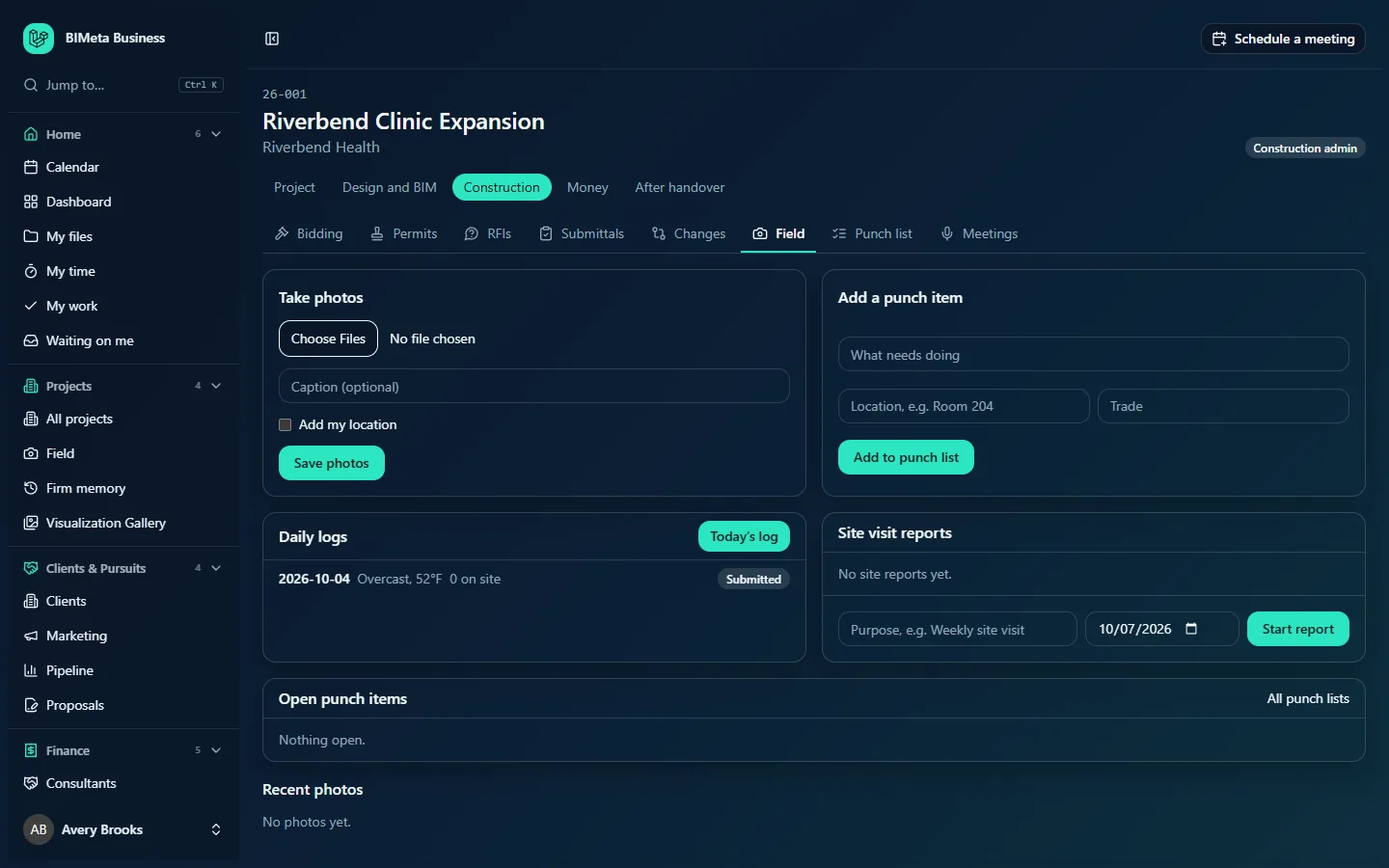
A tour of the Field tab
Outbox banner (phones)
If you captured things on a phone while offline, a banner shows "n waiting to be sent" with a Send now button, or "n items from this phone were sent" once done. If your sign-in has expired it says "Sign in again to send them." Anything the server refused is listed as "Not accepted: item (reason)" with a Discard button.
Take photos
Choose Files (on a phone this offers the camera), Caption (optional), Add my location (asks the phone for its position; shows "Finding your location…" then "Location added"), Pin on a sheet (when the project has PDF sheets) and Save photos.
Add a punch item
What needs doing, Location (e.g. Room 204), Trade, an optional Pin on a sheet and Add to punch list.
Daily logs
The last 30 logs, newest first: the date, weather and temperature, "n on site", and a Submitted or Draft badge. Today's log opens (or starts) today's. With none you'll see No daily logs yet.
Site visit reports
Each report with its number (or Draft), purpose, date and "n observations". Underneath: Purpose of the visit (e.g. Weekly site visit), Visit date (today, can't be in the future) and Start report. With none, No site reports yet.
Open punch items
Up to 30 of the project's most recent open or ready-for-review punch items with number, description, location and status, and an All punch lists link to the Punch list tab. Nothing open. when clear.
Recent photos
The latest 60 photos as thumbnails, each showing its caption, "On sheet, page n" if pinned, "Located" if it has a location, and a Delete photo option for your own photos (or anyone's, for managers). No photos yet. when empty.
A tour of a daily log
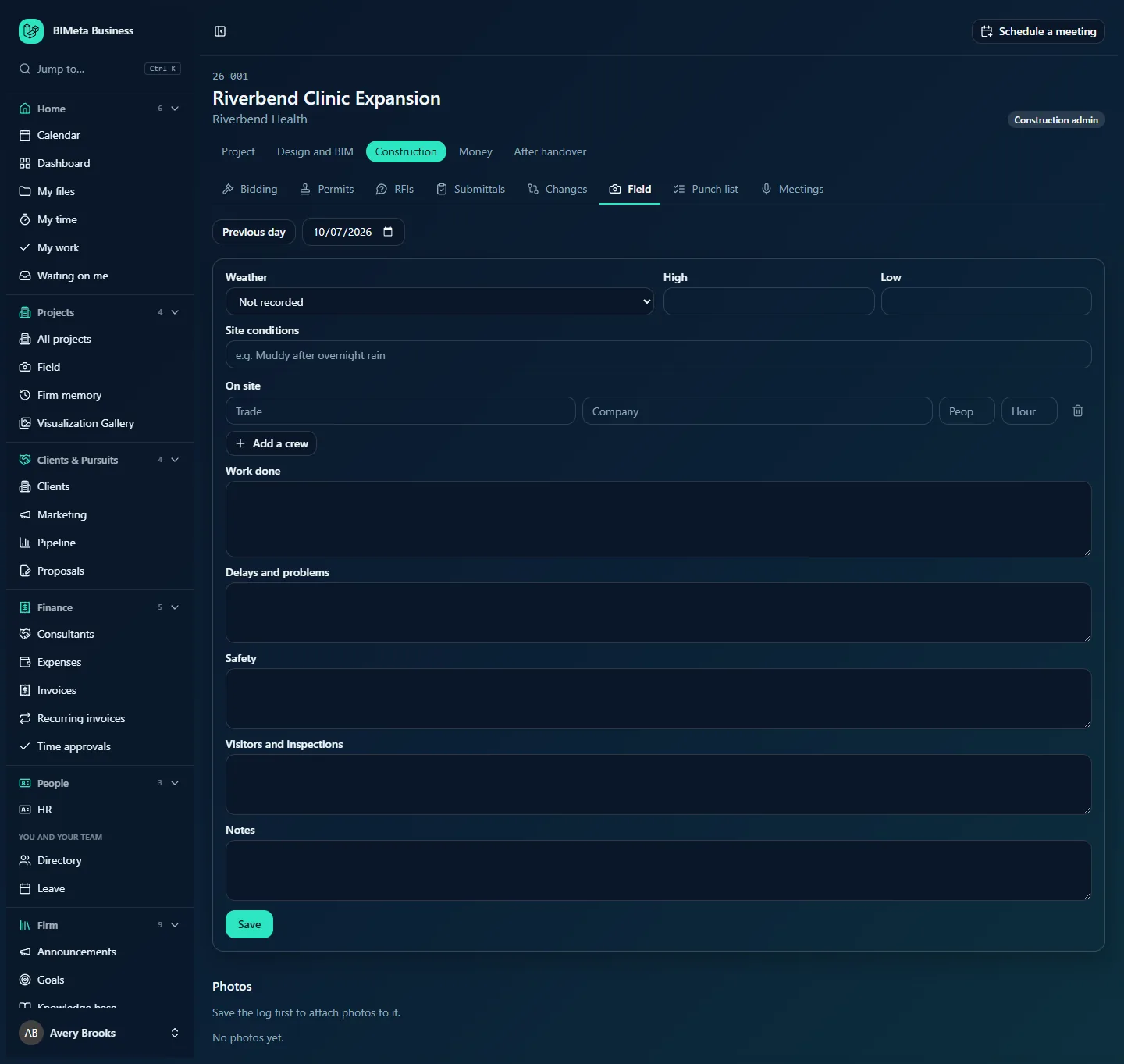
- Day navigation: Previous day, a Day picker (up to today) and Next day (not shown on today). The status badge shows Draft or Submitted.
- For a new day, the crews are copied from the last log and a note says "Crews filled in from the last log."
- Weather: Not recorded, Clear, Cloudy, Rain, Snow, Windy, Fog, Extreme heat or Extreme cold, with High and Low temperatures.
- Site conditions (up to 300 characters), e.g. Muddy after overnight rain.
- On site: one row per crew with Trade, Company, People and Hours, a bin icon (Remove crew) and Add a crew. Up to 60 crews.
- Work done (up to 10,000 characters), Delays and problems, Safety and Visitors and inspections (up to 5,000 each) and Notes (up to 10,000).
- Save, Submit the day's log and, for managers on a submitted log, Reopen.
- Photos: photos attached to this log, with a photo form once the log is saved ("Save the log first to attach photos to it."), and Other photos taken this day on the project.
How to …
Take site photos
- On the Field tab, tap Choose Files and take or choose up to 20 photos (JPEG, PNG, WebP or HEIC, up to 50 MB each).
- Add a Caption (up to 500 characters) and, if useful, tick Add my location.
- To pin them, open Pin on a sheet, choose the Sheet and Page, and tap the spot ("Pinned. Tap again to move it."). Remove pin clears it.
- Tap Save photos. The time taken comes from the phone.
Photos are stored encrypted with the project's files.
Add a punch item from site
- Under Add a punch item, describe What needs doing (required, up to 500 characters), and add the Location and Trade.
- Optionally pin it on a sheet, then tap Add to punch list ("Punch item added").
It goes on that day's field punch list on the Punch list tab (created automatically the first time each day) as an Open item with the next punch number.
Write and submit the daily log
- Click Today's log (or pick an earlier day; logs can't be written for future days).
- Fill in the weather, conditions, crews and narrative sections. Adjust the crews copied from the last log.
- Click Save as often as you like during the day ("Daily log saved").
- Attach photos in the Photos section once the log has been saved.
- At the end of the day click Submit the day's log. It's locked and shows Submitted.
To correct a submitted log, a manager clicks Reopen, which returns it to Draft.
Write and issue a site visit report
- On the Field tab, enter the Purpose of the visit (required, up to 200 characters) and the Visit date, then Start report.
- On the report, fill in Weather, Present (names and companies), the Summary and Send to (emails, when issued): up to 50 email addresses separated by commas, spaces or semicolons. Click Save.
- Add each observation: What you saw (required, up to 5,000 characters), the Kind (For information, Action required or Punch item), the Action required text, Location, Trade and an optional pin, then Add observation (up to 200 per report). Choosing Punch item also adds it to the project's punch list, shown as "Punch #n". Remove one with Remove.
- Add photos in the report's Photos section.
- A manager clicks Issue report. It needs a summary or at least one observation. The report is numbered, locked and emailed to everyone on the send list ("Site report SR-001 issued and sent to n people").
Use Print or save as PDF for a printable copy. A draft can be deleted with Delete draft; an issued report can't be changed, so write a new one if needed.
Tips and good to know
- Pins only work on PDF sheets in the project's files. Upload the current drawing set to the Files or Drawings tab first.
- Write the daily log on the day. A complete set of logs is valuable evidence for delay claims and change orders.
- Everything captured, saved, submitted, issued or deleted is written to the audit log.
- Captures from the phone are sent once, even if the phone retries, so you won't get duplicates after a dropped connection.
Troubleshooting
"This day's log is submitted. Ask a manager to reopen it to make changes."
Ask a project manager or project architect to click Reopen on that day's log.
"Photos must be JPEG, PNG, WebP or HEIC images."
Other file types (videos, PDFs) can't be saved as site photos. Put them on the project's Files tab instead.
My phone photos haven't appeared.
Check the outbox banner on the Field tab on that phone. Tap Send now when you have signal, or sign in again if asked.
I can't see Issue report.
Issuing needs manager rights on the project. Save the draft and ask the project manager or architect to issue it.
Was this article helpful?
Share