



Exchanges: the model exchange schedule
17 views · by Kevin J Bruno · updated 1 day ago
On a coordinated BIM project each discipline (architecture, structure, mechanical and so on) shares its model with the others on a regular rhythm, for example every two weeks before the clash detection run. If one model arrives late, coordination stalls. The Exchanges tab turns the exchange schedule agreed in the BEP into something tracked: each expected model, who sends it, how often, in what format and when it's next due, with a log of what actually arrived, on time or late. BIMeta reminds the sender two days before each due date and tells your BIM Managers when one is overdue.
Where to find it
Open a project, choose the Design and BIM group, then the Exchanges tab. The schedule it starts from is the Model exchange schedule on the BEP tab.
Who can use it
- Everyone who can open the project can see the schedule and the delivery log.
- Adding exchanges and marking them received need permission to edit the project: Business Owners, Admins, IT Staff, BIM Managers and Project Managers, plus the Project Manager, Project Architect and Designer roles on the project.
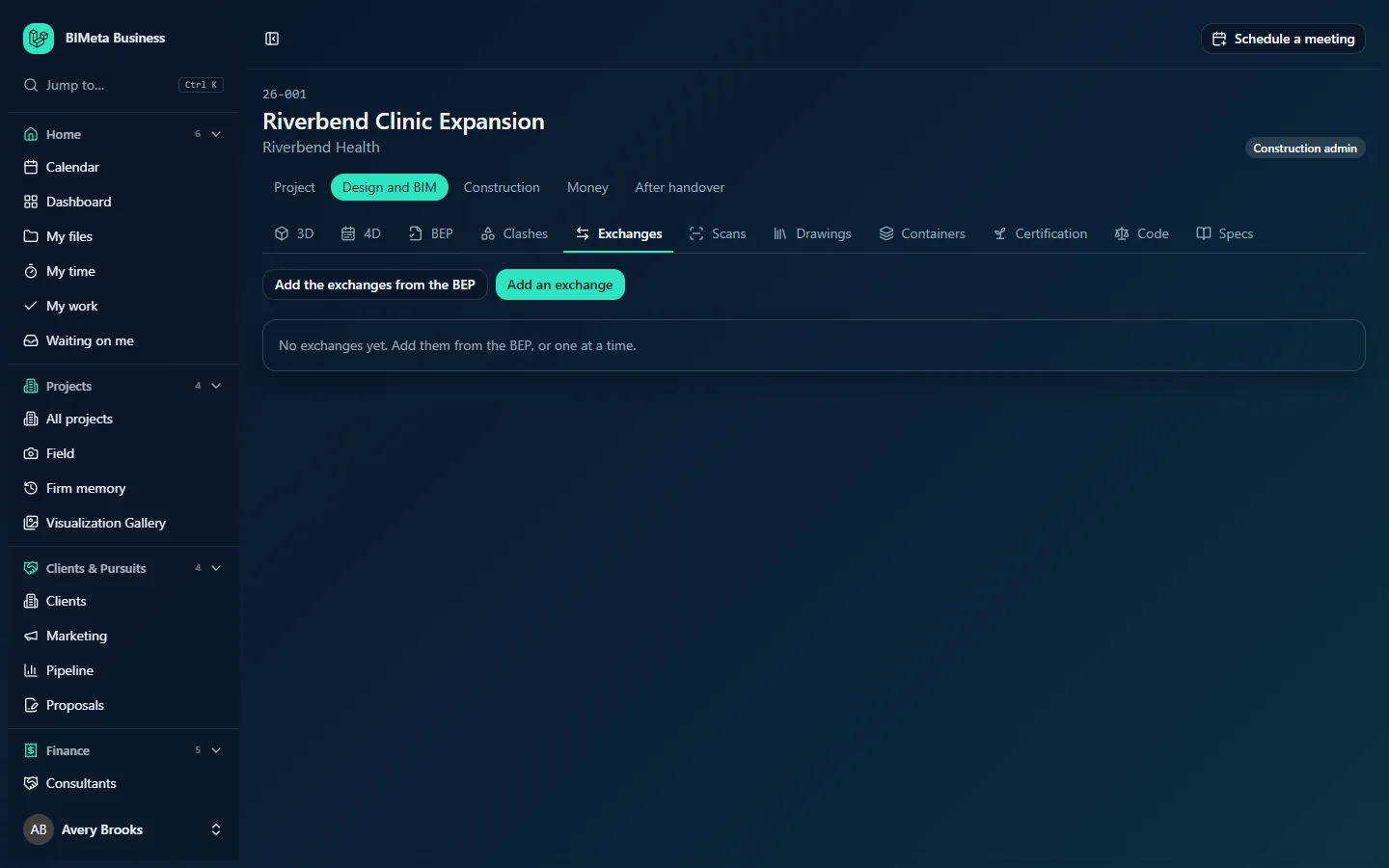
A tour of the page
- Add the exchanges from the BEP and Add an exchange (editors).
- The list of exchanges, soonest due first. Each shows the Model (e.g. Structure), then the sender, how often and the format (e.g. Summit Structural · Every two weeks · RVT + IFC) and a state badge with the next due date:
- Scheduled: due more than two days from now.
- Due soon: due within two days.
- Overdue: the due date has passed and nothing has been logged.
- No date yet: no next due date (usual for "At each milestone").
- Paused: no longer being tracked.
- Under each exchange, the delivery log: date, on time or late, who logged it and any note.
- For editors, a Note (optional) box and Mark received on each exchange.
With nothing yet: "No exchanges yet. Add them from the BEP, or one at a time."
How to …
Add the exchanges from the BEP
Click Add the exchanges from the BEP. Every row of the BEP's model exchange schedule that isn't already on this tab is added, first due one interval from today (no date for "At each milestone"). You'll see "n exchanges added from the BEP."
Add an exchange by hand
- Click Add an exchange.
- Fill in Model (required, up to 120 characters, e.g. Structure), From (company), Contact email (for reminders), How often (Weekly, Every two weeks, Monthly or At each milestone), Format (e.g. RVT + IFC) and Next due.
- Click Add (or Cancel).
Log a delivery
- When the model arrives, optionally type a note (up to 500 characters), e.g. "IFC only, RVT to follow".
- Click Mark received ("Logged as received").
The delivery is logged as on time (on or before the due date) or late. The next due date moves on by the frequency: from the old due date when on time, so the rhythm holds, or from today when late. "At each milestone" exchanges have no automatic next date.
Reminders
- Every morning, the contact email of any active exchange due within two days gets a reminder.
- Once an exchange is overdue, every BIM Manager at your firm is emailed, with a link to this tab.
- Each reminder is sent once per due date.
Tips and good to know
- Fill in a contact email for each consultant so they're reminded directly.
- Line up exchange dates with your clash runs on the Clashes tab, so every round uses current models.
- Logging a delivery doesn't store the model itself. Upload it to the project's Files tab (it then appears in 3D if it's an IFC file).
Troubleshooting
"Name the model and how often it comes."
Model and How often are both required.
"Use a real email address for the contact."
Correct the contact email, or leave it blank.
Adding from the BEP added nothing.
Every BEP row is already on the schedule, or the BEP's exchange schedule is empty. Check the BEP tab.
Was this article helpful?
Share