



Drawings: sheet index, issued sets and transmittals
18 views · by Kevin J Bruno · updated 1 day ago
The Drawings tab is the project's drawing register. It keeps the sheet index (every sheet number and title), the revision history of each sheet, the drawing sets you've issued, and the transmittals you've sent. Issuing a set moves every sheet in it to its next revision automatically, and a built-in check warns you about open RFIs, odd sheet numbers and sheets left out before the set goes out.
Where to find it
Open a project and choose Design and BIM → Drawings (or just Drawings if your tabs aren't grouped).
Who can use it
- Everyone who can see the project can read the sheet index, issued sets and transmittals.
- Adding and removing sheets, issuing sets, running the check and recording transmittals need permission to edit the project: Business Owner, IT Staff, BIM Manager, Admin and Project Manager roles, or a project role of Project Manager, Project Architect or Designer. Others don't see the checkboxes or forms.
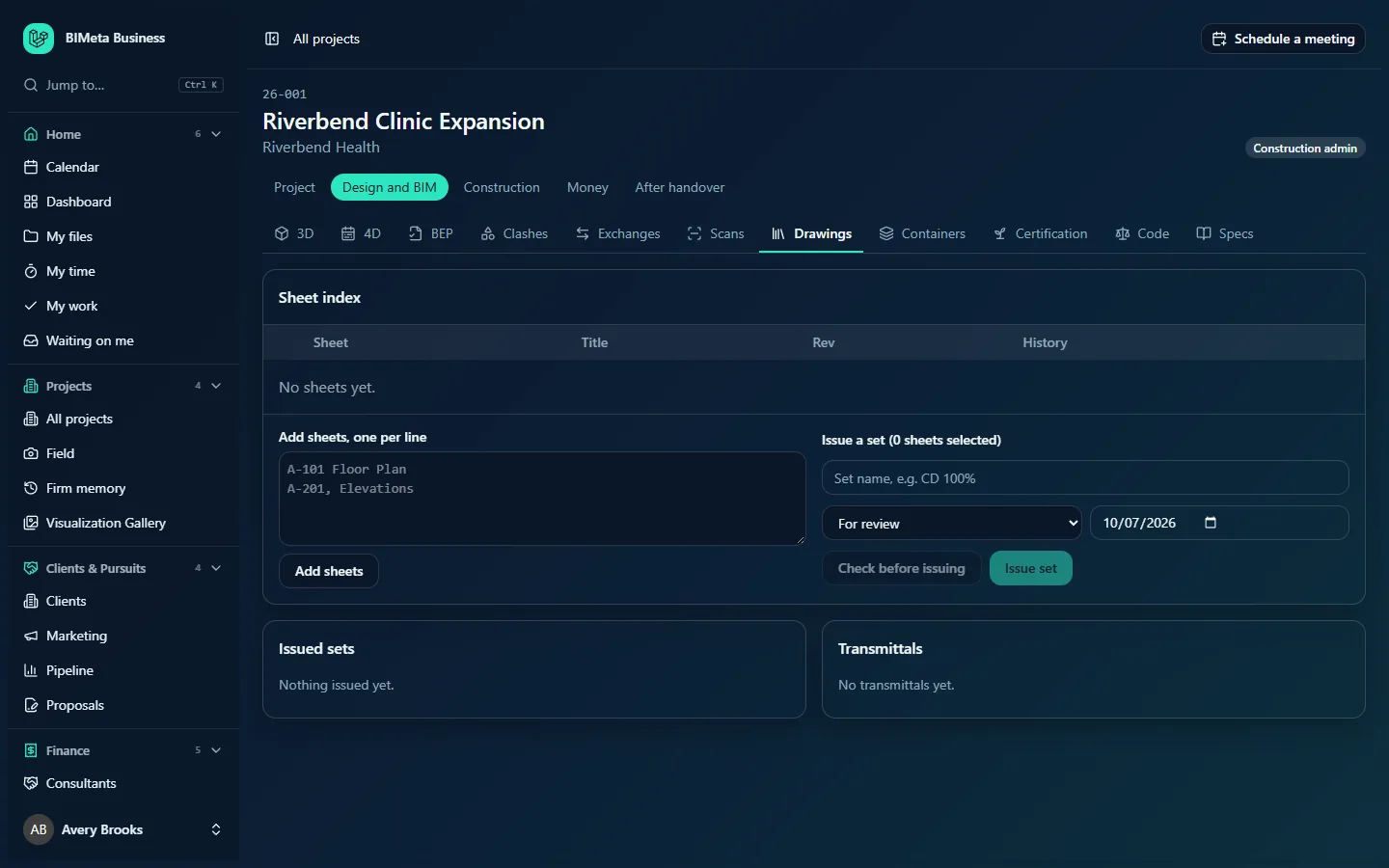
A tour of the page
Sheet index
A table of every sheet, sorted naturally by number (A-101 before A-1001):
- A checkbox (Include in set) for editors, to choose sheets for the next set.
- Sheet: the sheet number, e.g. A-101.
- Title: e.g. Floor Plan.
- Rev: the current revision, or – if the sheet has never been issued.
- History: every revision with its date, e.g. "0 (2026-06-02), 1 (2026-08-15)".
- A bin icon for editors, only on sheets never issued.
With no sheets you'll see "No sheets yet."
Add sheets, one per line
A box where editors paste or type sheets, one per line, as a number then a title, separated by a space or a comma: A-101 Floor Plan or A-201, Elevations. Add sheets saves them.
Issue a set
The heading shows how many sheets you've ticked, e.g. Issue a set (12 sheets selected). Fields:
- Set name, e.g. CD 100% (required).
- Issued for: For review, For coordination, For permit, For pricing, For bid, For construction or Record.
- Issue date: defaults to today.
Buttons: Check before issuing and Issue set (both greyed until at least one sheet is ticked).
Check results
After Check before issuing, a box lists what to look at (warnings in red), or "Nothing to look at. Ready to issue.", followed by the revisions each sheet will get, e.g. "Revisions: A-101 0 → 1 · A-102 — → 0". The check looks for:
- Sheets with open RFIs pinned to them (warning).
- Models marked not ready to issue (warning).
- Sheet numbers that don't follow the register's usual pattern, or whose discipline letter doesn't match.
- Sheets sharing the same title.
- Sheets in the last set issued for the same purpose that are missing from this one.
Nothing in the check stops you issuing; it's a list of things to double-check. Changing the ticked sheets or purpose clears the result.
Issued sets
Every set, newest first: its name (click to open it), purpose, issue date and number of sheets. With none: "Nothing issued yet."
Transmittals
Every transmittal: its number (click to open it), recipient and company, what it was sent for, the set, and Emailed or Not emailed. With none: "No transmittals yet."
How to …
Build the sheet index
- In Add sheets, one per line, type or paste your sheet list (for example copied from your sheet list in Revit or a spreadsheet).
- Click Add sheets. You'll see "12 sheets added", or which numbers were skipped because they're already in the register.
Sheet numbers may use letters, digits, dots, dashes, underscores and slashes (up to 40 characters). The first one or two letters become the sheet's discipline (e.g. A, S, ME). A title is optional; without one the number is used.
Issue a set
- Tick the sheets in the set.
- Enter the Set name, choose what it's Issued for and the Issue date.
- Click Check before issuing and review anything listed.
- Click Issue set. You go to the set's page with "Set issued".
Every sheet in the set moves to its next revision: a never-issued sheet becomes 0; numbers count up (0 → 1 → 2, P1 → P2); letters go A → B … Z → AA.
Send a set (record a transmittal)
- Click the set's name under Issued sets.
- Under Send this set (transmittal), fill in To (required), Company, Email, Sent for and an optional Note.
- Tick Email it to the recipient to email the transmittal now (needs an email address).
- Click Record transmittal. It gets the next transmittal number from your firm's numbering (for example TR-0001) and opens, ready to Print.
The transmittal page shows To, Date, Sent for, Set, From (your firm), and the sheets with their Sheet, Title and Rev, plus "Emailed to … on …" if it was emailed.
Remove a sheet
- Click the bin icon on a sheet that was never issued ("Sheet removed").
Tips and good to know
- Issued sheets stay in the register for good, so the revision history is never lost. Simply leave a sheet out of future sets.
- A transmittal lists the revisions as they were in that set, even if the sheets have moved on since.
- Adding sheets, issuing sets and recording transmittals are written to the audit log.
- RFIs pinned to sheets come from the mark-up viewer and the RFIs tab; close them before issuing for construction.
Troubleshooting
"…doesn't start with a sheet number like A-101."
A line starts with something that isn't a sheet number (for example a space or a symbol). Fix that line and add again.
"Issued sheets stay in the register."
You tried to remove a sheet that has been issued. Leave it out of later sets instead.
"Recorded, but the email couldn't be sent."
The transmittal was saved but the email failed. Print it and send it yourself, or try again later.
Was this article helpful?
Share