



Containers: ISO 19650 information containers
19 views · by Kevin J Bruno · updated 1 day ago
ISO 19650 is the international standard for managing information on BIM projects. It treats every model, drawing or document as an information container with a structured code (for example HL-BIM-ZZ-02-M3-A-0001), and moves it through four states in a common data environment (CDE): Work in progress (only its authors see it), Shared (released to the wider team for coordination or comment), Published (accepted and authorised for use, e.g. for construction) and Archived. At each step it carries a suitability code saying what it may be used for, and a revision: preliminary revisions P01, P02… while it's being developed and shared, contractual revisions C01, C02… once accepted and published. The Containers tab tracks this for the project's files.
Suitability codes (defaults)
| State | Code | Meaning |
|---|---|---|
| Work in progress | S0 | Work in progress (set automatically) |
| Shared | S1 | Suitable for coordination |
| Shared | S2 | Suitable for information |
| Shared | S3 | Suitable for review and comment |
| Shared | S4 | Suitable for stage approval |
| Published | A1 | Authorised and accepted |
| Published | B1 | Partially accepted with comments |
| Published | CR | As constructed record |
These are the UK National Annex codes. Your firm can change the descriptions and add its own (see Firm container rules).
Where to find it
Open a project, choose the Design and BIM group, then the Containers tab. The files themselves live on the project's Files tab; the CDE folders (CDE/01 Work in progress to CDE/04 Archived) can be created by the Project kickoff on the BEP tab.
Who can use it
- Everyone who can open the project can see the containers and their history.
- Registering files and moving containers need permission to edit the project: Business Owners, Admins, IT Staff, BIM Managers and Project Managers, plus the Project Manager, Project Architect and Designer roles on the project.
- Changing the firm container rules needs permission to manage BIM settings: Business Owners, Admins and BIM Managers. These rules apply to every project.
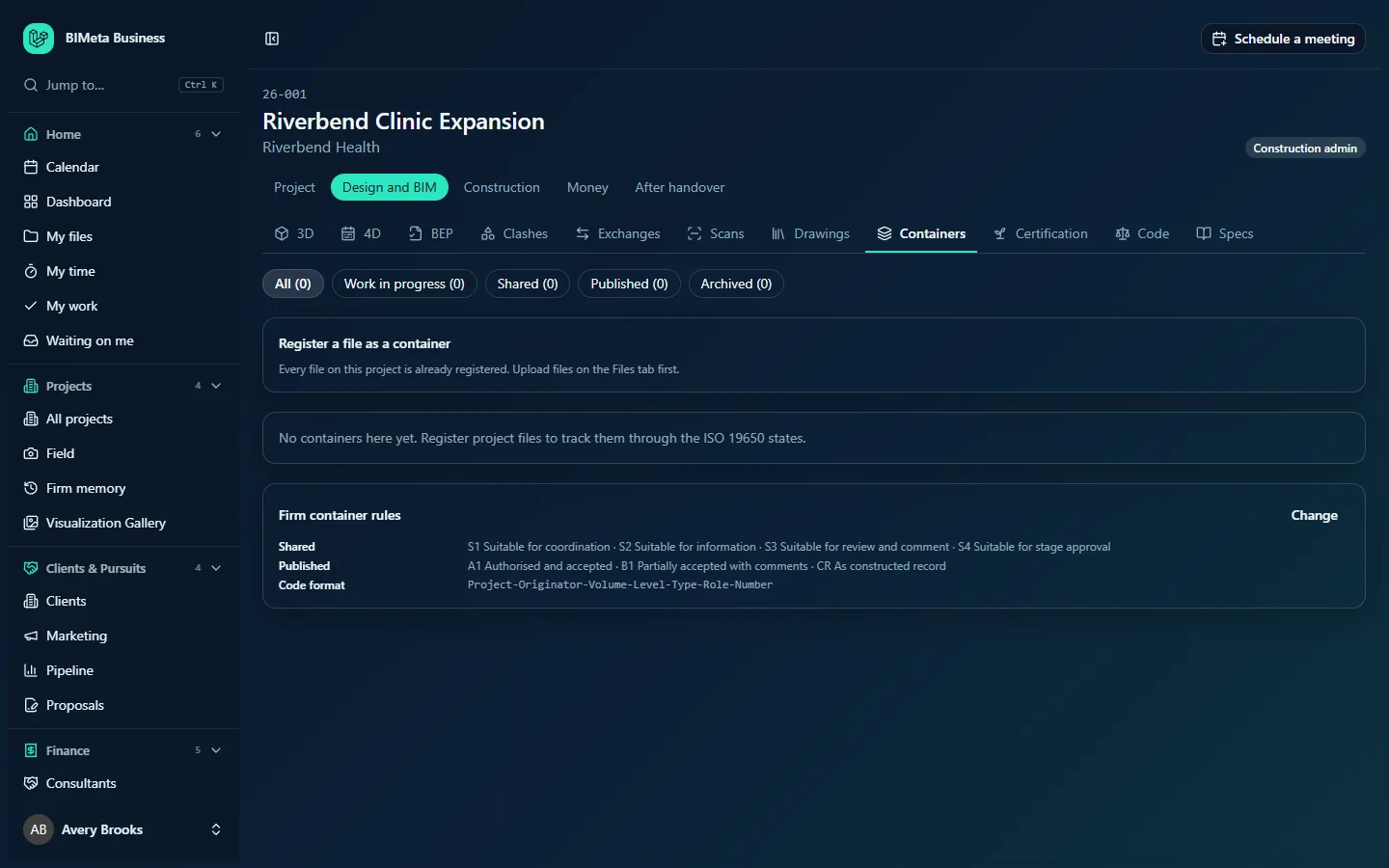
A tour of the page
- State filter: All, Work in progress, Shared, Published and Archived, each with its count.
- Register a file as a container (editors): a File picker of project files not yet registered, a Container code, a Title (optional) and Register. If every file is registered: "Every file on this project is already registered. Upload files on the Files tab first."
- Containers: each with its code, title, state, suitability and revision. Extra badges: Changed since (a newer version of the file was uploaded after it was shared or published, so it should go round again) and Model not ready · n to fix (the Revit model behind it wasn't ready to issue at its last sync; sharing or publishing then asks for a reason). History / Hide shows every move with the state, suitability, revision, file version, note, who and when. If the file was deleted: "The file was removed from the project."
- Actions (editors), depending on state: Share (with a suitability S1–S4), Publish (with A1, B1 or CR; "Someone other than you publishes this." if you shared it), Back to work in progress, and Archive, each with a Note (optional).
- Firm container rules: the codes for Shared and Published and the Code format (default Project-Originator-Volume-Level-Type-Role-Number), with Change for BIM settings managers.
With nothing registered: "No containers here yet. Register project files to track them through the ISO 19650 states."
How to …
Register a file
- Pick the File.
- Enter the Container code (up to 80 characters). With naming checks on (the default), it must have exactly the firm's fields, joined with hyphens, each 1–8 capital letters or digits, e.g.
HL-BIM-ZZ-02-M3-A-0001. - Optionally give a Title (up to 200 characters; the file name is used otherwise) and click Register.
The container starts as Work in progress, S0, revision P01 ("Container registered as work in progress"). A file or code can be registered only once per project.
Move a container through the states
| Action | From | Result |
|---|---|---|
| Share | Work in progress | Shared with the chosen S code, same revision (e.g. P01). |
| Publish | Shared | Published with the chosen code. A1 or CR gives the next contractual revision (C01, C02…); B1 (partially accepted) keeps the preliminary revision. |
| Back to work in progress | Shared or Published | Back to WIP as S0 with the next preliminary revision (P02…). |
| Archive | Shared or Published | Archived, keeping its code and revision. |
A notice confirms the new state, e.g. "Container is now shared". Every move is recorded in the history. If the firm has it turned on (the default), the file is also moved into the matching CDE folder when the project has them.
Change the firm container rules (BIM settings managers)
- Click Change.
- Edit Codes for shared containers and Codes for published containers, one per line as
CODE = what it means, e.g.S2 = Suitable for information. Keep at least one of each; a code can't be in both lists. - Edit Container code fields, in order (2 to 10 fields, comma-separated).
- Set the switches: Refuse container codes that don't match the fields, Someone other than the sharer publishes and Move files into the project's CDE folders as their state changes (all on by default).
- Click Save rules ("Container settings saved") or Cancel.
Tips and good to know
- The "someone else publishes" rule is a simple check-and-approve: the person who shares a container can't also publish it.
- Upload a new version of a shared file and the container shows Changed since: send it back to work in progress and share it again so the revision moves on.
- Use the same container code fields as your BEP's naming section.
Troubleshooting
"Container codes are Project-Originator-Volume-Level-Type-Role-Number, joined with hyphens, letters and numbers only."
Your code has the wrong number of parts or characters other than capital letters and digits in a part.
"Someone other than the person who shared it publishes it."
Ask a colleague to publish, or ask a BIM Manager to switch the rule off.
"The … model isn't ready to issue … Say why it's going out anyway in the note."
Fix the model, or write the reason in the note; it's saved in the history as "Not ready to issue: reason".
Was this article helpful?
Share