



Closeout: closeout documents, closing a project and legal holds
18 views · by Kevin J Bruno · updated 5 days ago
When construction ends, the job isn't finished until the paperwork is: the certificate of substantial completion, operation and maintenance manuals, warranties, record (as-built) drawings, final lien waivers, the certificate of occupancy and so on. Then the project is closed and its records are kept for as long as your firm could face a claim about it. The Closeout tab does all three things: it tracks the closeout documents you're collecting, shows what's still outstanding across the project, closes the project with a records-retention date, and lets authorized people place legal holds that stop any of the project's files from being deleted while a dispute or claim is live.
Key terms
- Closeout documents: the documents the contract says the contractor must hand over at the end. BIMeta starts you with a standard checklist you can add to.
- Closing out: marking the project finished. It's archived, a retention date is set, and its files move to cold storage (cheaper long-term storage). Files can still be opened afterwards.
- Retention period: how many years the project's records are kept. Your firm's own setting applies, or else a default for your country (for example 10 years in the US, 15 in Canada and the UK) based on how long design claims can be brought.
- Legal hold: a lock placed because of a claim, dispute or investigation. While it's active, none of the files it covers can be deleted or purged, by anyone, until its custodian lifts it.
Where to find it
Open a project, choose the After handover group, then the Closeout tab (next to Handover and Maintenance).
Firm-wide retention settings and every legal hold across the firm are on Sidebar → Admin → IT → Retention and holds tab (IT Staff and Business Owners).
Who can use it
- Everyone who can open the project can see the checklist, the closed status and the list of legal holds.
- Starting and ticking off the checklist, closing and reopening the project need permission to manage construction admin: Business Owners, Admins, IT Staff, BIM Managers and Project Managers, plus anyone with the Project Manager or Project Architect role on this project's team.
- Placing a legal hold needs the firm-level permission to place legal holds. By default Business Owners, Admins, IT Staff, BIM Managers and Project Managers have it; a project role alone doesn't give it, and Users don't have it. Without it you won't see Place a legal hold.
- Lifting a legal hold is only possible for the hold's custodian, whatever their role. Nobody else sees the Lift hold button.
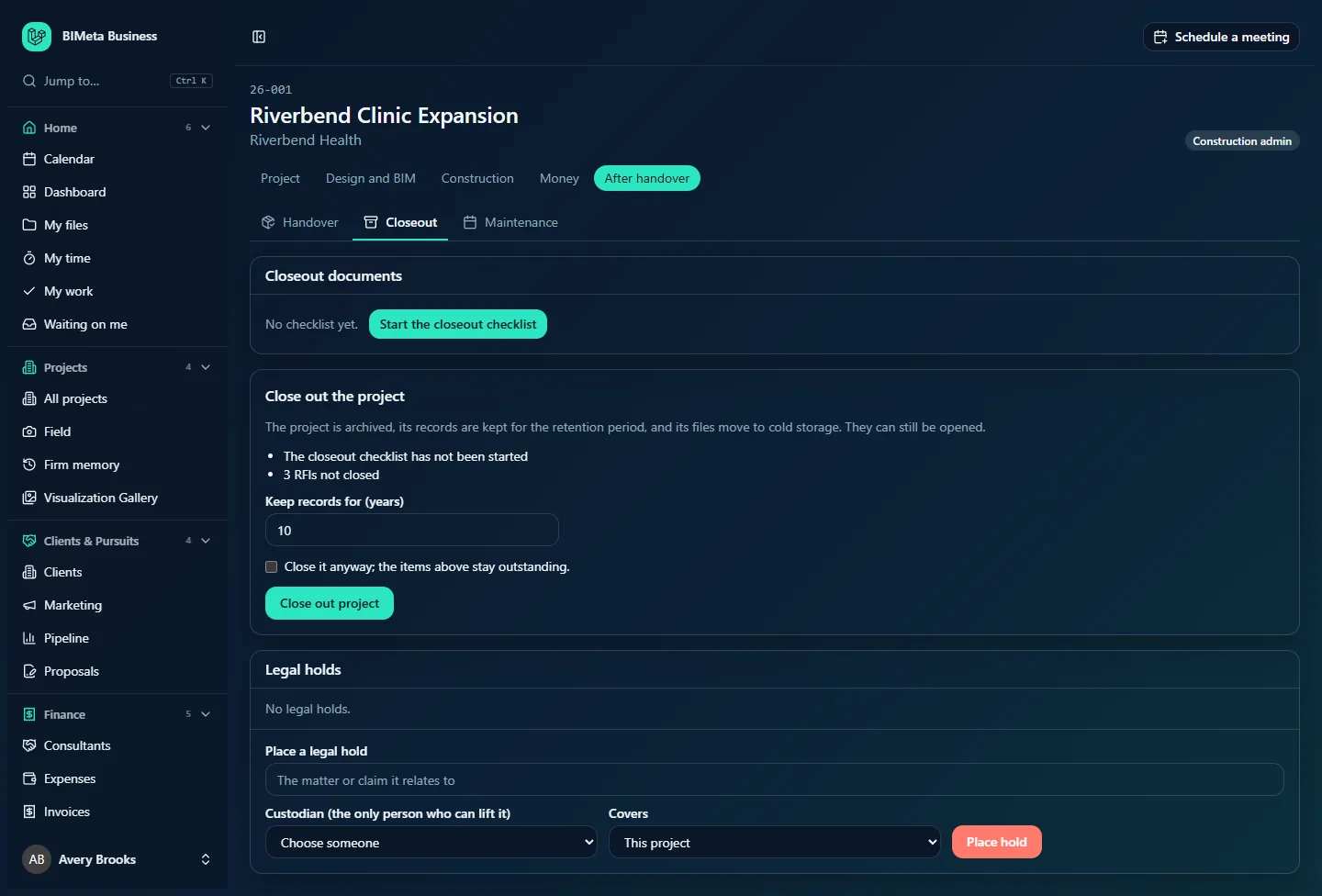
A tour of the page
Legal hold banner
If any hold covering this project is active, a red banner at the top says: "This project is under a legal hold. None of its files can be deleted or purged until the custodian lifts the hold."
Closed-out panel
Once the project is closed, a panel shows Closed out on date, Records are kept until date, and either "Files are moving to cold storage." or "Files are in cold storage.", with a Reopen project button for managers.
Closeout documents
Before the checklist exists you'll see No checklist yet. and, for managers, Start the closeout checklist. Once started, each document is a row with its name, a badge (Waiting, or Received date) and, for managers, a Mark received or Undo button. Underneath, managers have an Add a document box and an Add button.
The standard checklist contains: Certificate of substantial completion; Final punch list closed; Operation and maintenance manuals; Warranties and guarantees; Record drawings (as-builts); Attic stock and spare parts; Final lien waivers; Consent of surety to final payment; Certificate of occupancy; Certificate for final payment.
Close out the project (managers, while open)
The box explains what closing does, then lists anything still outstanding, for example:
- The closeout checklist has not been started
- n closeout documents not received
- n punch items not closed (from the Punch list tab)
- n RFIs not closed (open or answered RFIs on the RFIs tab)
- n change orders not executed (draft or issued change orders on the Changes tab)
Then Keep records for (years), pre-filled with your firm's retention period, a Close it anyway; the items above stay outstanding. tick box (only when something's outstanding), and Close out project. In the example, 26-001 Riverbend Clinic Expansion shows that the checklist hasn't been started and 3 RFIs aren't closed.
Legal holds
Every hold that covers this project, active or lifted. Each shows an Active (red) or Lifted badge, a Whole firm badge if it covers every file in the firm, the reason, and "Custodian: name · placed by name on date" (plus "lifted date"). With none you'll see No legal holds. If you're the custodian of an active hold, it has a Why it can be lifted box and a Lift hold button. Below, people allowed to place holds see the Place a legal hold form.
How to …
Collect the closeout documents
- Click Start the closeout checklist. The ten standard documents are added ("Closeout checklist started").
- To add a document your contract requires (e.g. Commissioning report), type it in Add a document (up to 160 characters) and click Add. It's added to the end of the list.
- As each arrives, click Mark received. The badge shows today's date and records who marked it.
- Clicked by mistake? Click Undo to set it back to Waiting.
Items can't be renamed or removed. Keep the documents themselves on the project's Files tab.
Close out the project
- Review the outstanding list and clear what you can: close punch items, close or void RFIs, execute or void change orders, mark documents received.
- Check Keep records for (years) (1 to 50). Change it only if this project needs a different period, for example because of a longer contractual liability.
- If items are still outstanding and you want to close anyway, tick Close it anyway; the items above stay outstanding.
- Click Close out project.
The project's status becomes archived (closed), the retention date is set to today plus the years you chose, and its files start moving to cold storage in the background. You'll see "Project closed. Records are kept until date and its files are moving to cold storage." The closing, the retention date and anything you closed over are recorded in the audit log.
If your firm has turned on the retention lock (Sidebar → Admin → IT → Retention and holds), a retention date set earlier is never shortened by closing again with fewer years.
Reopen a closed project
Click Reopen project in the closed-out panel. The project becomes active again ("Project reopened. Its files stay in cold storage and open as before."). The retention date is cleared, unless the retention lock is on, in which case it's kept.
Place a legal hold
- Under Place a legal hold, describe the matter in The matter or claim it relates to (required, up to 500 characters).
- Choose the Custodian (the only person who can lift it). Only active firm staff are listed, never client or consultant accounts. Pick someone who will still be around when the matter ends, often a principal or your firm's counsel contact.
- Choose what it Covers: This project, or Every file in the firm.
- Click Place hold. You'll see "Legal hold placed. Nothing it covers can be deleted until the custodian lifts it."
Lift a legal hold (custodian only)
- Find the active hold. Optionally write Why it can be lifted (up to 500 characters), e.g. "Claim settled 2027-03-01".
- Click Lift hold. The hold shows Lifted with the date and stays in the list as a record.
Tips and good to know
- Closing a project doesn't delete anything. Files remain viewable from cold storage; they may just take a moment longer to open.
- A firm-wide hold appears on every project's Closeout tab.
- Placing and lifting holds are written to the audit log, as are closing and reopening.
- After handover, the building's asset data and maintenance plan live on the neighbouring Handover and Maintenance tabs.
Troubleshooting
"Some closeout items are still outstanding. Tick the box to close the project anyway."
Either clear the items listed or tick Close it anyway before clicking Close out project.
"Keep records for between 1 and 50 years."
Enter a whole number of years from 1 to 50.
Why can't I lift a hold I placed?
Only the custodian named on the hold can lift it, even if you placed it. Ask them, or ask an IT administrator to check it on Sidebar → Admin → IT → Retention and holds.
I can't find the custodian I want in the list.
Custodians must be active firm staff. Client and consultant accounts can't be custodians.
Was this article helpful?
Share