



Clashes: coordination checks, the clash inbox and BCF
18 views · by Kevin J Bruno · updated 1 day ago
When the architectural, structural and MEP models are combined, things collide: a duct runs through a beam, a pipe through a wall with no opening. These collisions are clashes, and finding and fixing them before construction is the main job of model coordination. Teams usually run clash tests regularly (for example every two weeks) and meet to go through the results; each run is a coordination round. The Clashes tab is the project's clash inbox: it takes clash reports from Navisworks Clash Detective or from the checks run in BIMeta's own 3D viewer, keeps each clash from round to round so you can see what's new, still open and fixed, lets you assign clashes to the people who'll fix them, and turns a clash that needs a design answer into an RFI.
Key terms
- Clash test (or check): one set of elements checked against another, e.g. structure against ducts, with a tolerance (how much overlap is ignored, in millimetres).
- Coordination round: one run of the tests. Importing a test again updates the clashes it still finds, adds new ones, and marks those no longer found as Resolved.
- BCF (BIM Collaboration Format): an open file format (.bcfzip) for passing model issues between programs such as Revit, Navisworks, Solibri and BIMcollab.
- Clash statuses: Open, Being fixed, Resolved and Not a problem.
Where to find it
- Open a project, choose the Design and BIM group, then the Clashes tab.
- Clashes assigned to you also appear on My work.
- From the 3D tab you can run the saved checks and jump back here.
Who can use it
- Everyone who can open the project can see the clashes, filter them, open them in 3D, download BCF and open the coordination round.
- Importing reports, reading BCF, assigning, changing status and managing saved checks need permission to edit the project: Business Owners, Admins, IT Staff, BIM Managers and Project Managers, plus the Project Manager, Project Architect and Designer roles on the project.
- Make an RFI needs permission to manage construction admin on the project (Project Managers and Project Architects, and the senior firm roles).
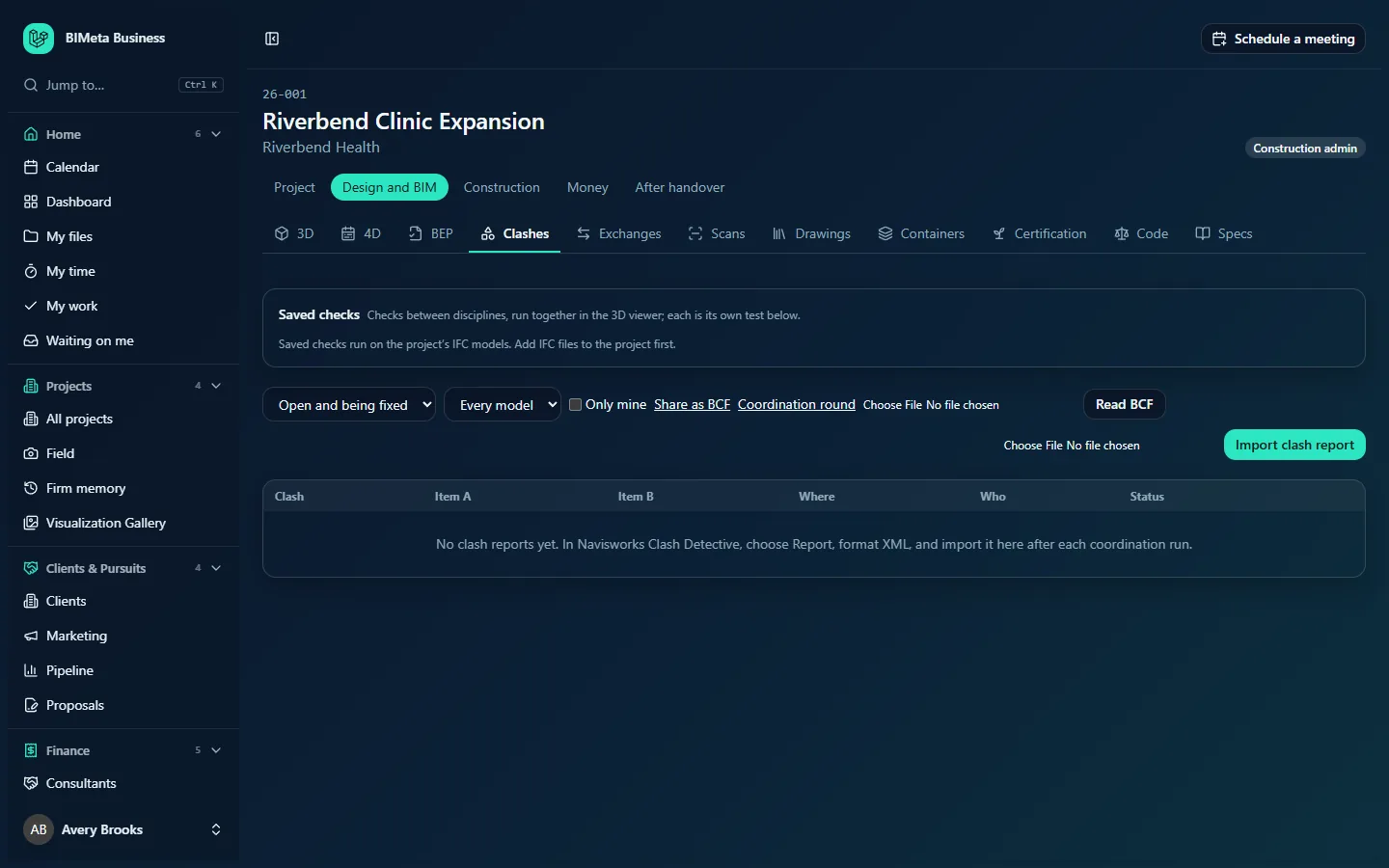
A tour of the page
Saved checks
"Checks between disciplines, run together in the 3D viewer; each is its own test below." Each saved check reads like "Structure in STR model against Ducts in MEP model, 25 mm", with who fixes its clashes and a Remove button. A check whose model is no longer on the project shows Model not in this project. Buttons: Run all in 3D and Add a check, with Common checks as one-click presets (structure against ducts at 25 mm; structure, walls and ducts against pipes and electrical at 10 mm; floors and roofs against mechanical equipment at 0 mm, and so on). Until the project has IFC models you'll see "Saved checks run on the project's IFC models. Add IFC files to the project first."
Open clashes by level
Once there are rounds, a chart shows how many clashes were open on each level after each of the last rounds (up to twelve), so you can see which floors are behind. Clashes without a level count as "Not located".
Clashes header and filters
- The heading with "n open", and one row per test showing its active count.
- Status: Open and being fixed (the default), Everything, or one status.
- Model: Every model or one model file.
- Where: Everywhere or one grid location or level.
- Only mine: just clashes assigned to you.
- Every test, or one test.
- Share as BCF: downloads the filtered clashes as a .bcfzip file.
- Coordination round: opens a printable summary for the meeting.
- Read BCF and Import clash report (editors), each with a file picker.
The clash table
| Column | Shows |
|---|---|
| Clash | The clash name or "ID n", its test and the overlap distance ("12 mm overlap"). |
| Item A / Item B | The two clashing elements with their model files. |
| Where | The grid location or level. |
| Who | An Assigned to picker (project team, or Nobody). |
| Status | A status picker, plus Show in 3D (when the project has models) and Make an RFI, or a link to the RFI already made ("RFI-0021"). |
With no reports yet: "No clash reports yet. In Navisworks Clash Detective, choose Report, format XML, and import it here after each coordination run." If filters hide everything: Nothing matches.
How to …
Import a Navisworks clash report
- In Navisworks Clash Detective, run your tests and choose Report with the format XML.
- On the Clashes tab, choose the file next to Import clash report (up to 100 MB, up to 20,000 clashes) and click Import clash report.
Each test in the report is matched by name to the test already on the project. A notice summarizes each one, e.g. "STR vs MEP: 14 new, 22 still open, 9 resolved". Clashes found again keep their assignee, notes and status (a resolved clash found again is reopened).
Set up and run saved checks in 3D
- Click Add a check, or pick one of the Common checks.
- Give it a Name (up to 120 characters, unique on the project), choose the Model to check and its Elements to check (Everything, Structure, Walls, Floors and roofs, Doors and windows, Ducts, Pipes, Cable trays and electrical, Fire protection, Mechanical equipment), then what to check it Against, the Tolerance in mm (0 to 1,000) and Who fixes its clashes.
- Click Save check. Within one model, the two sides must be different kinds of element. Up to 50 checks per project.
- Click Run all in 3D. The 3D tab runs every check and records each as its own test here; new clashes are assigned to the check's owner.
Work through clashes
- Filter to what you're responsible for, e.g. Only mine.
- Use Show in 3D to see the clash in the model.
- Assign it to someone on the team, and set the status to Being fixed, Resolved or Not a problem. Changes save at once ("Saved").
Make an RFI from a clash
Click Make an RFI. A Draft RFI is created with the subject "Clash: A and B", the location, and a question listing the test, both elements with their models and element IDs and the distance, ending "Please advise how to resolve this clash." You're taken to it to check, assign and issue (see RFIs). Each clash can have one RFI.
Share or read BCF
- Share as BCF downloads the clashes in the current test and status filter as 26-001 clashes.bcfzip for use in other BIM tools.
- To bring changes back, choose the .bcfzip file (up to 200 MB) next to Read BCF and click it. You'll see "BCF read: n clashes updated, n new issues."
Run the coordination meeting
Click Coordination round. A printable page lists each check with its last run date and the counts of New, Open and Resolved clashes, who fixes it, and its open clashes with distances and Show in 3D links. Click Print to print or save it as a PDF. The same summary can be pulled into meeting minutes on the Meetings tab.
Tips and good to know
- Keep test names the same from round to round. A renamed test is treated as a new test, so its history and the resolved counts start over.
- Assignees must be on the project team; add people on the Team tab first.
- Agree the clash tests and tolerances in the BEP's model exchange schedule so everyone runs the same checks.
Troubleshooting
"That isn't a Navisworks clash report."
Export the report from Clash Detective as XML (not HTML or text).
"That report has more than 20000 clashes."
Split the test in Navisworks (by level or by system) or raise the tolerance.
Show in 3D isn't there.
It appears once the project has IFC models in its files. See 3D: the model viewer.
"This clash already has an RFI."
Follow the RFI link in the Status column instead.
Was this article helpful?
Share