



Changes: ASIs, proposal requests, CCDs and change orders
18 views · by Kevin J Bruno · updated 1 day ago
Almost no building is built exactly as first drawn. The owner asks for something new, a field condition turns up, a code official requires a fix. The Changes tab is where you manage those changes formally during construction: you issue instructions, ask the contractor to price proposed changes, direct urgent work, and finally execute signed change orders that adjust the construction contract's price and time. At the top of the tab you always see the original contract sum, what executed change orders have added, the current contract sum and what's still pending.
The four kinds of change
| Kind | Short name | What it is | Its path |
|---|---|---|---|
| Supplemental instruction | ASI | The architect's instruction or clarification with no change in cost or time, e.g. a revised detail. Called an Architect's Supplemental Instruction. | Draft → Issued |
| Proposal request | PR | "Here's a change we're considering. What would it cost and how long would it take?" The contractor prices it; the owner then accepts or rejects. | Draft → Issued → Priced → Accepted (becomes a change order) or Rejected |
| Construction change directive | CCD | An order to do the work now, before price and time are agreed, so construction doesn't stop. Once cost and time are agreed, it becomes a change order. | Draft → Issued → Converted (becomes a change order) |
| Change order | CO | The binding agreement that changes the contract sum and/or contract time. It needs three signatures: contractor, architect and owner. | Draft → Issued → Executed (once all three have signed) |
Any change except an ASI carries an amount (the change in contract sum; a negative number is a credit) and a number of days (the change in contract time). Only executed change orders change the contract figures.
Statuses
- Draft: being written; can still be edited.
- Issued: sent out; the date is recorded.
- Priced (PR): the contractor's price and days are recorded.
- Accepted (PR) or Converted (CCD): a change order has been drafted from it.
- Rejected (PR): the owner decided not to go ahead.
- Executed (CO): all three parties have signed; the contract sum and time are adjusted.
- Void: withdrawn.
Where to find it
Open a project, choose the Construction group, then the Changes tab. Click a change's number to open it. A client signing a change order gets an email with a link straight to it.
Who can use it
- Everyone who can open the project (Business Owner, IT Staff, BIM Manager and User) can see the contract figures, the log and each change.
- Creating, editing, issuing, pricing, rejecting, converting, voiding, recording signatures and setting the contract need permission to manage construction admin: Business Owners, Admins, IT Staff, BIM Managers and Project Managers, plus anyone with the Project Manager or Project Architect role on this project. Without it, you won't see New change or the Construction contract form.
- The owner's signature on a change order can be given by a person on the project team with the Client project role, signing for themselves. Managers can also record an owner's paper signature.
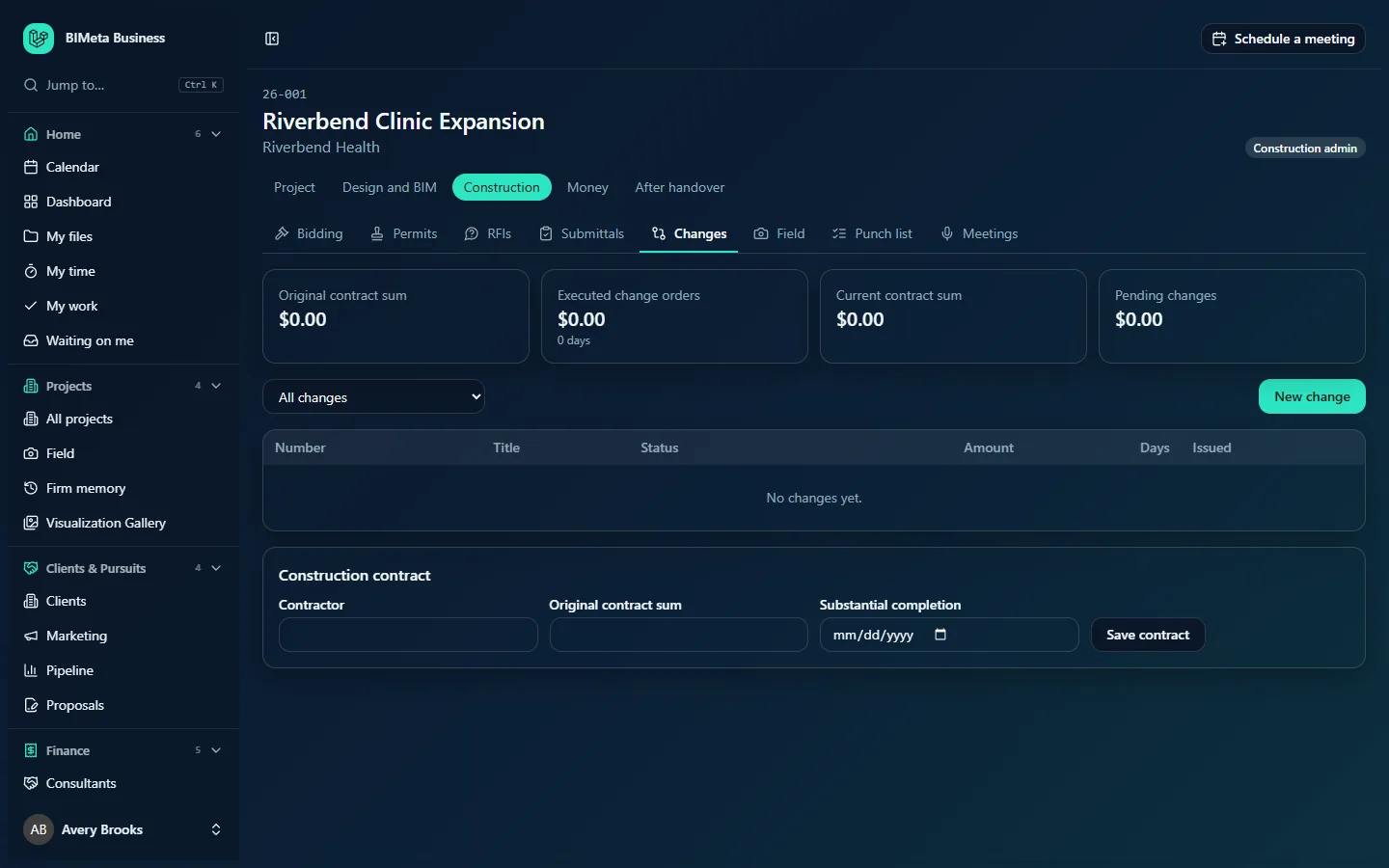
A tour of the page
Contract cards
- Original contract sum: the contract amount from the Construction contract form, with the contractor's name underneath once set.
- Executed change orders: the total of all executed change orders, and the total days they add (e.g. 0 days).
- Current contract sum: original plus executed change orders. Once a substantial completion date is set, it also shows the adjusted date: Substantial completion 2027-06-30, moved by the executed days.
- Pending changes: the total of amounts still in play: draft and issued change orders, priced proposal requests and issued CCDs. It helps you see where the contract sum could go.
Amounts use your firm's currency.
Filter and New change
- The Show drop-down (All changes, or one kind: Supplemental instruction, Proposal request, Construction change directive, Change order).
- New change (managers) opens the form; it reads Cancel while open.
The log
| Column | Shows |
|---|---|
| Number | e.g. PR-003 or CO-001. Click to open. |
| Title | The change's title, with its kind in small text. |
| Status | The status badge. |
| Amount | The change in contract sum (blank for ASIs). |
| Days | The change in contract time. |
| Issued | The date it was issued. |
The log is grouped by kind, newest first within each kind. With nothing yet you'll see No changes yet.
Construction contract (managers)
At the bottom: Contractor (up to 160 characters), Original contract sum and Substantial completion (the contract date the building should be usable), with Save contract.
How to …
Set up the construction contract
- At the bottom of the tab, enter the Contractor, the Original contract sum (numbers only; commas are fine) and the Substantial completion date.
- Click Save contract. You'll see "Contract saved" and the cards update.
Start a new change
- Click New change.
- Choose the Kind (Proposal request is selected first).
- Enter a Title (required, up to 200 characters) and Description (required, up to 20,000 characters).
- Optionally choose a Reason: Owner request, Design change, Field condition, Code or authority, Coordination or Other. These help you report later on why the project changed.
- Optionally link it to an RFI in From RFI. The list shows answered or closed RFIs on this project whose cost impact wasn't "No".
- For anything but an ASI, enter money and time:
- Estimate (optional) for a proposal request, or Change in contract sum for a CCD or change order. Use a minus sign for a credit, e.g.
-2500. Up to one billion. - Change in contract time (days): whole days, up to four digits, negative allowed.
- Estimate (optional) for a proposal request, or Change in contract sum for a CCD or change order. Use a minus sign for a credit, e.g.
- For a proposal request, set Price due: the date you need the contractor's price.
- Click Create draft.
The change is numbered from your firm's pattern for that kind (by default ASI-001, PR-001, CCD-001, CO-001, counted per project; set under Sidebar → Admin → Settings → Setup, step Document numbering in the Project standards section), saved as a Draft, and opened: "PR-001 created as a draft".
The change's own page
A change's page shows the breadcrumb (Changes · kind), the number and title, the status badge and a Print button. Print opens a formal document in a new tab (for a change order it states the original contract sum, the change, the new sum and time, and the signature lines) that you can print or save as a PDF from your browser.
- While it's a Draft, managers can edit the Title, Description, Reason, amount, days and (for a PR) Price due, then click Save. After issue, the description is read-only.
- The step buttons available to managers appear under the description (see below).
- The panel on the right lists Change in contract sum, Change in contract time, Reason, Issued, From RFI (link), From (the PR or CCD it came from), Became (the change order drafted from it) and Created by.
Issue a change
On a Draft, click Issue. It becomes Issued with today's date. A change order must have a change in contract sum before it can be issued (enter 0 if there's none). When a change order is issued, everyone on the project team with the Client role is emailed "Change order … is ready for your signature".
Price a proposal request
- On an Issued (or already Priced) PR, enter the contractor's Price (required) and Days next to Record contractor's price.
- Click Record contractor's price. The PR becomes Priced. You can record a revised price the same way.
Accept a PR or agree a CCD
- On a Priced PR, click Accept and draft change order. The PR becomes Accepted.
- On an Issued CCD, click Agree cost and draft change order. The CCD becomes Converted.
Either way, a new Draft change order is created carrying the title, description, reason, RFI link, amount and days, and you're taken to it ("CO-001 drafted from PR-003"). Check it, adjust if needed, then issue it.
Reject or void
- Reject (Issued or Priced PRs): the owner decided not to proceed.
- Void (Draft, Issued or Priced changes): withdraws it.
Sign and execute a change order
Once a change order is issued, a Signatures section shows three parties: Contractor, Architect and Owner. Each shows "Signed date" once done.
- Contractor: a manager enters the date the contractor signed (today if blank) and clicks Record signature.
- Architect: a manager clicks Sign; their name and the time are recorded.
- Owner: the client on the project (or a manager recording a paper signature) types the signer's full name (2 to 160 characters) in Type your full name to sign and clicks Sign.
When the third signature is recorded, the change order becomes Executed ("CO-001 is executed"), and its amount and days are added to the contract cards. Every step is written to the audit log, and connected apps your firm has set up are told when a change order is executed.
Tips and good to know
- Use From RFI whenever a change comes out of an RFI answer with a cost impact: the link appears on the change, which makes claims and disputes much easier to untangle.
- Only executed change orders move the contract sum. Pending changes are shown separately so the current sum is always what's actually agreed.
- Credits (negative amounts) and time reductions (negative days) are allowed.
- Once issued, a change can't be edited. If something's wrong, void it and create a new one.
- The Budget and Costs tabs in the Money area deal with your firm's fee and the project's cost estimates; the Changes tab deals with the contractor's construction contract.
Troubleshooting
"Enter the change in contract sum before issuing the change order (0 if none)."
Edit the draft, enter an amount in Change in contract sum (0 is fine), click Save, then Issue.
"That can't be done to a change that is issued."
Each step only works in certain statuses, e.g. you can only edit drafts and only accept priced PRs. Check the status badge.
Why can't the client sign?
The client must be on the project's team with the Client project role, and the change order must be Issued. Otherwise a manager can record the owner's paper signature.
My RFI isn't in the From RFI list.
Only answered or closed RFIs whose cost impact is Yes or To be decided are listed.
Was this article helpful?
Share