



Bidding: bid packages, bidders, addenda, leveling and award
17 views · by Kevin J Bruno · updated 1 day ago
Before construction starts, the owner usually asks several contractors to price the work. The design team issues the bid documents (drawings and specifications), contractors ("bidders" or "planholders") ask questions and receive addenda (official changes to the bid documents issued during bidding), and on the due date their prices come in. The architect then compares the bids like for like (leveling) and the owner awards the contract. The Bidding tab runs this whole process: each bid package (for example General construction, or one package per trade) has its own documents, bidders, addenda, questions and bids, and bidders take part through a private web link, without needing an account.
Key terms
- Bid package: one set of work put out to bid, with its own due date and rules.
- Bid set: the files from the project that bidders can download.
- Sealed bid: amounts stay hidden from everyone at your firm until the due time passes, so nobody can see or leak a price early. New packages are sealed by default.
- Alternate: an option priced separately from the base bid, e.g. "Add alt 1: Upgraded roofing". The owner decides later which alternates to take.
- Addendum: a numbered change or clarification to the bid documents issued while bidding is open. Bidders must acknowledge every addendum before they can bid. An addendum can also move the due date.
- Bid bond: a guarantee (usually from a surety) that the bidder will sign the contract if they win.
- Leveling: adjusting bids so they compare fairly: adding the alternates the owner takes, pricing in what one bid leaves out, and taking off what another includes beyond scope.
Package statuses
| Status | Meaning |
|---|---|
| Draft | Being set up; bidders can be added but aren't invited yet. |
| Out to bid | Invitations are sent; bidders can download, ask questions and submit. |
| Closed | No more bids are taken. Can be reopened. |
| Awarded | The work has been awarded to one bidder. Final. |
| Cancelled | Abandoned. Final. |
Bidder statuses
Invited (invitation sent), Viewed (opened their link), Downloaded (downloaded documents), Bid in (submitted a bid), Declined (said they won't bid, with their reason if given) and Withdrew (withdrew their bid before the deadline).
Where to find it
Open a project, choose the Construction group, then the Bidding tab (the first tab in that group). Click a package to open it; All bid packages takes you back.
Who can use it
- Seeing the tab needs permission to view bidding. Business Owners, Admins, IT Staff, BIM Managers and Project Managers have it firm-wide. A User only sees the tab on projects where they're on the team as Project Manager or Project Architect.
- Running bidding (creating packages, choosing documents, adding bidders, sending out, addenda, answers, leveling and award) needs permission to manage bidding: the same firm roles, plus the Project Manager role on the project. A Project Architect can watch but not change anything.
- Bid amounts on a sealed package are hidden from everyone, including Business Owners, until the due time.
In the example firm Northlight Architects, the User Leo Alvarez (Project Architect on 26-001 Riverbend Clinic Expansion) sees the list of packages but not the New bid package form.
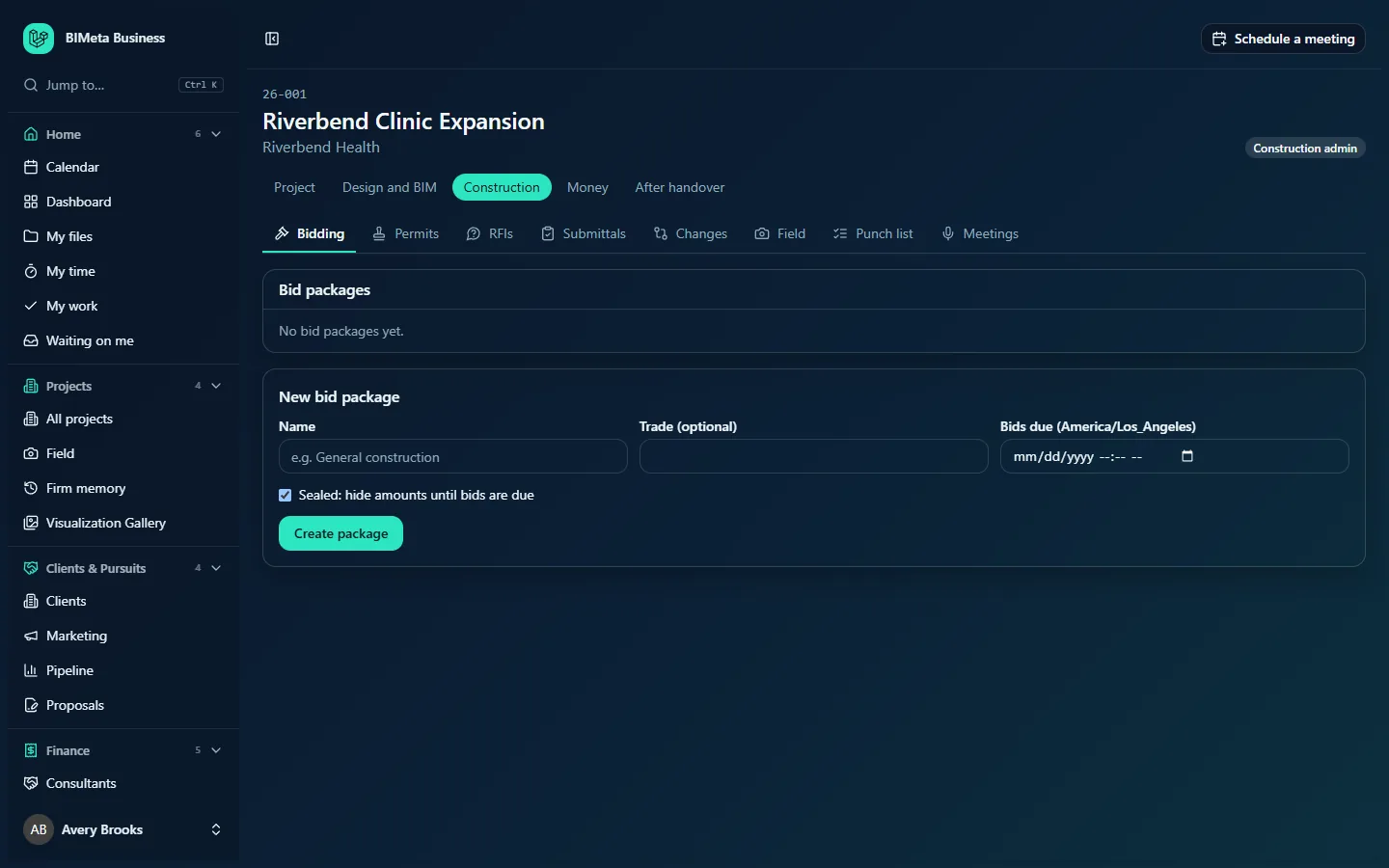
A tour of the Bidding tab
Bid packages
Each package is a row, latest due date first, showing its name, trade, a status badge, a Sealed badge if sealed, and "n of m bids in · due date time". With none you'll see No bid packages yet.
New bid package (managers)
Name, Trade (optional), Bids due (date and time in the project's time zone, shown in the label, e.g. America/Los_Angeles), a Sealed: hide amounts until bids are due tick box (on by default) and Create package.
A tour of a bid package
- Header: All bid packages, the package name, status badge, "Due date time zone", a Sealed until due badge while amounts are hidden, and Compare bids once amounts can be seen. Managers also get Send out to bid (Draft), Close bidding (Out to bid), Reopen bidding (Closed) and Cancel package. Each asks you to confirm.
- Bidders ("n bids in"): a table with Company (and contact, email, phone), Status (plus Late, the bid revision, the decline reason or Not invited yet), Addenda (acknowledged / issued, e.g. 2 / 3), Base bid (the amount, or Sealed) and actions: Resend (while out to bid) and a bin icon to remove a bidder who hasn't bid.
- Add bidders (managers, Draft or Out to bid): a text box and Add bidders / Add and invite.
- Bid documents ("n files"): the bid set. Managers get a list of the project's files with tick boxes, Filter the project's files, a "n chosen" count and Save bid set.
- Addenda: each addendum as "Addendum n: title", with its files and a note if it moved the due date. While out to bid, managers can issue a new one.
- Questions from bidders: unanswered questions first, each with the company, the question, the answer and a Shared with all bidders badge if published. Managers can answer while out to bid.
- Package settings (managers, Draft or Out to bid): Name, Trade, Bids due, Pre-bid meeting (optional) date and time, Pre-bid meeting place, Instructions to bidders, Alternates, one per line (priced separately), and the rules: Sealed: hide amounts until bids are due, Accept late bids (marked late), Require a signed bid form (PDF), Require a bid bond, then Save settings.
How to run a bid
1. Create the package
- On the Bidding tab, enter a Name (required, up to 160 characters), an optional Trade (up to 80) and Bids due (required, must be in the future).
- Leave Sealed ticked unless you have a reason to see prices as they arrive.
- Click Create package. The package opens as a Draft: "Bid package created. Choose the bid documents and add bidders, then send it out."
2. Fill in the settings
- In Package settings, add a pre-bid meeting date, time and place if there is one (the meeting must be before bids are due), and the Instructions to bidders (up to 20,000 characters).
- List any Alternates, one per line (up to 30, each up to 200 characters). They're labelled A1, A2… in order.
- Tick the rules you need, then click Save settings.
Once any bid is in, the alternates can't be changed. All dates and times are in the project's time zone (its office's, else your firm's first office with a time zone, else UTC).
3. Choose the bid documents
- Under Bid documents, filter and tick the project files bidders should receive (up to 500). Files must already be on the project's Files tab.
- Click Save bid set.
4. Add bidders
- In the bidders box, enter one bidder per line:
Company | Contact <email> | phone, e.g.Acme Builders | Pat Lee <[email protected]> | 555-0100. The email in angle brackets is required;Company <email>alone also works. - Click Add bidders (Draft) or Add and invite (Out to bid).
A package can have up to 200 bidders; an email already on the package is skipped. In a Draft, bidders wait until you send it out; on a package that's out to bid, they're emailed straight away.
5. Send it out to bid
Click Send out to bid and confirm. The due date must be in the future and at least one bid document must be chosen. Every bidder not yet invited is emailed an invitation with the package, due time, pre-bid meeting and their own private link ("Out to bid. n invitations sent.").
What bidders do on their private link
Without signing in, a bidder can download the bid set and addenda, acknowledge each addendum, ask questions (up to 5,000 characters each, while out to bid), see answers you've shared, decline to bid with a reason, and submit a bid: the base bid, a price for each alternate (deducts can be negative), exclusions, qualifications, the schedule in calendar days, a signed bid form PDF and bid bond confirmation if required. They can revise the bid until the due time (revisions are numbered) or withdraw it before the due time. They must acknowledge every addendum before bidding. After the due time, bids are refused unless you ticked Accept late bids, in which case they're flagged Late.
Issue an addendum
- While out to bid, under Addenda, enter the Addendum title (required, up to 200 characters) and What changed.
- Optionally set a New due date (must be in the future) and tick files under Attach files.
- Click Issue and send to bidders. It gets the next number and is emailed to every invited bidder who hasn't declined, with the (possibly new) due time.
Answer a question
- Under Questions from bidders, type the answer (up to 10,000 characters).
- Tick Share the question and answer with every bidder if all bidders should see it (usual practice, so everyone bids on the same information). Unticked, the answer is saved for your records only.
- Click Answer (or Update answer).
Resend or remove a bidder
- Resend emails the invitation again with the same private link (only while out to bid).
- The bin icon removes a bidder who hasn't submitted a bid, after you confirm.
Close, reopen or cancel
- Close bidding stops new bids. Reopen bidding reopens a closed package, but only while its due time is still in the future (a closed package's settings can't be edited, so the date can't be moved once closed).
- Cancel package abandons a Draft, Out to bid or Closed package. It can't be undone.
6. Compare bids (leveling)
Once amounts can be seen (after the due time, or when the package is closed or isn't sealed), click Compare bids. The leveling page lists every live (not withdrawn) bid with its Base, the alternates, Adjustments, the Leveled total, the difference Over low and the Days offered, ranked from lowest. Warning badges flag Late, No bid bond, No bid form, Addenda not all acknowledged and Accepted alternate not priced, and each bid's Exclusions and qualifications are shown.
- Tick the alternates the owner is taking under Alternates taken and click Update totals.
- For a bid that leaves something out or adds something beyond scope, open Adjustments to company, click Add a line, describe it under What and enter an Amount (positive to add, negative to take off, e.g.
12000or-5000; up to 30 lines), then Save adjustments. - Use Download CSV for a spreadsheet of the bid tabulation, or Print bid tab for a printable tabulation.
7. Award
- In the Award box on the leveling page, choose the winning bidder (they must have a live bid).
- Tick Email the winner, and thank the other bidders to send result emails, and Include the ranked results in the emails (common on public work) if you want to share the ranking.
- Click Award and confirm ("Award the package? This closes bidding."). If bids aren't due yet, close bidding first.
The package becomes Awarded. Every step of bidding is written to the audit log.
Tips and good to know
- Each bidder's link is private and personal: anyone with it can act as that bidder, so send invitations only to the right person.
- Keep bid documents on the project's Files tab in their own folder; the picker lists the project's files (bidders' uploads are kept separately and aren't offered).
- If you need to change alternates after bids are in, issue an addendum and cancel and re-bid.
- Once awarded, record the contract on the Changes tab (Construction contract) so change orders can be tracked against it.
Troubleshooting
"Choose the bid documents before sending the package out."
Tick at least one file under Bid documents and click Save bid set first.
"Bids must be due in the future." / "Move the due date into the future before sending the package out to bid."
Update Bids due in Package settings and save.
"Each line needs an email in angle brackets…"
Put every bidder's email between < and >, e.g. Acme Builders <[email protected]>.
Why can't I see the bid amounts?
The package is sealed and the due time hasn't passed. Amounts appear automatically after the due time, or once you close bidding.
Was this article helpful?
Share