



3D: the model viewer (federated models, markups, clash checks, 4D and BCF)
18 views · by Kevin J Bruno · updated 1 day ago
The 3D tab opens the project's building models right in your browser, with no Revit or other software needed. It reads IFC files (Industry Foundation Classes, the open exchange format every BIM tool can export) from the project's files. Beyond looking around the model, you can show several discipline models together (a federated view), mark up issues on elements and share them with consultants as BCF, run quick clash checks between models, play the 4D build sequence from the construction schedule, read the rooms for the code analysis, and start an RFI from a markup.
Where to find it
- Open a project, choose the Design and BIM group, then 3D (the first tab in that group).
- Show in 3D on the Clashes tab opens this tab focused on that clash, with both models loaded and both elements highlighted.
- Run all in 3D on the Clashes tab opens it ready to run the saved checks; the 4D tab can open it ready to play the sequence.
Who can use it
- Everyone who can open the project can view the models, use the federated view and 4D, run a clash check and look at its results, and download markups as BCF.
- Saving markups, resolving them, reading BCF, sending clash results to the clash inbox, changing saved checks and reading spaces for the code worksheet need permission to edit the project: Business Owners, Admins, IT Staff, BIM Managers and Project Managers, plus the Project Manager, Project Architect and Designer roles on the project.
- Start RFI needs permission to manage construction admin on the project.
A tour of the page
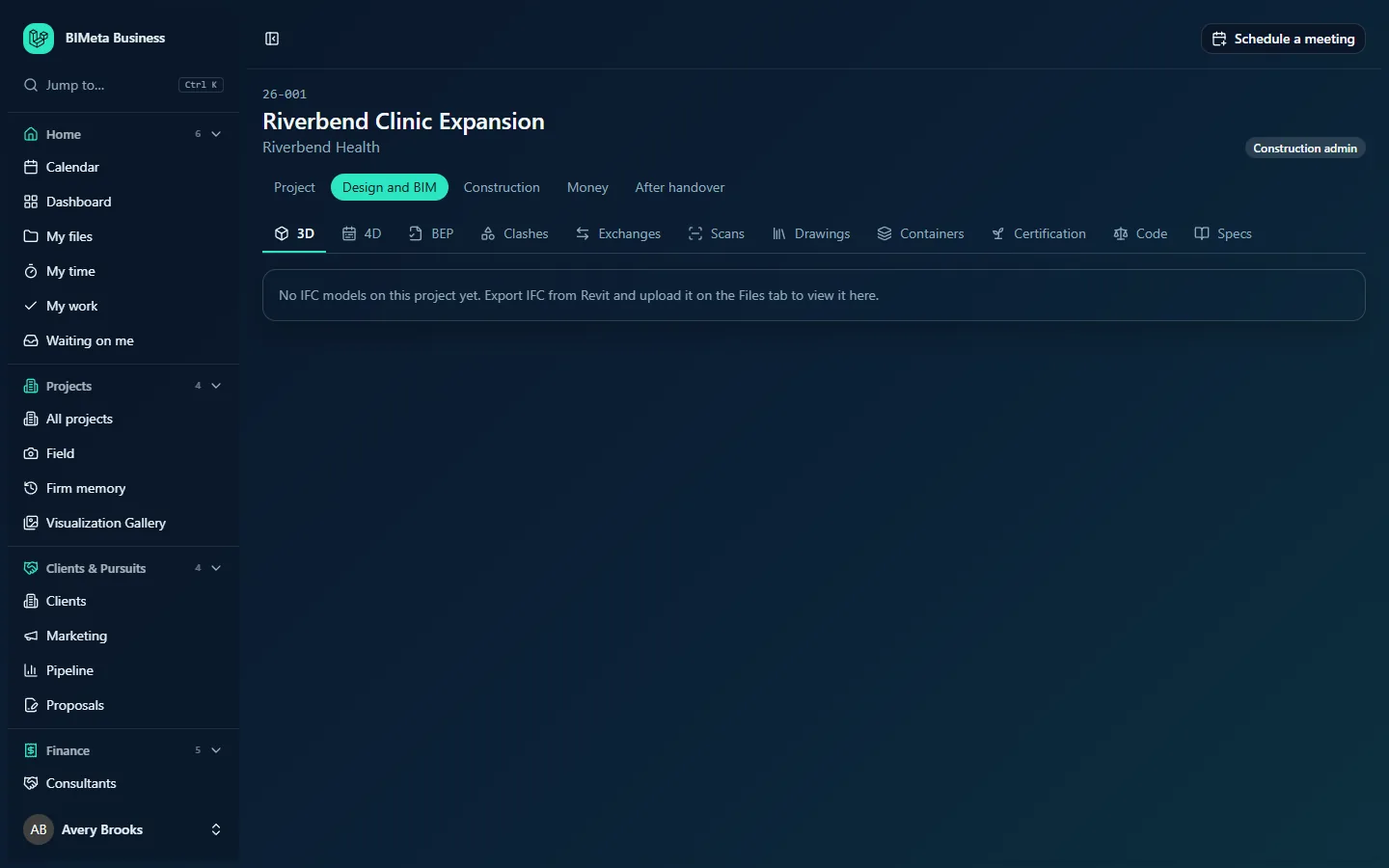
With no IFC files on the project you'll see: "No IFC models on this project yet. Export IFC from Revit and upload it on the Files tab to view it here." (as in the example). Once there are models, the page has the viewer and a set of panels.
Model and viewer
- Model: picks which IFC file to open (the first one opens by default).
- While loading: "Loading the model… n%". A model over 200 MB first warns "This model is large and may be slow to open in the browser." with Open it anyway. A broken file shows "The model couldn't be opened. Check it's a valid IFC file."
- Navigation: "Drag to orbit, right-drag to pan, scroll to zoom. Click an element to select it." The selected element's name appears after Selected:.
- Fit all models zooms out to fit every model shown.
Also show (federated view)
Tick other models to show them with the current one, e.g. structure and MEP with the architecture. Each added model has a See-through tick box that shows it as a transparent ghost, so you can see the current model inside it. "Models line up in their shared coordinates, as exported from each discipline's software." A model that fails shows Couldn't be opened.
4D build sequence
When activities from the 4D tab's schedule are linked to elements, a slider sets the Date in the schedule, and Play / Pause animates construction day by day; Show everything stops and shows the whole model again. The panel lists what's "Under way" on that date (or "Nothing under way on this date"). "Not started is hidden, under way is orange, finished is shown. Elements no activity covers stay as they are." Change the links goes to the 4D tab.
Code pre-check (editors)
Read the spaces from model "Builds the occupant load and egress worksheet on the Code tab from this model's rooms and their areas." If the model has none: "This model has no spaces (rooms). Export the IFC with rooms or spaces included."
Saved checks
When the project has saved clash checks (set up on the Clashes tab), they're listed with Run all saved checks, progress while running, the number of clashes each finds, and for editors Send all to the clash inbox and Change the saved checks. "Each saved check is its own test in the clash inbox; running them again later resolves the clashes that are gone."
Clash check
With at least two models shown: First model against Second model, Tolerance (mm) and Find clashes. Progress reads "Finding elements that come close…" then "Checking n of m close pairs…". Very large results stop early ("Stopped early: check fewer models or a larger tolerance"). Results list each clash ("1 clash", "n clashes"); click one to fly to it. Editors can Send to the clash inbox.
Markups
Editors get Mark up this view: select an element (or mark up the whole view), write a Comment ("What needs looking at?"), pick a Colour (Red, Amber, Green or Blue) and Save markup. The saved camera view is stored with it. The list shows each markup ("n markups") with its element ("On element"), comment, author, a Resolved badge or RFI link, and buttons: click to return to the saved view, Resolve / Reopen (editors) and Start RFI (CA managers).
BCF with consultants
"Markups go out with the element they're on, so Revit, Navisworks or Solibri can find it. Issues coming back update their markup, or appear in blue." Download BCF exports this model's markups; editors can choose a BCF file and Read BCF.
How to …
Get a model onto the 3D tab
- In Revit (or your BIM tool), export the model as IFC. Include rooms/spaces if you'll use the code pre-check.
- Upload the .ifc file on the project's Files tab. It appears in the Model list. Uploading a new version of the same file updates it.
Mark up an issue
- Orbit to the problem and click the element.
- Click Mark up this view, write the comment (up to 2,000 characters), choose a colour and click Save markup ("Markup saved").
- When it's fixed, click Resolve ("Markup resolved"); Reopen if needed.
Share markups as BCF
- Click Download BCF to get Markups 26-001.bcfzip and send it to the consultant, who opens it in Revit, Navisworks, Solibri or similar.
- When they send a BCF file back, choose it under BCF file (up to 50 MB) and click Read BCF. You'll see "BCF read: n updated, n added." New issues appear in blue.
Start an RFI from a markup
Click Start RFI on the markup. A Draft RFI is created with the element and comment ("Draft RFI started from the markup") and opens for you to finish and issue. The markup then links to it.
Run a quick clash check
- Show two or more models (Also show).
- Choose the first and second model and a tolerance, then Find clashes.
- Click results to inspect them. To track them, click Send to the clash inbox; you're taken to the Clashes tab with a summary such as "A vs B: 6 new, 2 still open, 1 resolved".
Play the 4D sequence
Link schedule activities to model elements on the 4D tab, then drag the date slider or click Play here.
Tips and good to know
- Everything is processed in your browser, so large models need a reasonably powerful computer. Split very large models by level or discipline.
- Export every discipline's IFC with the same shared coordinates (see the BEP's coordinates section), or the federated view won't line up.
- Clashes opened from the Clashes tab are found by their IFC GUID or Revit element ID, and the model files are matched by name, so keep IFC file names the same as the models named in the clash report.
Troubleshooting
My Revit file doesn't show up.
Only .ifc files are listed. Export IFC from Revit and upload that.
"The model couldn't be opened."
The file is damaged or isn't valid IFC. Export it again.
I can't see Mark up this view or Send to the clash inbox.
Those need permission to edit the project; ask the project manager for a project role that can edit.
Was this article helpful?
Share