



Pipeline: track pursuits from lead to won project
17 views · by Kevin J Bruno · updated 1 day ago
The Pipeline is your firm's board of pursuits: every job you're chasing, from the first conversation through go/no-go, proposal and interview, to won or lost. Each pursuit is a card that sits in the column for its stage. The page totals what all open pursuits are worth (and what they're likely worth), shows how often the firm wins, and turns a won pursuit into a real project with one click.
Where to find it
- Sidebar → Clients & Pursuits → Pipeline.
- The Open pursuits card on the Dashboard (for people who can work the pipeline) shows the count and total value of open pursuits and links here.
- Press Ctrl K and type "Pipeline".
Who can use it
- The Pipeline is for people allowed to work the pursuit pipeline and turn won leads into projects. By default that is Business Owners and Admins only. IT Staff, BIM Managers, Project Managers, Human Resources and Users don't see it in the menu.
- The Won: open project button also needs permission to create projects. Business Owners and Admins have both.
- A Business Owner or Admin can give the pipeline to other roles under Sidebar → Admin → Settings → Roles & permissions.
Everyone can still see each client's pursuits and their stages on the client's page.
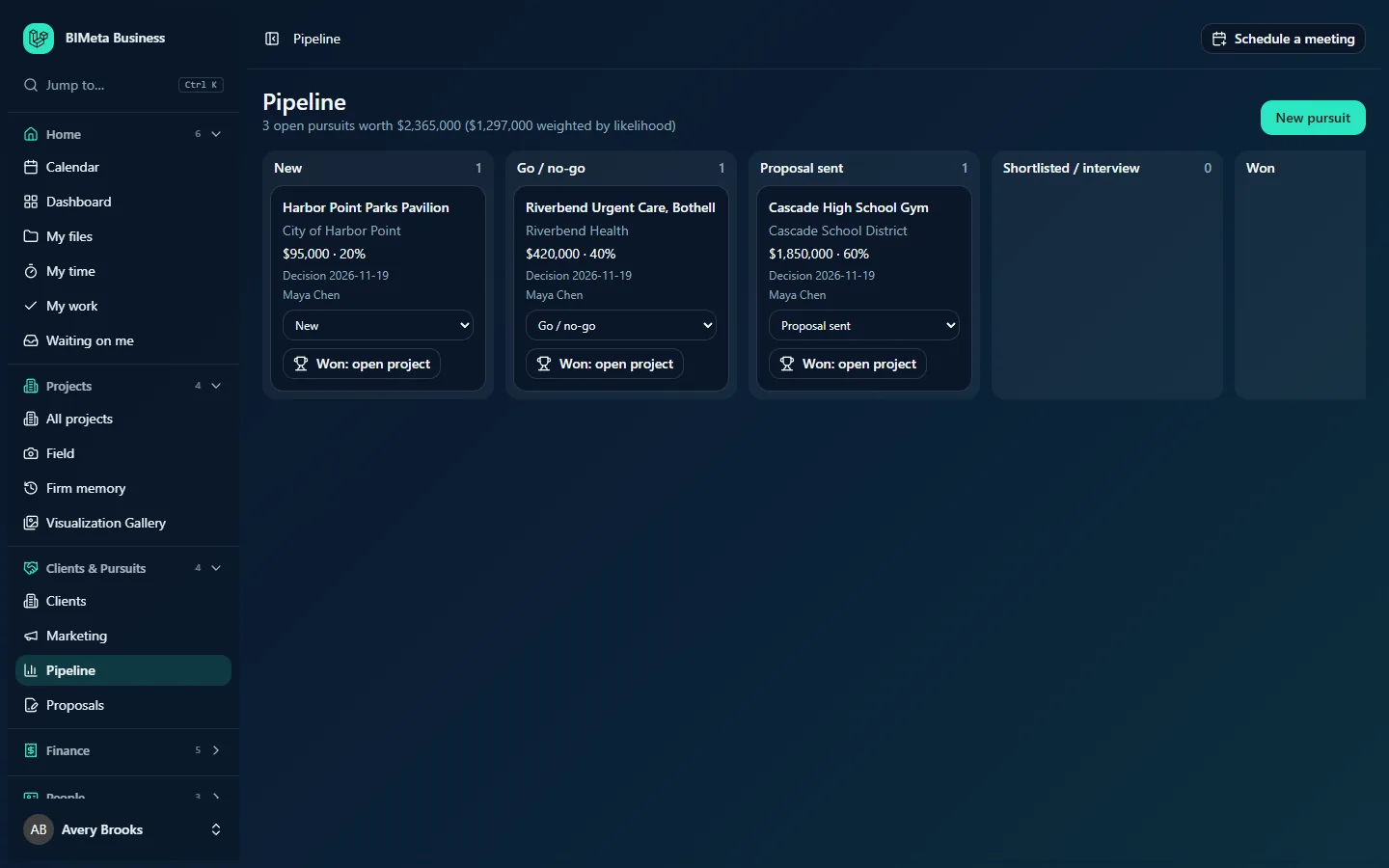
A tour of the page
Header
- Pipeline title with a summary line underneath: how many pursuits are open, what they're worth in total, and the total weighted by likelihood. For example, 3 open pursuits worth $2,365,000 ($1,297,000 weighted by likelihood). "Open" means any stage except Won and Lost. The weighted figure multiplies each pursuit's fee estimate by its likelihood percentage and adds them up, so it's a realistic forecast rather than a best case.
- New pursuit (top right): opens the add-a-pursuit form below the header. While the form is open the button reads Close.
What we win (win rates)
Once the firm has at least one pursuit marked Won or Lost, a What we win panel appears under the header. It shows the firm's overall win rate (e.g. 40% win rate) and won of decided (e.g. 2 won of 5 decided). Click Show the breakdown to open it (and Hide to close):
- By source: win rate for each source (Referral, RFP / public bid, Repeat client, Website, Event, Other), with a bar and "rate% (won of decided)".
- By client type: Private, Public sector, Education and so on, plus No client on file for pursuits of prospects who were never added as clients.
- By size: by fee estimate, in four bands: Under 100k, 100k to 500k, 500k to 2M and Over 2M.
- Repeat clients and new ones: your win rate with clients you'd already done a project for before the pursuit started, against new clients (or "none decided yet").
- Why we lose: the most common lost reasons people typed in (up to eight), with how many times each was given.
The panel is hidden while nothing has been decided yet.
The board
Six columns, left to right, each with the number of cards in it:
| Stage | Default likelihood | Meaning |
|---|---|---|
| New | 10% | A lead has just come in. Every new pursuit starts here. |
| Go / no-go | 25% | You're qualifying it: deciding whether to pursue. |
| Proposal sent | 50% | A proposal or qualifications package has gone out. |
| Shortlisted / interview | 70% | You're on the shortlist or invited to interview. |
| Won | 100% | You got the job. |
| Lost | 0% | You didn't. Lost cards are slightly faded. |
On a narrow screen the board scrolls sideways; scroll right to see Won and Lost. Within each column, pursuits with the soonest expected decision come first; those without a decision date come last.
A pursuit card
Each card shows, top to bottom:
- The pursuit's name (e.g. Cascade High School Gym).
- The client. If it's a client on file, the name is a link to the client's page (e.g. Cascade School District); for a prospect it's plain text.
- The fee estimate and likelihood (e.g. $1,850,000 · 60%).
- A Go/no-go score, once the firm has at least three decided pursuits, for example Go/no-go 46% · from 4 similar. It is shown in green at 50% or more, red under 25% and grey in between. Hover over it to see what it's based on (source, client type, size and repeat client, each with its win rate and how many decided pursuits it rests on).
- Decision and the expected decision date (e.g. Decision 2026-11-19).
- The lead person responsible (e.g. Maya Chen).
- The lost reason, on lost pursuits where one was given.
- A stage drop-down to move the card to another column.
- Won: open project (with a trophy icon): turns the pursuit into a project. Not shown on lost pursuits.
- Once a pursuit has become a project, the drop-down and button are replaced by a Project link with the project number (e.g. Project 26-007).
How to…
Add a pursuit
- Click New pursuit.
- Fill in the form:
- Pursuit (required): a name for the job, up to 200 characters, e.g. Riverside Clinic expansion.
- Source: where the lead came from: Referral (the default), RFP / public bid, Repeat client, Website, Event or Other. Used for the win-rate breakdown.
- Client: pick an existing client, or leave it on New prospect (type the name).
- Prospect name: if you didn't pick a client, type the organization's name here (up to 200 characters). You need either a client or a prospect name.
- Lead person: who's running the pursuit, or Nobody yet. The list shows everyone with an active account.
- Fee estimate: the expected fee as a plain amount, like
250000(commas and spaces are ignored; up to two decimals). Leave empty for zero. - Decision expected: the date you expect the client to decide.
- Click Add pursuit. The card appears in New at 10% likelihood and the form closes, with the message Pursuit added.
Move a pursuit to another stage
- On the card, open the stage drop-down and choose the new stage.
- The card moves straight away and its likelihood changes to that stage's default (for example 50% for Proposal sent). A message such as Moved to Proposal sent confirms it.
Mark a pursuit as lost
- Choose Lost in the card's stage drop-down.
- Your browser asks Why was it lost? (optional). Type a short reason (up to 255 characters), for example "Fee too high" or "Went with incumbent", and click OK. You can also leave it blank.
- The card moves to Lost. The reason shows on the card and feeds the Why we lose list.
Using the same wording for the same reason each time makes Why we lose much more useful.
Turn a won pursuit into a project
- On the card, click Won: open project. You can do this from any column except Lost.
- The pursuit is marked Won (100%) and a new project opens with the pursuit's name, your firm's next project number, its standard folder tree and first-phase checklist, linked to the client (or carrying the prospect's name).
- You're taken to the new project with the message Won! Project … is open.
Clicking the button again on a pursuit that already became a project just takes you to that project; it never creates a second one.
Write a proposal for a pursuit
Go to Proposals, choose the pursuit in For a pursuit (optional) and start the proposal. When the client accepts it, the project opens and this pursuit is marked Won and linked to it automatically.
Tips and good to know
- Moving to Won with the drop-down doesn't create a project. It only records the win. Use Won: open project when you're ready to set the project up; the button stays on the card in the Won column.
- Likelihood always follows the stage. There's no separate box to type your own percentage.
- Moving a pursuit back out of Lost clears its lost reason.
- Once a pursuit has become a project it can't be moved to any other stage.
- Pursuits can't be renamed or deleted from this page; keep names clear when you add them.
- Win rates and go/no-go scores come only from your own firm's decided pursuits. With little history, each go/no-go factor is pulled toward your overall win rate so that a single win doesn't read as 100%. The more pursuits you close out as Won or Lost, the better the numbers get.
- A "repeat client" in the win rates is one you already had a project for before the pursuit was created, which is why it's worth linking pursuits to real clients rather than typing prospect names.
- Adding, moving and winning pursuits are recorded in the firm's audit log.
- The SF330s page can link a qualifications package to a pursuit, and the pursuit also appears on the client's page under Pursuits.
Troubleshooting / FAQ
"Choose a client, or enter the prospect's name."
Every pursuit needs someone to pursue. Either choose a client in Client or type a name in Prospect name.
"Enter the fee estimate as an amount, like 250000."
Remove currency symbols and letters (e.g. "$250k"). Type the number only, such as 250000.
"This pursuit already became a project."
Pursuits that were turned into projects stay Won. Open the project from the card's Project link instead.
Why isn't the What we win panel or the go/no-go score showing?
The panel appears once at least one pursuit is Won or Lost; go/no-go scores need at least three decided pursuits. Keep marking pursuits Won or Lost as decisions come in.
I can't see Pipeline in the menu.
By default only Business Owners and Admins work the pipeline. Ask one of them for access.
Was this article helpful?
Share