



Report a concern: incidents, near misses and workplace concerns
17 views · by Kevin J Bruno · updated 4 days ago
Report a concern is the confidential way to tell your firm about something that worries you: an injury or illness at work, a near miss on site, harassment, discrimination, a security or data problem, property damage or anything else. You can report under your name, so HR can follow up and you can see the status, or anonymously. Human Resources and Business Owners read every report, look into it, record what was done and close it.
Where to find it
- Sidebar → People → HR, then the Report a concern tab. HR is one menu entry that gathers the firm's HR tools as tabs across the top of the page. It opens on the Hiring tab; click a tab to switch. You only see the tabs you're allowed to open.
- Press Ctrl K (Jump to…) and type concern.
- HR and Owners can jump straight to a filtered list with the Open, Being looked into and Closed buttons on the page.
Who can use it
- Everyone on staff can send a report and see the status of the reports they sent under their own name (Your reports).
- Human Resources and Business Owners see All incidents, with the full details, and handle them.
- Admins never see reports, and neither do IT Staff, BIM Managers, Project Managers or Users, unless a Business Owner gives them the Human Resources role. The page itself says so: "Only HR and the Business Owners read reports."
Every time HR or an Owner opens the list of reports, that look is recorded in the firm's audit log. The details of each report, the people involved and the actions taken are stored encrypted.
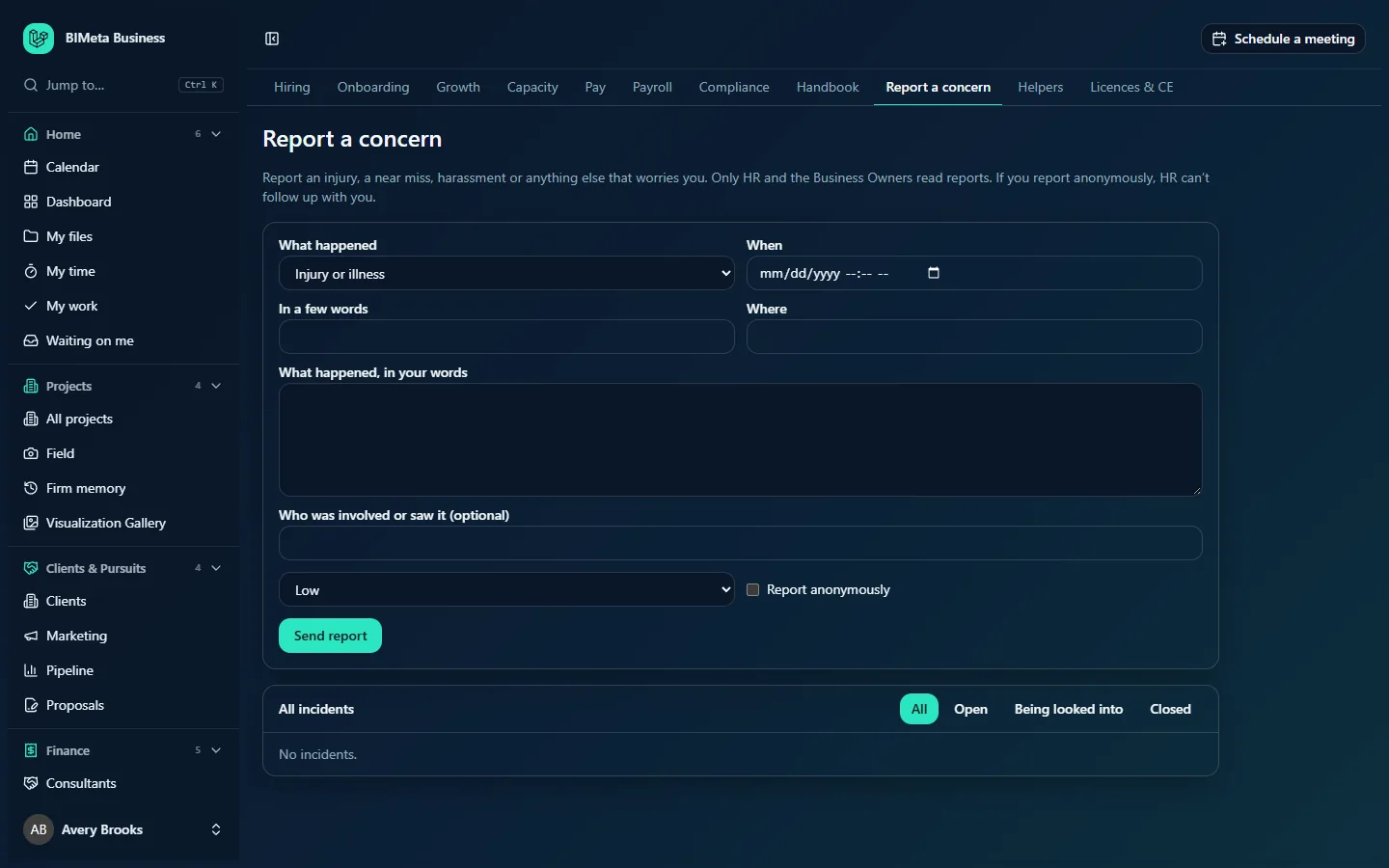
The screenshot shows a Business Owner's view: the report form for everyone, then All incidents, which only HR and Owners see. A User sees the form and, once they have reported something under their name, Your reports.
A tour of the page
The introduction
"Report an injury, a near miss, harassment or anything else that worries you. Only HR and the Business Owners read reports. If you report anonymously, HR can't follow up with you."
The report form
- What happened: Injury or illness, Near miss, Harassment, Discrimination, Security or data, Property damage or Other concern.
- When: the date and time it happened. It can't be in the future.
- In a few words: a short summary (required, up to 200 characters), for example Slip on wet stair at site trailer.
- Where: the place, for example an office, a project site or a room (optional, up to 200 characters).
- What happened, in your words: the full description (required).
- Who was involved or saw it (optional): names of the people involved or witnesses.
- How serious: Low (the default), Medium or High.
- Report anonymously: tick to leave your name off the report.
- Send report.
Your reports
Shown once you've sent a report under your name: each report's summary, type and date, and its status badge: Open, Being looked into or Closed. You see the status only, not HR's notes. Anonymous reports are not listed here, because they aren't linked to you.
All incidents (Human Resources and Business Owners)
The header has filter buttons: All, Open, Being looked into and Closed. The list shows up to 200 reports, open ones first, newest first. Each report shows:
- The summary, a type badge and a severity badge (High is highlighted).
- When it happened, who reported it (or Anonymous) and where.
- A Legal hold badge if it's on legal hold.
- The full description and Involved: ….
- A handling form: Status, How serious, Looked after by (anyone active in the firm, or Nobody yet), OSHA recordable, Legal hold, What was done and Save.
"No incidents." appears when nothing matches the filter.
How to …
Report a concern
- Open People → HR and the Report a concern tab.
- Choose What happened and set When.
- Write a short summary in In a few words and, if useful, Where.
- Describe it in What happened, in your words. Stick to what you saw and heard.
- Optionally list who was involved or saw it, and choose How serious.
- Tick Report anonymously if you don't want your name on it.
- Click Send report. You'll see "Reported. HR will look into it, and you can follow its status here." or, if anonymous, "Reported anonymously. Thank you."
A summary, a type and a description are required: "Choose what happened, and describe it."
Follow up on your report
Come back to the page and check Your reports. The badge changes from Open to Being looked into to Closed as HR works on it. HR may contact you directly for more detail.
Handle a report (HR and Owners)
- Use the filters to find it, for example Open.
- Set Status to Being looked into and choose who it's Looked after by.
- Adjust How serious if needed.
- Record your steps and outcome in What was done.
- Tick OSHA recordable if the injury or illness must go in your OSHA log, and Legal hold if the report must be kept because of a legal matter.
- Click Save. You'll see "Incident updated". Each update is recorded in the audit log.
- When finished, set Status to Closed and save. The closing date is kept, and the reporter sees Closed.
Note that the two checkboxes are saved as they are each time you save, so leave them ticked on later saves if they still apply.
Tips and good to know
- Anonymous really is anonymous: the reporter isn't stored with the report or in the firm's logs. The trade-off is that HR can't ask you questions or tell you the outcome, and the report won't appear under Your reports.
- Reporting doesn't send an email. HR and Owners see new reports when they open the page, so for anything urgent (an injury needing care, immediate danger) also call the right person or emergency services first.
- Closed reports may be removed after a number of years if your firm sets a retention rule for closed incidents under Compliance. Reports on legal hold are always kept.
- For problems with the portal or your computer, use Firm → Support instead.
Troubleshooting / FAQ
Can my manager or an Admin read my report?
No. Only Human Resources and Business Owners can read reports, unless your manager or that Admin also holds one of those roles.
Why don't I see my report under Your reports?
You sent it anonymously. Anonymous reports aren't linked to you, so they can't be shown to you.
Why don't I see All incidents?
It's only for Human Resources and Business Owners. Everyone else sees the form and their own reports.
The When field won't accept my date.
It can't be in the future. Enter when it actually happened.
Was this article helpful?
Share